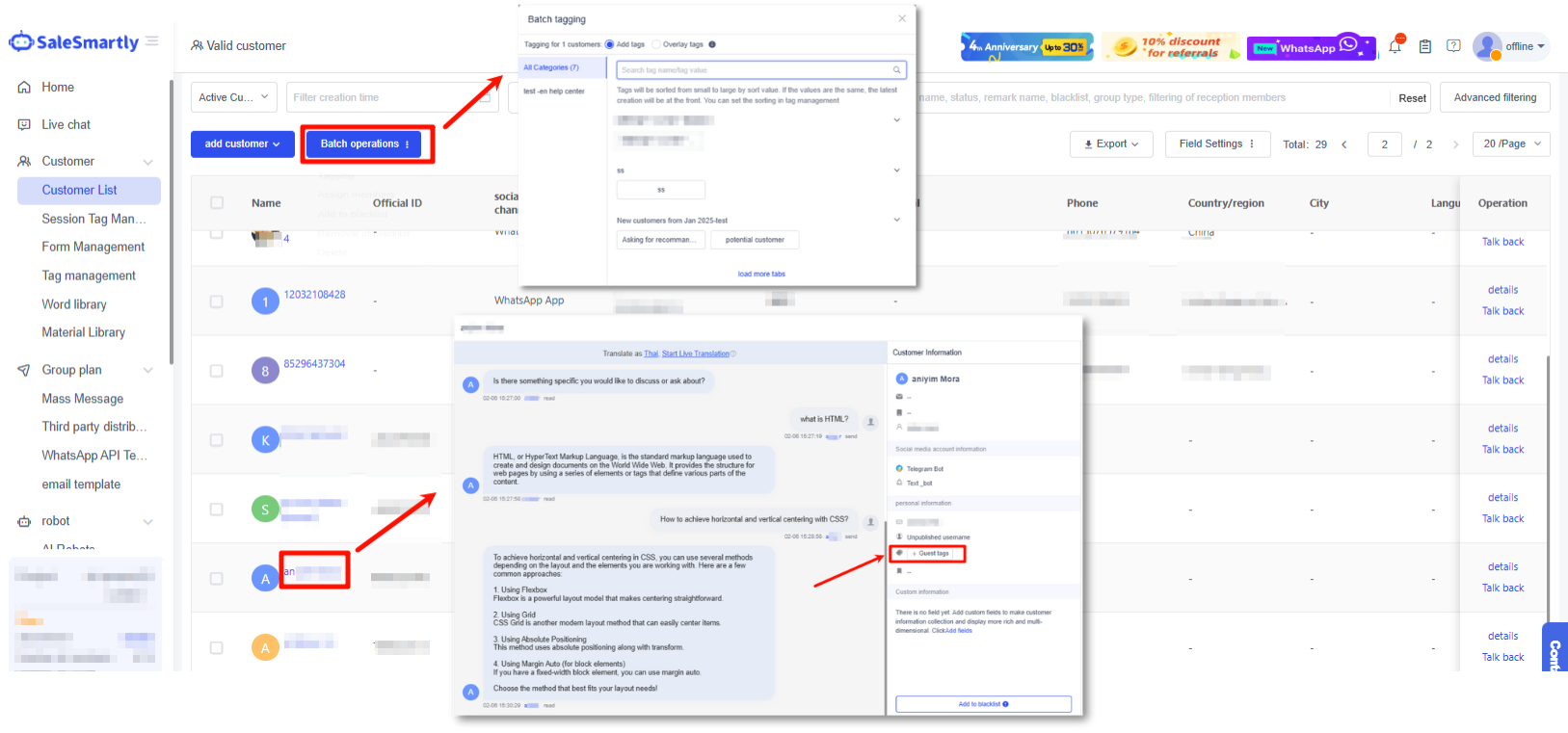
Visitor Tagging
1. Visitor Tagging: Efficiently Categorize Visitors and Sessions
Efficiently categorize visitors and sessions using tags. Streamline audience targeting for campaigns, automation, and follow-ups by organizing users with customizable labels.
2. Functional Description
2.1. Add Guest Tags
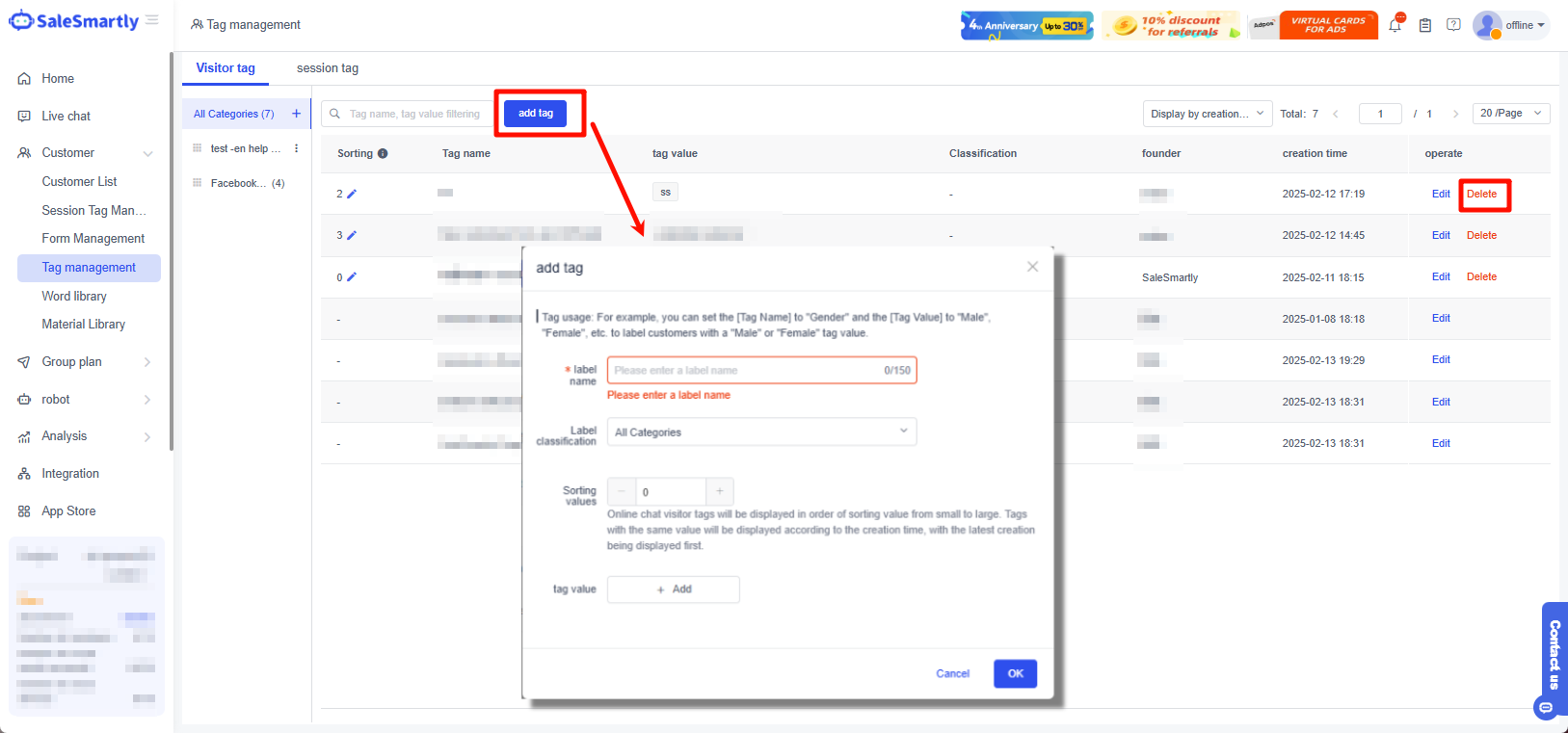
- In Tag Management - Visitor Tag, click Add Tag > Enter the tag name > and enter the tag value > Click OK to generate a new tag.
- If you want to delete a tag, click Delete to delete the tag name.
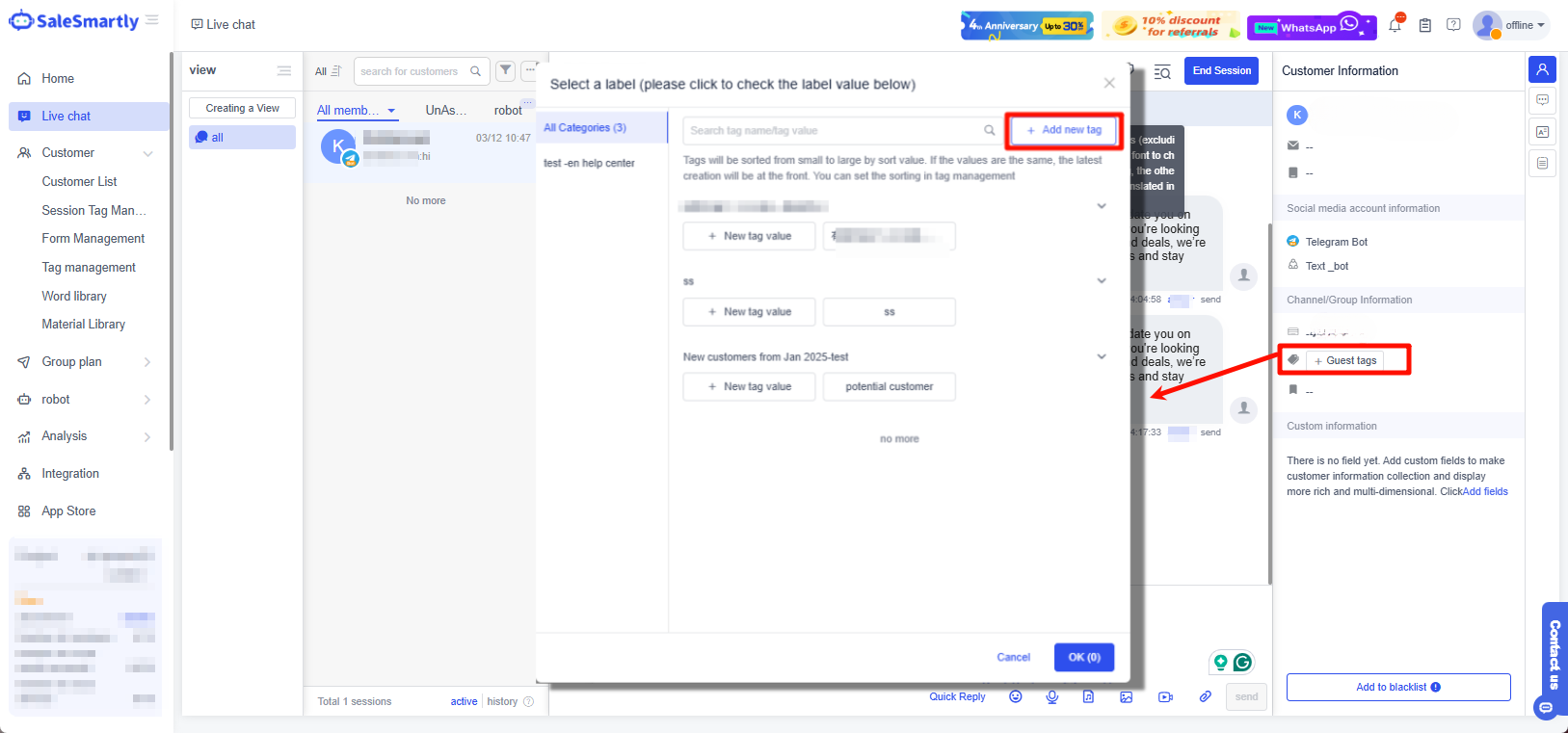
- In Chat, open a conversation > Customer Information > click the Visitor tag > click Add New Tag, the same as the previous step, you can also add new tags.
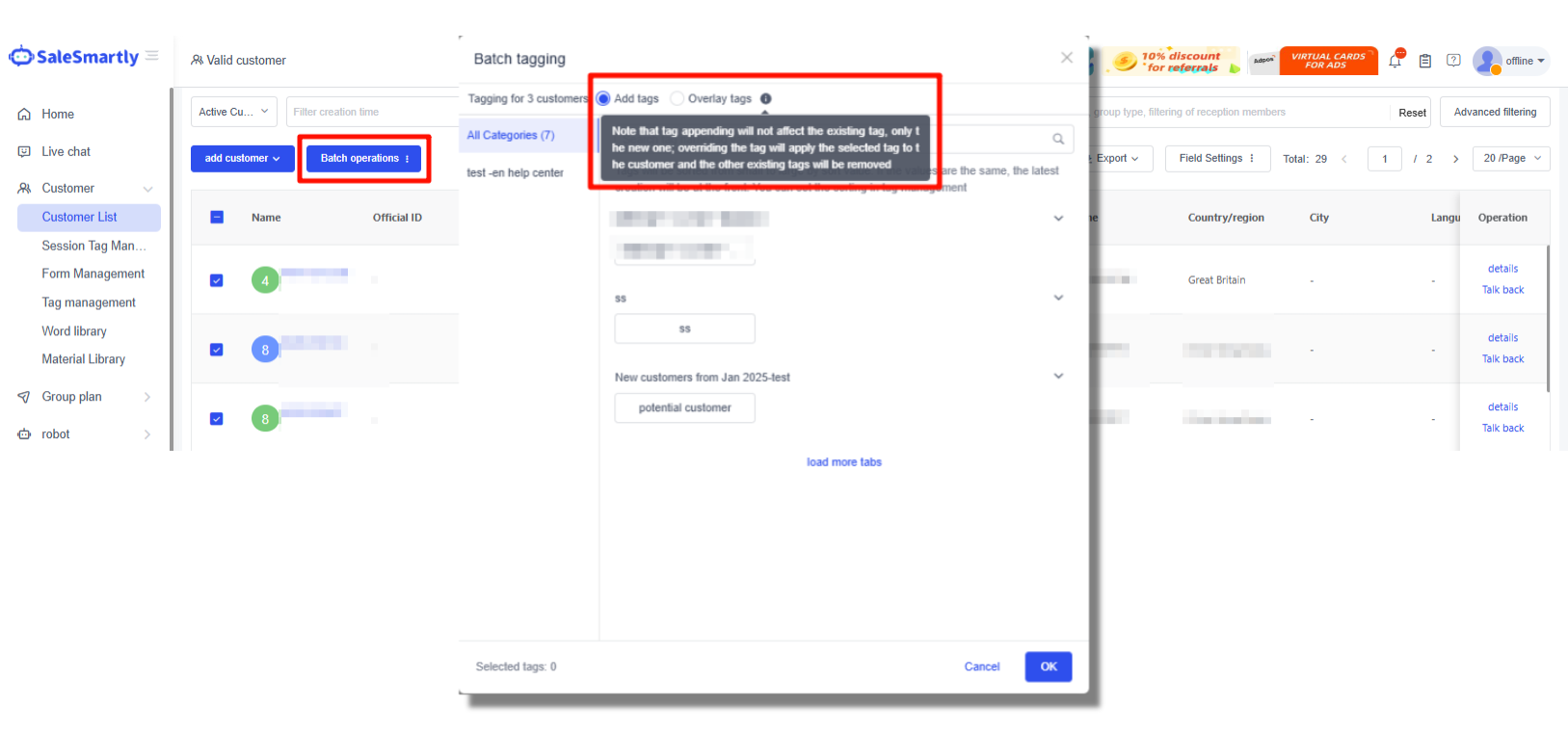
- In Client - Customer List, click Batch operations to add visitor tags to users in batches and choose to add tags/overlay tags.
Note:
- Adding additional labels will not affect existing labels, only new labels will be added.
- Overlaying labels will add the selected labels to the customer, and other existing labels will be cleared.
2.2. Apply Visitor Tags
2.2.1 Import Contacts
In Client - Customer List, you can add tags to users when importing user information.
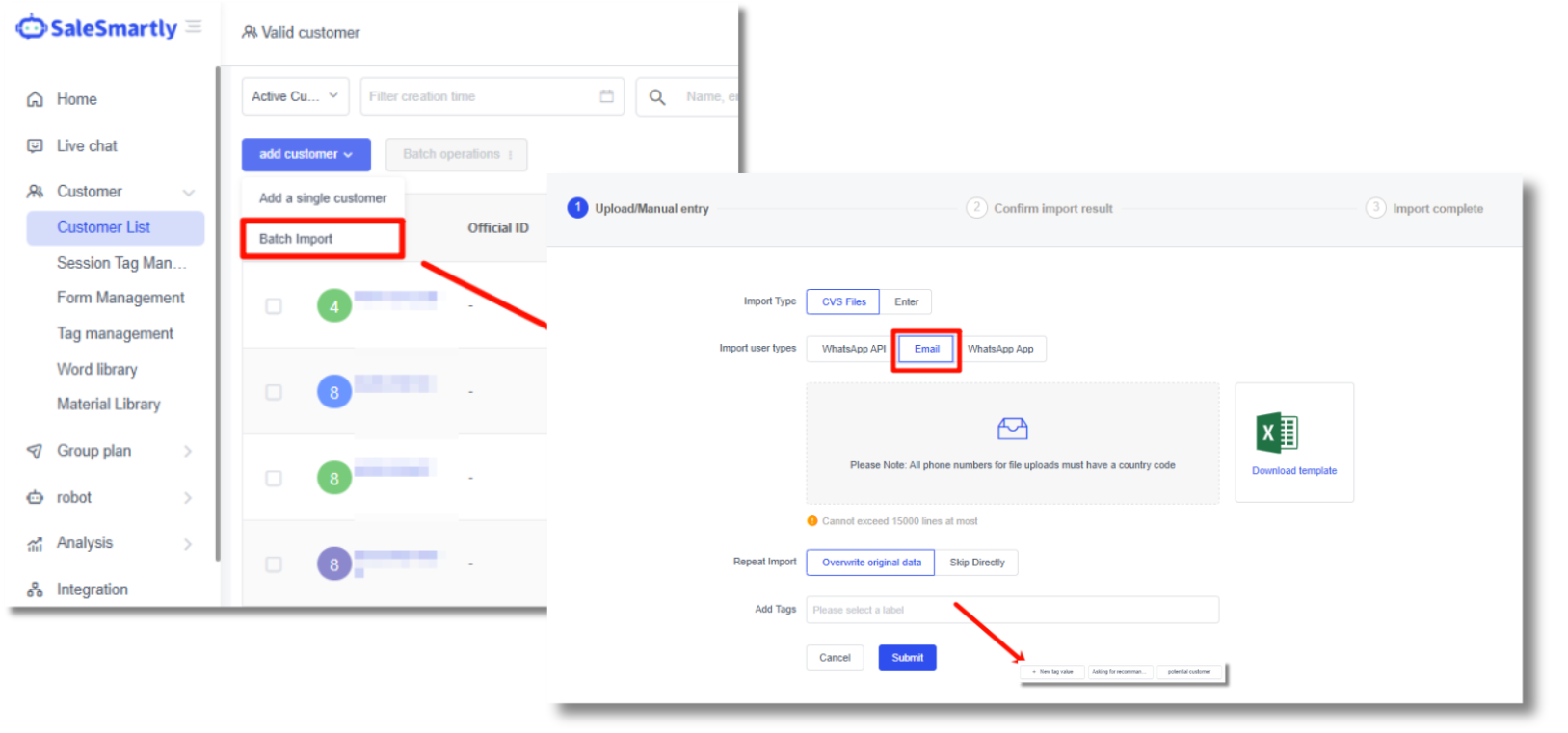
2.2.2 Adding Actions to the Automation Process
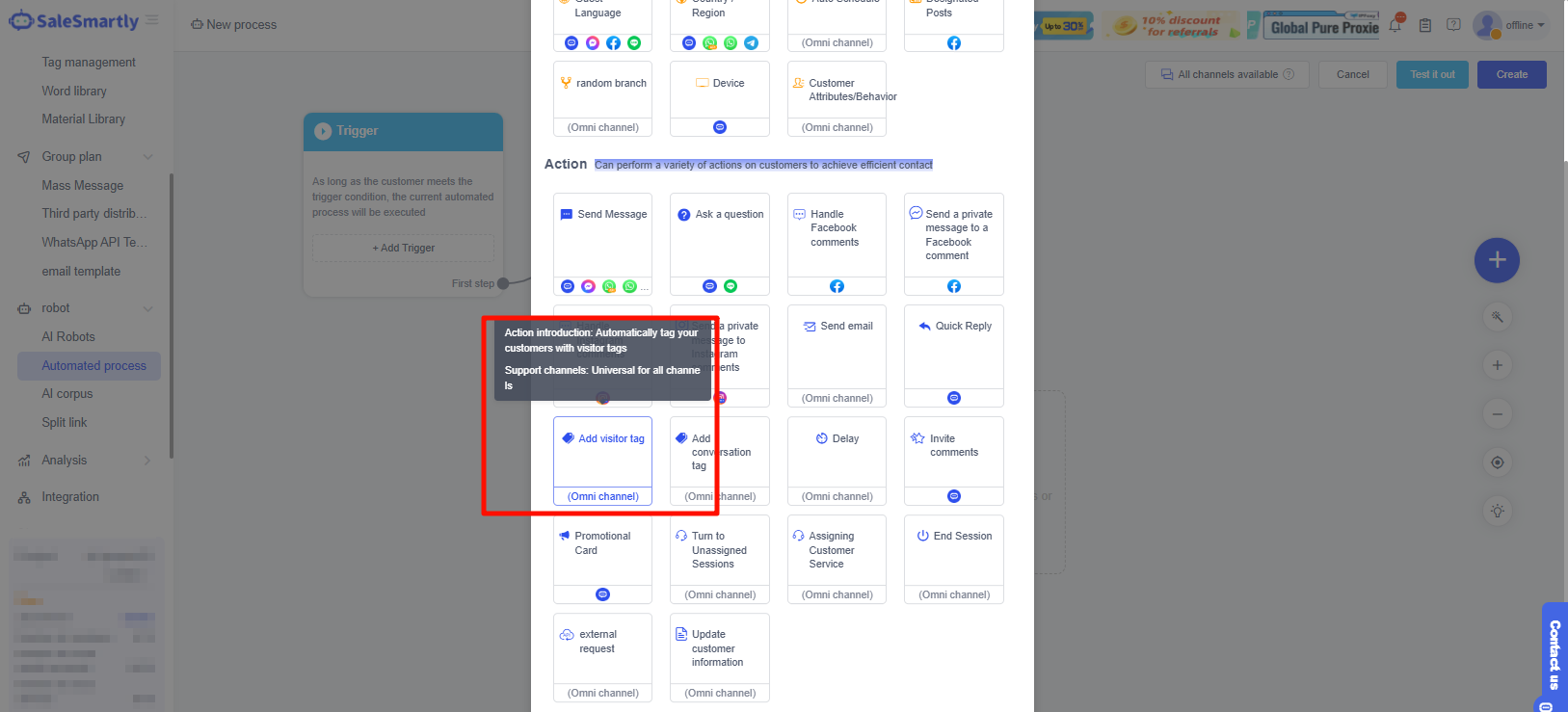
In Robot-Automated Process, you can create an action to add a visitor tag. With the help of the automation process, you can automatically tag customers as visitors.
2.2.3 Add Session Tags
Conversation tag: It is used to mark and classify customer conversations in the online customer service system. This function can help customer service quickly identify attributes such as conversation priority and question type, making it easier for customer service to classify and distinguish conversation processing.
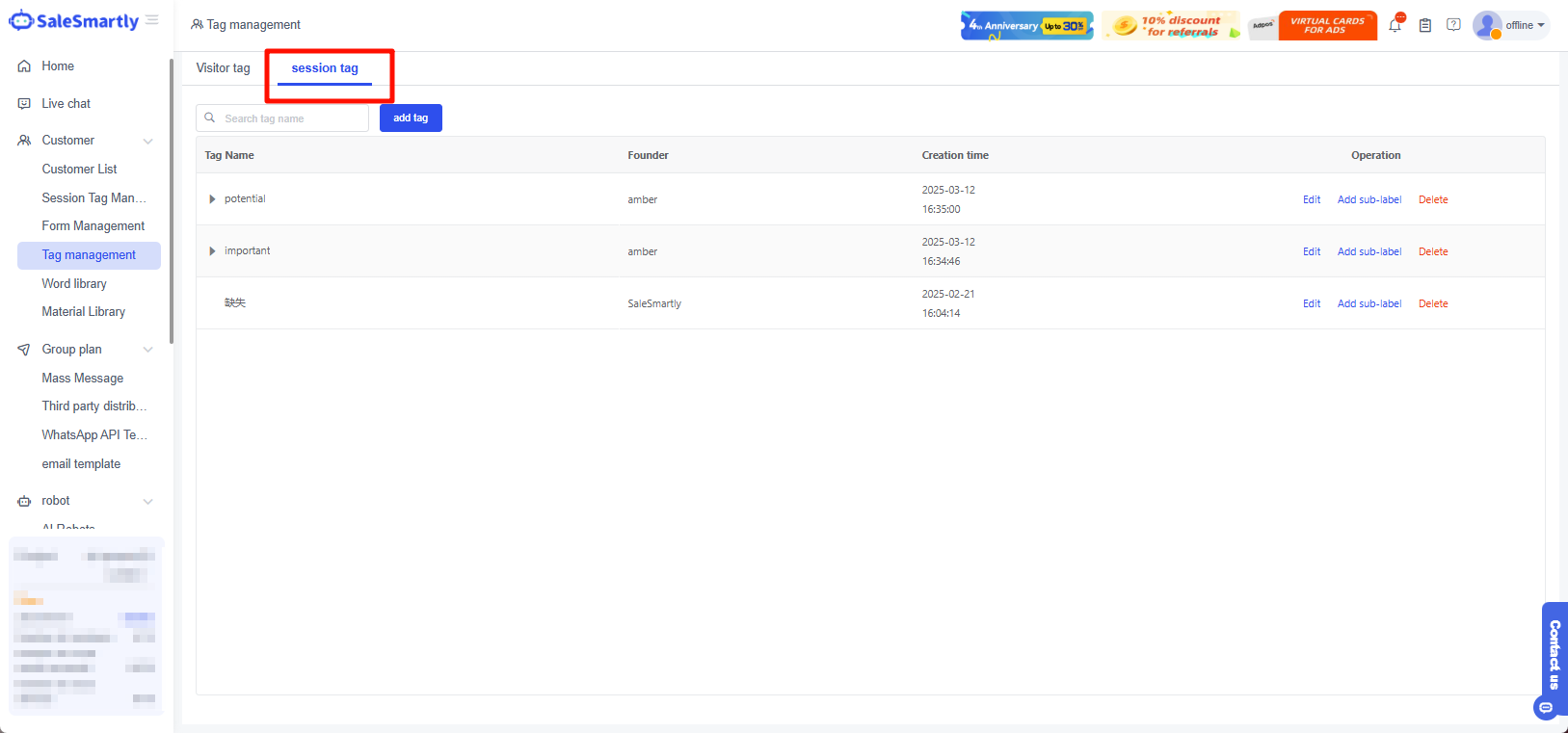
In Client - Tag Management, you can add and manage session tags. Click a tag record to add sub-tags under the tag (up to three levels of tags). When the mouse arrow moves into a session tag, delete and modify icons will be displayed. Click to delete the tag and modify the session tag name.
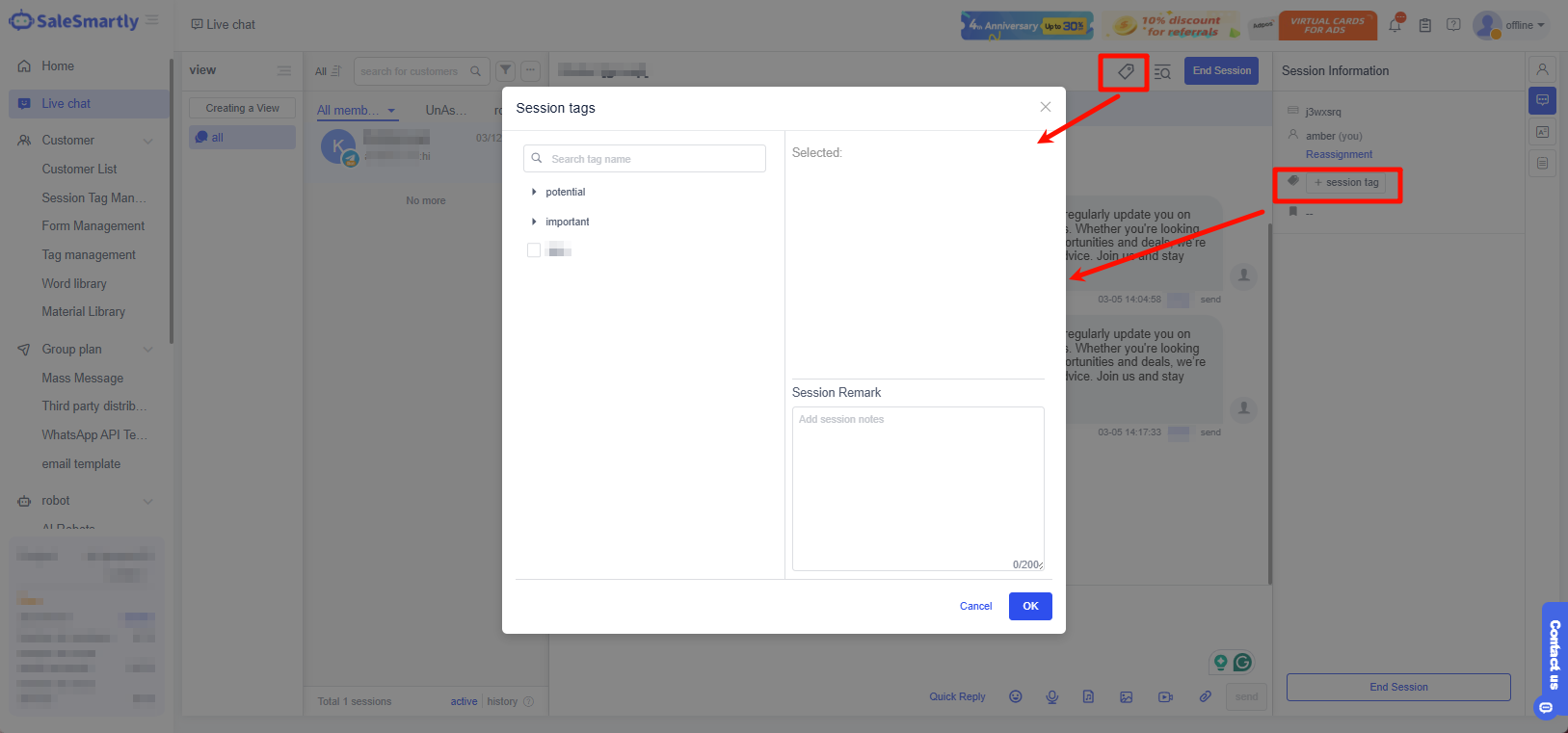
In the Chat, after selecting a session and clicking End Session, you can add a session tag to the session (if you have added subtags, you can only select the subtag with the smallest level) and add notes. When you are done, click OK.
3. Frequently Asked Questions
3.1 How to Tag Users Who Opened the Chat Widget But Didn't Message?
In Client - Customer List - All Customers, check which users have not started chatting, and click Batch operations to add a visitor label.
Or you can click on the user name to enter the conversation and tag the user in the profile. (For detailed instructions on all customers, please see All Users.)