Integrate Instagram
1. Integrate Instagram with SaleSmartly
Integrate Instagram to centralize customer interactions on SaleSmartly. Sync historical comments, direct messages, and real-time chats to manage your Instagram account alongside other channels, streamlining customer service and boosting engagement.
2. Step-by-Step Guide
Follow these steps to integrate:
2.1. Switch your Instagram account to a business or creator account
2.1.1. Switch to a professional account
Open Instagram https://www.instagram.com/ > Click More to enter Settings > Click Professional account.
Note: If you don't have an Instagram account, visit Instagram Help Center to create one.
If you have switched to a professional account, you can skip this step.

2.1.2. Fill in your information
Choose the 'Creator' or 'Business' account type, fill in the required details, and confirm to activate your professional account.


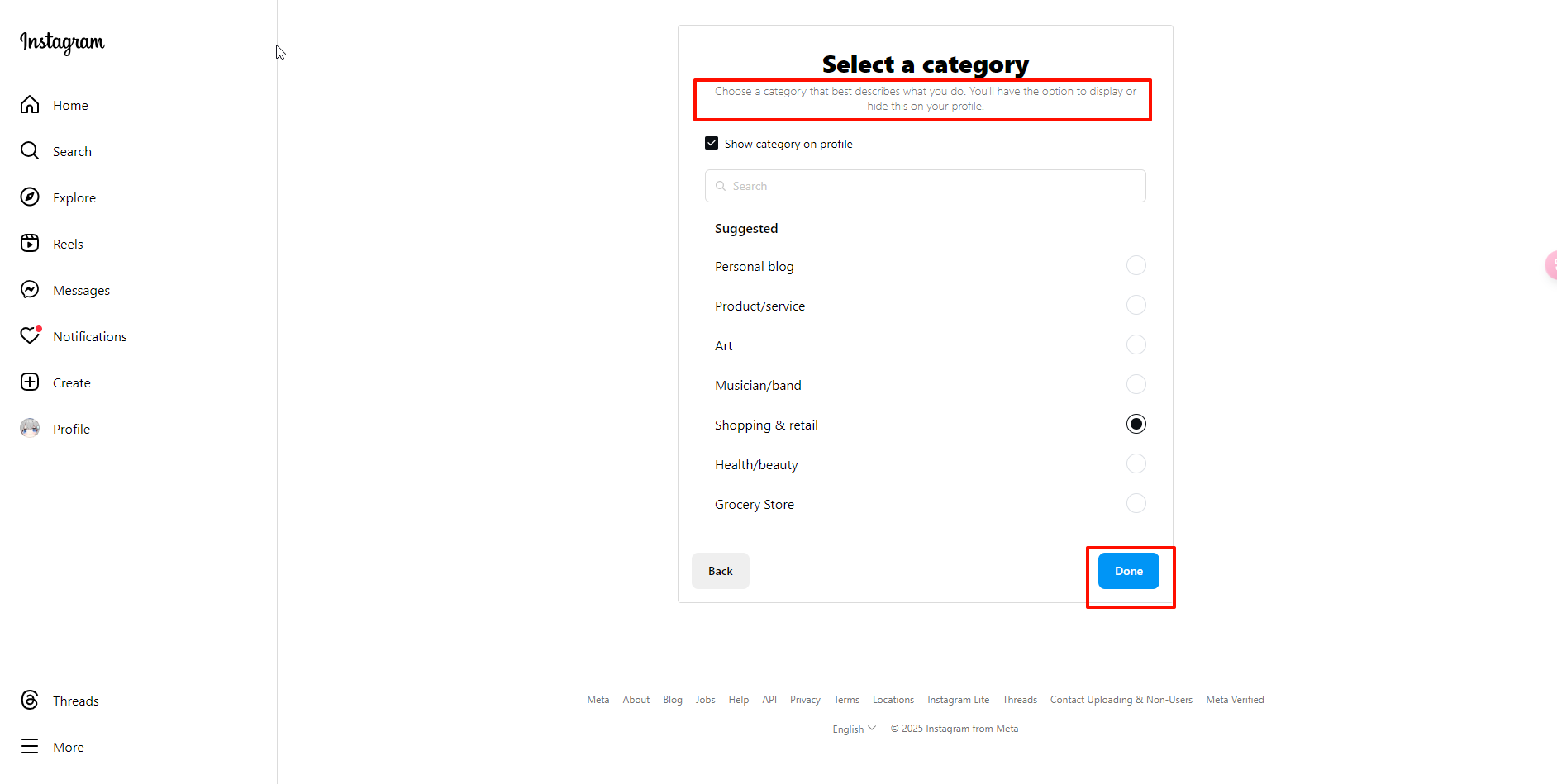


2.1.3. Mobile users
The mobile switching process is as follows:
- First, go to your profile and tap the hamburger icon (☰) in the top-right corner.
- Click Settings > Account
- Tap the blue text Get a Free Professional Account and follow the prompts.

2.2. Link Instagram to a Facebook Page
2.2.1. Open Facebook public page settings
Note: Skip this step if Instagram is already linked to a Facebook Page.
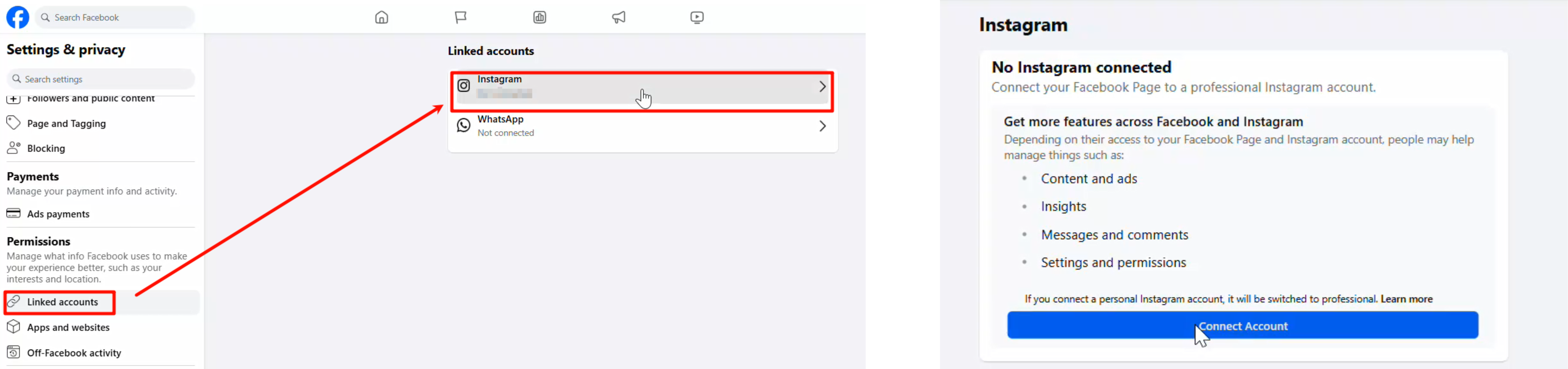
Open your Facebook public page, click Settings - Settings & Privacy - Linked Accounts - Instagram
2.2.2. Link your Instagram account
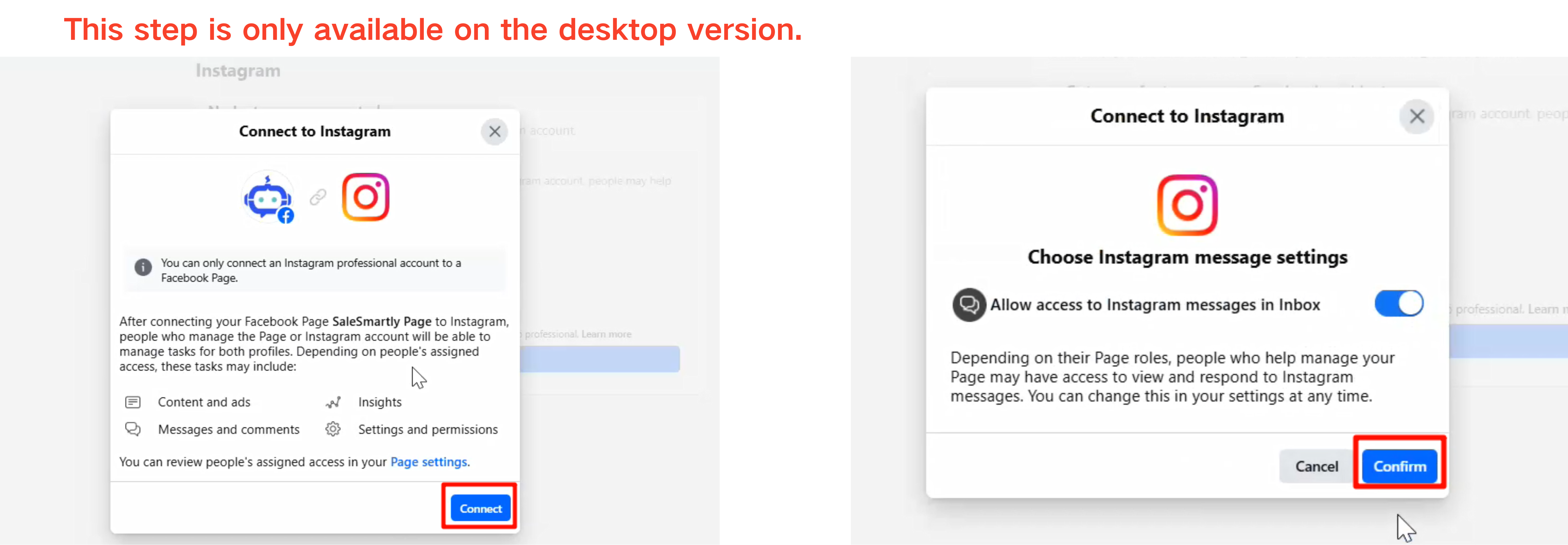
Select Linked Account - Instagram - Connect Account - Connect - Confirm.
| Note: Check the box for "Allow Instagram Messages in Inbox" to ensure messages reach your platform. Skipping this step will block incoming messages entirely. |
|---|
2.2.3. Jump to the Instagram official website
Log in to Instagram when prompted to complete the binding process.

2.3. Integrate Instagram with SaleSmartly
2.3.1. Add Instagram
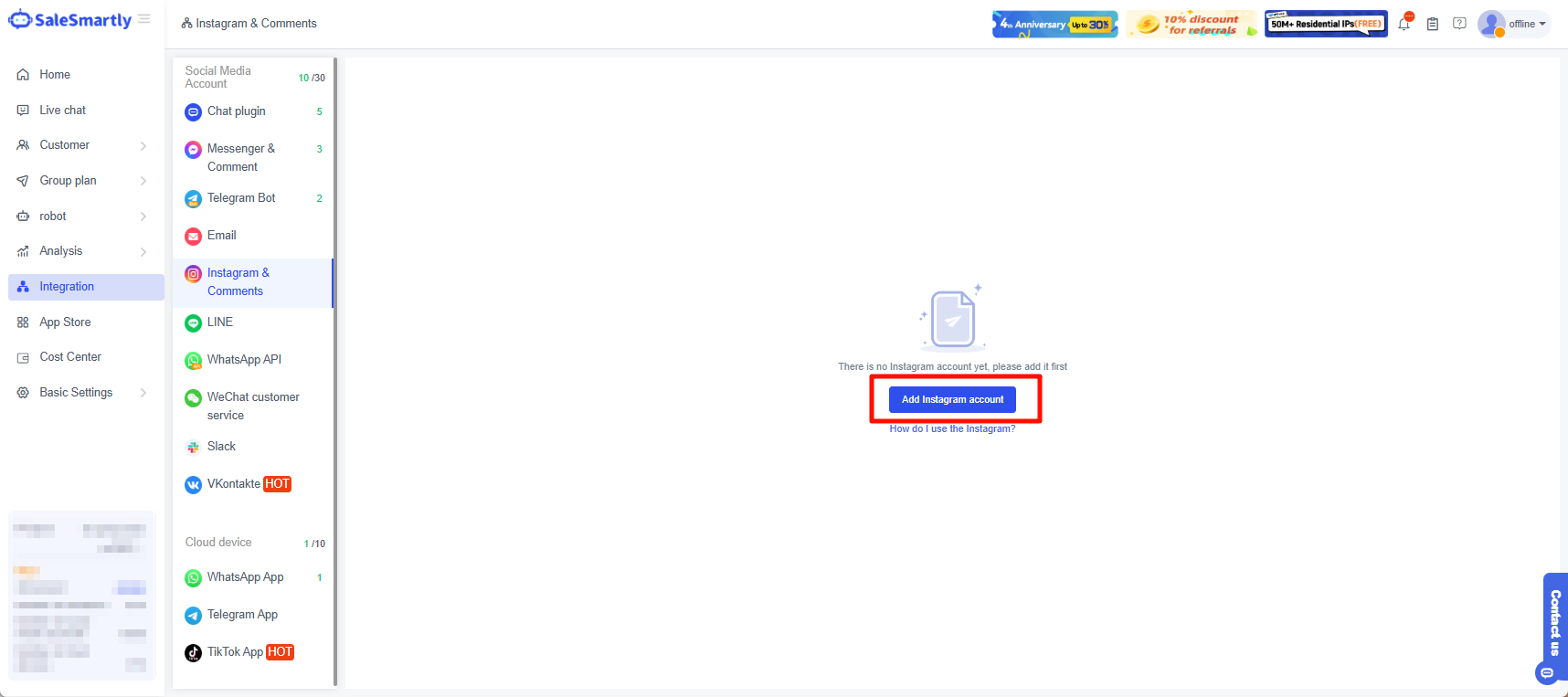
First, click Add Instagram Account.
2.3.2. Linking Instagram business account
Log into your Facebook account and click Continue as (Your Name) > check the Instagram business account you want to link.
Note: To use Instagram automation, you need to make sure that this account is a business or creator account; if your account has more than 500,000 followers, you must use a business account. If you are not sure how to switch your Instagram account to a business or creator account, you can go to the first step of this document to view the tutorial.

2.3.3. Verify Facebook Page linkage
Ensure that your Instagram account is linked to a Facebook Page, or the authorization will fail.
Note: If you are not sure how to manage a Facebook Page, you can go to step 2 of this document to view the tutorial.
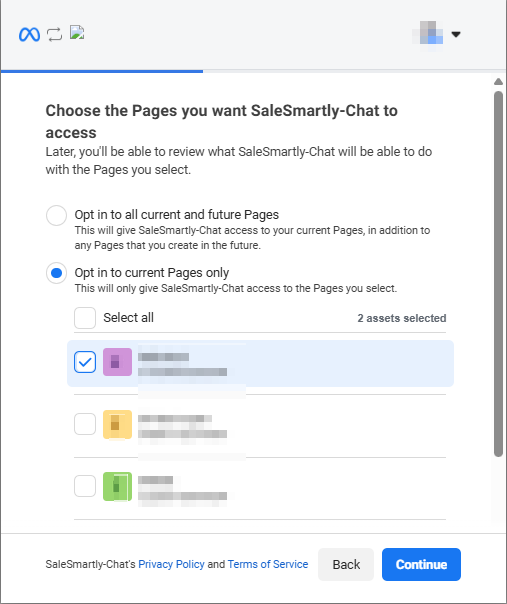
2.3.4. Permissions
Select the permissions SaleSmartly can access (recommended: select all). Click Save > Continue > Got It to complete authorization.
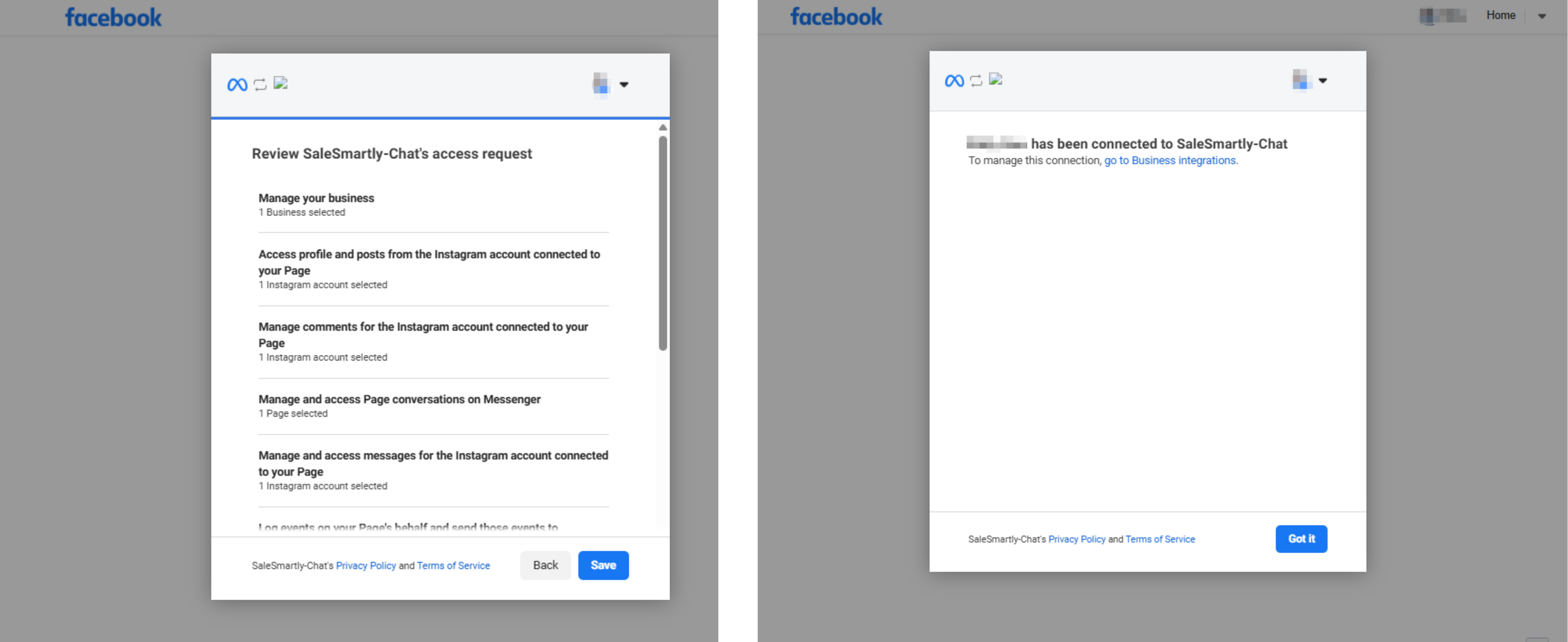
2.3.5. Activate
Return to SaleSmartly's dashboard. Refresh the page until the Instagram account appears. Click Enable Private Message or Enable Comments to start managing chats.
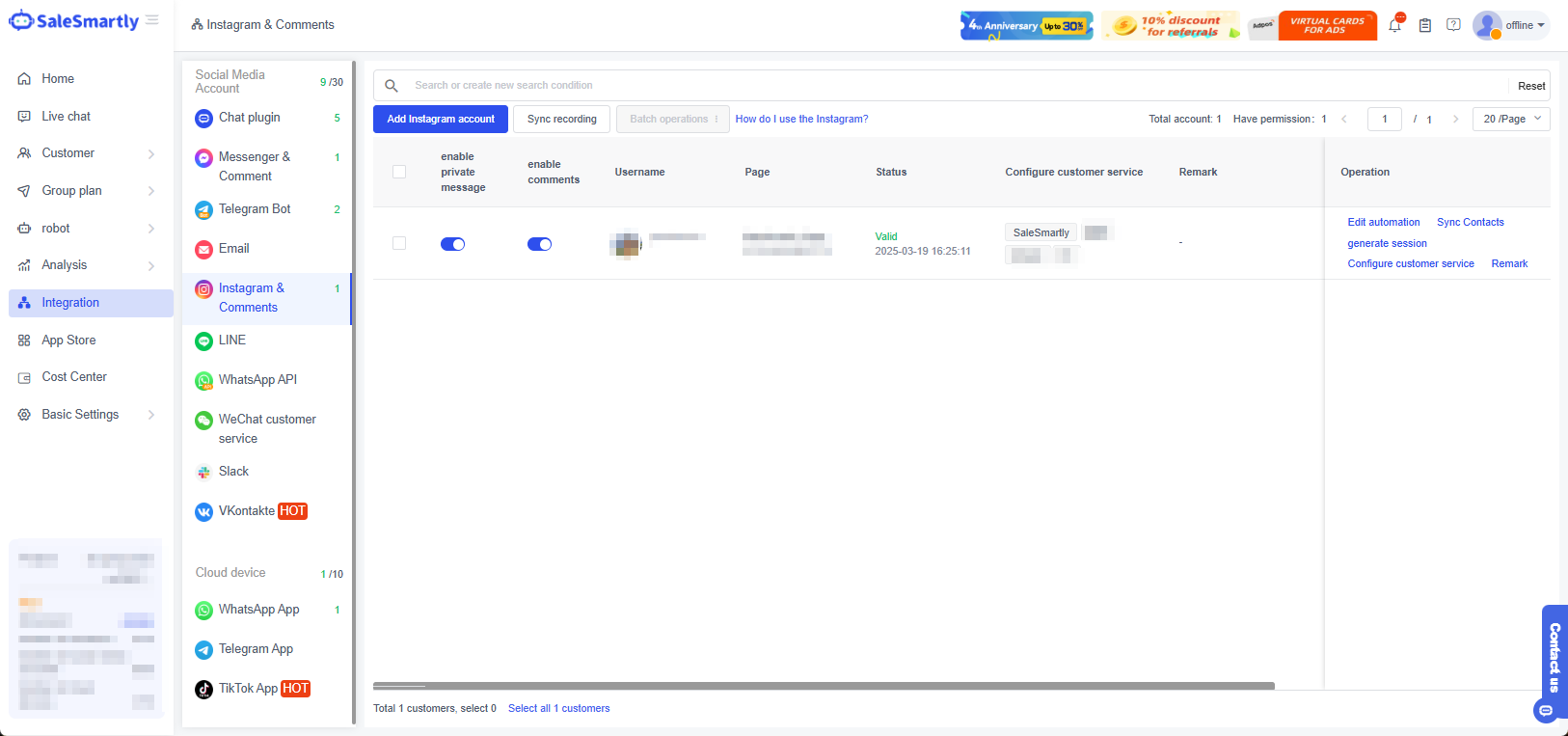
Note: If the Instagram account doesn't sync after multiple refreshes, the authorization may have failed.
The reasons for failure may be as follows:
- Your Instagram account isn't a business profile.
- No linked Facebook Page.
Reauthorize the account and verify settings.
3. Frequently Asked Questions
3.1. After integration or multiple refreshes, the account still shows as invalid
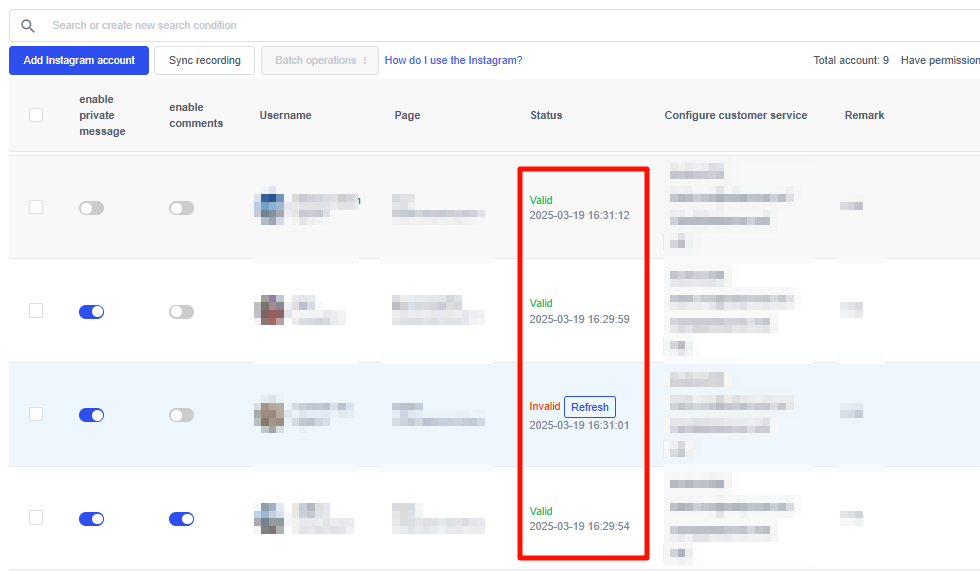
Possible Causes:
- Recent platform updates or changes to the Instagram account credentials (e.g., password reset).
- The Instagram account may be inactive or restricted.
Solution: Reauthorize the account in SaleSmartly.
