Instagram Integration
1. Instagram Integration Introduction
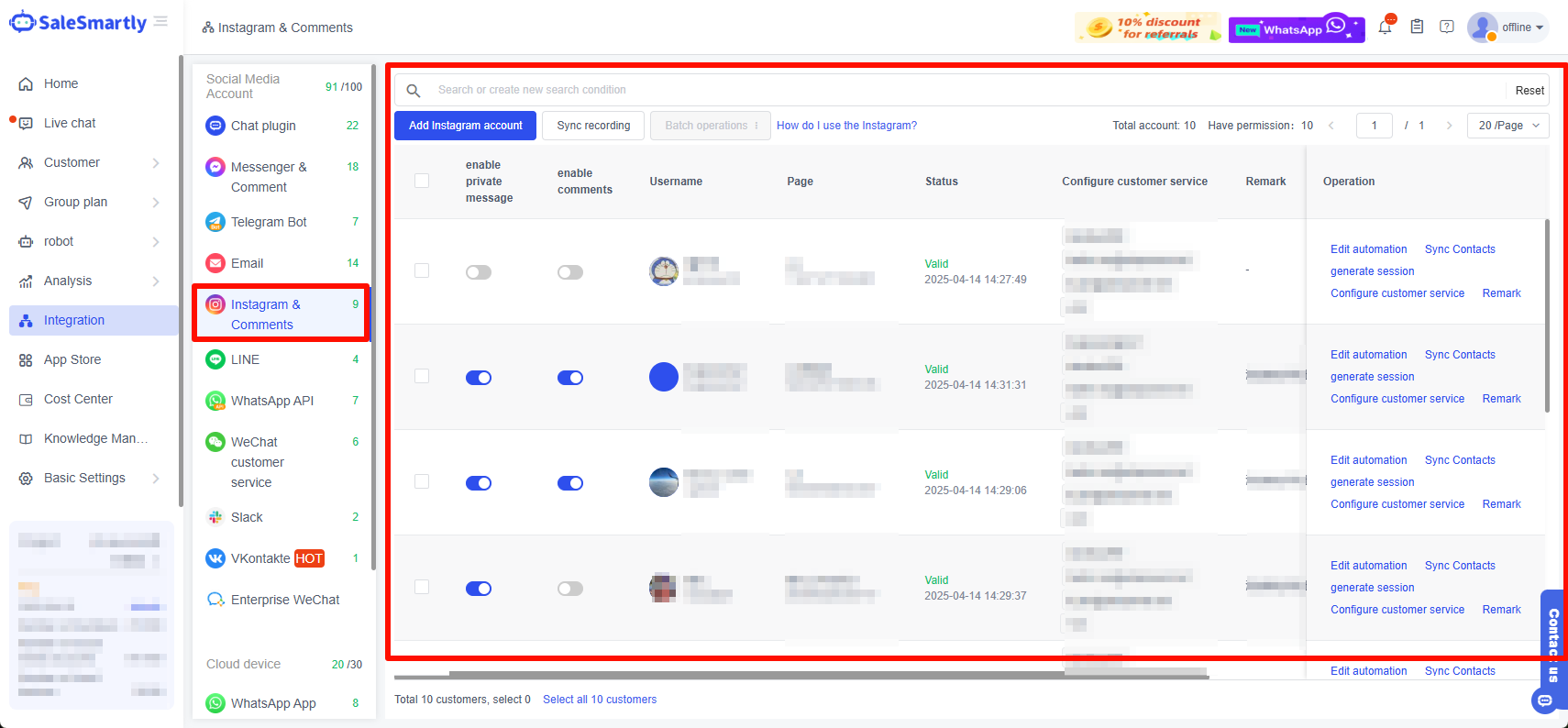
This chapter will introduce you to the relevant functions under the Integration - Instagram & Comments channel, helping you quickly get started with the core functions of the Instagram integration.
2. Instagram Integration Features
2.1. Smart Search Bar
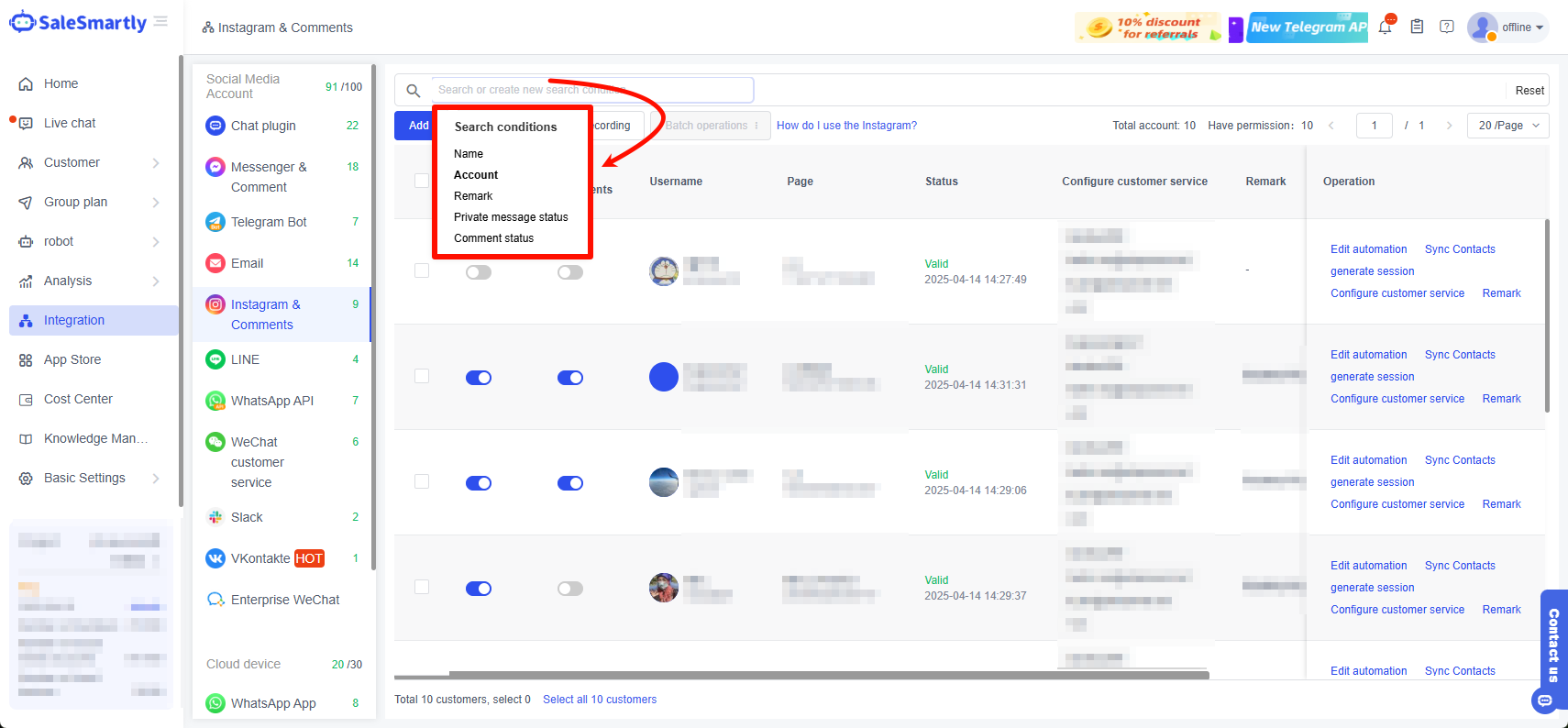
Click the search bar at the top to search by account name, account number, note, private message and comment status to help you find the account quickly.
2.2. Add Instagram Account
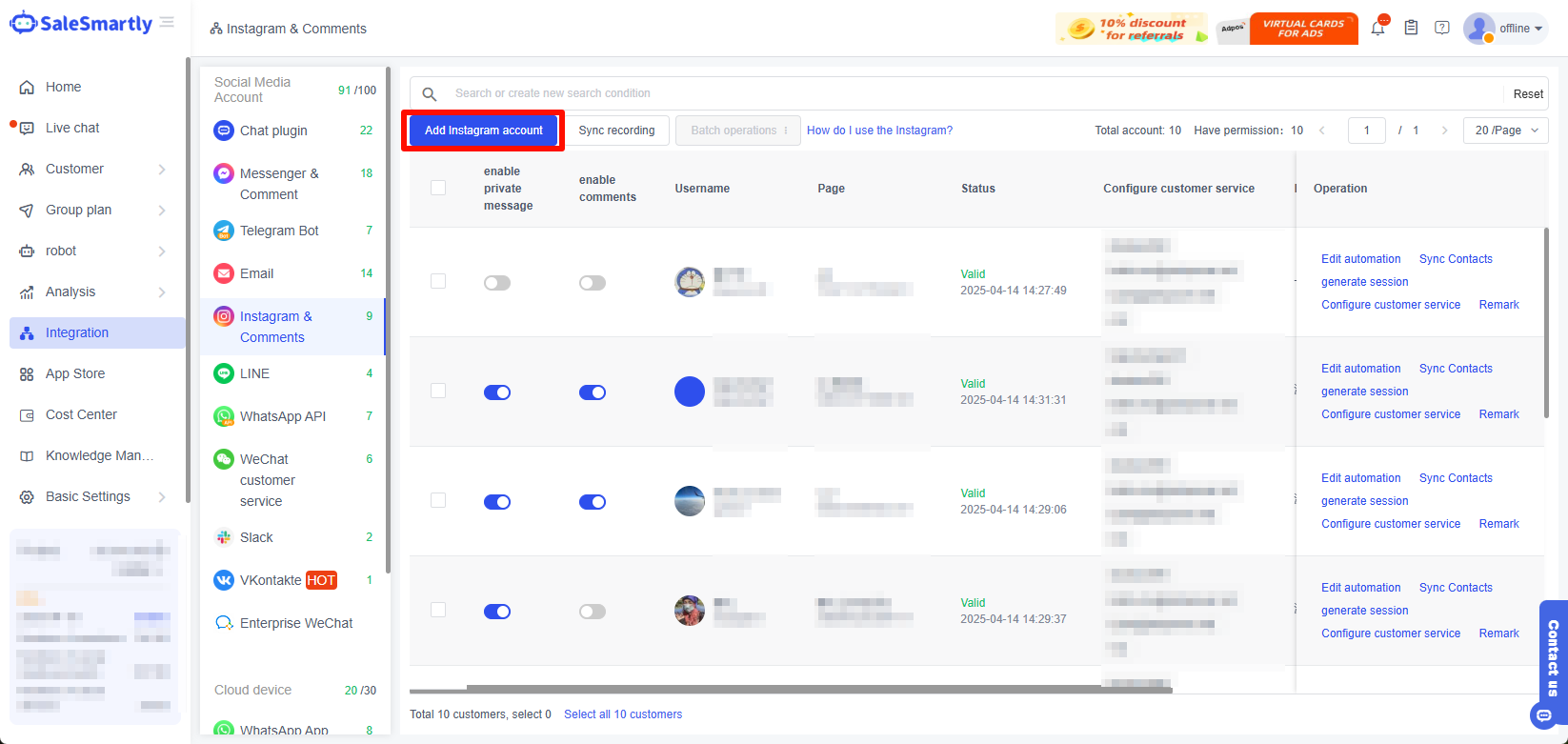
Most of the core functions are based on the prerequisite of successful integration. Therefore, successful authorization is very important. You can click Add Instagram Account to integrate your Instagram account. For detailed procedures, please refer to How to integrate Instagram?
2.3. Activate Instagram Account
Once you have successfully authorized your Instagram account to send private messages and comments, you can manage your multiple private messages and comments on the SaleSmartly in one place.
You don't need to switch homepages repeatedly to reply to user messages. It helps you reply to Instagram & post comments more easily and quickly. Click to activate the account to receive information in real time.
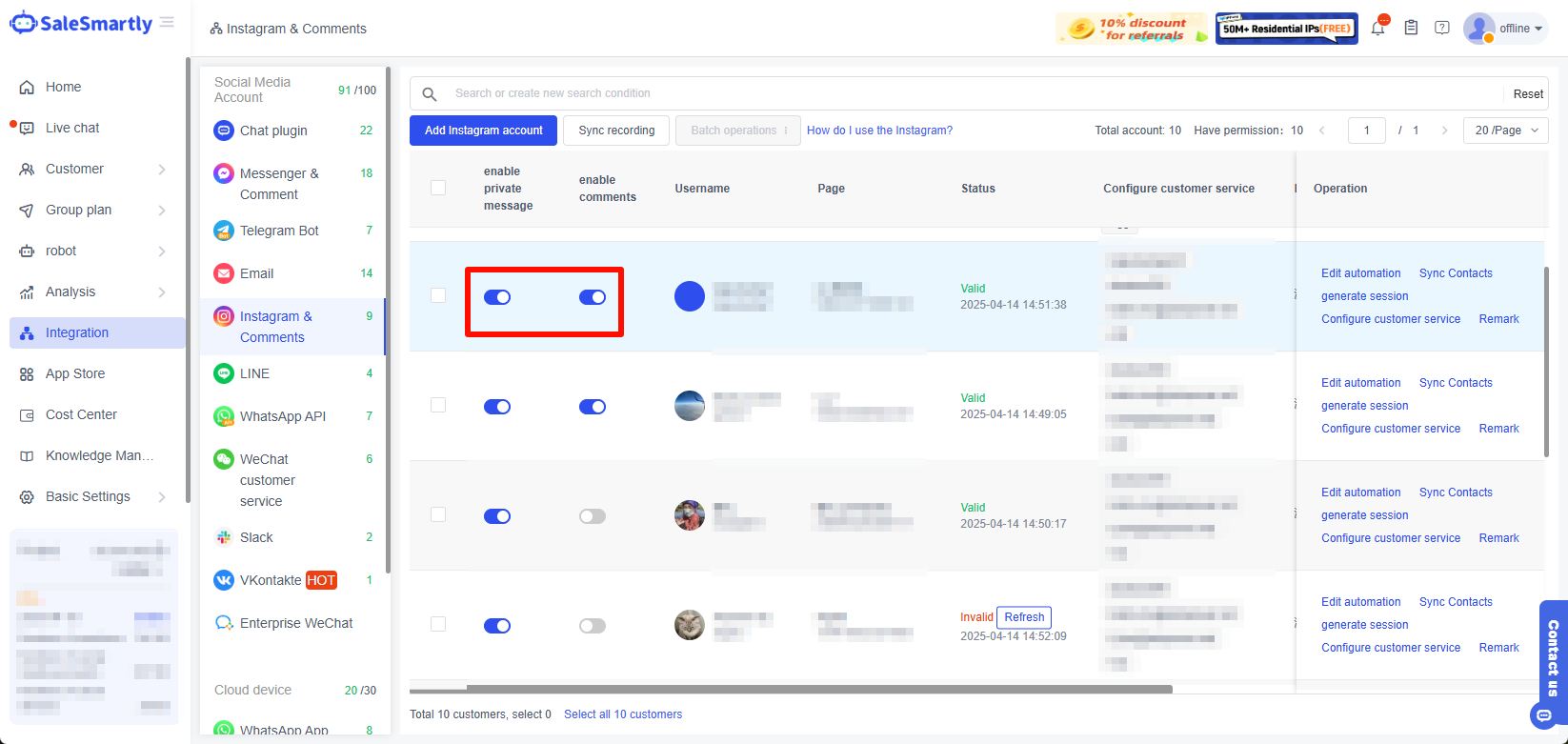
2.4. Add Customer Service - Configure Customer Service
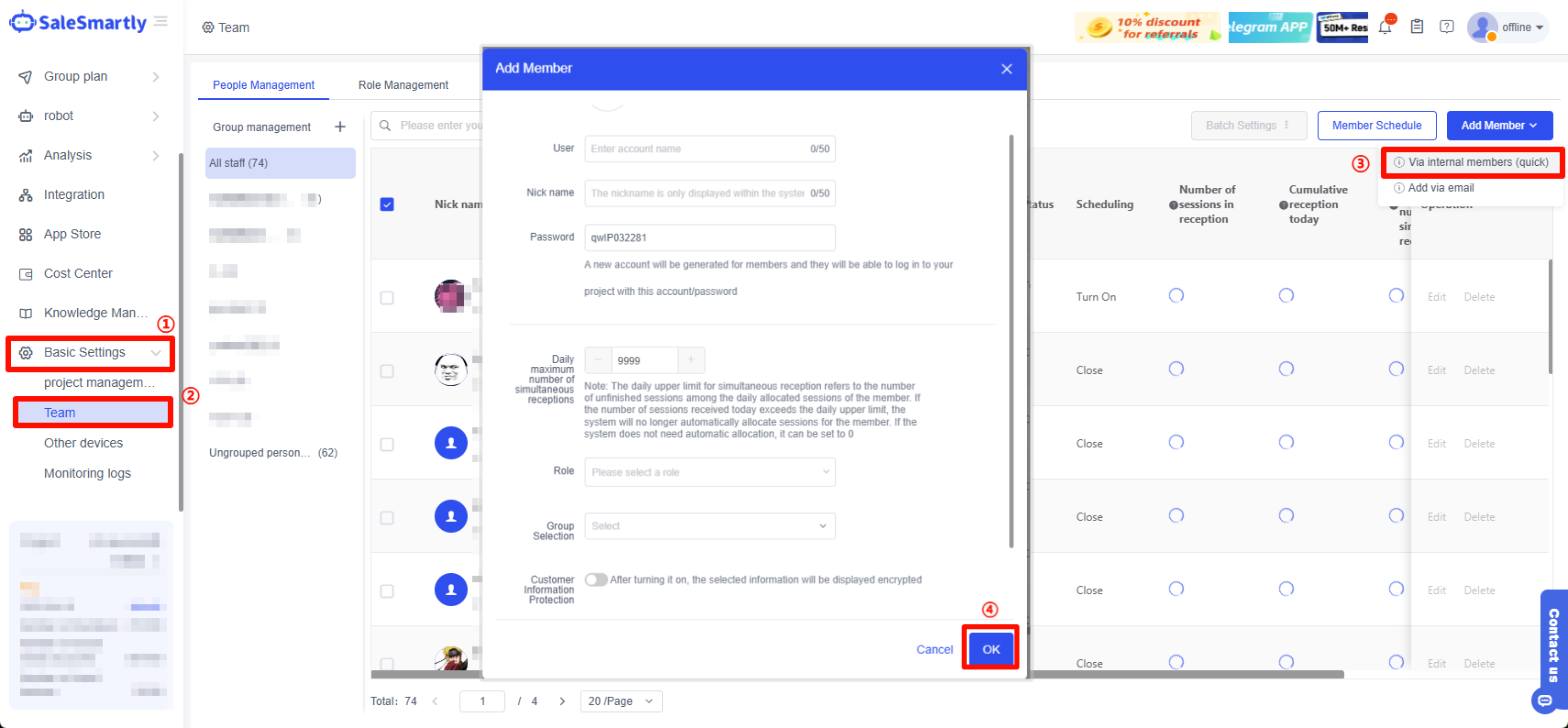
After integrating your Instagram account into Salesmartly, you can configure customer service for your Instagram account to facilitate the management of your Instagram account and comments.
You can add your customer service members in Basic Settings -Team. In addition, you can also configure social media accounts during the creation process.
Click the link for detailed instructions on how to add members to a project.
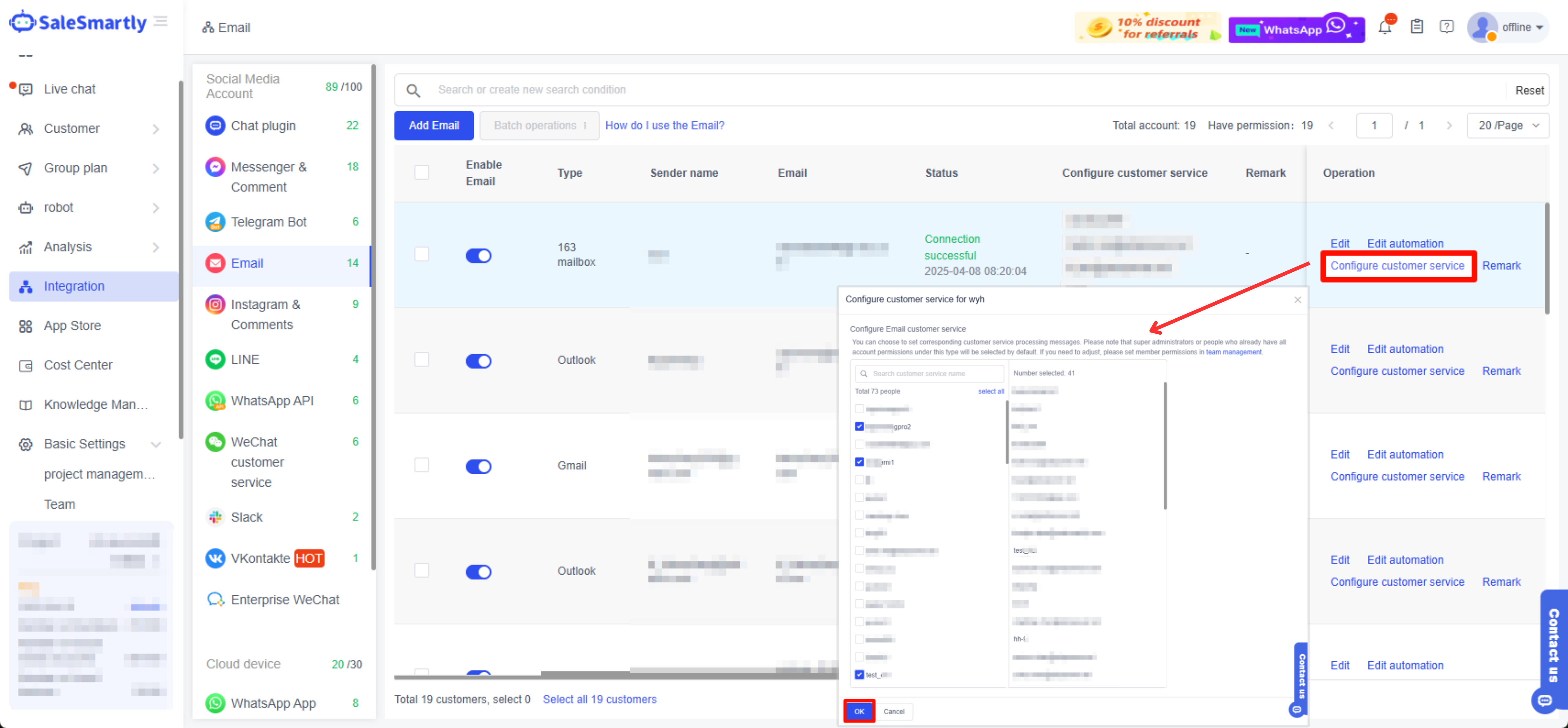
After creating a customer service member, you can also return to the Integration interface to quickly configure the customer service.
Click Configure Customer Service > Check the members you want to configure to this homepage > Click OK.
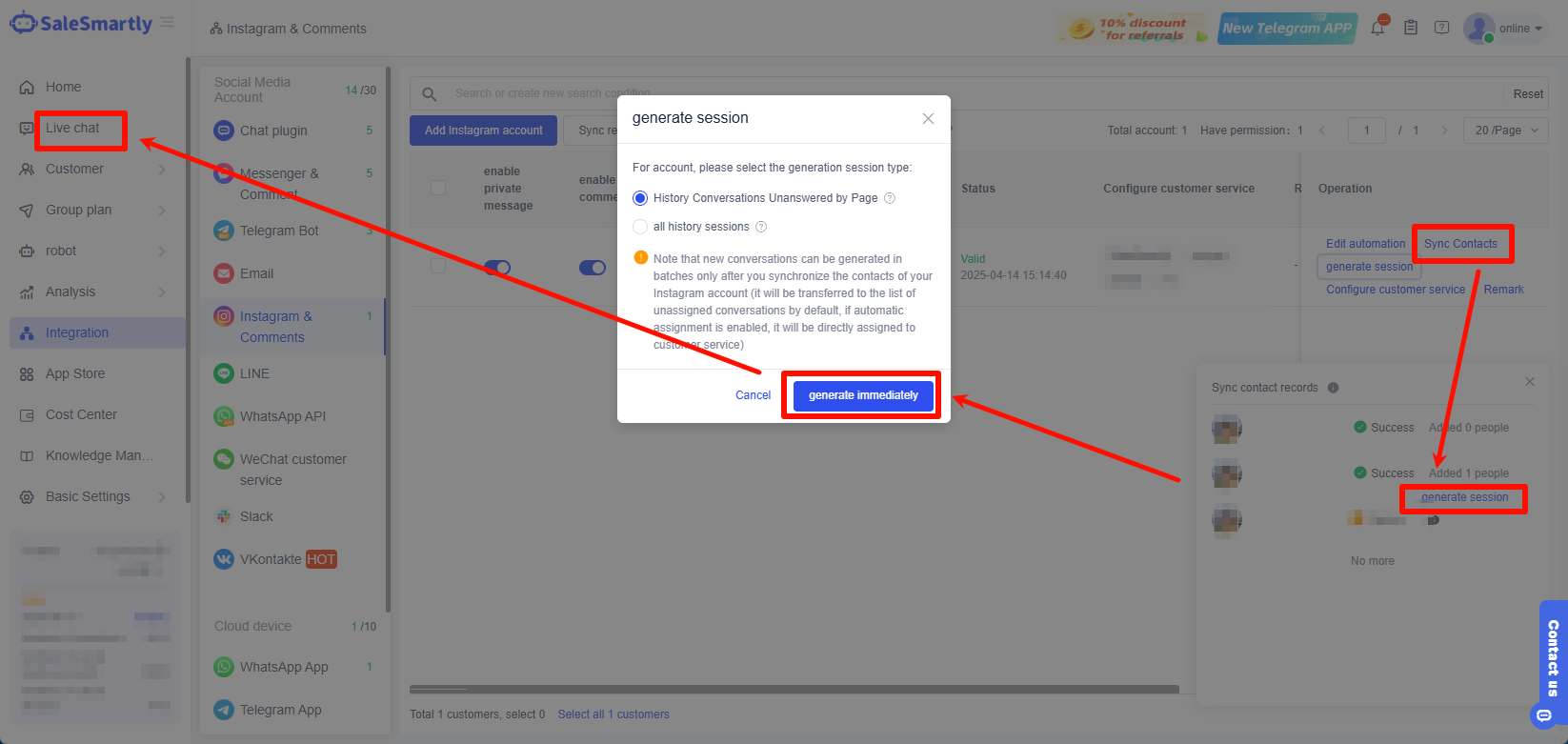
2.5. Synchronize Instagram Contacts & Create Conversations
You can also sync your Instagram contacts to SaleSmartly, making it easier for you to reply to chats, send group messages, and more.
Click to synchronize contacts. This function only supports synchronization of contacts with whom you have chatted. Contacts that have been inactive for more than 30 days or whose accounts are blocked cannot be synchronized. After the first integration, the system will automatically synchronize the latest 20 chat records of the most recent 20 contacts, which can be viewed in the Customer List.
If the synchronization time is too long, you can click Cancel Sync to cancel the contact synchronization process.
After synchronizing contacts, you can also confirm the progress by viewing the synchronization records. The synchronized contacts can be viewed in the Customer - Customer List.
You can only generate a conversation after synchronizing your contacts. SaleSmartly will read your historical conversations and generate them in the online chat.
Please note: Synchronizing contacts will not synchronize chat records of contacts that already exist in the SaleSmartly customer list. If the contact does not exist in the customer list, only the most recent 20 message records of this contact will be synchronized.
2.6. Edit Automation Process
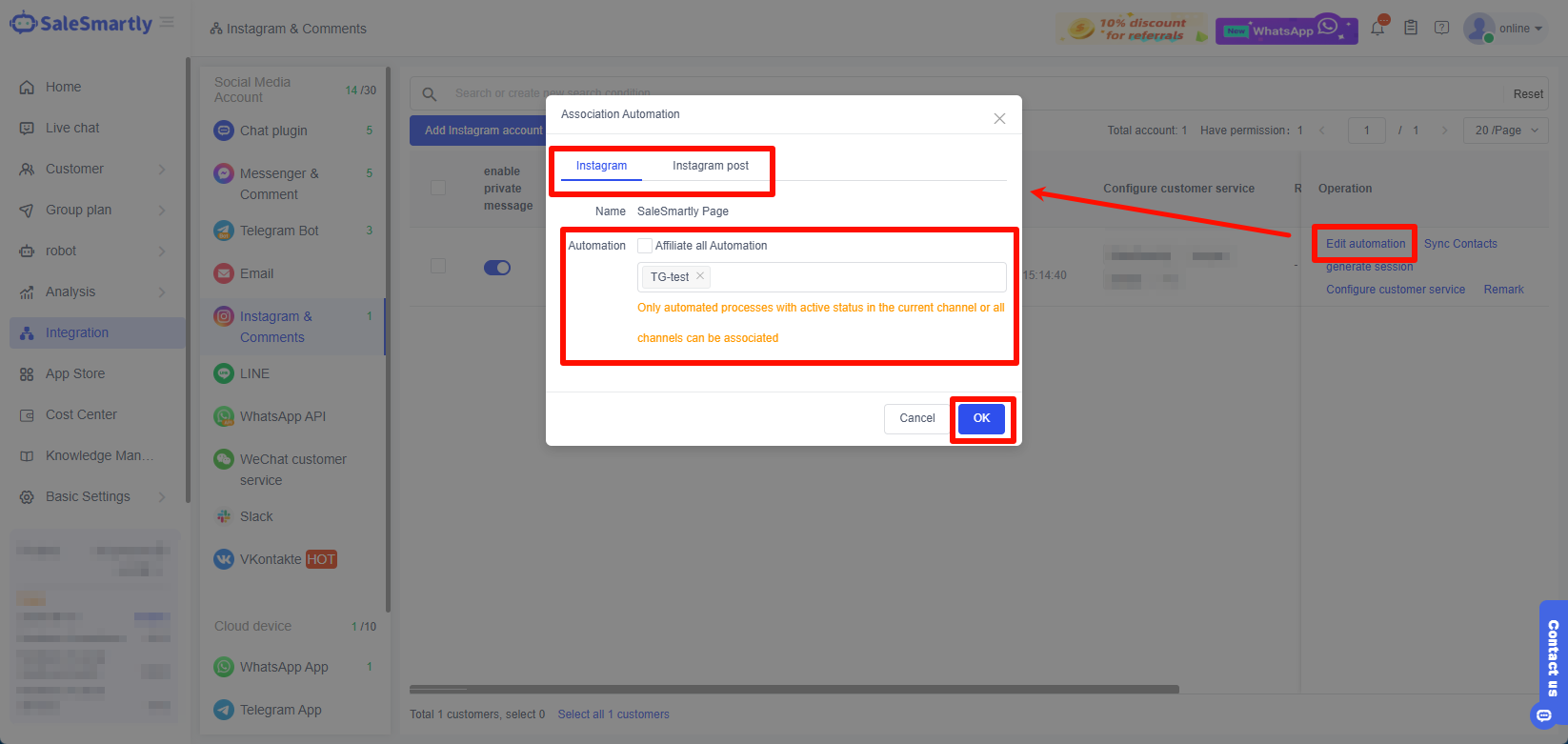
In addition, you can also configure the created automation process for Instagram accounts and comments to achieve automatic replies, recall customers, control comments and other required scenarios.
Click Edit Automation > Select Associated Channels > Check the automation process you want to configure > Click OK.
Note: If you check the box "Link all automations", the account & post comments will be automatically linked to all the created automation processes.
For a more detailed tutorial on how to create an automation process, please click How to Create an Automation Process.