LINE Integration Guide
Learn to create LINE accounts, API channels, and integrate LINE into SaleSmartly.
1. LINE Integration Guide
Below, you will learn how to integrate LINE in the chat plugin.
This article mainly discusses:
- How to create an official LINE account?
- How to create a Messaging API channel?
- How to create a Login channel?
- How to integrate into the LINE plugin portal?
Note: Only LINE official accounts can be integrated into the plugin portal.
2. Step-by-Step Implementation
2.1. Create a LINE Official Account
- Open the LINE official account management: https://manager.LINE.biz
- Create an account:
- If you don't have an official LINE account, select Create an account to create an official account.
- If you already have an official account, enter the official account management background.
- Select LINE account or email to register.

- After registration:
- Log in to the official account management page
- Click create new to start creating
- Fill in the required information
- Click Go to LINE Official Account Manager

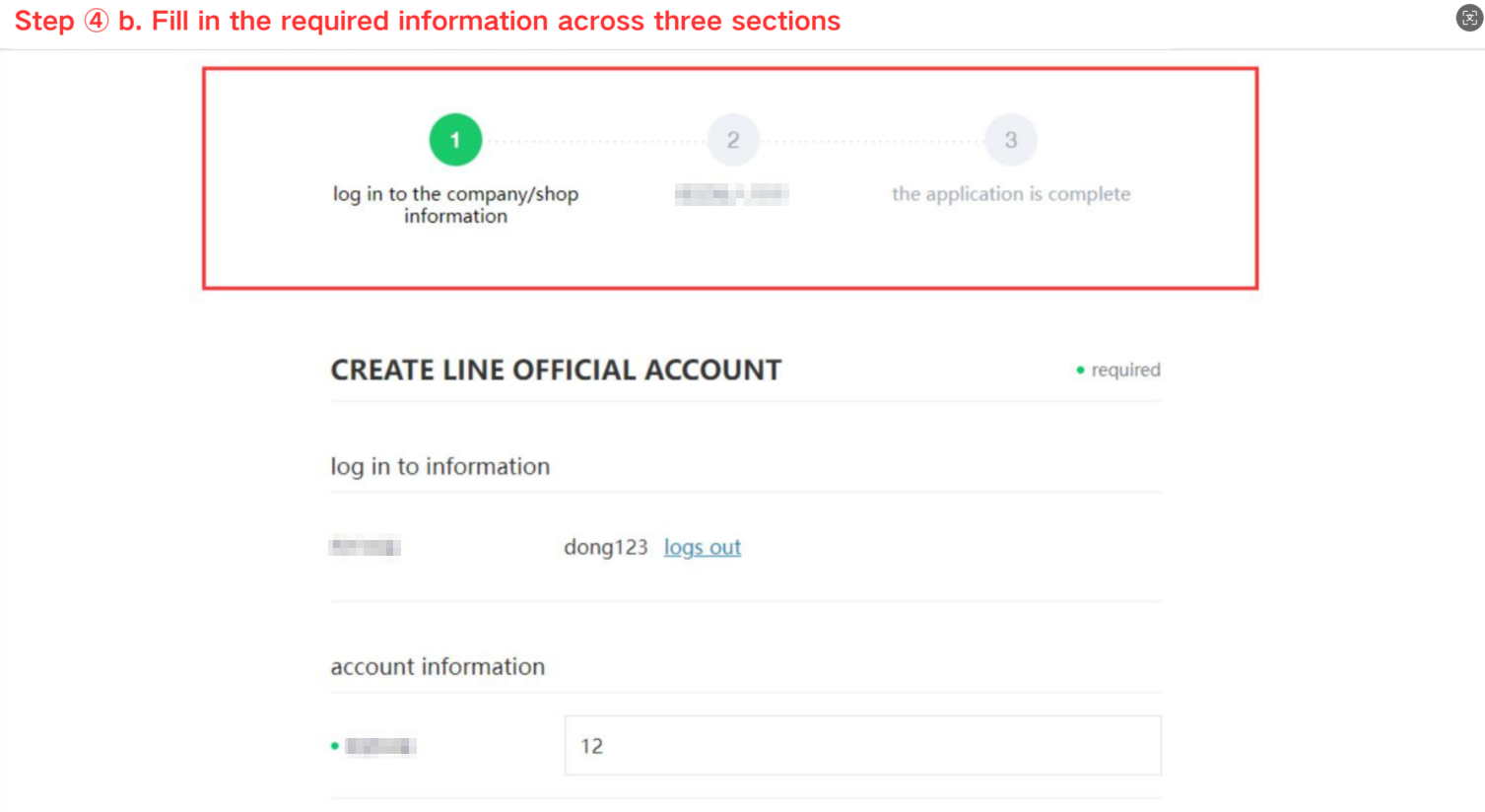

2.2. Create a Messaging API Channel
- In LINE Official Account Manager:
- Click Settings
- Select Messaging API
- Click Enable Messaging API

- Fill in the developer information.
- Select a Provider (or create new).
- Go to the console: https://developers.LINE.biz/console/
- Select your Messaging API channel
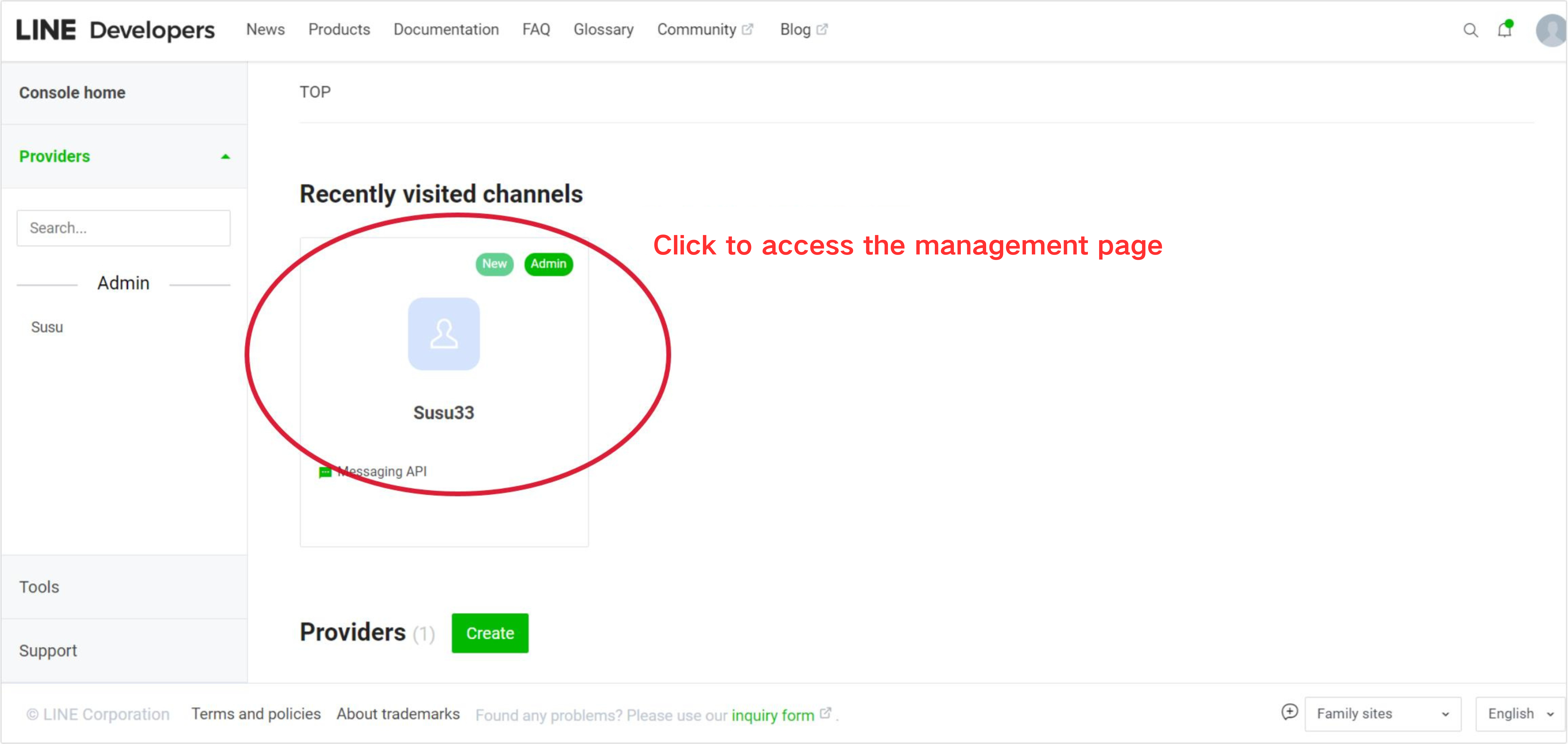
- Configure Messaging channel:
- Set Response mode to Bot
- Disable Greeting message
- Enable Webhooks

2.3. Integrate LINE into SaleSmartly
- In SaleSmartly:
- Click Settings
- Select LINE
- Click Add LINE

- Copy credentials:
- Channel ID
- Channel Secret
- Paste into SaleSmartly
- Enable webhook in Messaging API module.
Note: This option appears after SaleSmartly binding.
2.4. Create a LINE Login Channel
- Go to LINE Developer Platform: https://developers.LINE.biz/
- Create login channel under existing Providers.

- Configure LIFF app:
- Set Size to Full
- Enter Endpoint URL (from SaleSmartly)
- Enable required Scopes
- Turn on Bot link feature
- Enable Scan QR

- Set Callback URL (from SaleSmartly).

- Publish the channel.
- In SaleSmartly:
- Select plugin
- Go to Portal Integration
- Enable LINE portal


- Final configuration:
- Copy Channel ID
- Copy Channel Secret
- Copy LIFF ID


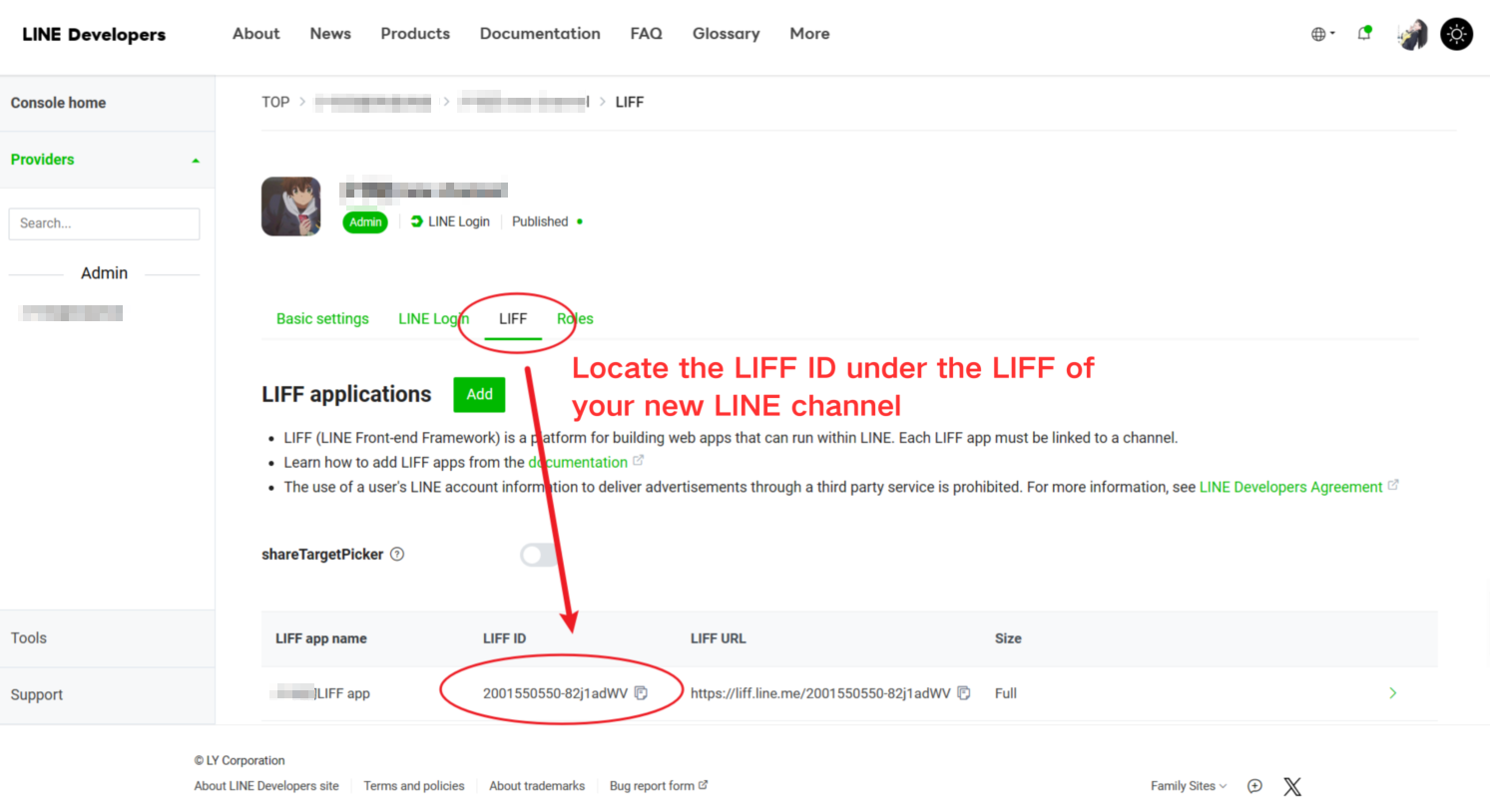
- Associate with existing Messaging Channel.

