LINE SaleSmartly Integration
1. LINE SaleSmartly Integration Overview
Integrating your LINE Official Account with SaleSmartly enables real-time synchronization of chat messages, helping businesses respond instantly to user inquiries through a unified dashboard. This allows seamless multi-channel customer service while leveraging LINE's real-time messaging capabilities.
Unlike personal LINE accounts, official accounts offer higher messaging efficiency, audience targeting, and professional use, which is ideal for separating work from personal life. They also support multi-user access across platforms. Integration via the LINE Messaging API enhances your customer service strategy with automation and scalability.
2. Step-by-Step Integration Guide
2.1. Enter the LINE Official Account Dashboard
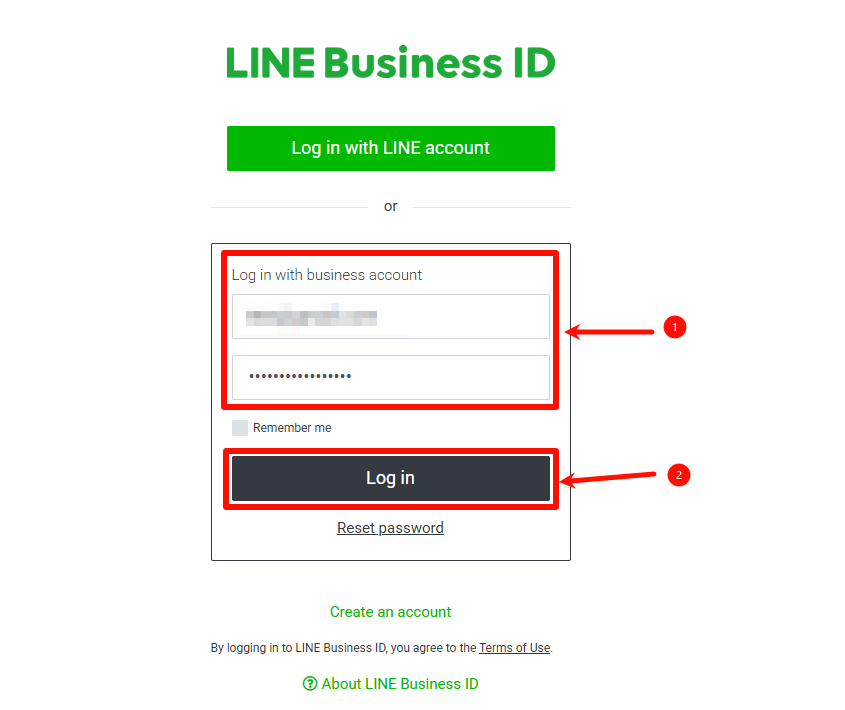
Go to the LINE official account management page (https://manager.LINE.biz/), select the LINE account and go to the management page.
For specific operations, please refer to the official LINE registration document: click the link

2.2. Create a Messaging API Channel
2.2.1 Enter the Settings
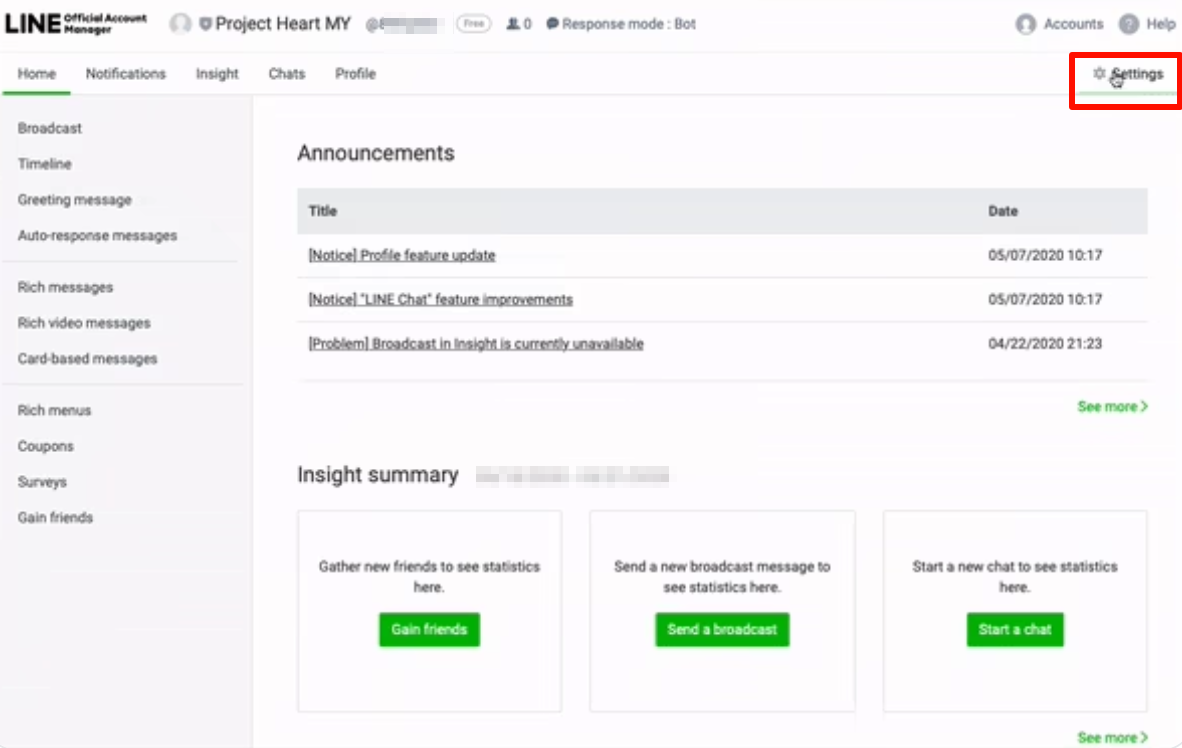
Click Settings to enter the settings page in LINE Official Account Manager (i.e., the management dashboard).

2.2.2 Enable Messaging API
Under Settings, click Messaging API, and then click Enable Messaging API.
2.2.3 Establishing a Service Provider
To create a service provider, enter any name or LINE official account name (it will not affect subsequent operations) and click Agree.
2.2.4 Privacy Policy and Terms of Service
- The privacy policy and terms of service URLs can be left blank and you can just click OK.
- If necessary, you can fill in the privacy policy and terms of service URL.
- Confirm the account name and service provider name and click OK.
2.3. Integrate LINE into SaleSmartly
2.3.1 Access Channel ID & Channel Secret
- The Messaging API data appears on the LINE official account management page. Click Copy and paste the Channel ID into SaleSmartly.
- Click Copy to paste the Channel Secret into SaleSmartly.

2.3.2 Change Response Mode
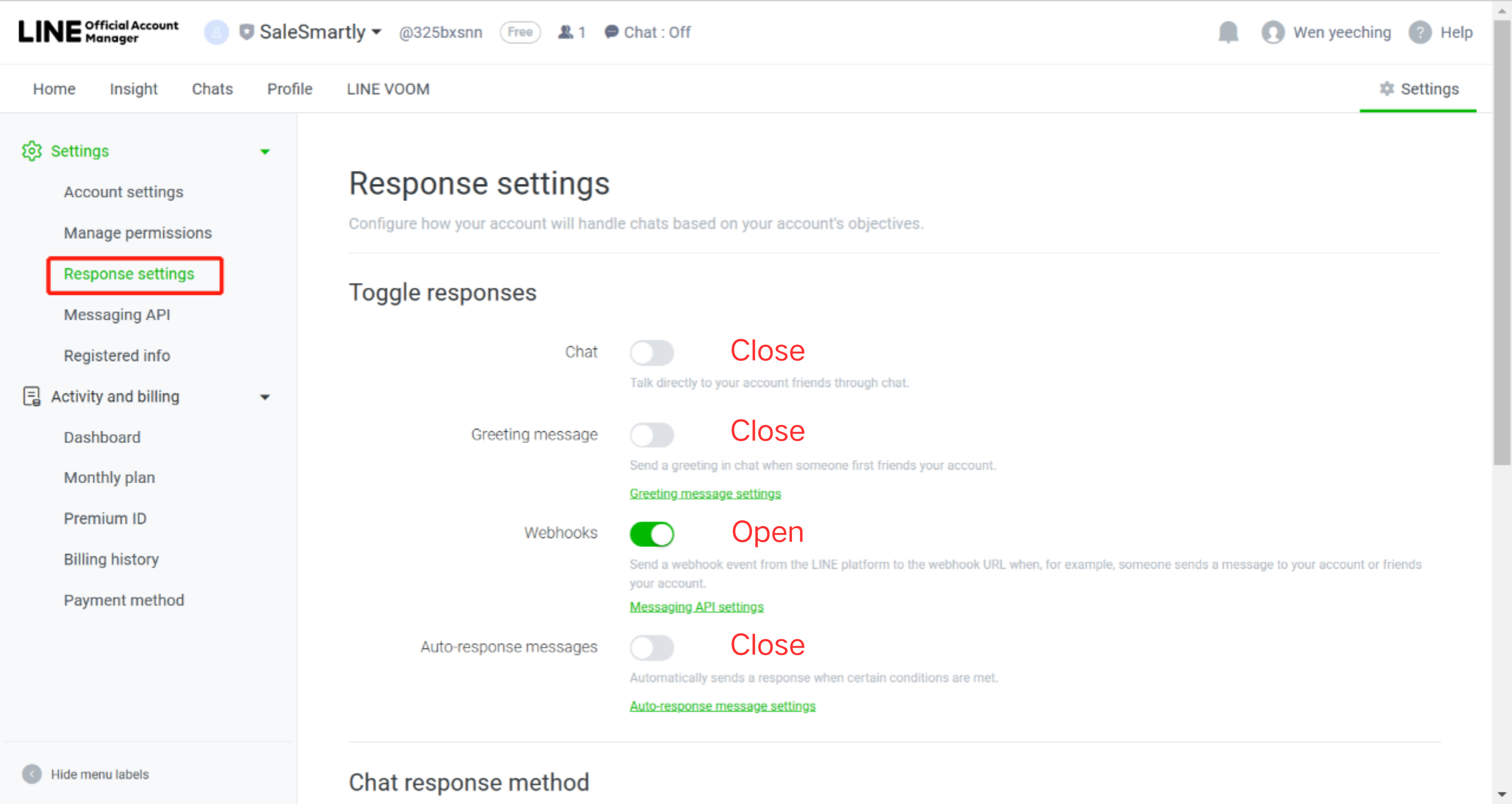
Click Response Setting on the left sidebar of the LINE official account management page and turn on the Webhook button. Also, turn off the welcome message and response time for adding friends to avoid duplication with the messages set in the SaleSmartly dashboard.
2.3.3 Enable Use Webhook
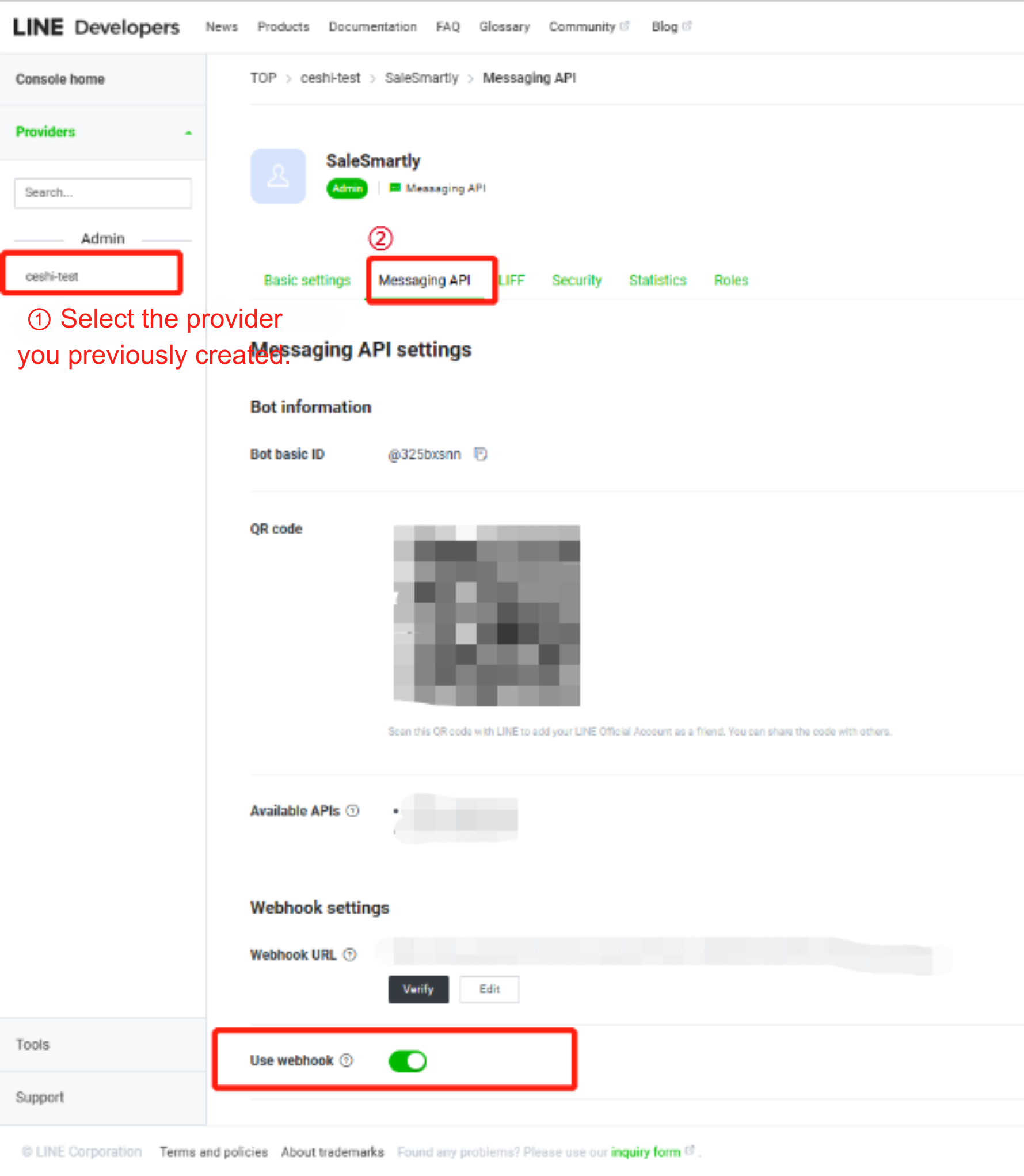
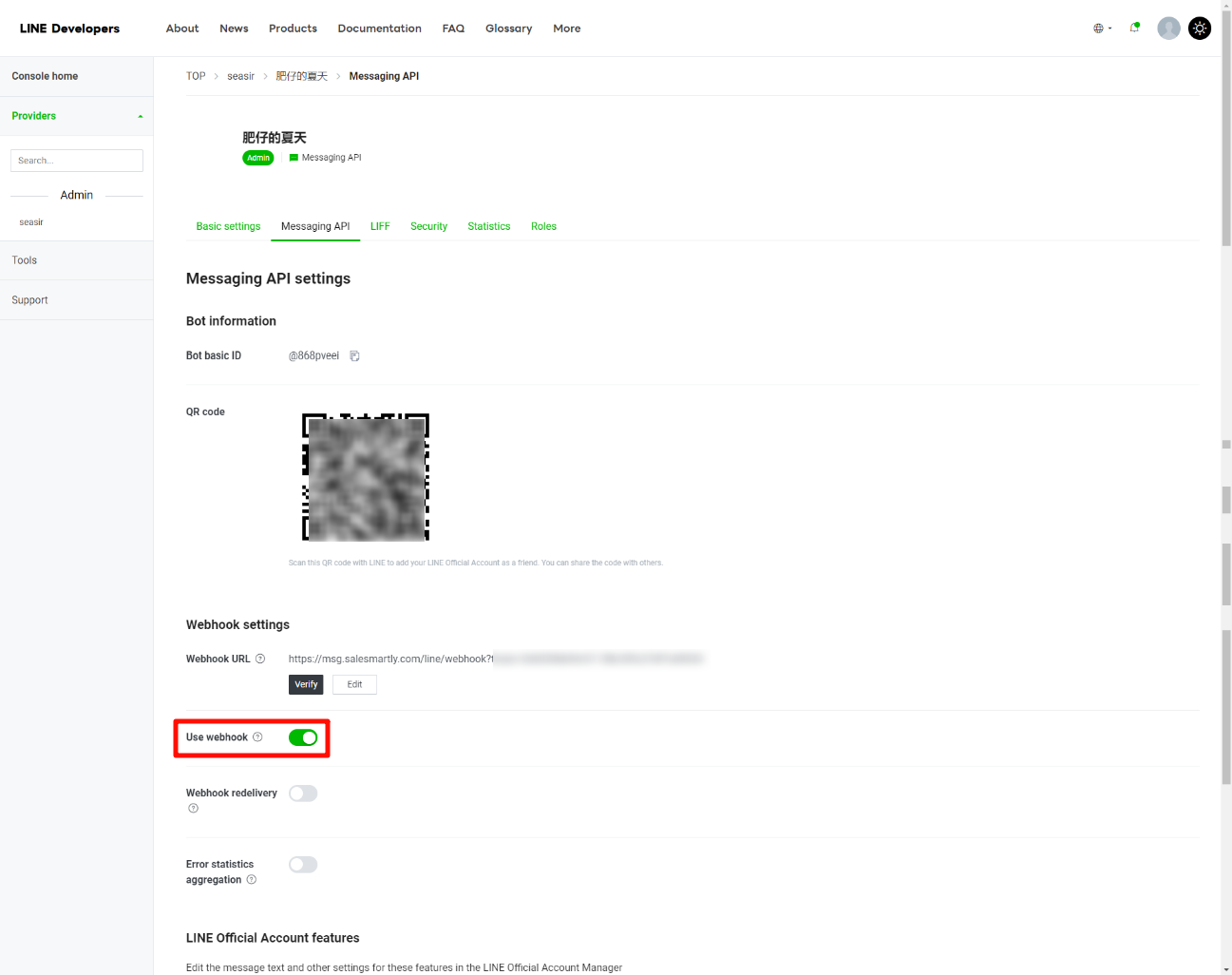
- Click https://developers.LINE.biz/console/ Go to the LINE Developers page, scroll down to find Use webhook, and click to turn it on.
- Refresh the page and confirm that the Use webhook switch is green and turned on.
2.4. Receive LINE Group Chat Messages
In the developer dashboard, select the messaging API of the corresponding provider and turn on the switch to allow robots to join group chats.

3. Frequently Asked Questions
3.1. LINE Integration Shows "Invalid" Status
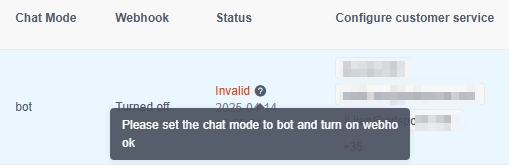
Reason: Check whether the webhook URL is normal, as shown in the following figure:

Solution:
- Follow 2.3.3 to go to LINE Developers and enable Webhook. Click to jump to the corresponding tutorial location
- If you cannot find the Use Webhook button according to the first point, first fill in the Channel ID and Channel secret in the LINE integration in salesmartly. After adding, refresh the LINE page. The webhook URL should be synchronized at this time. If not, please wait for 10 minutes and check again.

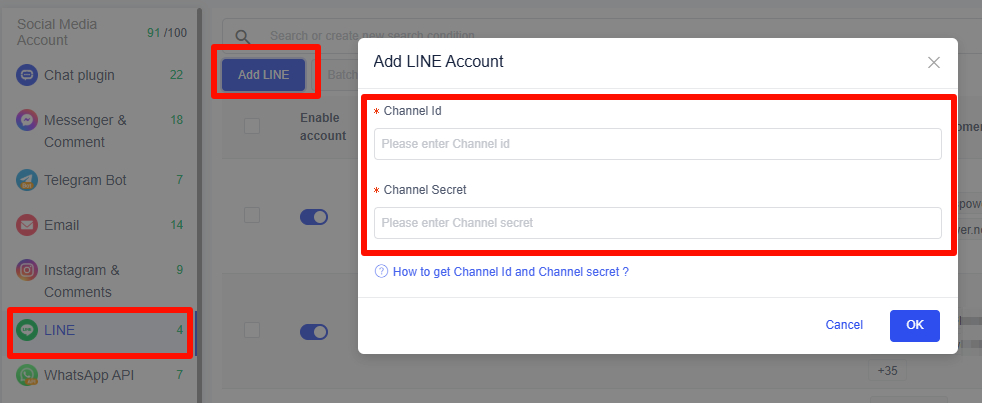

- After completing the second point above, open: https://developers.LINE.biz/console/. You will see the Use Webhook button. Click it to enable it.

3.2. LINE Official Account Recharge Steps
Visit: https://manager.LINE.biz/account to view LINE message usage per month.
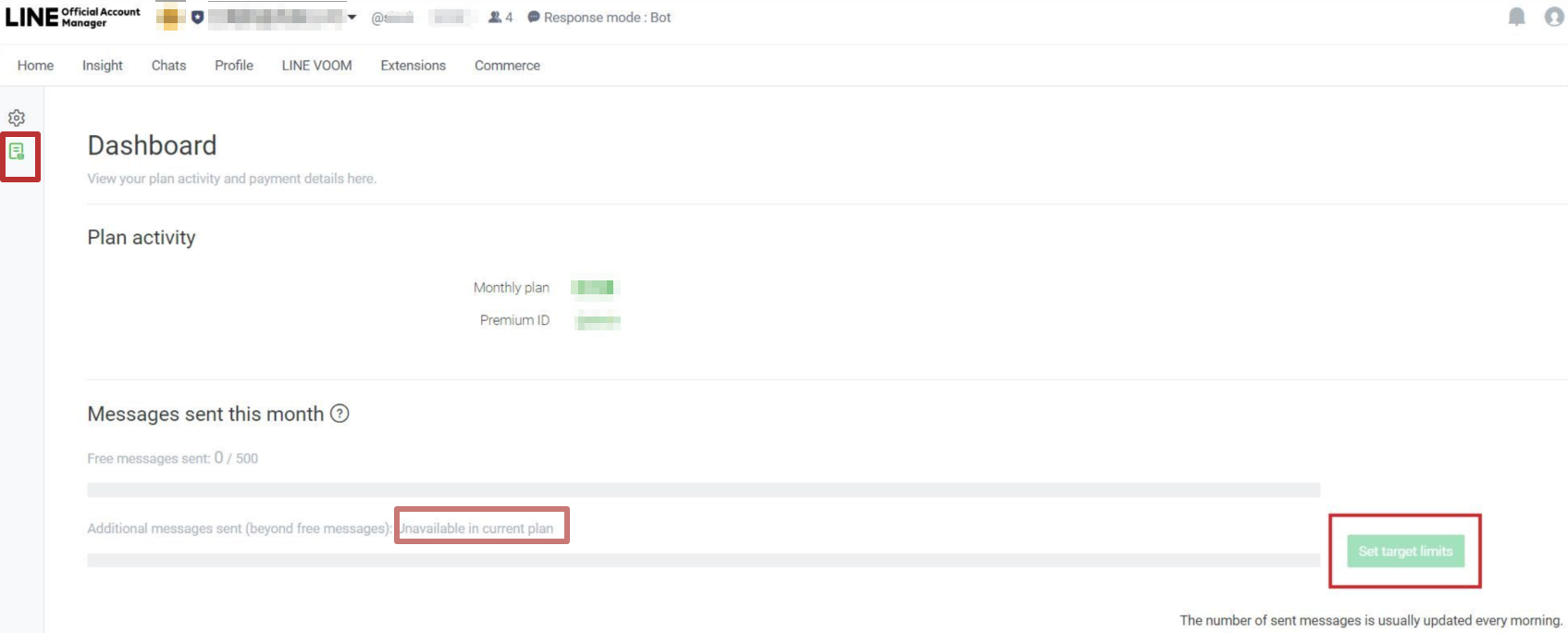
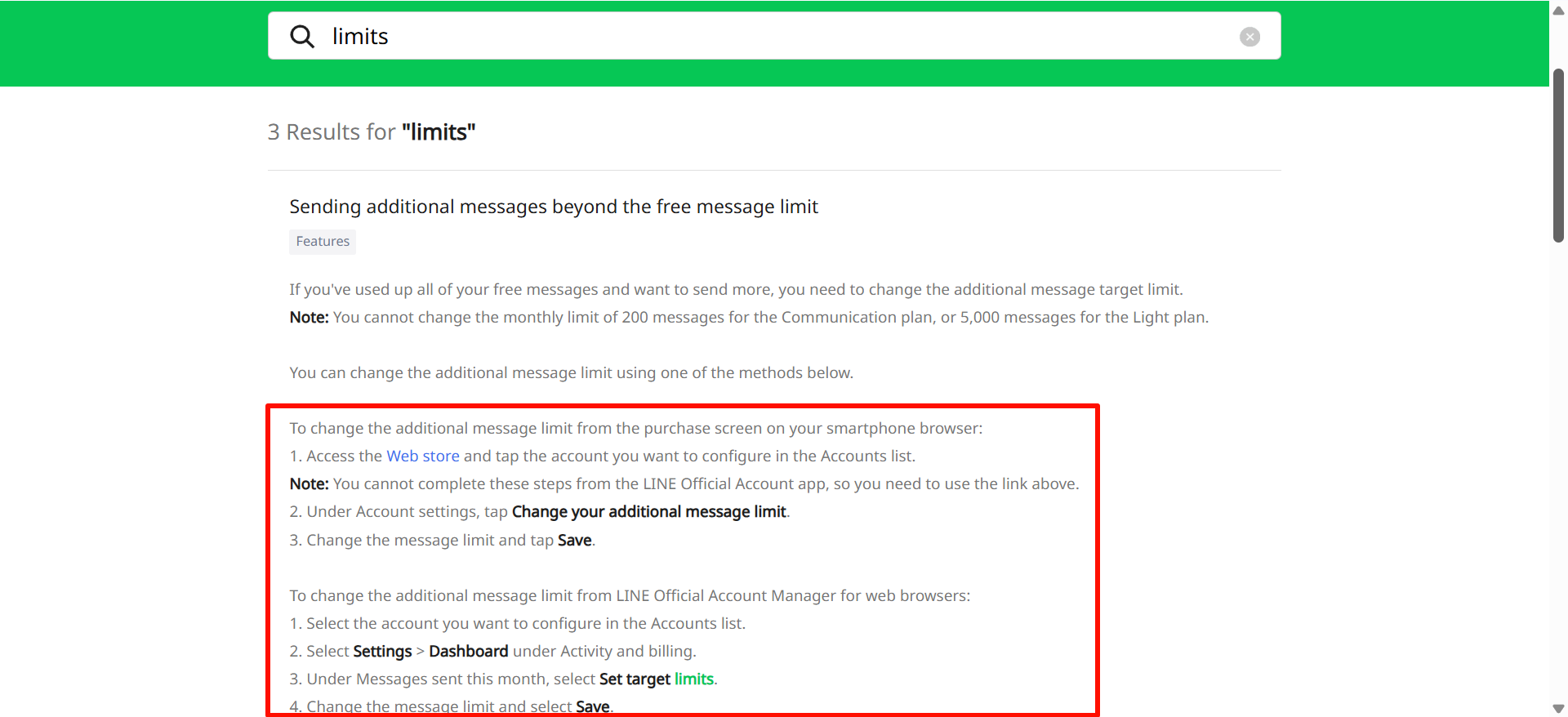
- Visit https://manager.LINE.biz/webstore/ again and change the plan.


3.3. LINE Advertising Message Costs
Click to view LINE official account charges: https://tw.LINEbiz.com/column/budget-auto-count/
3.4. LINE Robot Chat Mode is Not a Bot

Reason: Use webhook is disabled.
Solution:
- You need to enable Use webhook. For details, please refer to 2.3.3 Go to LINE Developers and enable Use Webhook
- If the webhook still does not work in step 1 above, please enable the webhook in the response settings. The path to enable the webhook is Account>Account List>Account Name>Settings in the upper right corner>Response Settings-Webhook as shown below:

3.5. Webhook or Use Webhook Switch is Disabled
Reason: Webhook URL is not automatically filled in.
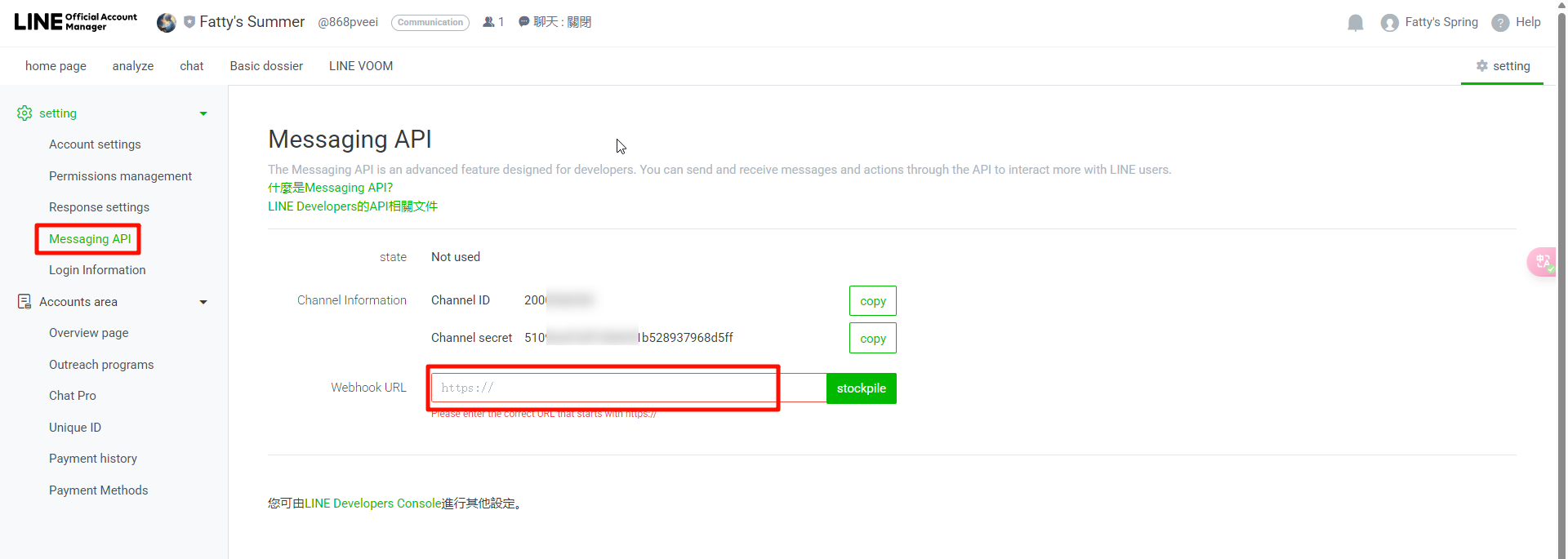
Solution:

- Add Channel ID and Channel secret to SaleSmartly.

The Webhook URL of the Messaging API should be synchronized at this time. Click OK button.
| If it is not synchronized, please wait for 10 minutes and check again |
|---|

- Turn on the Webhook switch
- Turn on the Use Webhook switch
