SaleSmartly Chat Functions
1. SaleSmartly Chat Functions Overview
SaleSmartly offers a wealth of chat functions that can significantly improve your reply efficiency when mastered. This chapter focuses on the chat window functionality.
2. Description
2.1 Process a single message (process visitors)
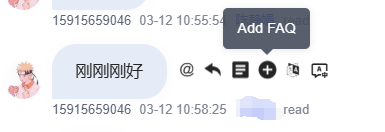
Single messages now support reply, recommended answers, adding to FAQ, translation, identifying visitor language, message withdrawal, @members and other functions.
Move the mouse pointer into the message to reveal executable operations.
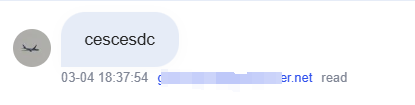
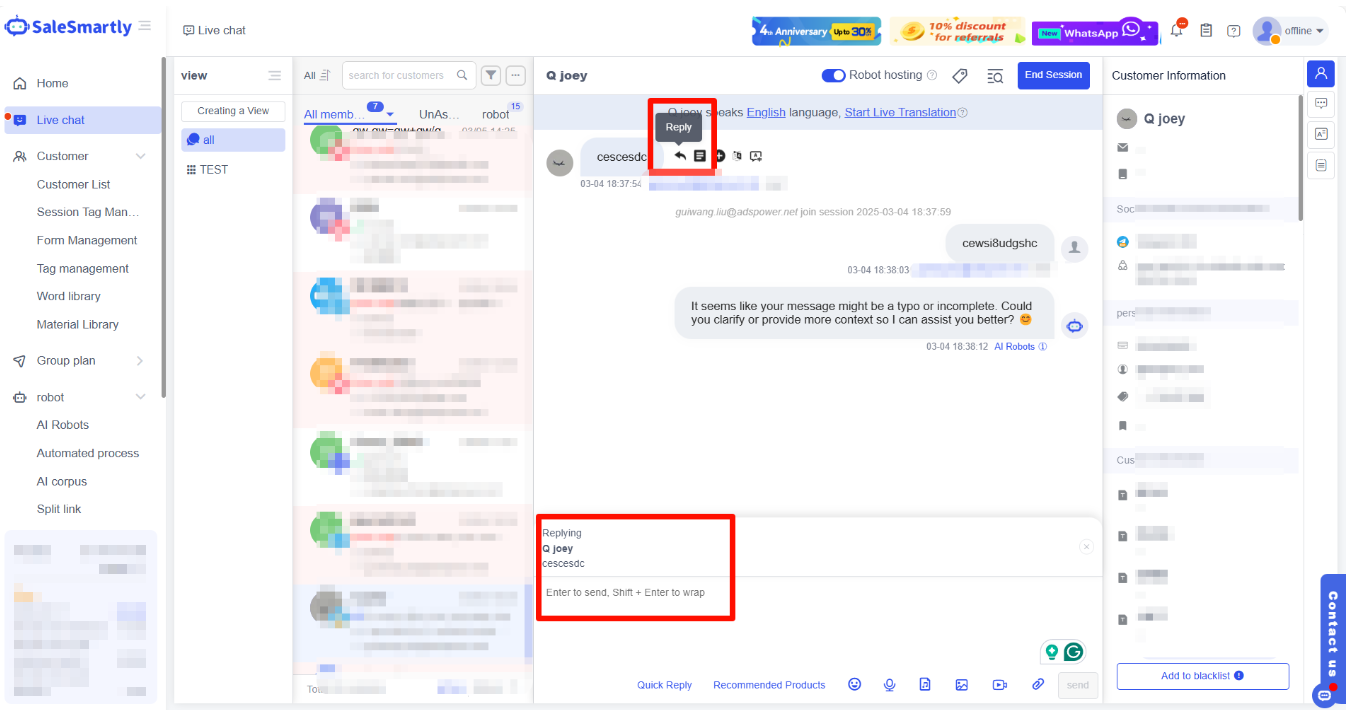
2.1.1 Reply
Reply: Customer service can quote and reply to a single message, highlighting the response to specific messages. This direct approach reduces misunderstandings.
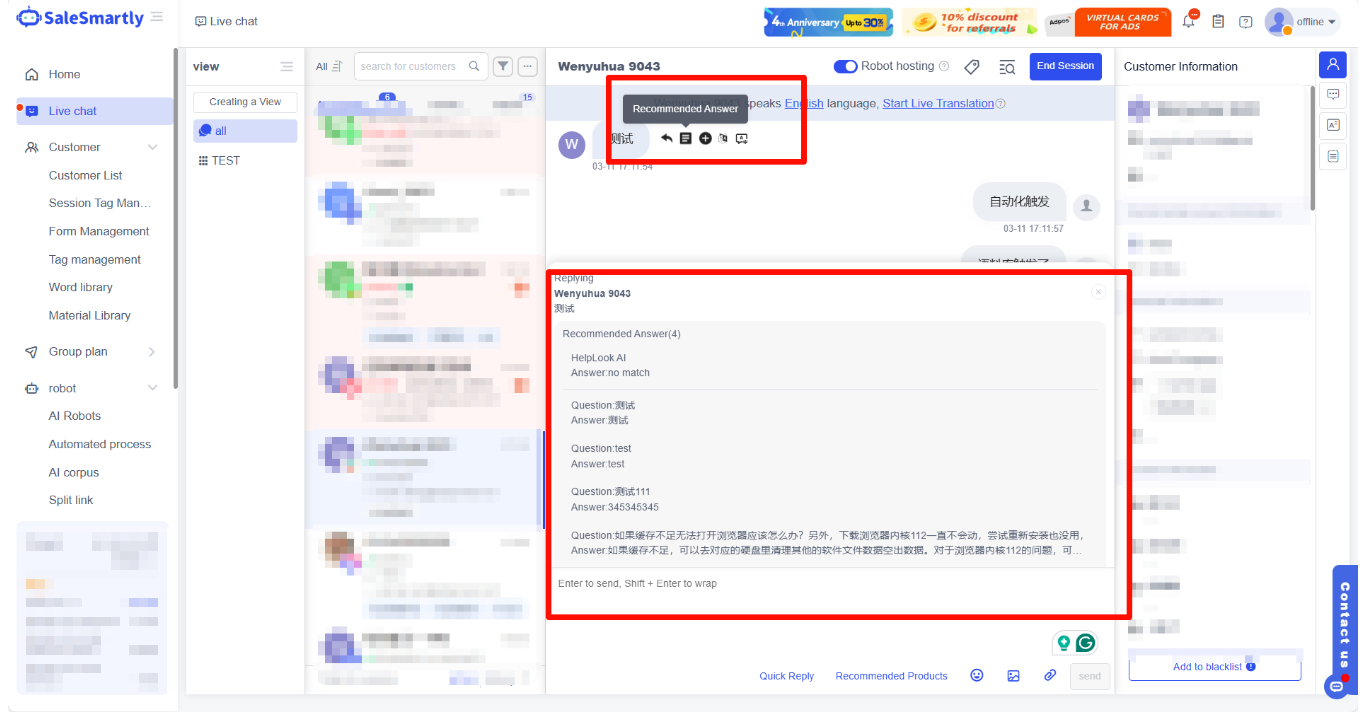
2.1.2 Recommended answers
Recommended answers: The system matches suggested responses based on message content and the AI corpus to improve efficiency.
The AI corpus allows customization of common questions and responses. Clicking a recommended answer automatically matches the appropriate response.
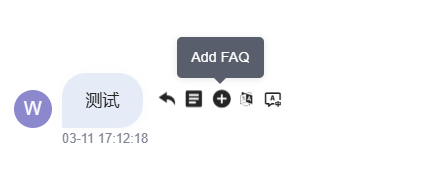
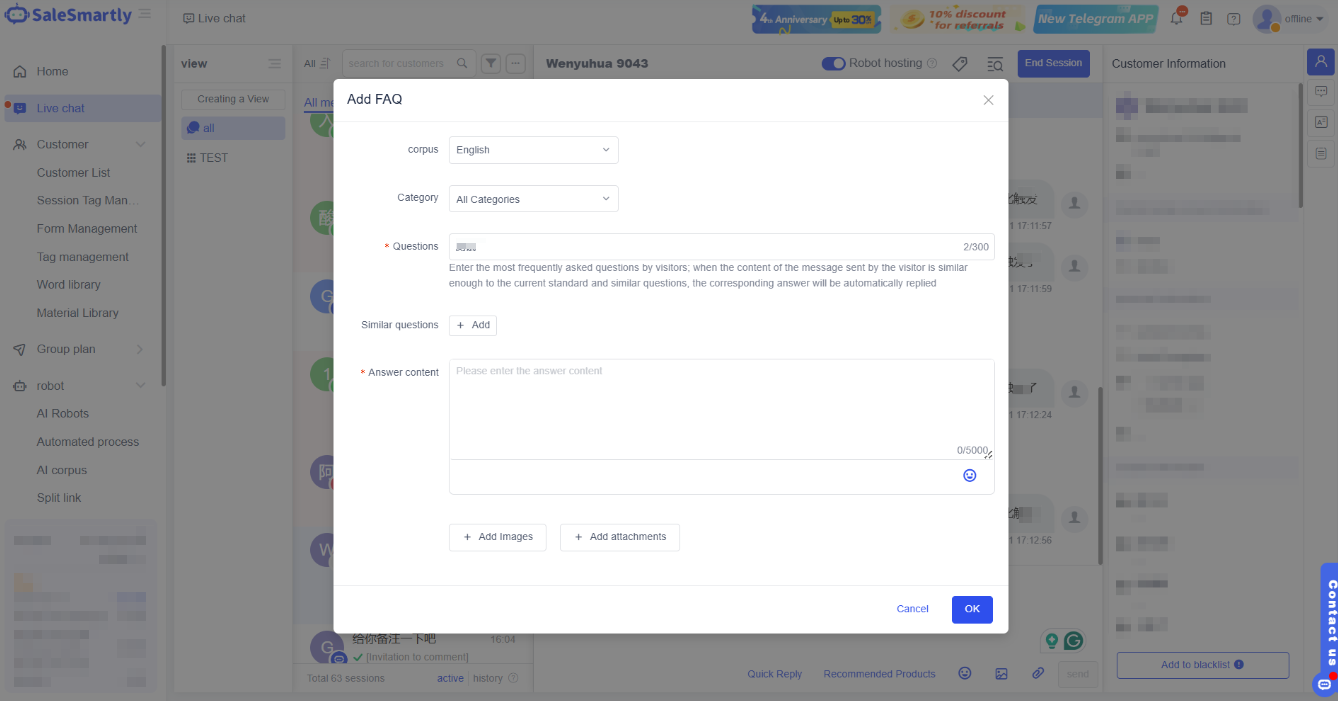
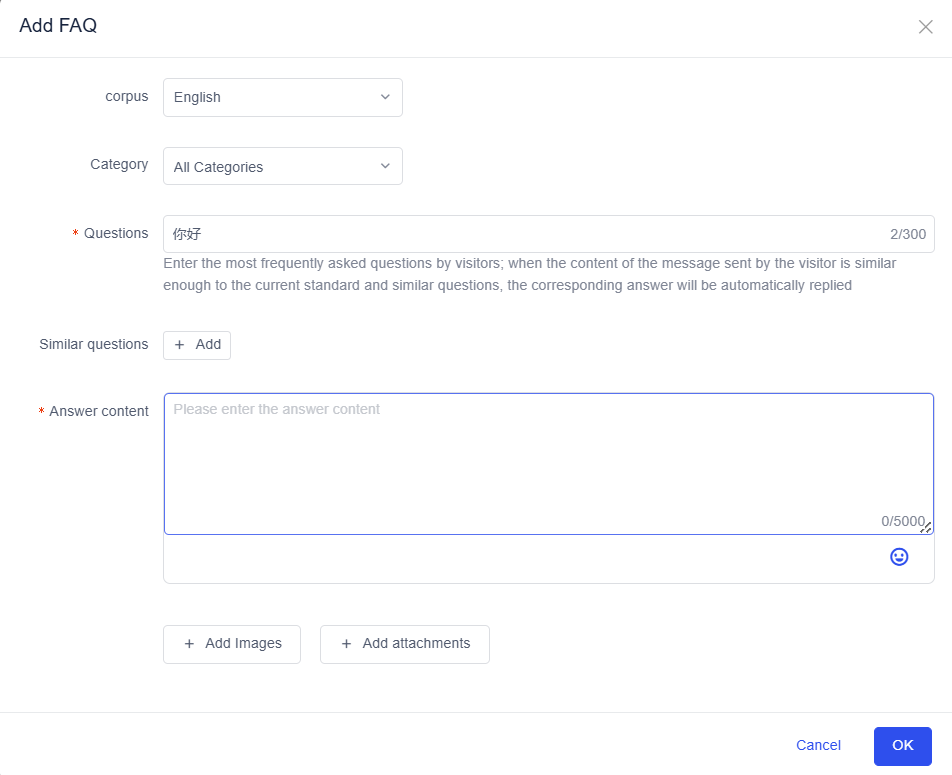
2.1.3 Add to FAQ
Add to FAQ: Customer service can add user messages to FAQ during replies to enhance the AI corpus.
2.1.4 Translation function
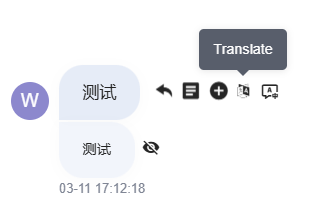
Translation function: Directly translate single messages.
2.1.5 Identify visitor language
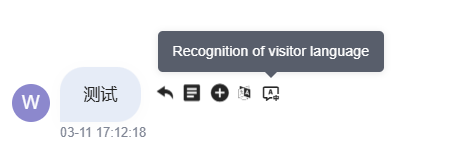
Identify visitor language: Accurately detects visitor language to facilitate merchant-visitor communication.
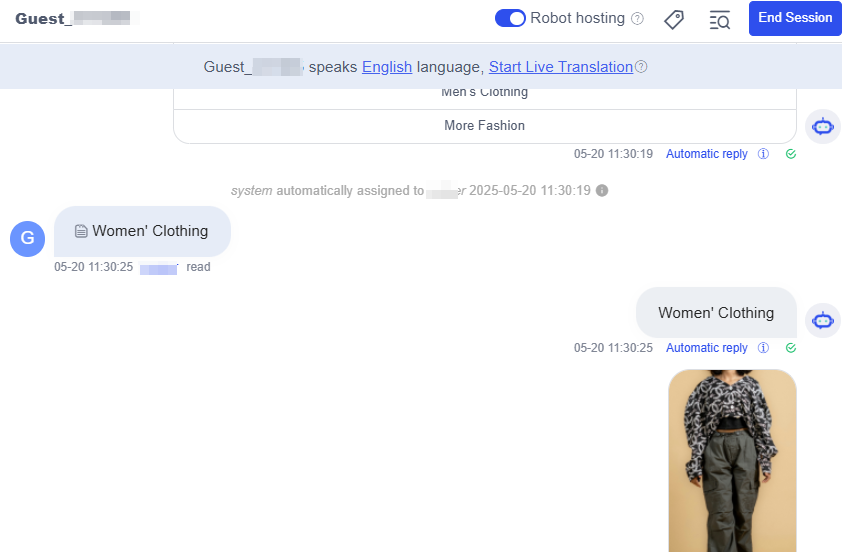
2.1.6 Message retraction
Message withdrawal: Cancel successfully sent messages within a specified time window.
Note: Supported in chat plugins and WhatsApp.
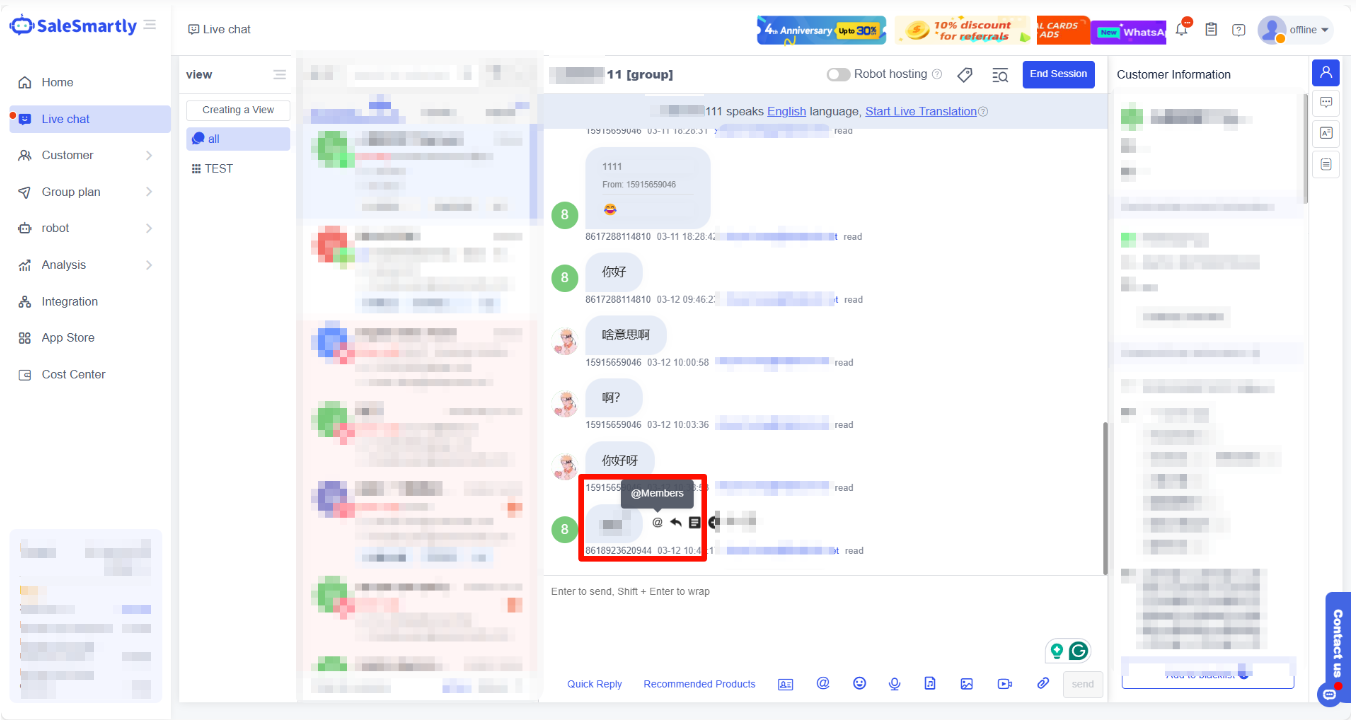
2.1.7 @Member
@members: WhatsApp groups support member mentions.
2.2 Handle customer service messages
Customer service can perform secondary processing on sent messages, including withdrawing, quoting, adding scripts, and translating.
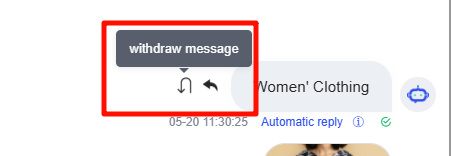
2.2.1 Withdrawal
Click "Withdraw" to retract recently sent messages and reduce misunderstandings.
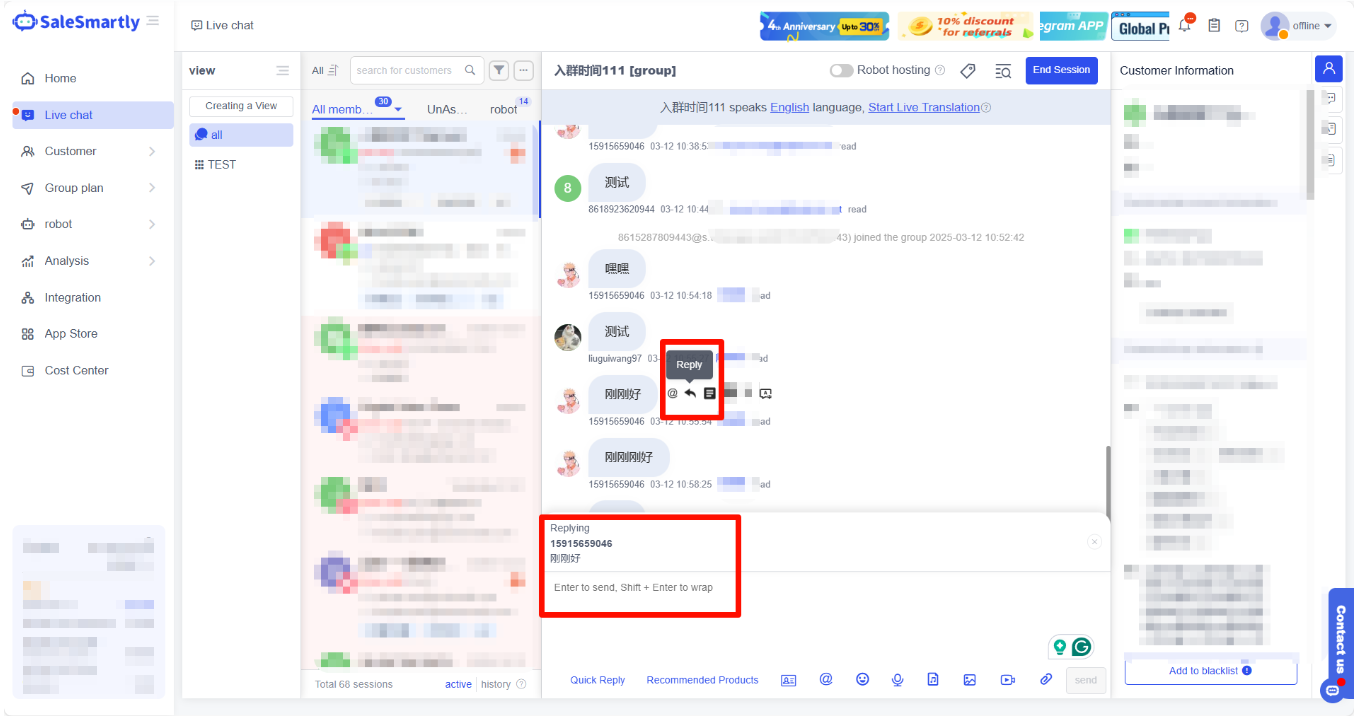
2.2.2 References
Quote: Customer service can quote their own messages with additional context to clarify statements.
2.2.3 Adding scripts
Add scripts: Add messages to the script library for quick replies in future conversations.
2.3 Quick reply (send FAQ and common phrases)
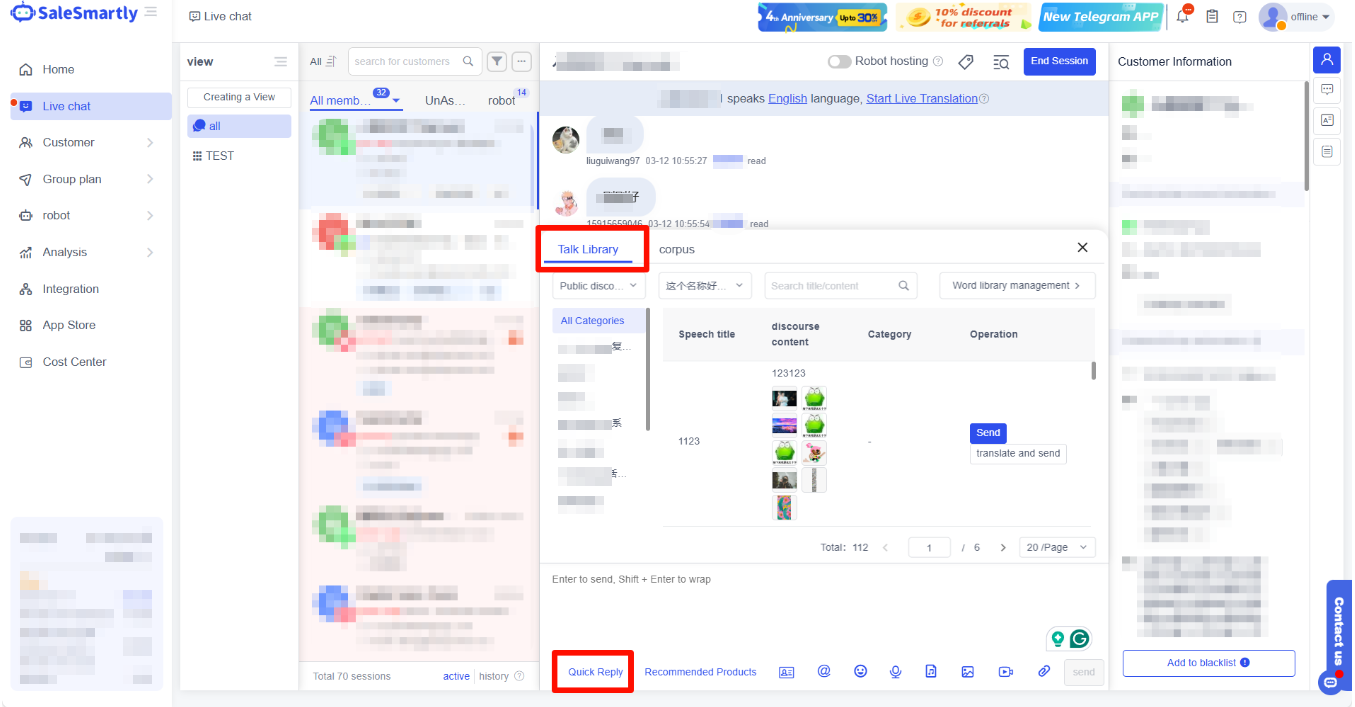
Customer service can send pre-configured responses from the AI corpus or the talk library to improve efficiency.
Talk library: Stores commonly used scripts for direct insertion into conversations.
Corpus: The Robot-AI Corpus containing common Q&A pairs for quick responses.
Click quick reply > select speech library/corpus > click send.
2.4 Recommended products
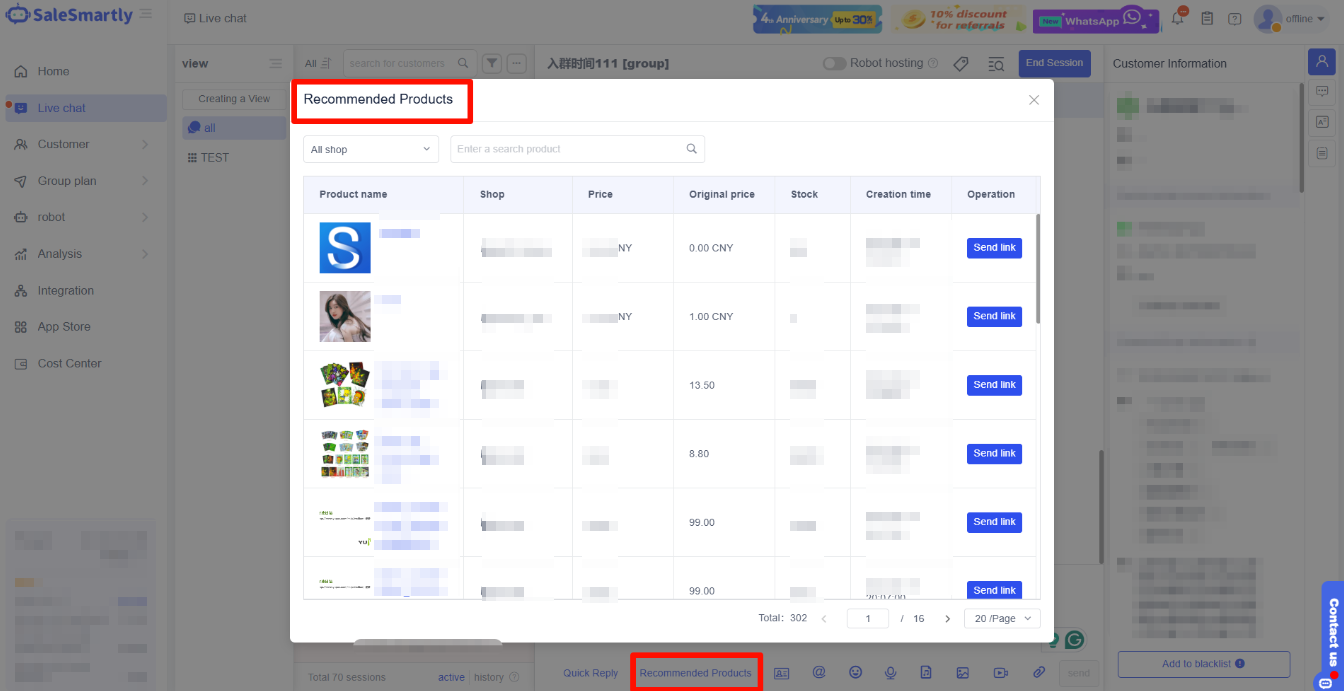
Bound independent website merchants can send product cards directly in chat to guide customers to checkout.
Note: Currently exclusive to independent website merchants.
Click recommended product > click send.
2.5 Send email
Reply to visitor messages via email when:
- Visitors email inquiries
- Visitors are offline but email is available
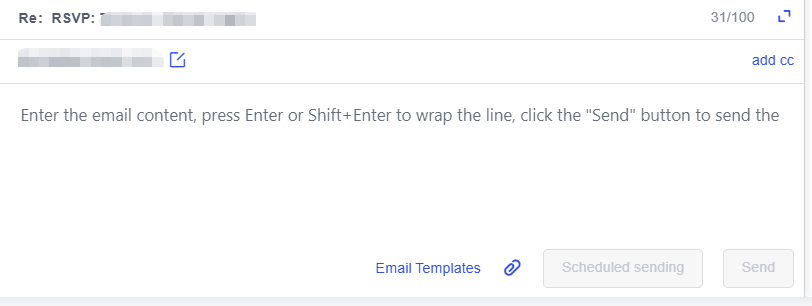
Collect emails via Integration - Chat Plugin > create/edit plugin > enable pre-chat survey/offline information retention.
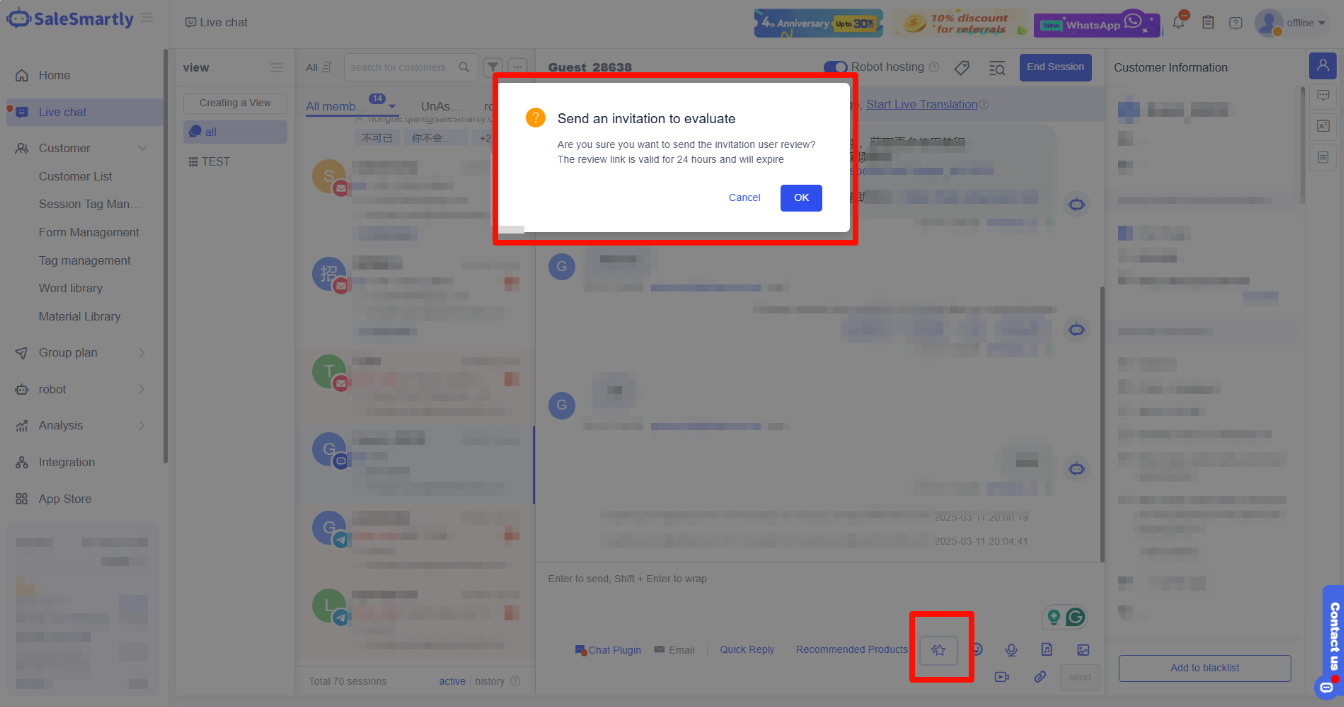
2.6 Invitation for evaluation
Send evaluation invitations through chat interface. Customers can provide ratings and feedback.
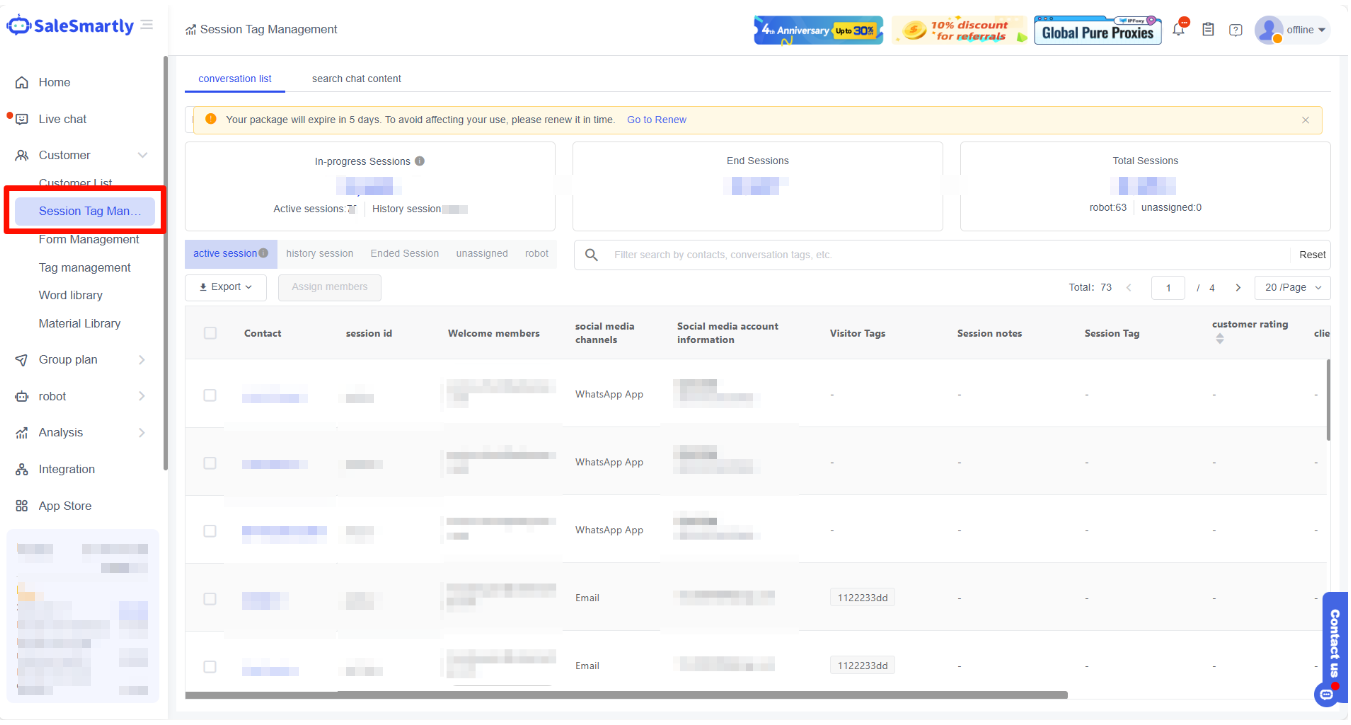
View evaluation details in Client-Session Management.
2.7 Messenger message label
Messenger message tags: Required for messages in conversations older than 7 days.
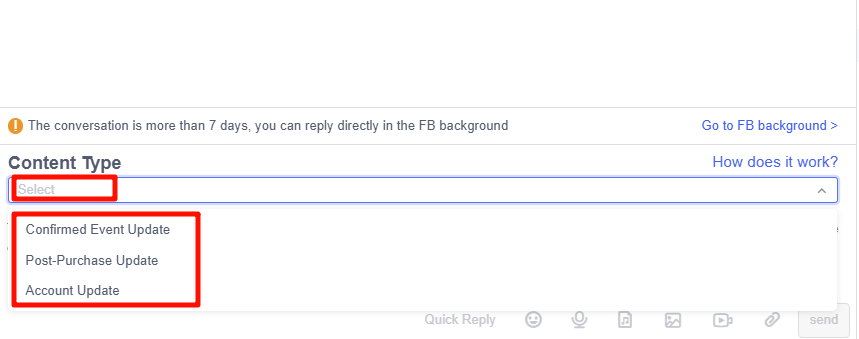
2.7.1 Confirming event updates
Send reminders/updates for:
- Scheduled classes/appointments
- Attendance confirmations
- Travel schedule changes
2.7.2 After-sales update
Notify about:
- Transaction confirmations
- Delivery status
- Order changes requiring action
2.7.3 Account updates
Alert for:
- Application status changes
- Suspicious activity
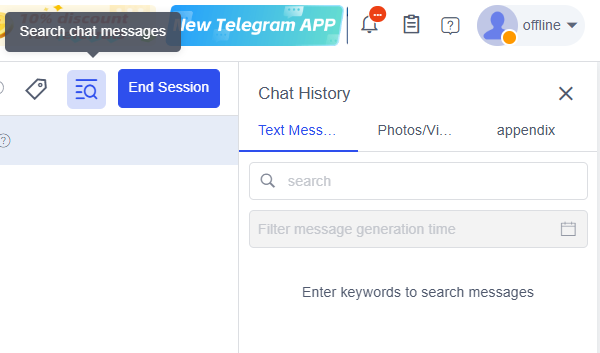
2.8 Search chat messages
Click Search Chat Information to retrieve previous:
- Text (search by keywords)
- Media files (direct display)
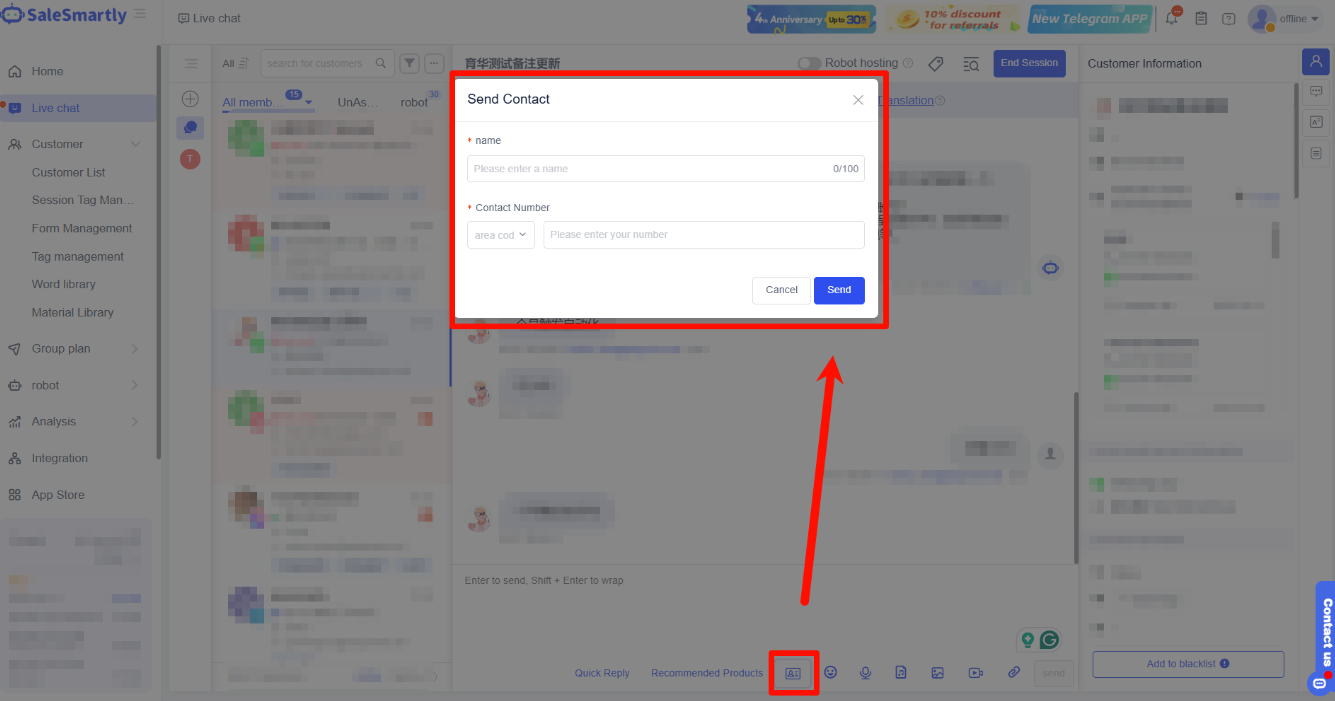
2.9 Send WhatsApp personal number and business card
In WhatsApp channel replies:
- Click Send Contact
- Enter name and number
- Send business card