Fetch SendCloud API
1. Introduction
Learn how to fetch SendCloud API credentials to seamlessly connect email workflows with SaleSmartly.
2. Step-by-Step Guide
2.1. Register or log in to SendCloud (International Version)
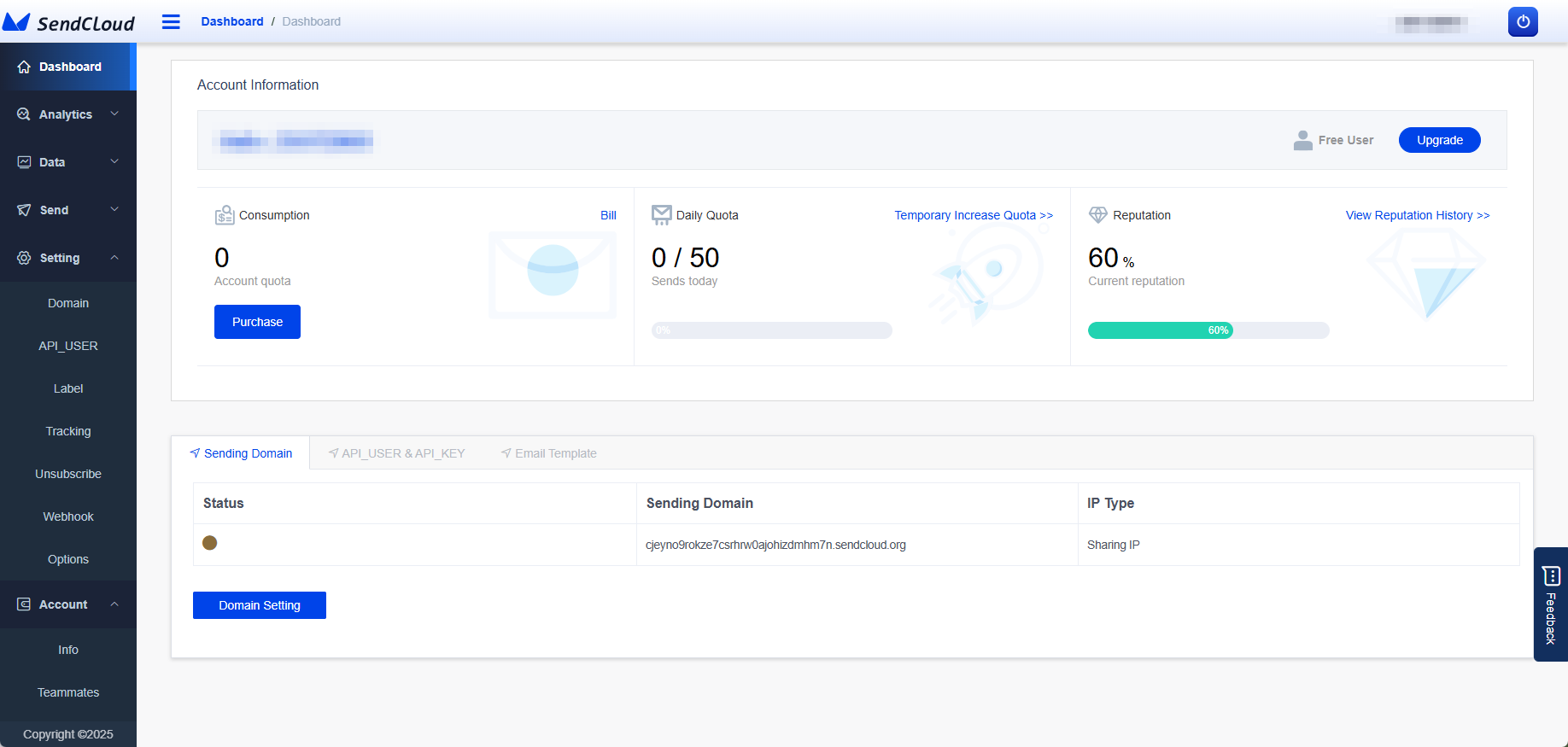
Log in to the SendCloud (International Version) official website. If you don't have an account, you can register first.
Website: https://web.sendcloud.net/
2.2. Get API parameters
2.2.1. Select API_User List
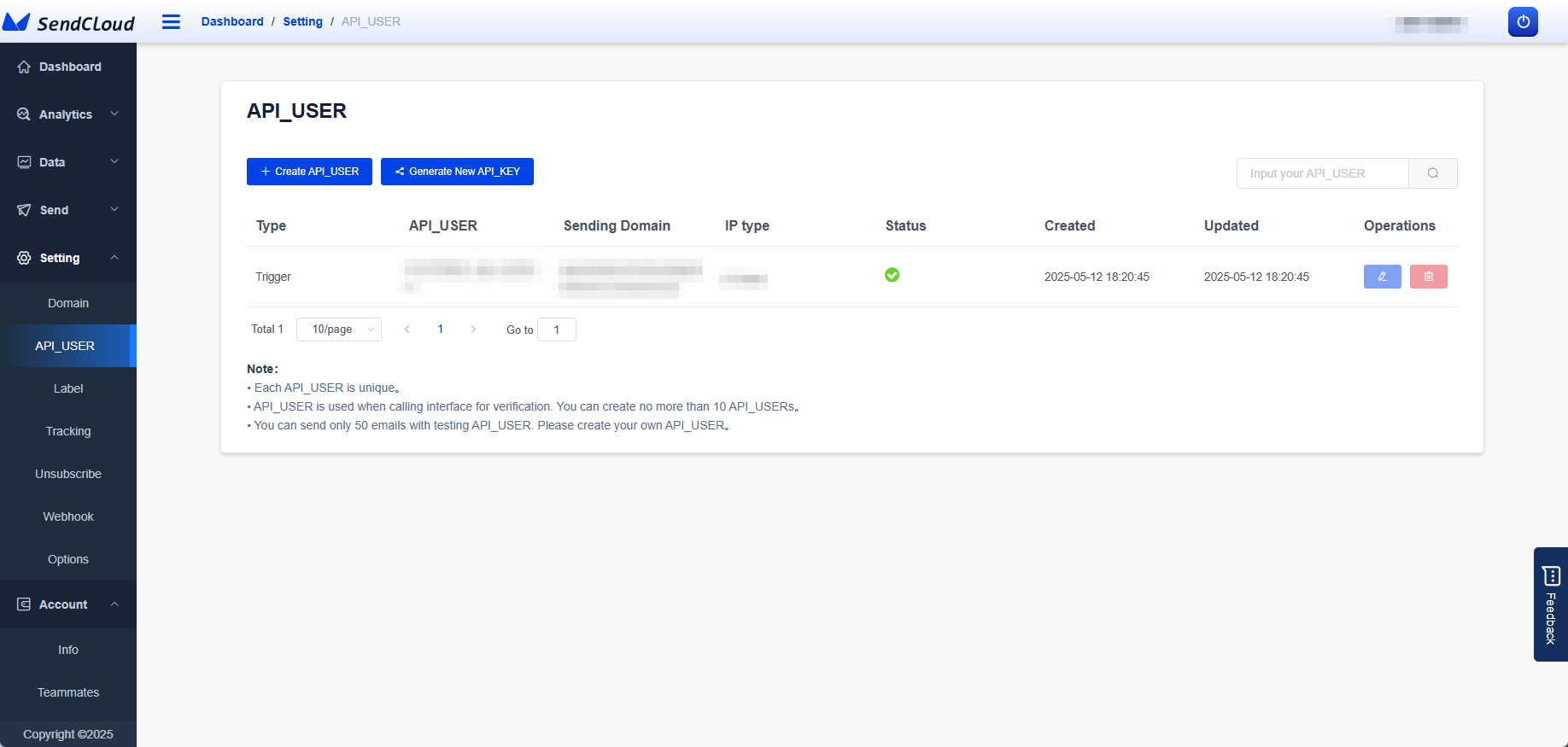
After logging in to SendCloud official website, select API_User List in the Send Settings list on the left menu.
2.2.2. Create New API_USER
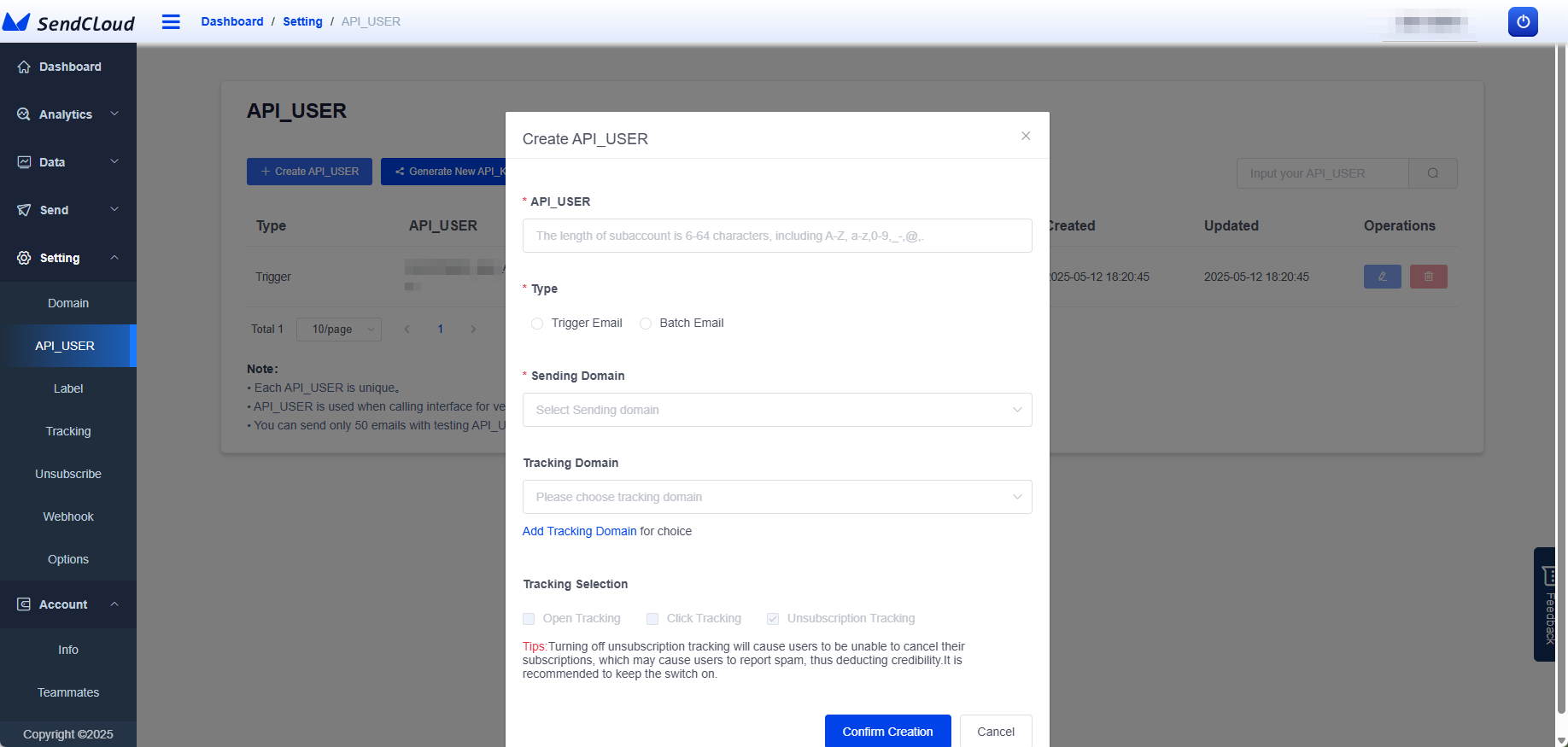
If there is no user in the list, you can choose to create a new API_USER.
2.2.3. Generate API_KEY
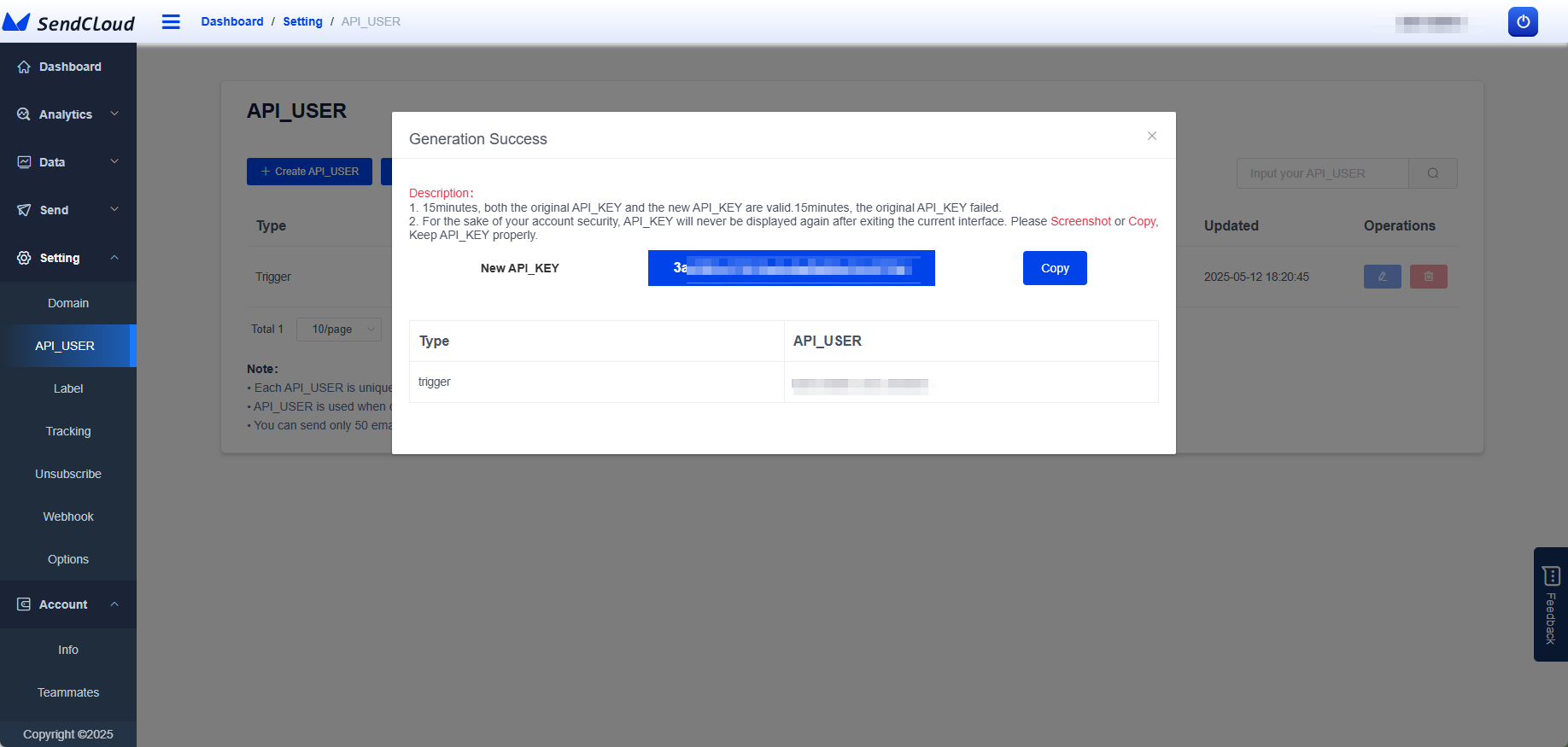
Click the Generate New API_KEY button, select the corresponding user, set the expiration time, and enter the password and verification code to generate the API_KEY.
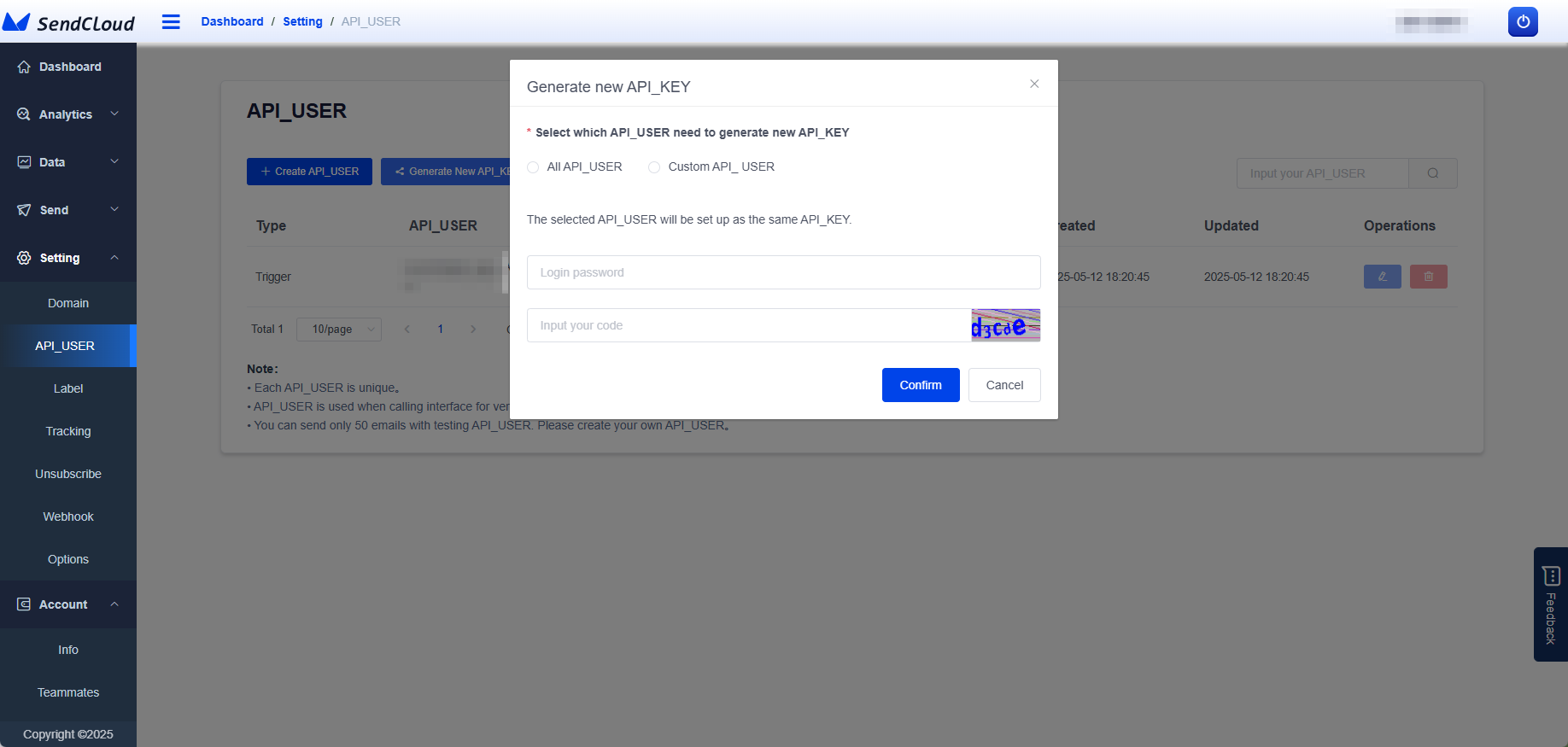
Copy this API_KEY, which will be used when integrating it into the SaleSmartly system later.
2.2.4. Add Webhook
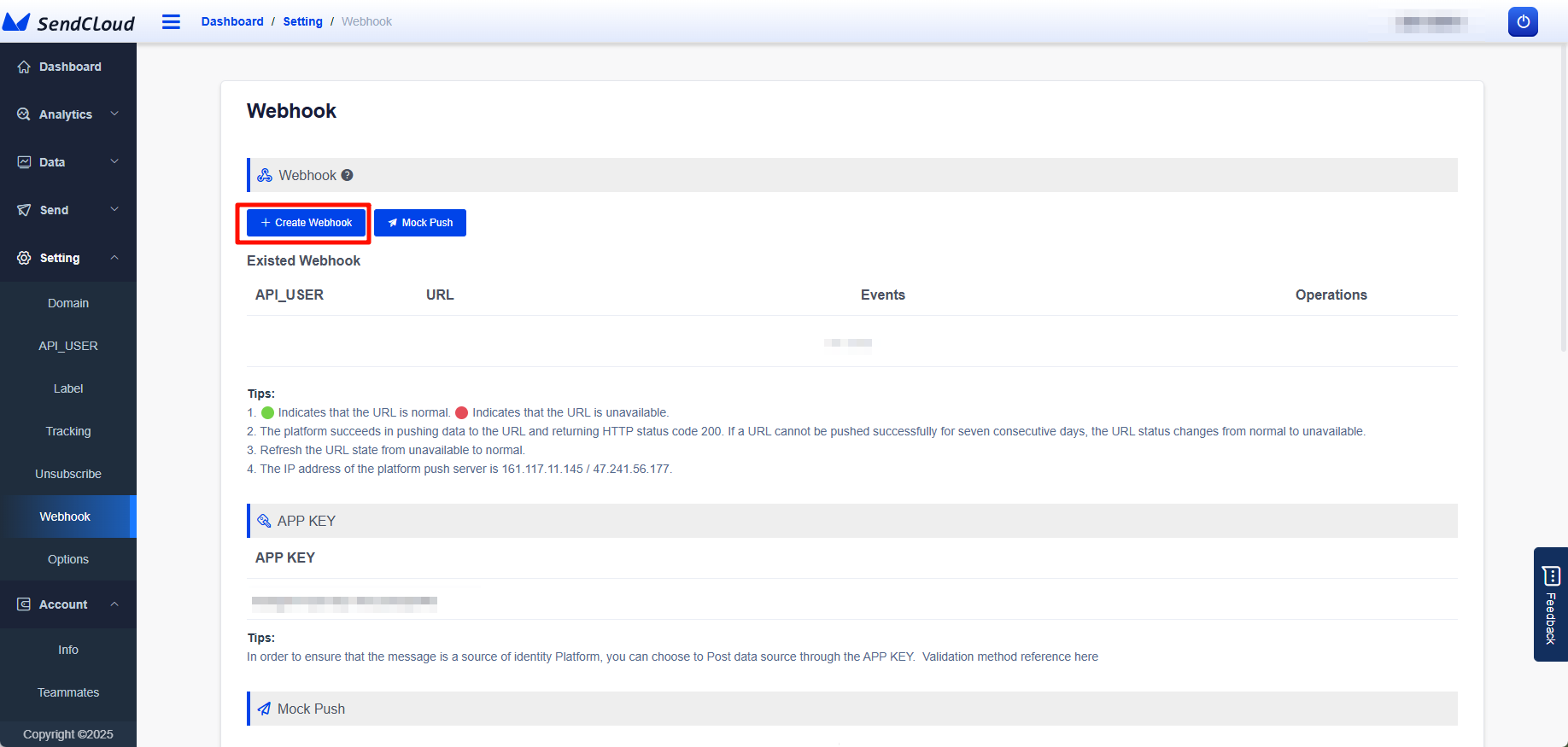
Click Add Webhook.
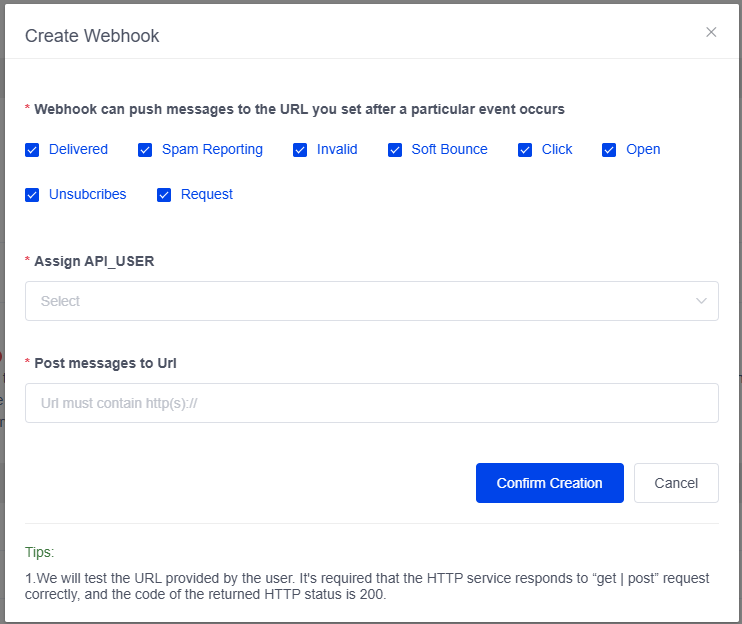
Check all permissions, select the API_USER you just created, and copy the link: https://api.salesmartly.com/client/webhook/send-cloud-log to Post the generated message to URL.
After completing these three configurations, click Confirm Creation.
2.2.5. Complete Configuration
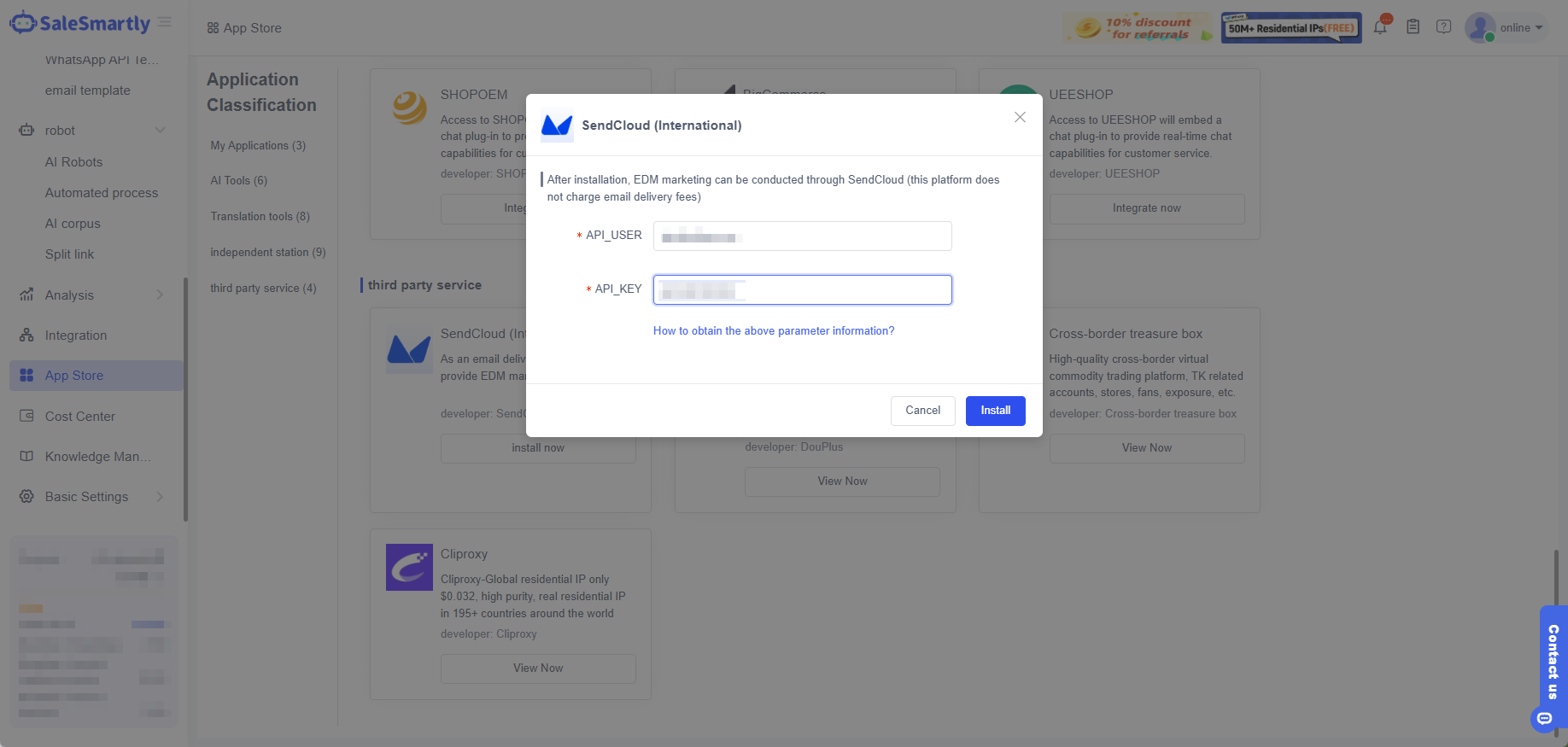
Return to the SaleSmartly app store and fill in the copied API_USER and API_KEY into the configuration to complete.