Integrate Facebook
1. Step-by-Step Guide
1.1. Quick Setup & Configuration
Helping you quickly integrate your Facebook Page and configure account permissions.
① Quickly integrate a public Page ② Sync contacts/generate conversations
③ Quickly add team member accounts ④ Assign Page permissions to members
...
1.2. Tutorial Guides for Various Business Scenarios
Based on your business scenario, you can view the following tutorials to get started with the product faster.
✅ Messenger Sales Chat Tutorial
✅ Tutorial on How to Automatically Manage Comments on Facebook Posts
✅ Tutorial on How to Attract Fans & Traffic with Facebook Ads
✅ Facebook Group Messaging Tutorial
1.3. Introduction to Common Functions
① Configure automated processes ② Support for group messaging)
③ Configure the talk library) ④ Automatically set conversation strategies
...
2. Facebook Chat Tutorial
The following section will introduce the Facebook channel chat tutorial in detail.
Below, you will learn how to use SaleSmartly to chat with buyers on Facebook.
2.1. Facebook Integration
This section guides you on how to chat with Facebook users through SaleSmartly.
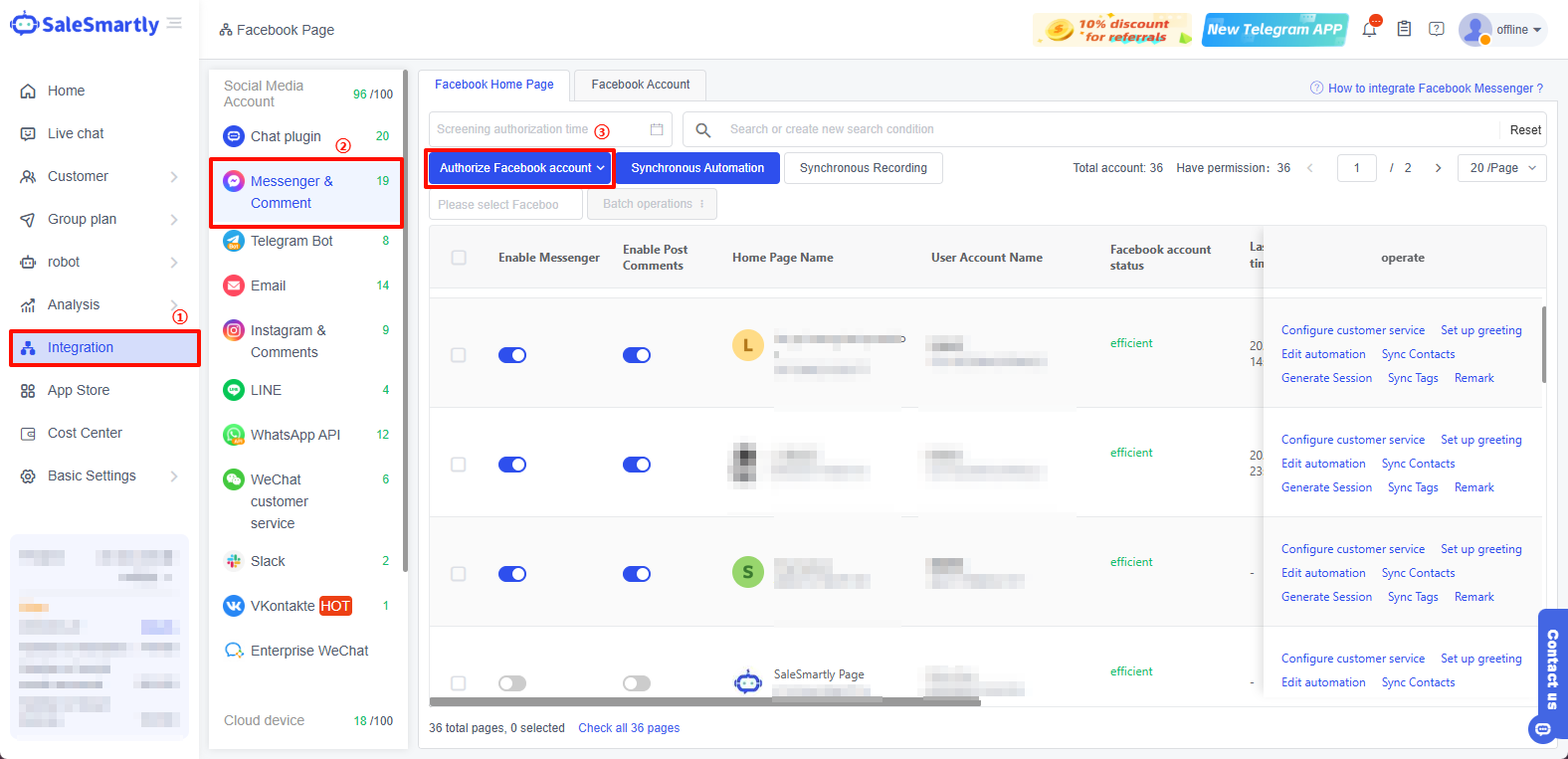
(1) First, you need to authorize your Facebook account to the platform.
(2) After logging into your Facebook account, click Continue as (your account name), select the Page you want to connect, then click Continue, choose the operations SaleSmartly can perform on the Page (it is recommended to select "Yes" for all), and then click Save. Once the authorization is complete, click OK to return to SaleSmartly. See the example image below:
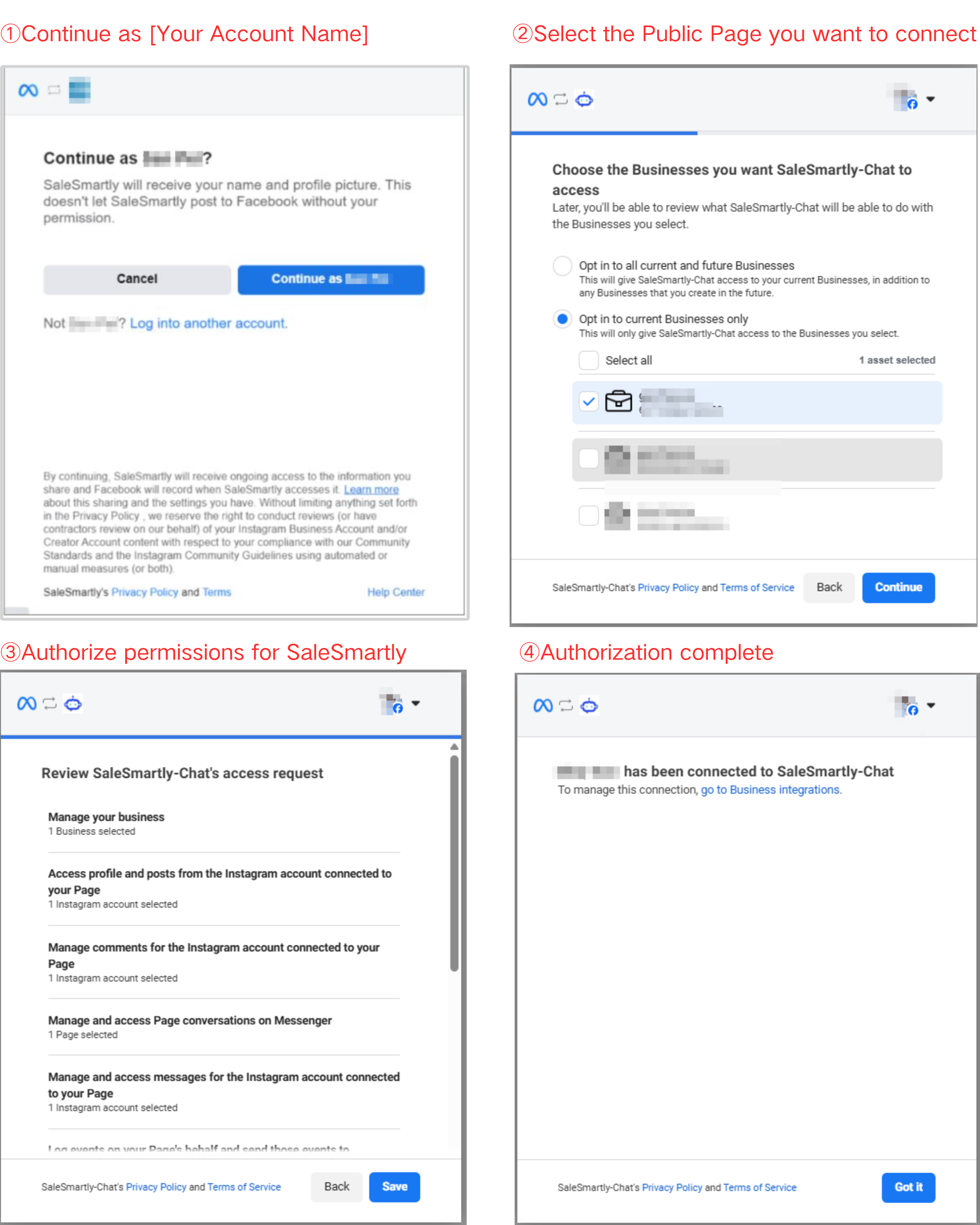
(3) After the authorization is complete, Facebook is successfully integrated into SaleSmartly.
2.2. Multi-Page Aggregation Management
After successfully authorizing your Facebook account and Page, you can manage multiple Pages in SaleSmartly, chat in one place, and send, receive, and process Messenger messages and Page post comments from several Pages. You don't need to switch back and forth between Pages to reply to user messages, which helps you reply to Messenger messages and post comments more easily and quickly. Click Enable Messenger and Enable Post Comments to receive information in real-time.

2.2.1 Configure Customer Support Roles
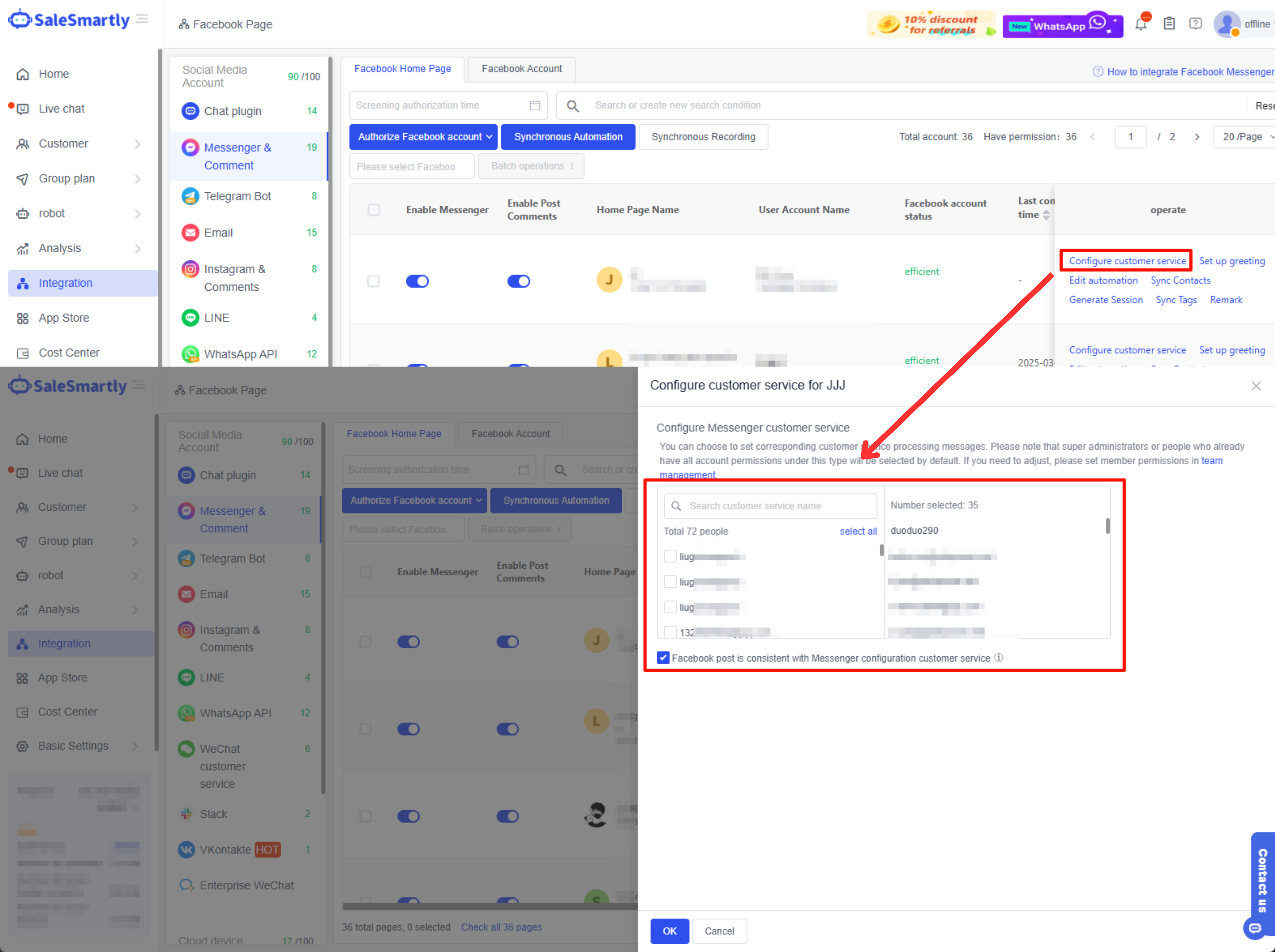
After integrating Facebook Messenger into SaleSmartly, you can configure customer support agents for your Facebook Page and manage the Page more easily.
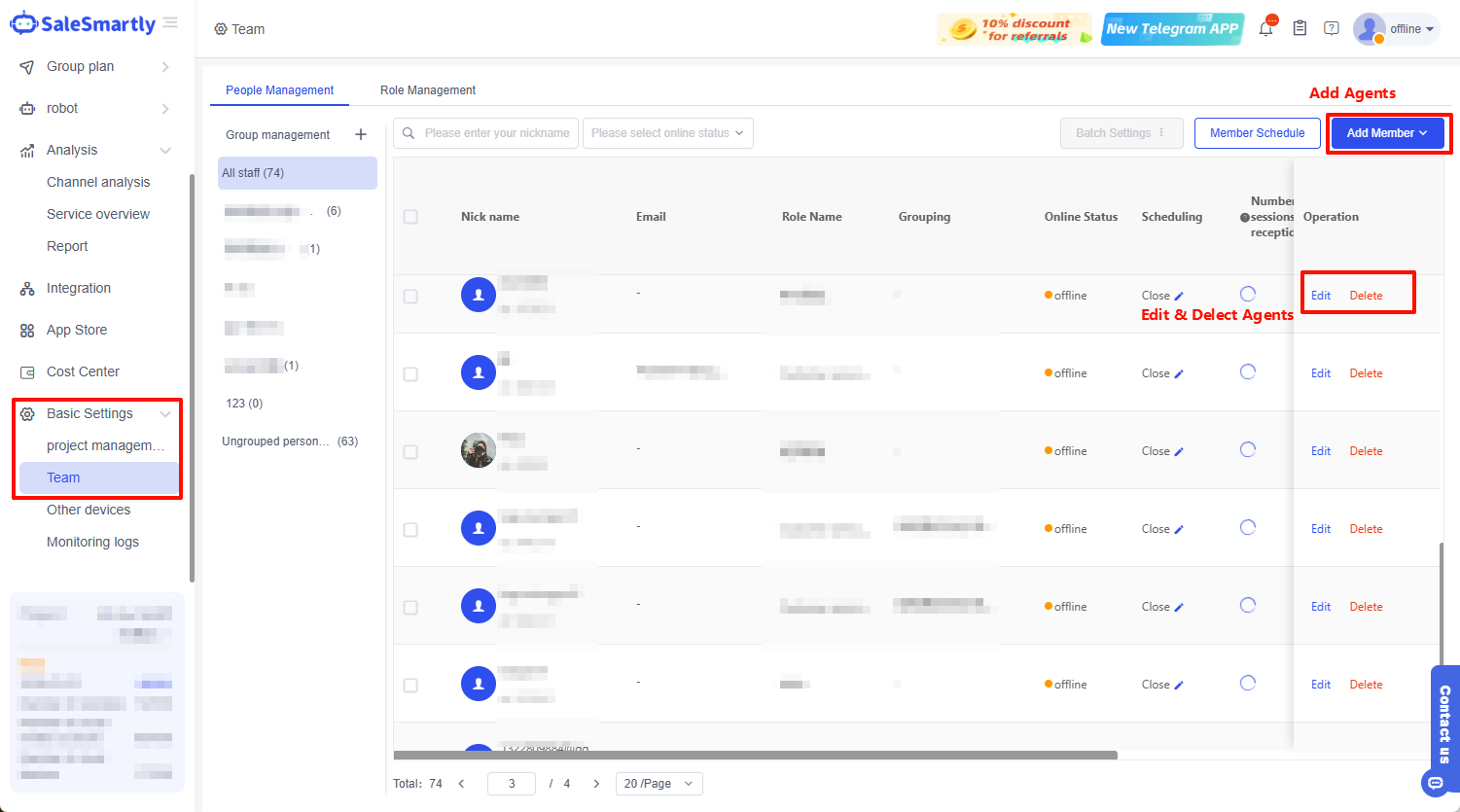
You can add customer support members in Basic Settings - Team. Additionally, you can also configure social media accounts during the creation process.

After creating customer support members, you can also return to the Integration interface to configure customer support.
2.2.2 Sync Contacts & Start Conversations
You can also sync contacts from your Facebook Page to SaleSmartly so that you can chat again, send group messages, etc. Click "Sync Contacts"; this function can sync contact information and nearly 20 chat histories for each contact. (Note: Only contacts who have previously chatted with you can be synced. Contacts who have been inactive for more than 30 days or accounts that have been blocked cannot be synced; after syncing, you can view the contacts in the Customer List.)
After syncing, you can check the progress by viewing the sync records. Synced contacts can be viewed in Customers - Customer List.
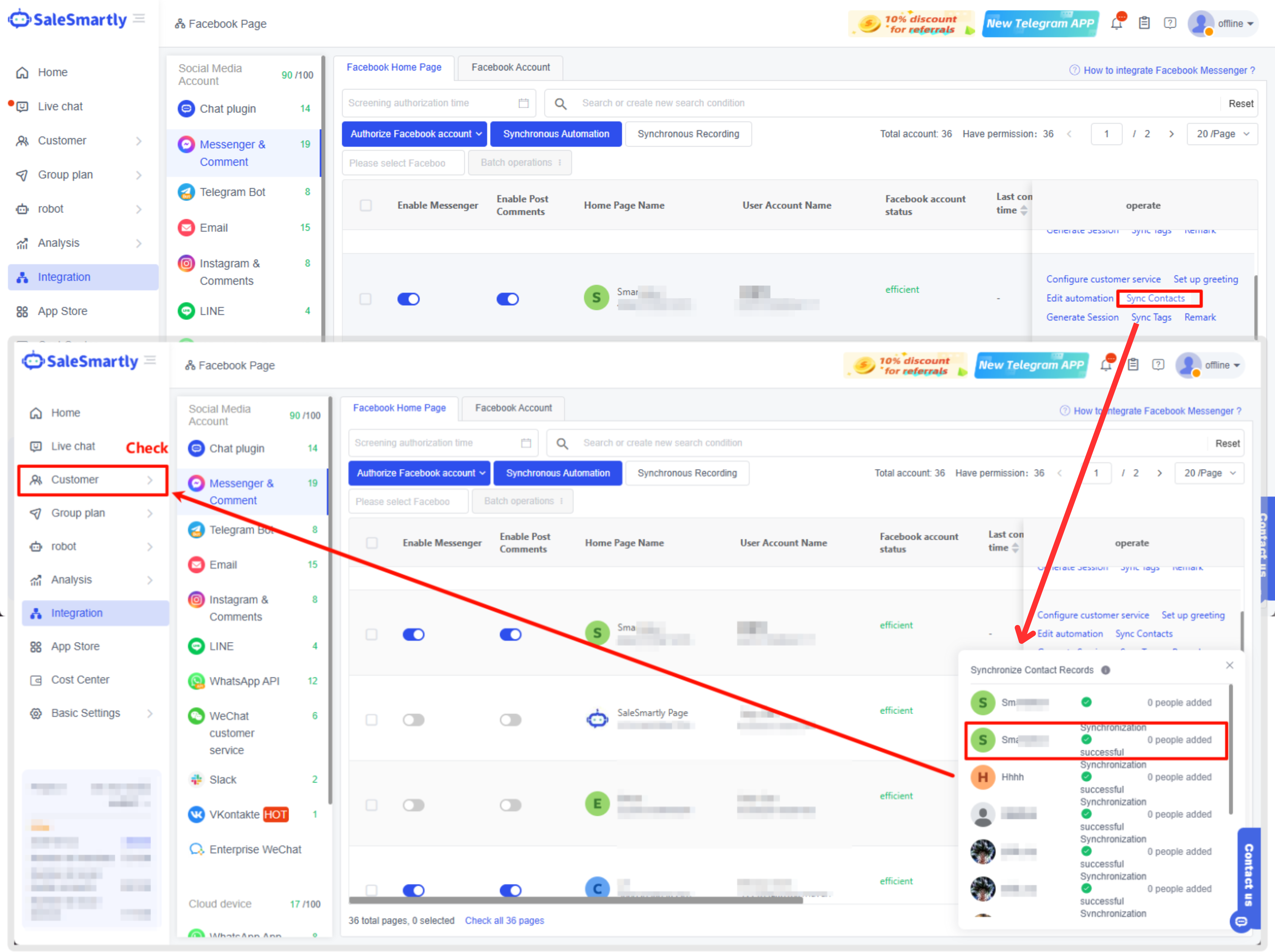
Additionally, you can click Generate Conversations, and SaleSmartly will read your conversation history and display it in Live Chat. You can view and chat there and easily connect chat sessions across various Pages. You can also manage conversations in the Conversation Management interface, which will be introduced in detail later.

2.3. Digital Chat Functions
2.3.1 Conversation List
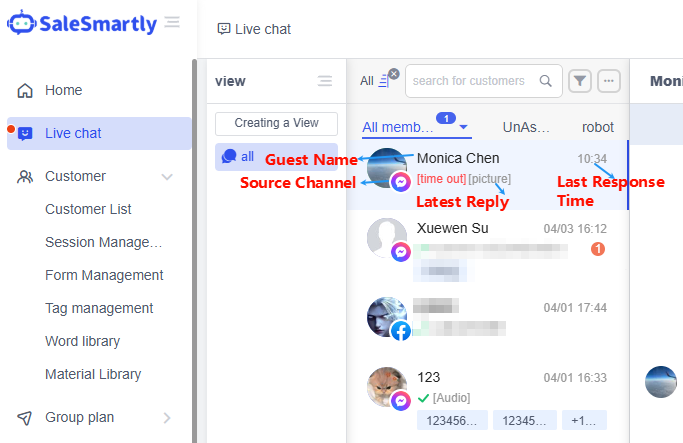
In the Live Chat interface, SaleSmartly supports unified chat for messages from multiple Pages. You can click the Messenger and Facebook Posts channels in the conversation filter to quickly filter conversation messages from the corresponding Page. It also supports filtering by rich fields such as conversation status, customer name, visitor tags, phone number, etc.

You can view basic conversation information in the conversation display bar to facilitate subsequent conversation management.
2.3.2 Multi-functional Chat Window
Messenger Channel
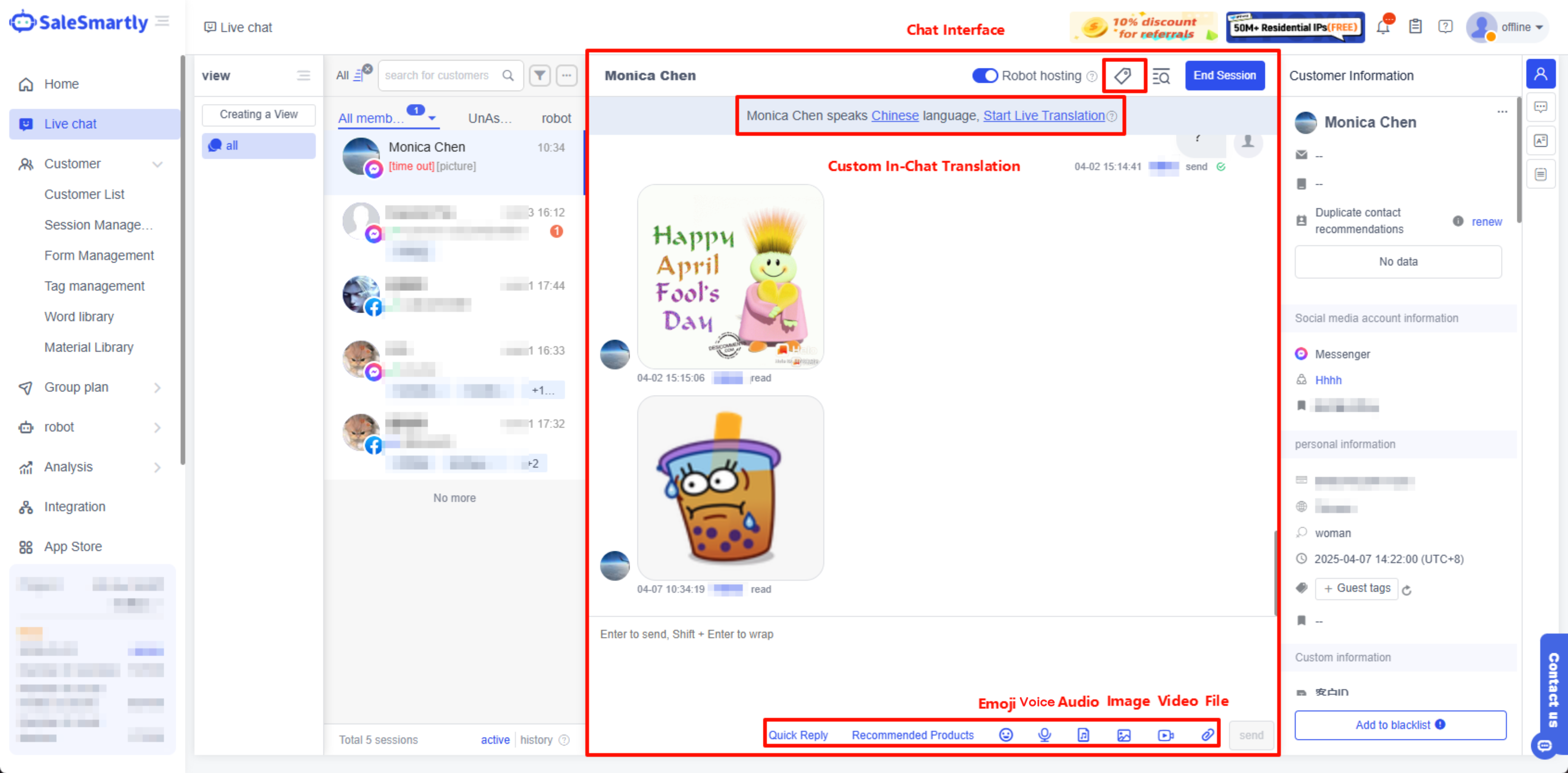
In messaging, the Messenger channel supports text, image, audio, video, and other formats. It also supports real-time custom translation, adding conversation tags, and sending recommended products to help you respond efficiently.
Facebook Post Comments
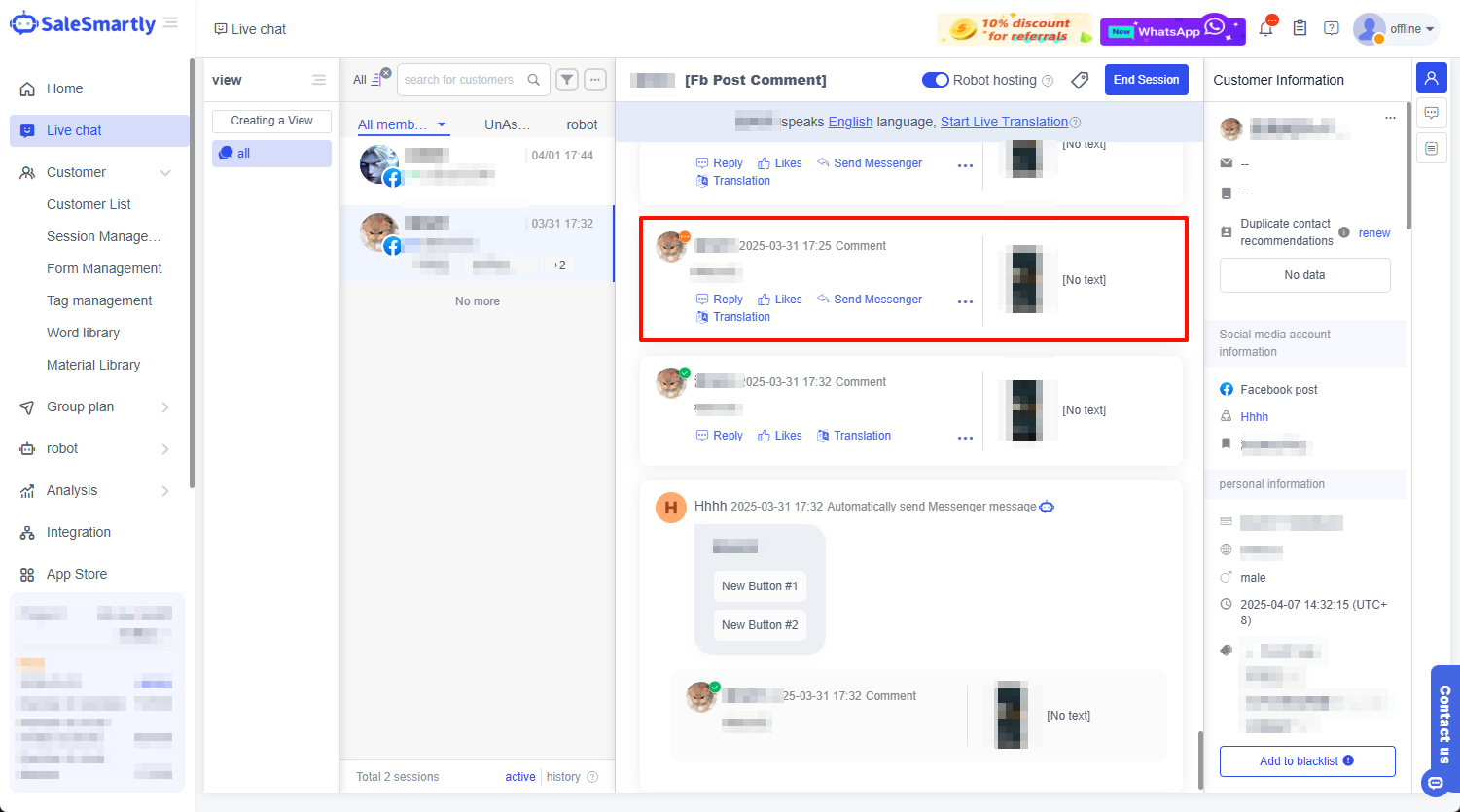
You can also handle comments on Facebook posts, including replying, liking, deleting, hiding comments, etc.
2.3.3 Customizable Customer & Conversation Information
Customer Information
You can view customer details in the Customer Information section on the right. You can also add visitor tags and notes, change email, phone number, etc., so that information can be recorded as the conversation progresses.

Conversation Information
Additionally, in Conversation Information, you can assign a new agent to the conversation and add custom conversation tags to facilitate management, chat replays, and other operations.

2.3.4 Talk Library - Edit Frequently Used Scripts for Quick Replies
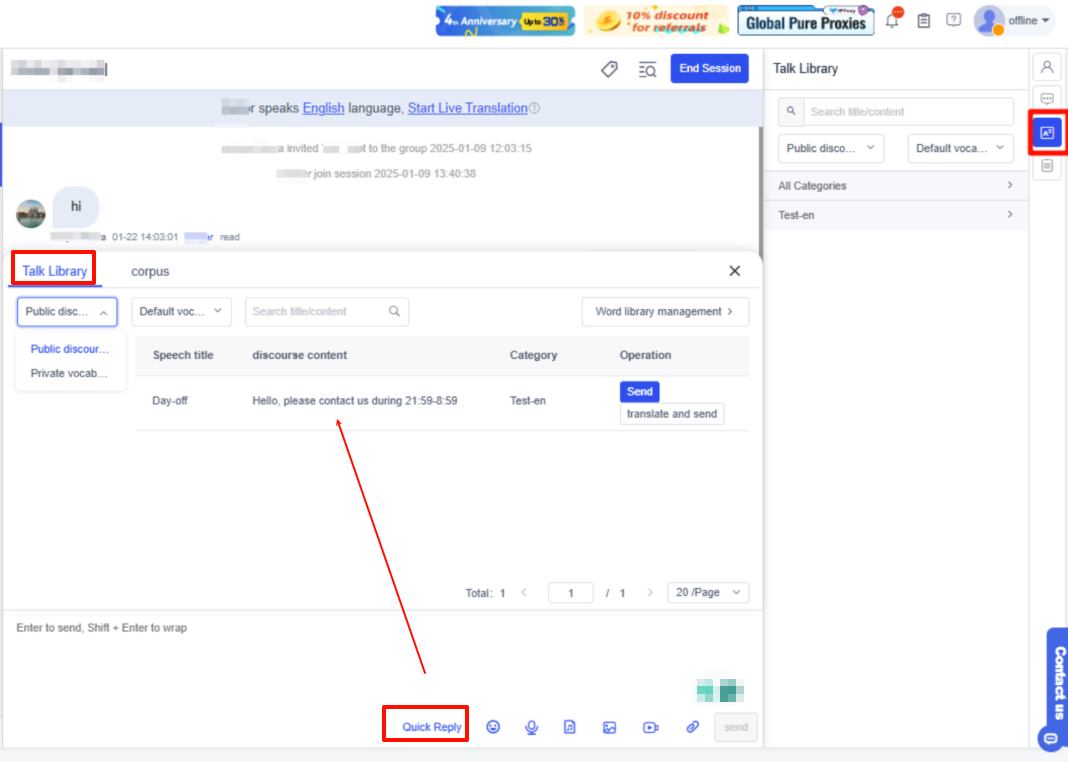
You can click Talk Library on the right to send frequently used scripts during a chat. You can also click Quick Reply below the chat window to open the talk library, improving the professionalism and accuracy of your responses.
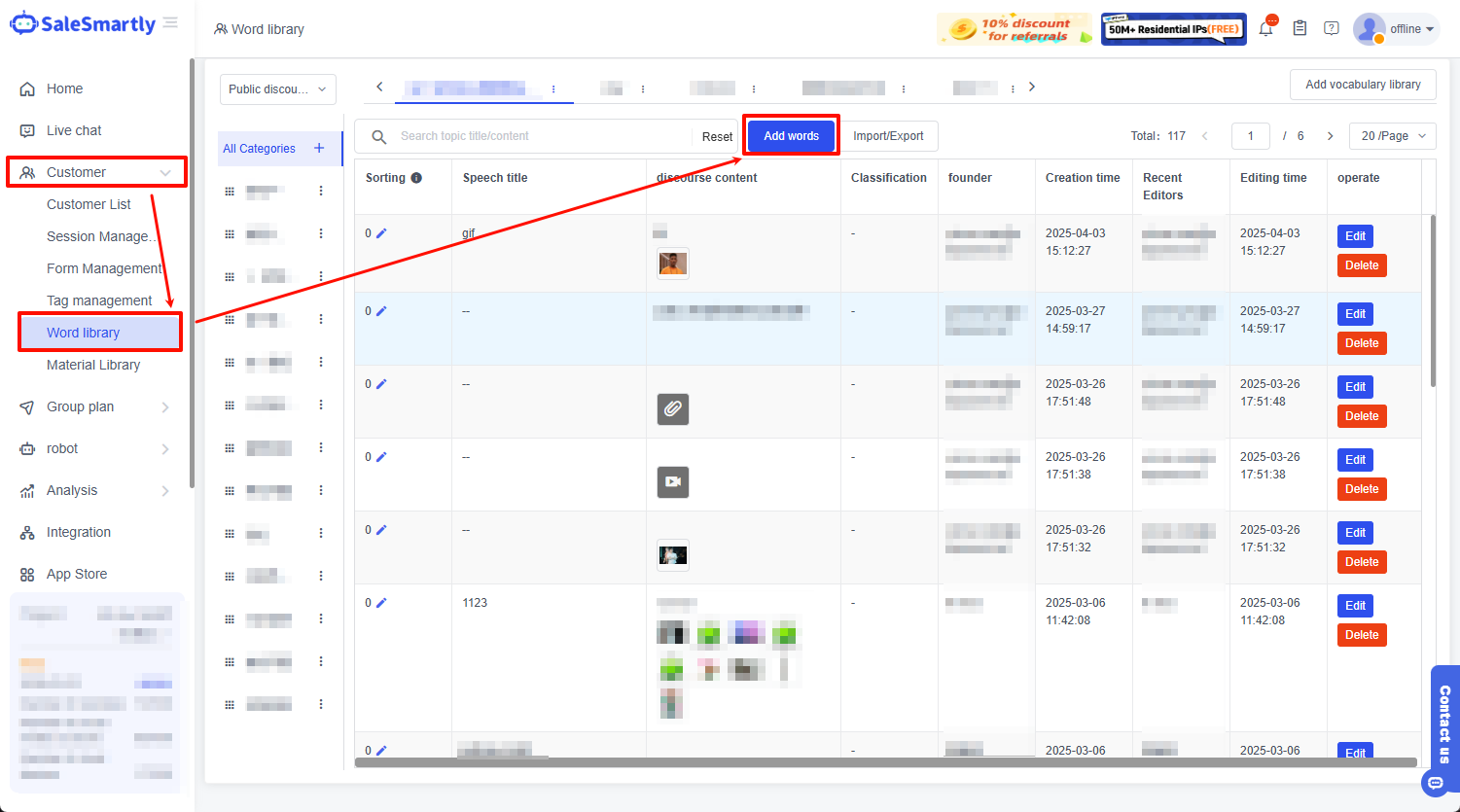
How to add to the talk library: Go to Customers - Word Library to add, edit, import/export scripts.
2.3.5 Other Features
Besides the common chat functions, SaleSmartly also supports:
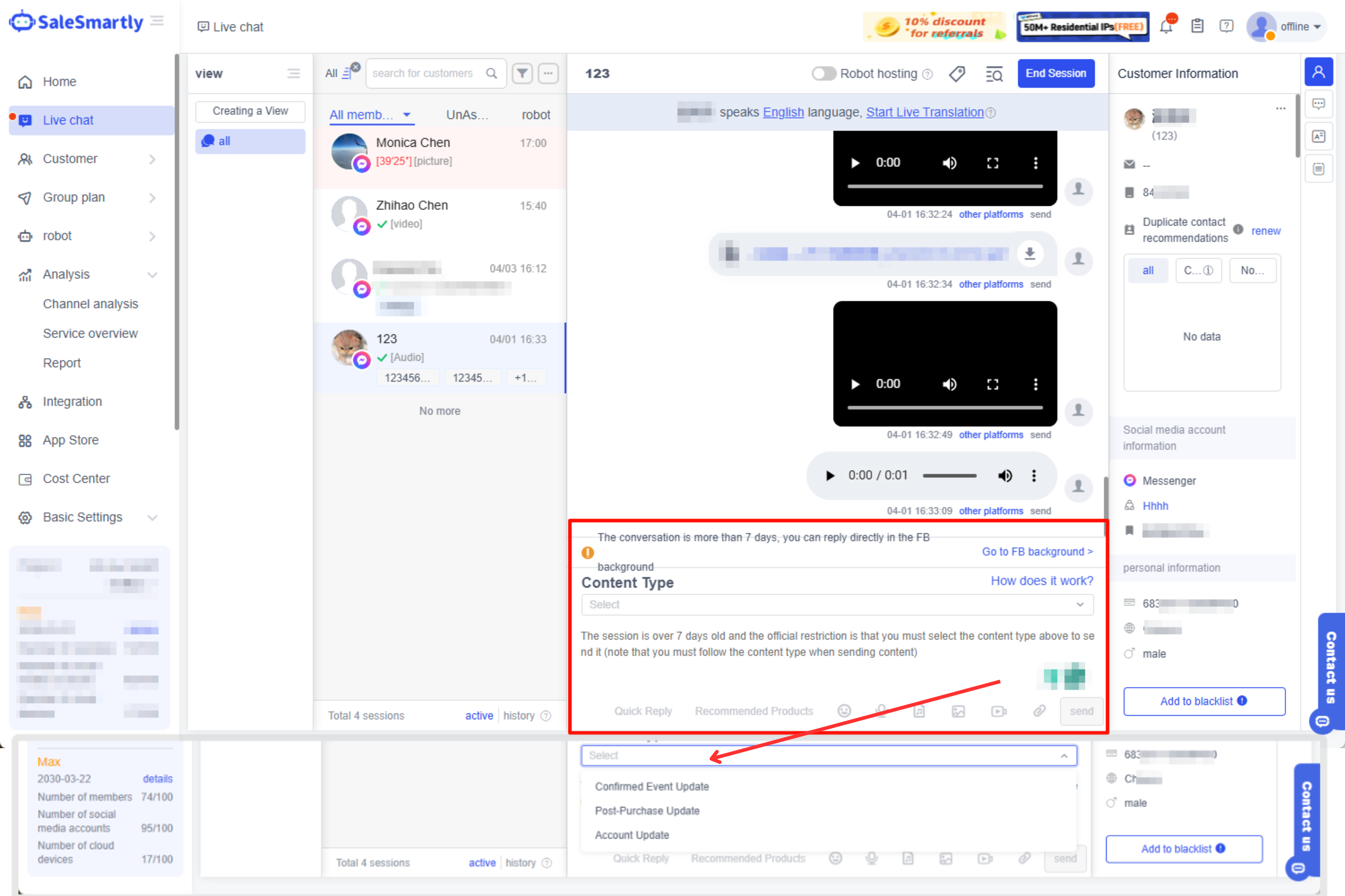
Processing Messenger messages after 7 days
The agent simply selects a content-related tag when typing the message, then sends it.
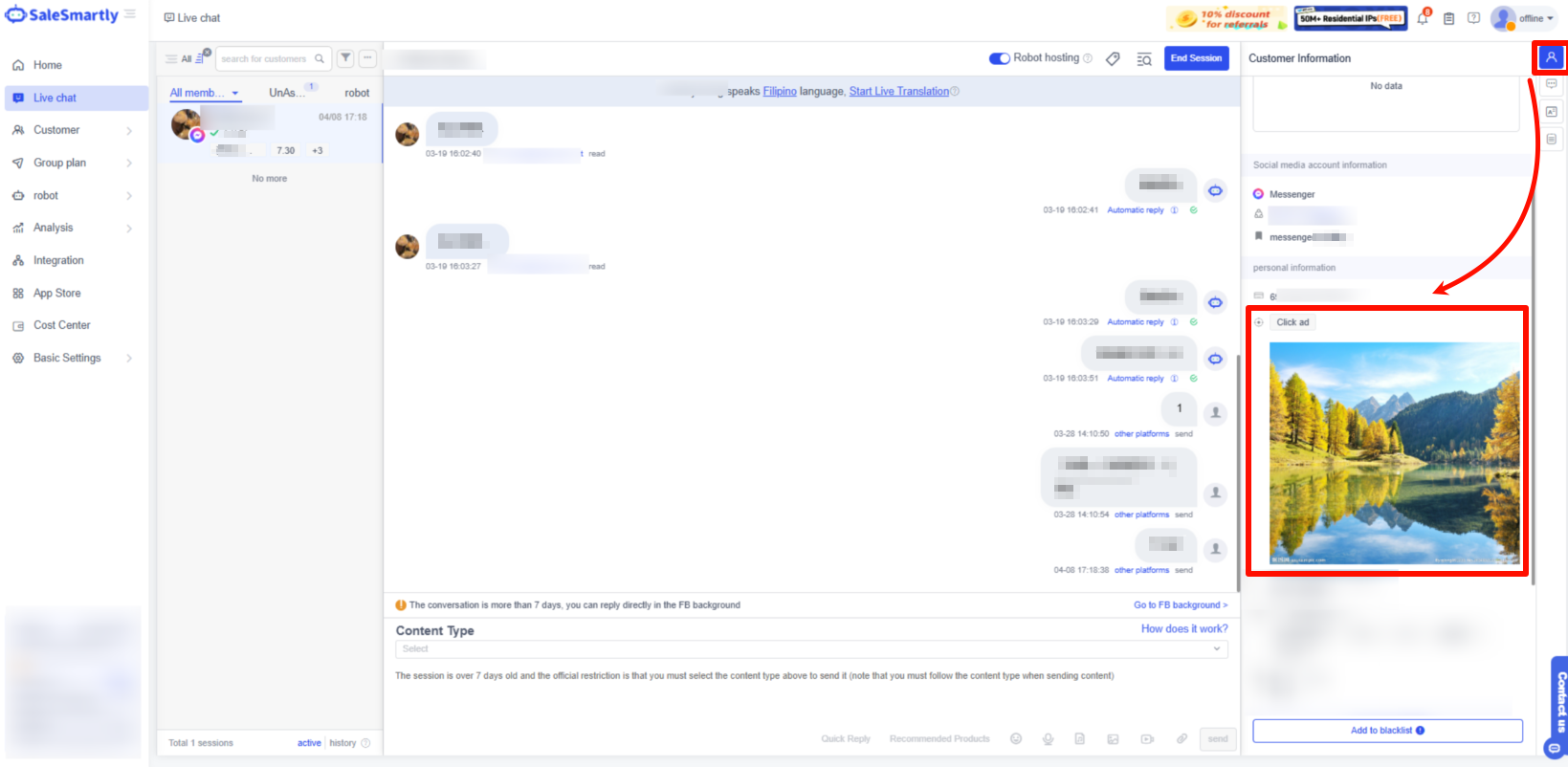
View the ad source when a visitor starts a chat
You can see which ad/post brought the visitor, helping with ad effectiveness analysis & user profiling.
Automated FAQ (AI)

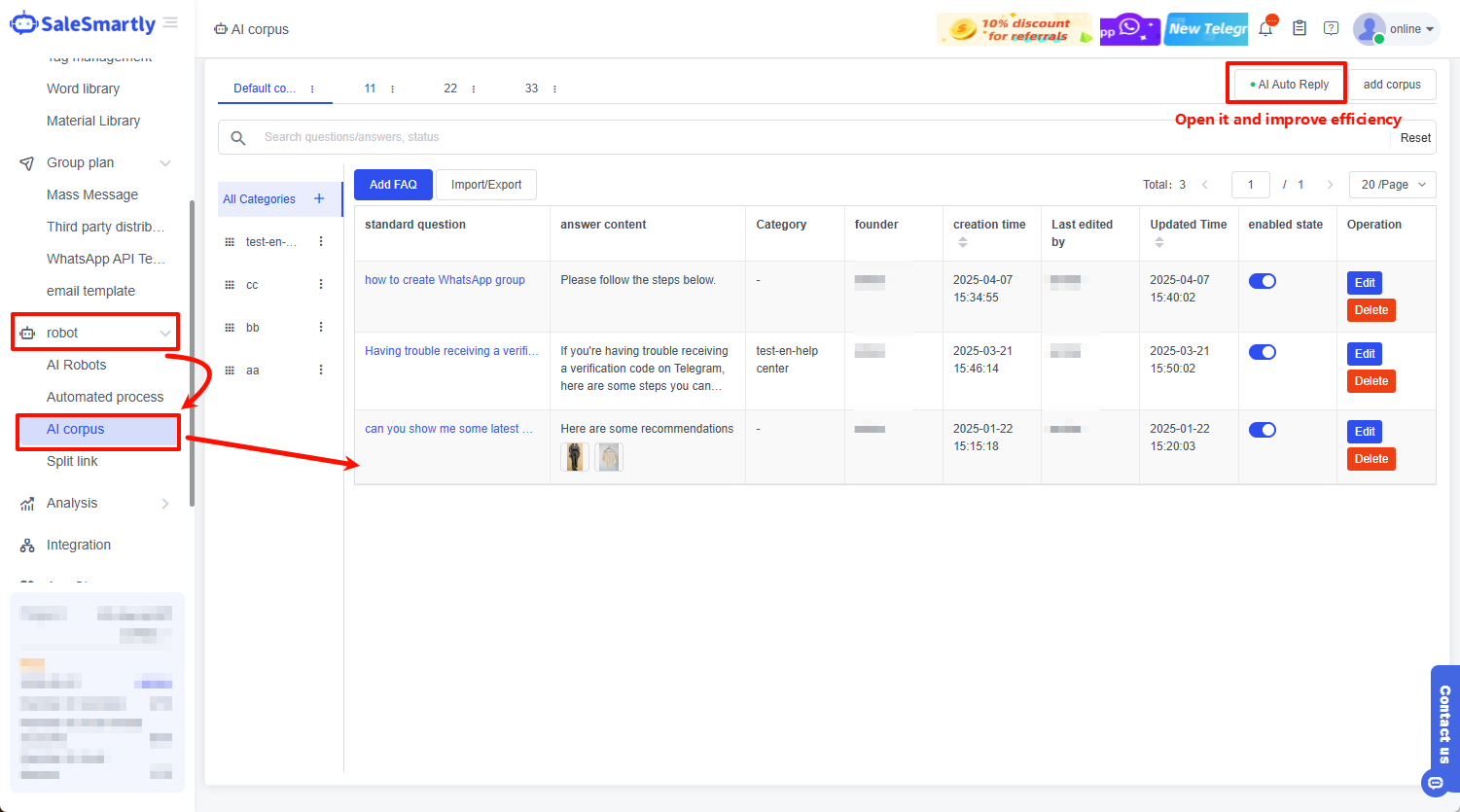
How to set up FAQ: Add/edit in Bot - AI Corpus, then enable auto-reply.
2.4. Send Bulk Messages
Supports sending bulk messages to users via Messenger and other channels (WhatsApp supports manual upload of number packages).
In Group Plan - Bulk Message, select the Messenger channel, select users in batches, and click "Bulk Message". The content can be text, images, attachments, or an automated flow.
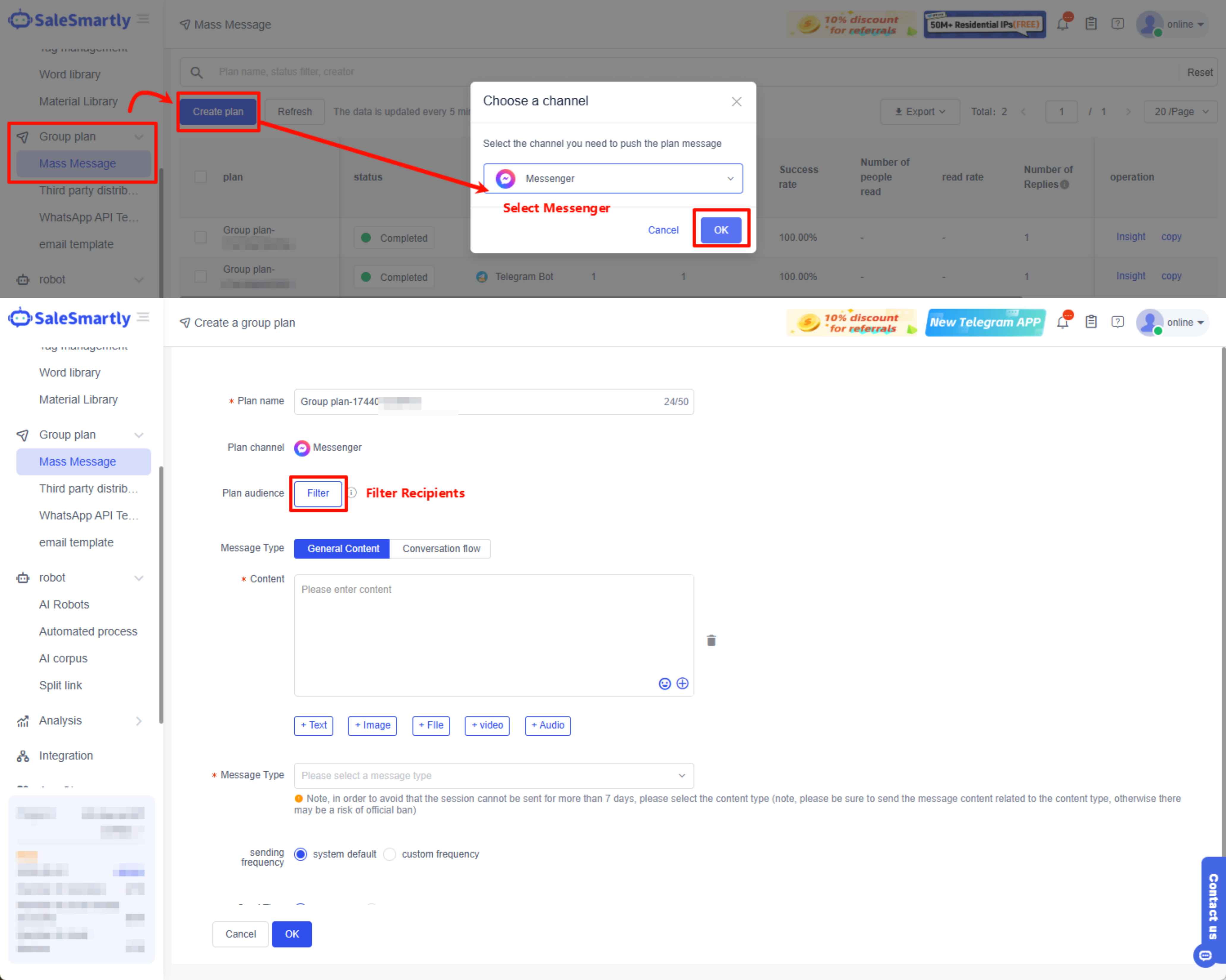
Targeted Messaging: Filter users by attributes, visitor tags, assigned agent, social account, etc.

2.5. Automated Replies with a Bot
An automated bot helps increase efficiency, sales, traffic, etc.
2.5.1 Creating Automations
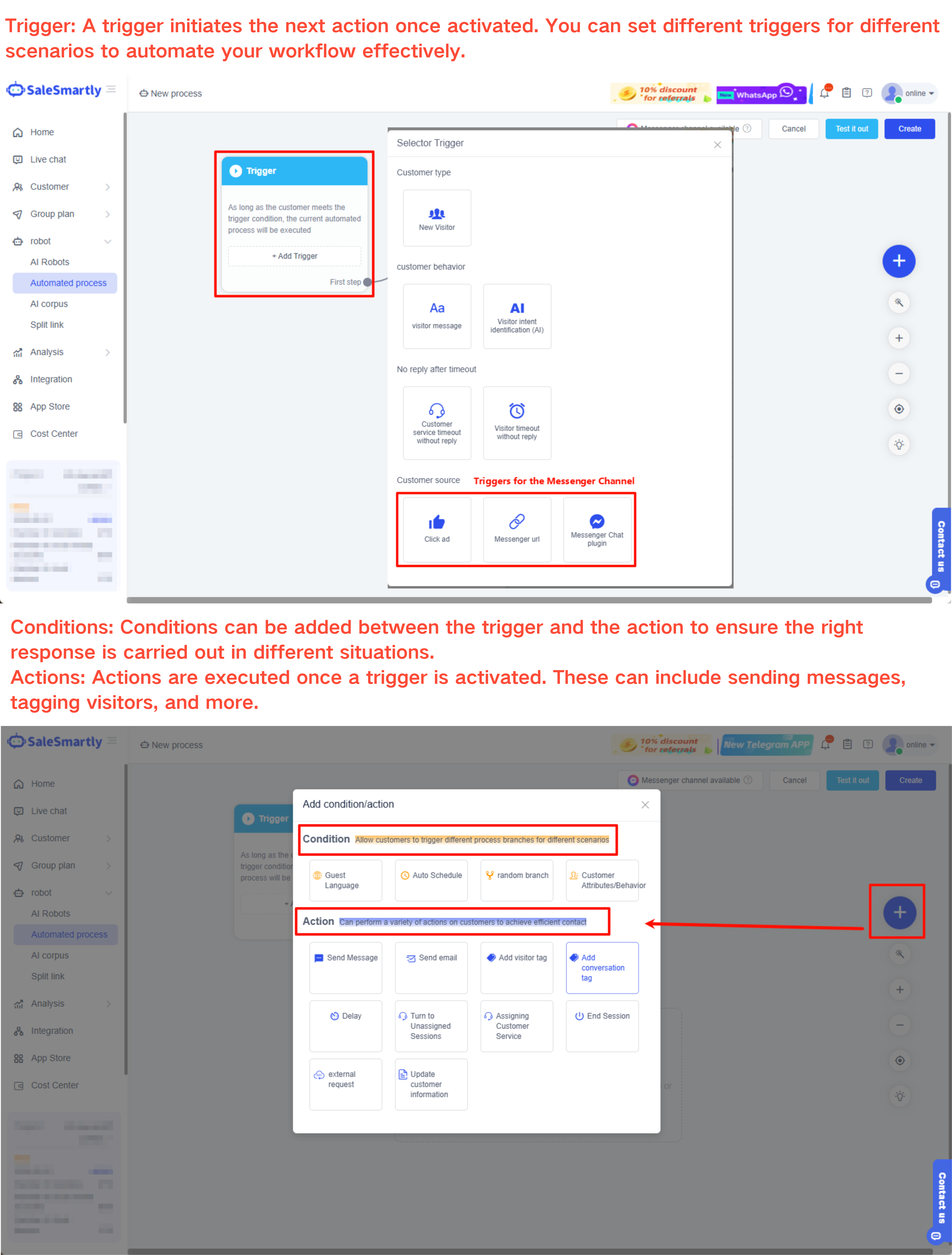
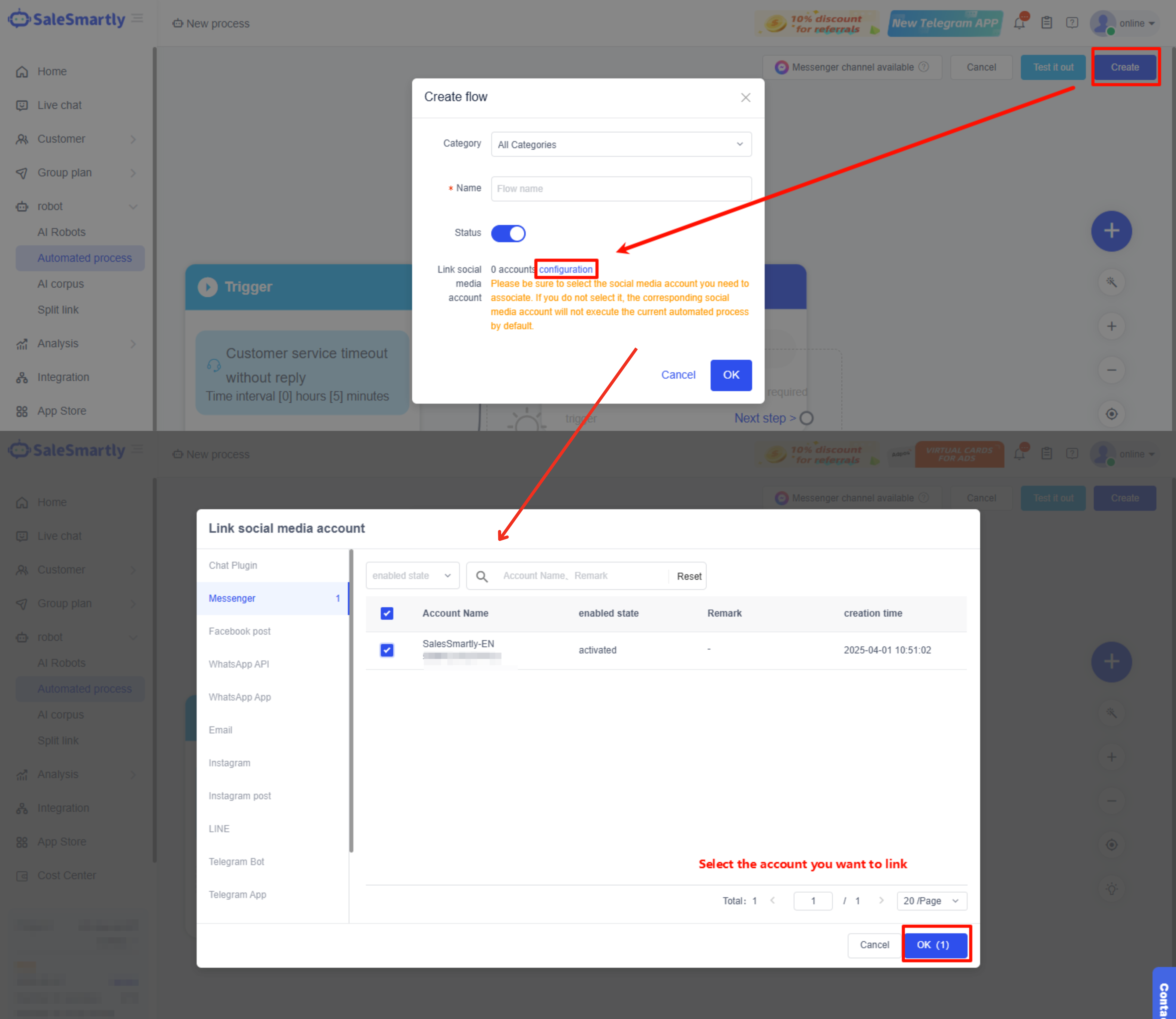
In Bot - Automated Process, click New Flow, then select Messenger or Facebook comments.

Main components: trigger, condition, action. Includes Facebook-specific triggers like "clicks an ad", "Messenger link", "Messenger plugin".
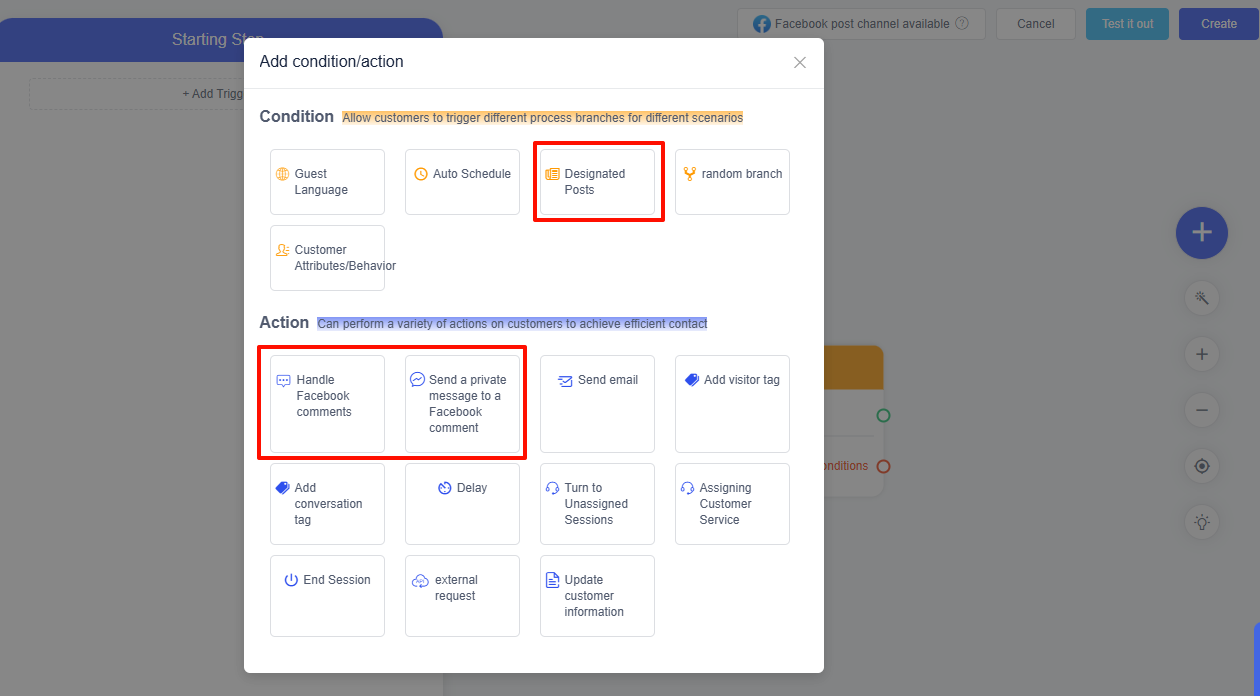
Facebook Comments: There are automation templates to reply, delete, or hide comments, send private messages, etc.
2.5.2 Configuring Automations
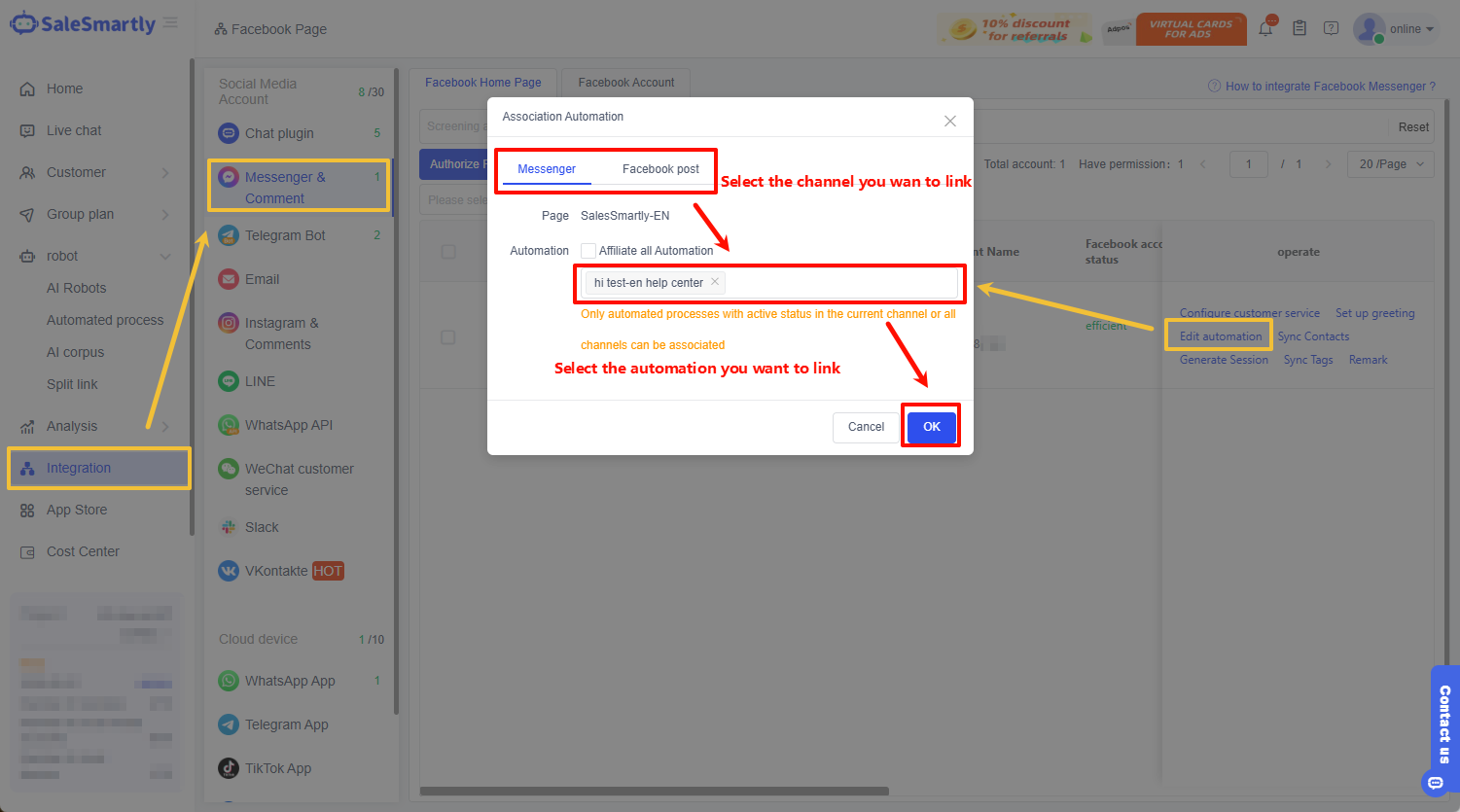
After editing the flow, click Save → Configure → select the social account → OK. Enable it in the Automated Process interface.
You can also edit this in Integration - Messenger & Comments channels.
2.5.3 Syncing Automations
You can sync a flow from one Page to another. See details in Automation Process

2.6. Channel Analysis
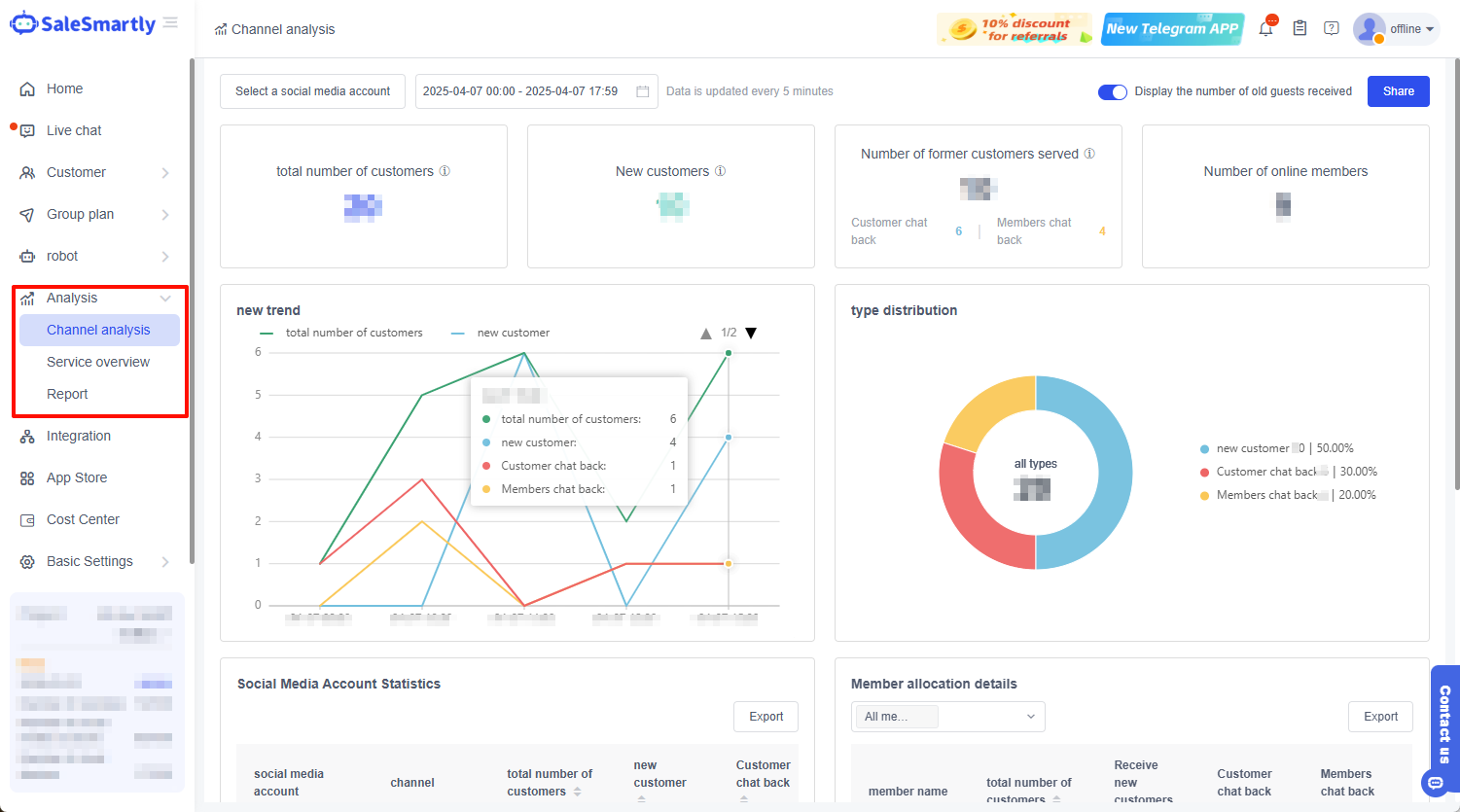
SaleSmartly supports analysis for the Messenger channel: visitor data overview, daily growth trends, new fan breakdown by Page, agent service reception, team performance, etc. See details: Channel Analysis
2.7. Team & Conversation Collaboration
2.7.1 Large Team Collaboration Process
Manage members in Basic Settings - Team. Add them via an internal shortcut or email. You can set limits, roles, and channel permissions.
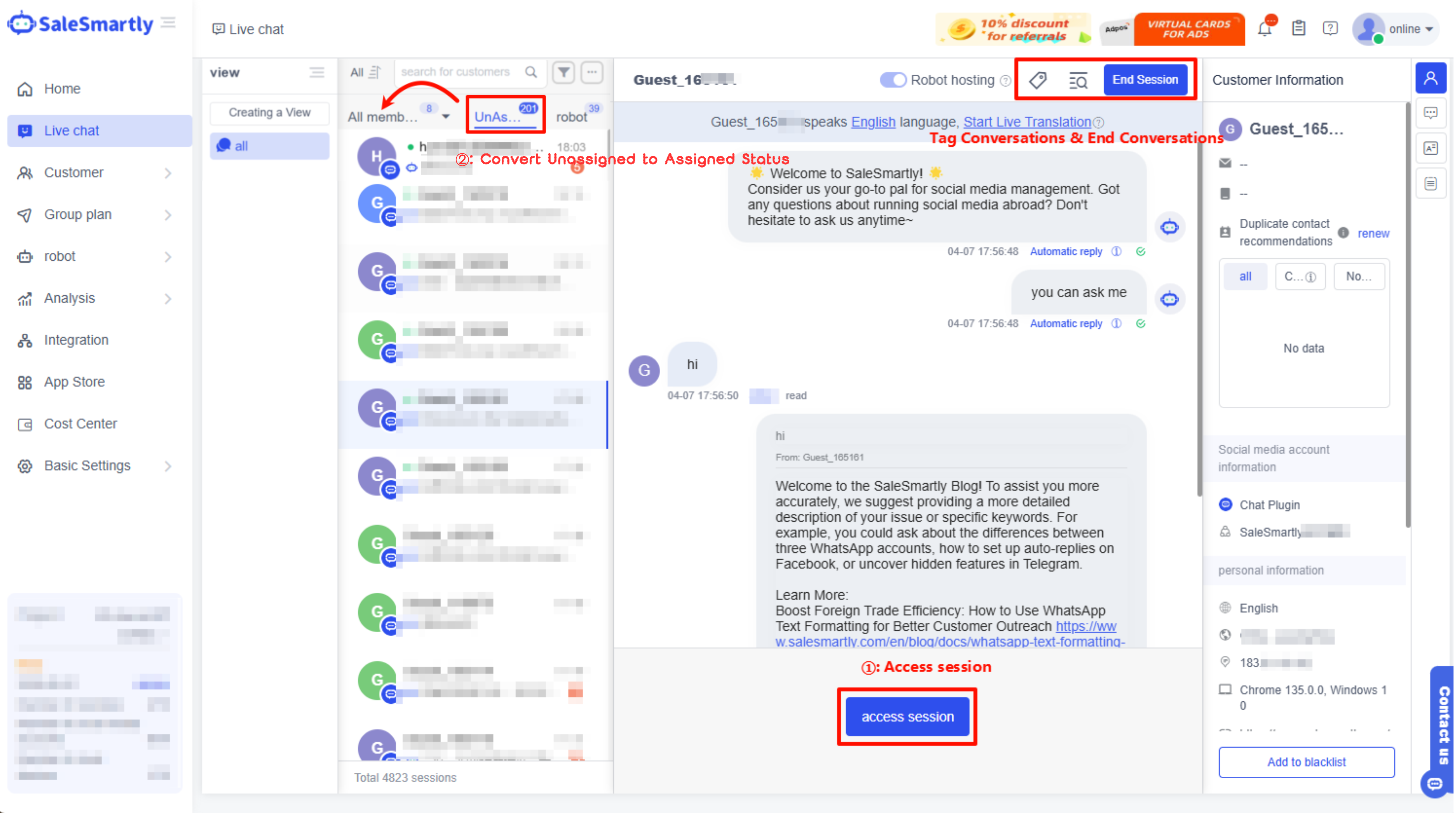
New conversations are managed by the bot or are unassigned by default. They can be assigned manually or automatically to other members. You can end sessions, add tags, archive them, and review their quality.
2.7.2 Permission Control
Supports setting functional and data permissions for agents. Other conversations can be made invisible to maintain privacy & individual performance statistics.
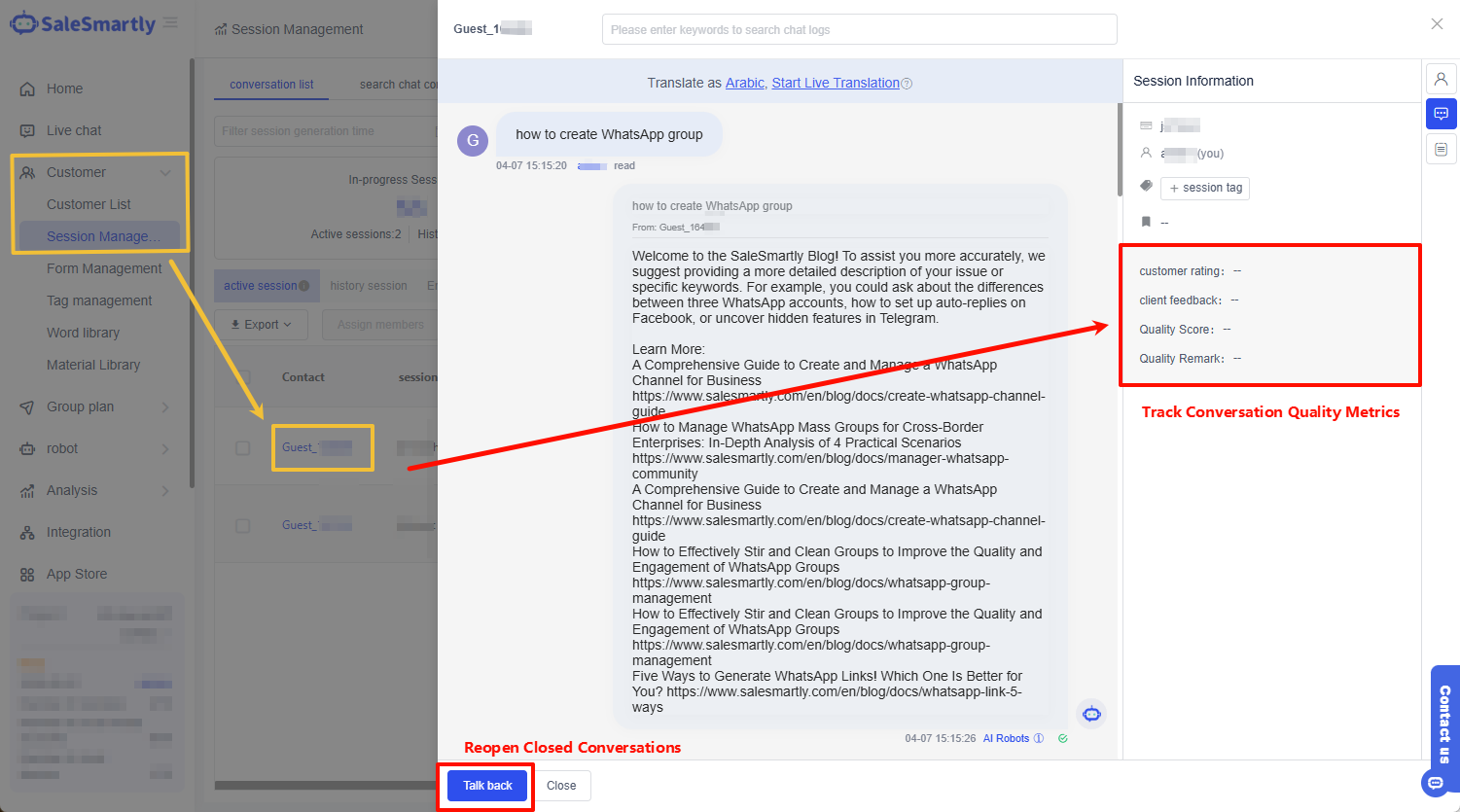
2.7.3 Conversation Archive & Quality Check
After a conversation is finished, view the recording, rating, and feedback in Customers - Conversation Management. Supervisors can audit quality. You can also "restart chat".