Modify Chat Avatars
Easily modify chat plugin, robot, and member avatars for better user experience.
1. Modify Chat Plugin and Merchant Logo Avatars
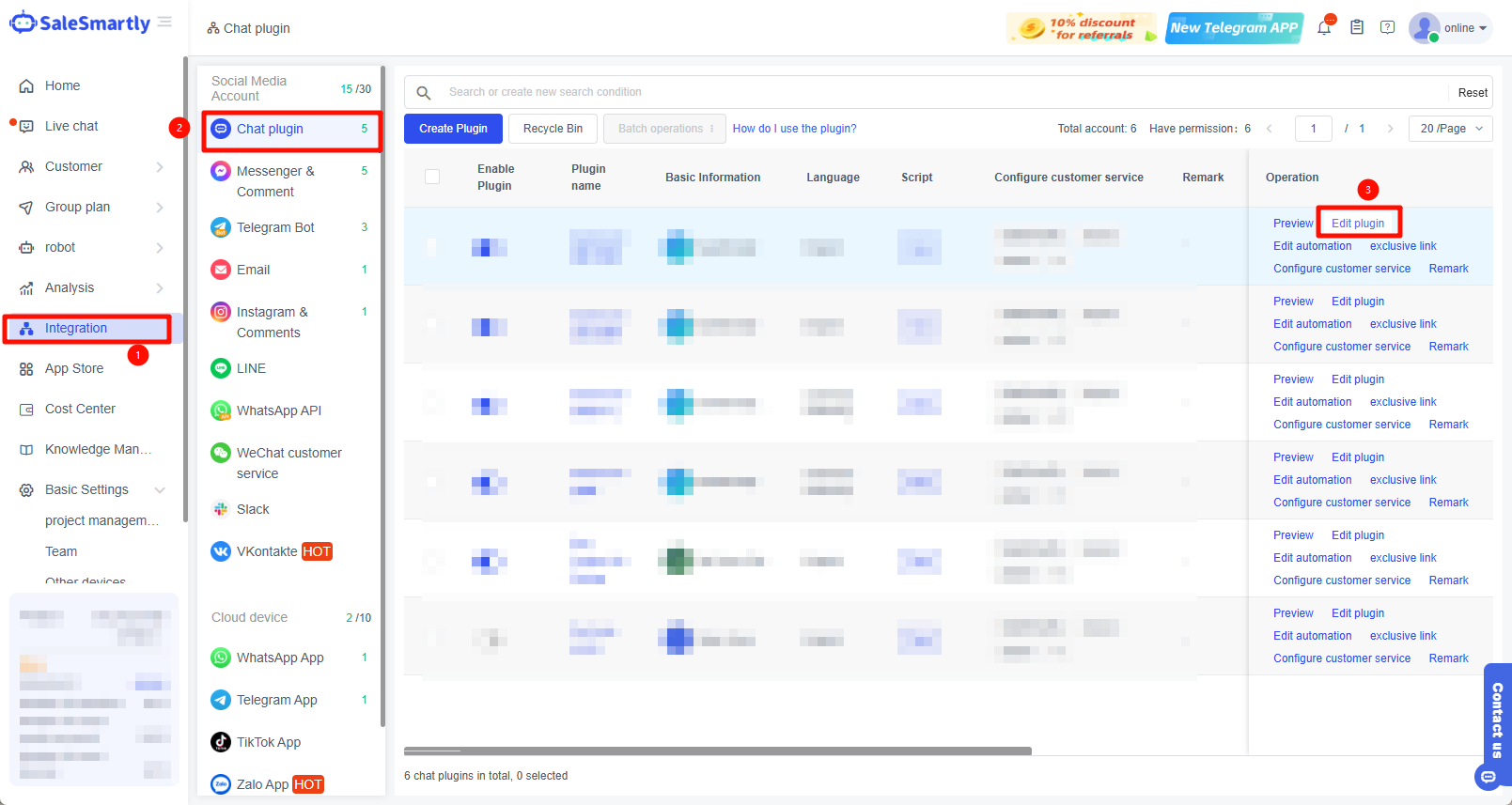
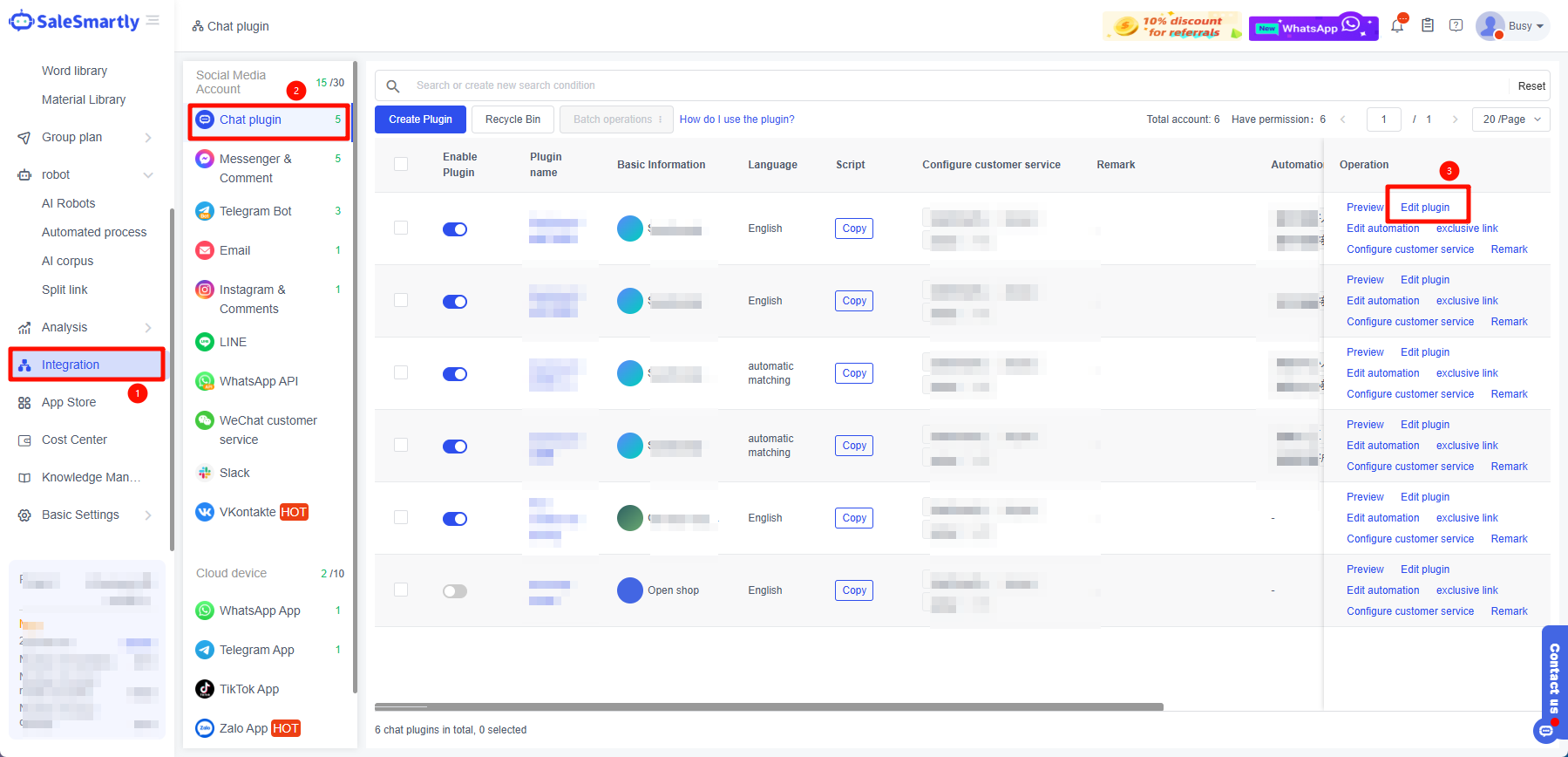
1.1. Enter Integration - Chat Plugin - Edit Plugin.
1.2. Find Style Settings - Set Avatar - Merchant Logo, upload the avatar and click Save in the upper right corner to take effect.
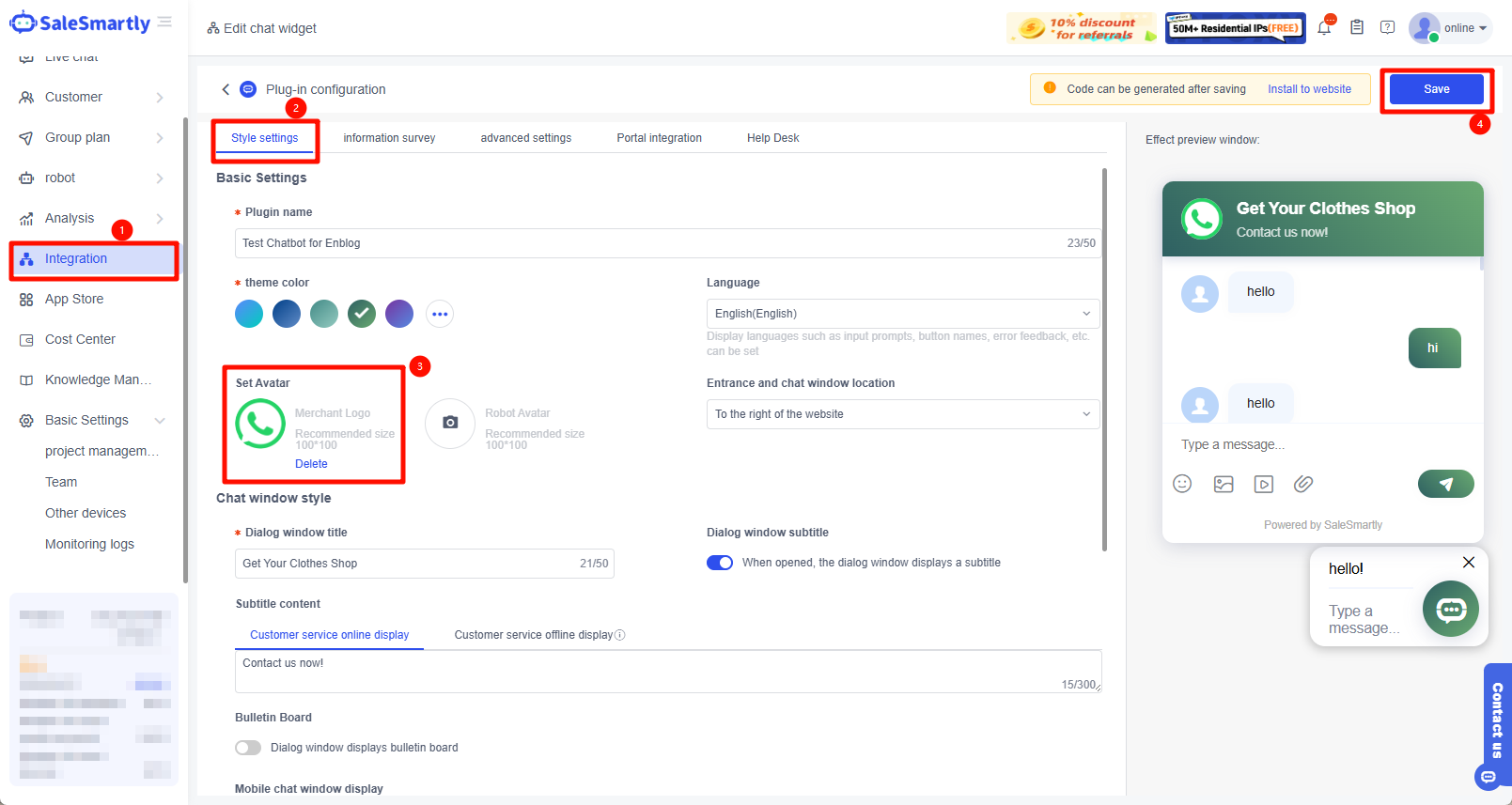
1.3. Effect preview.
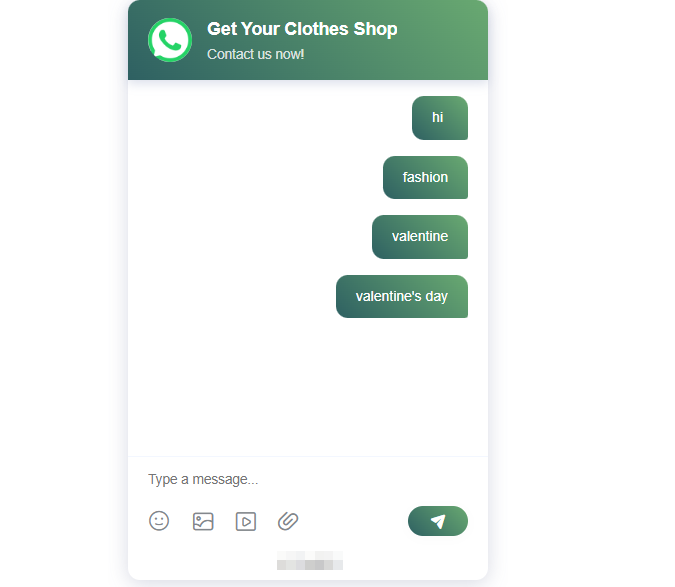
2. Modify the Robot Avatar
2.1. Enter Integration - Chat Plugin - Edit Plugin.
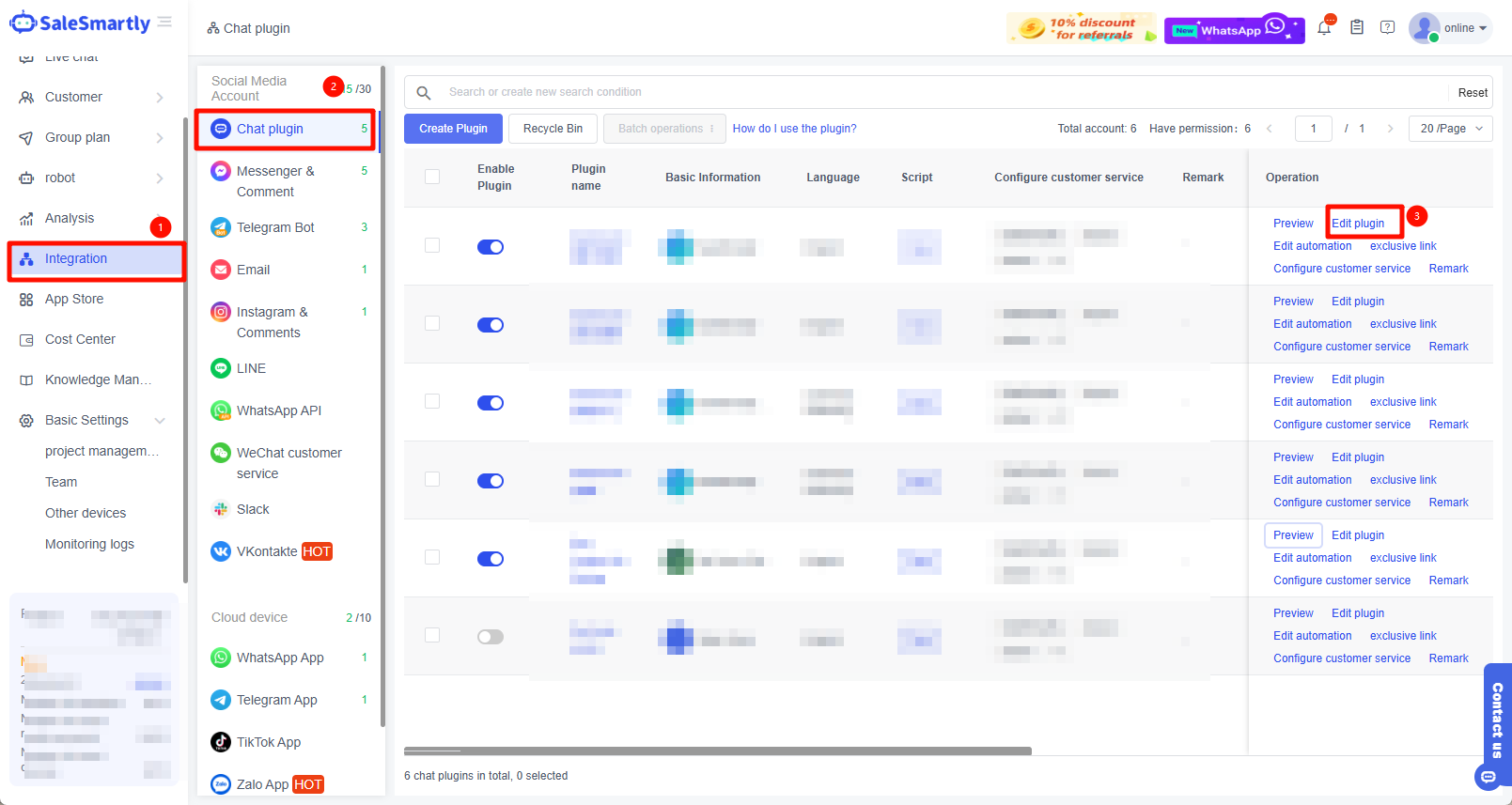
2.2. Find Style Settings - Set Avatar - Robot Avatar, upload the avatar and click Save in the upper right corner to take effect.
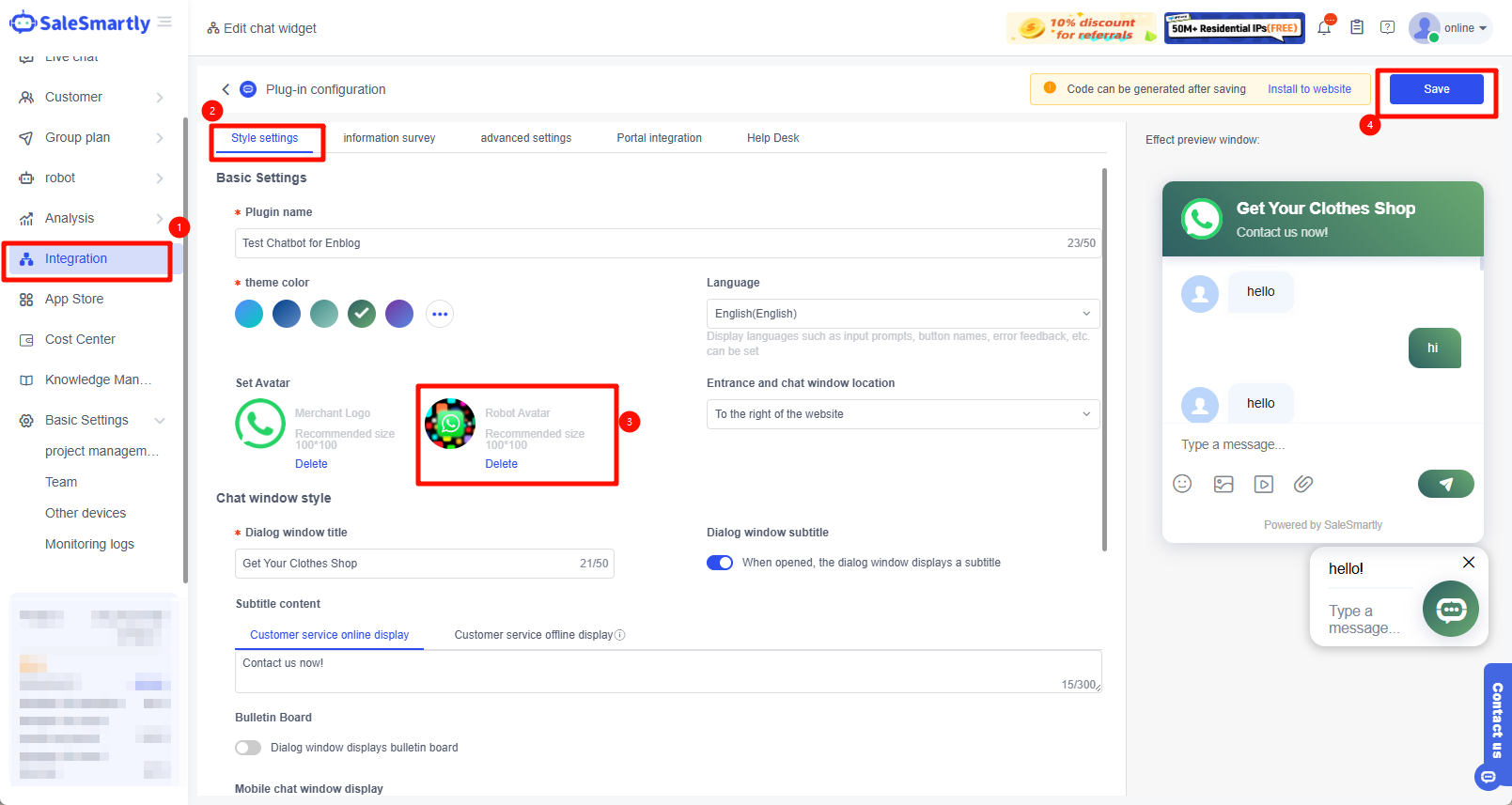
2.3. Effect preview.
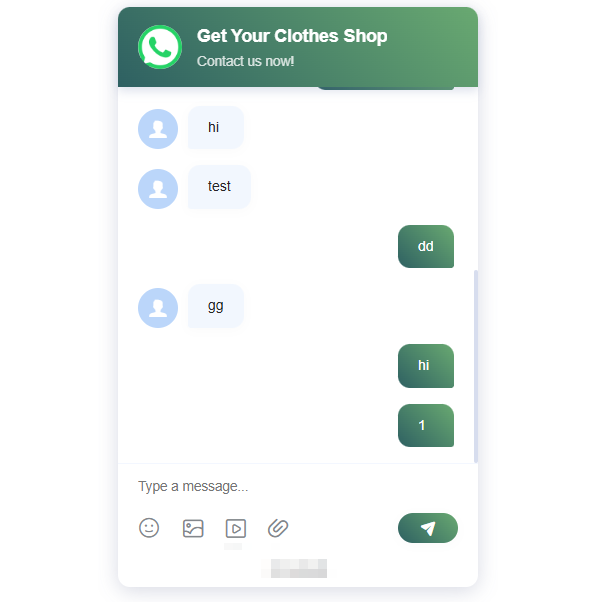
3. Modify the Chat Plug-In Entry Style Avatar
The uploaded image cannot be larger than 5 MB. The recommended image size is 60*60. Only JPG/JPEG/PNG/GIF formats are supported.
3.1. Enter Integration - Chat Plugin - Edit Plugin.
| Note The entry icon needs to be closed to be collapsed, otherwise, it will not take effect! |
|---|
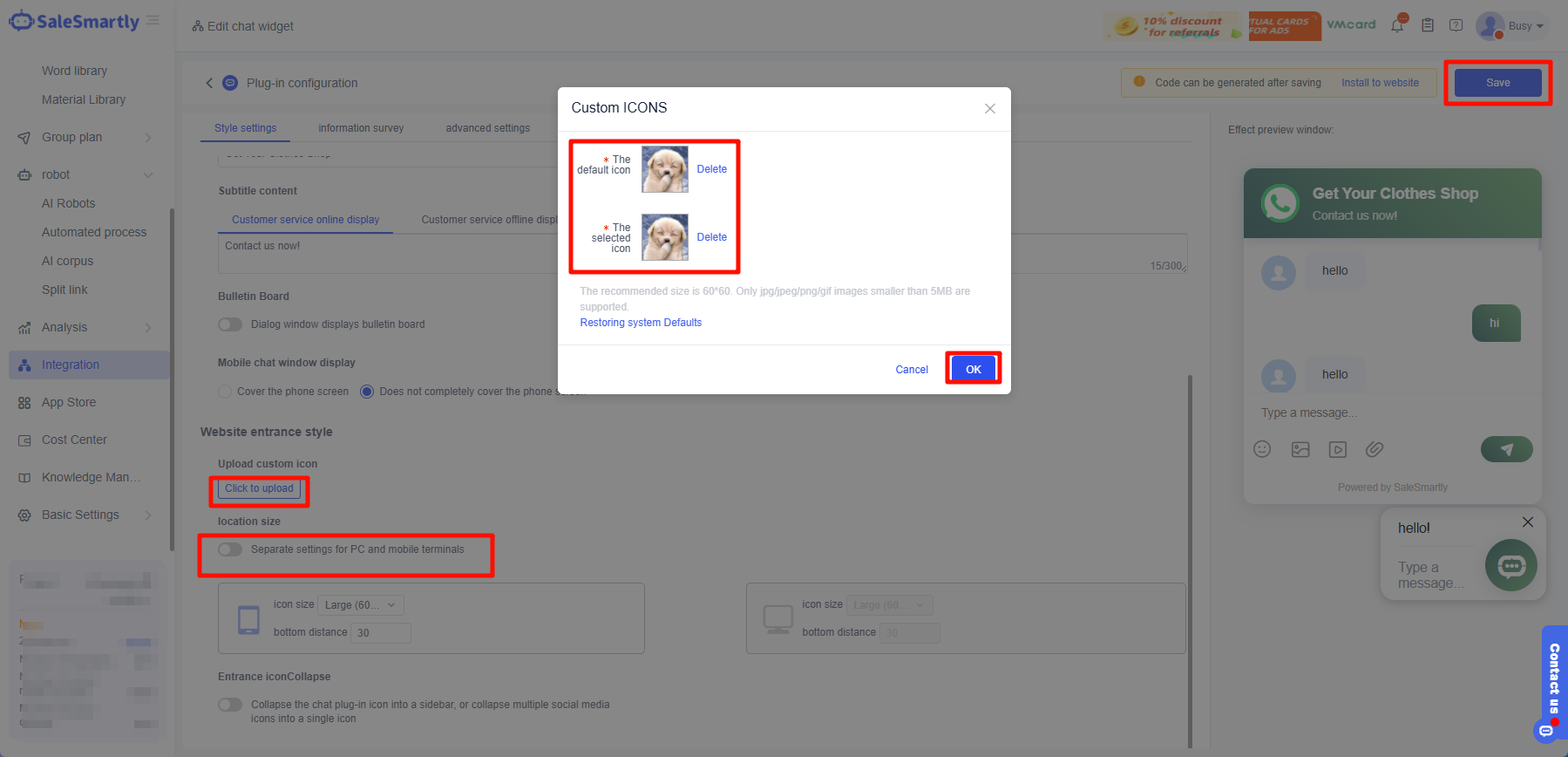
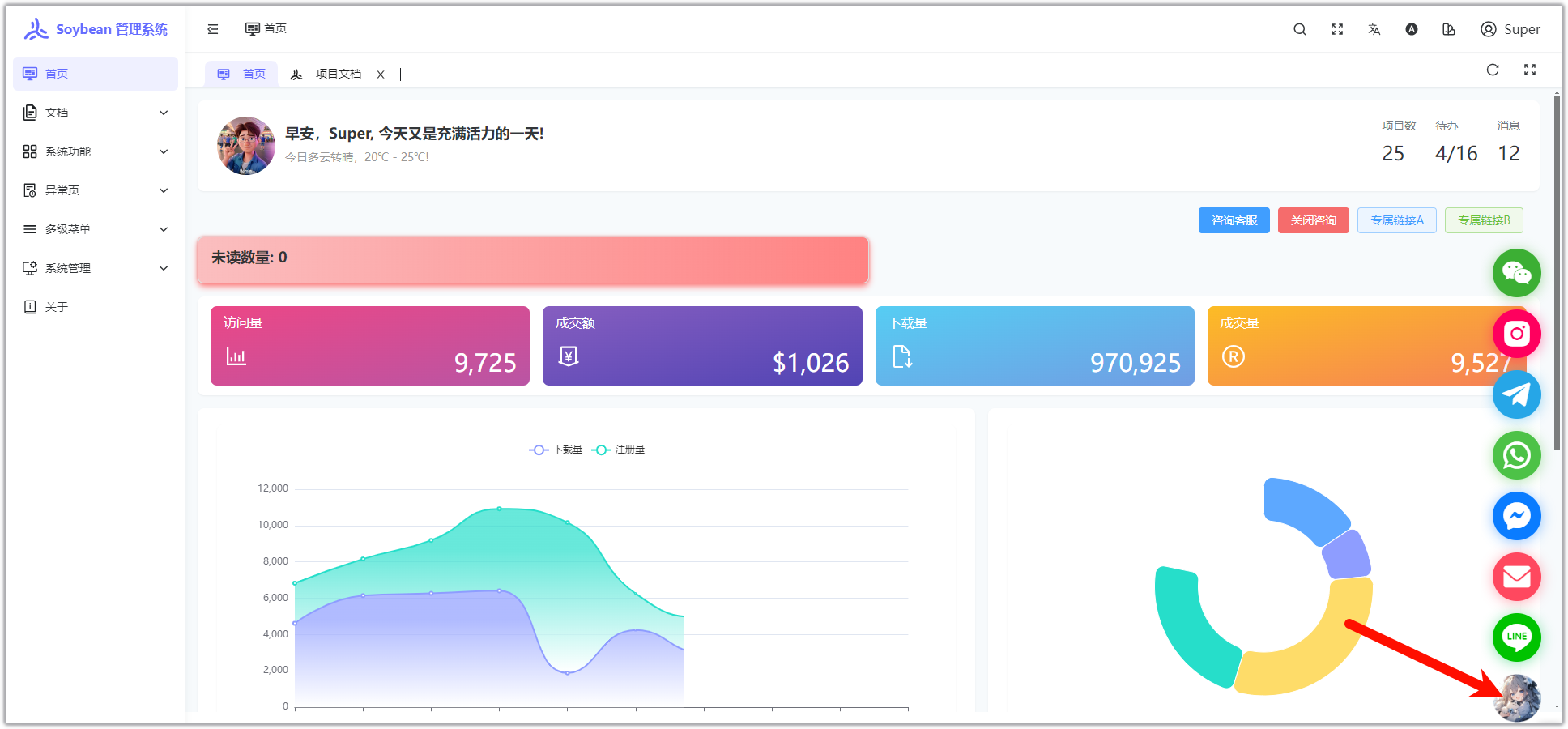
3.2. Click to view the front-end effect.
4. Modify the Customer Service Member's Profile Picture
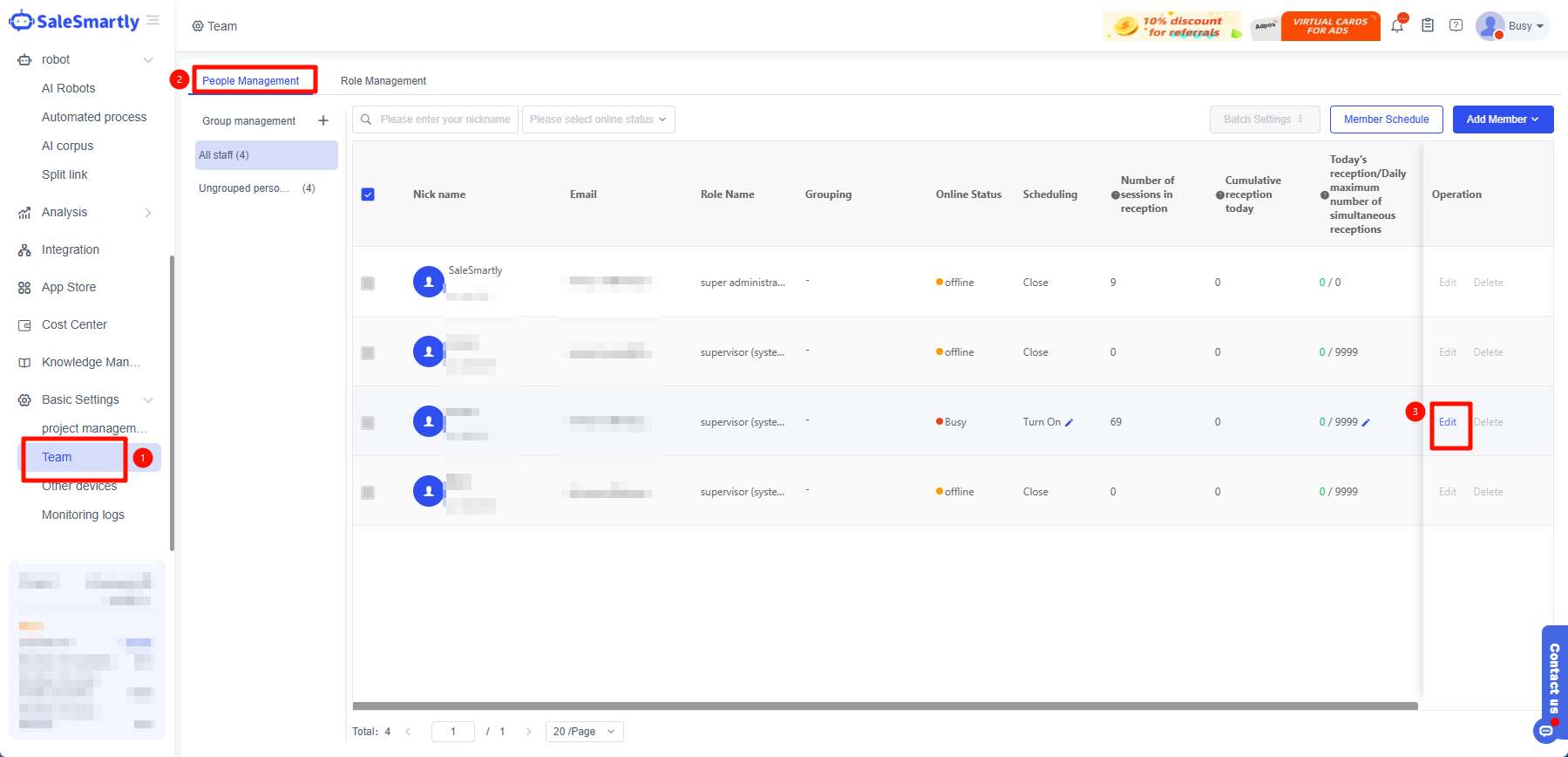
4.1. Enter Basic Settings - Team - People Management - click Edit.
4.2. Click Upload Avatar to confirm.
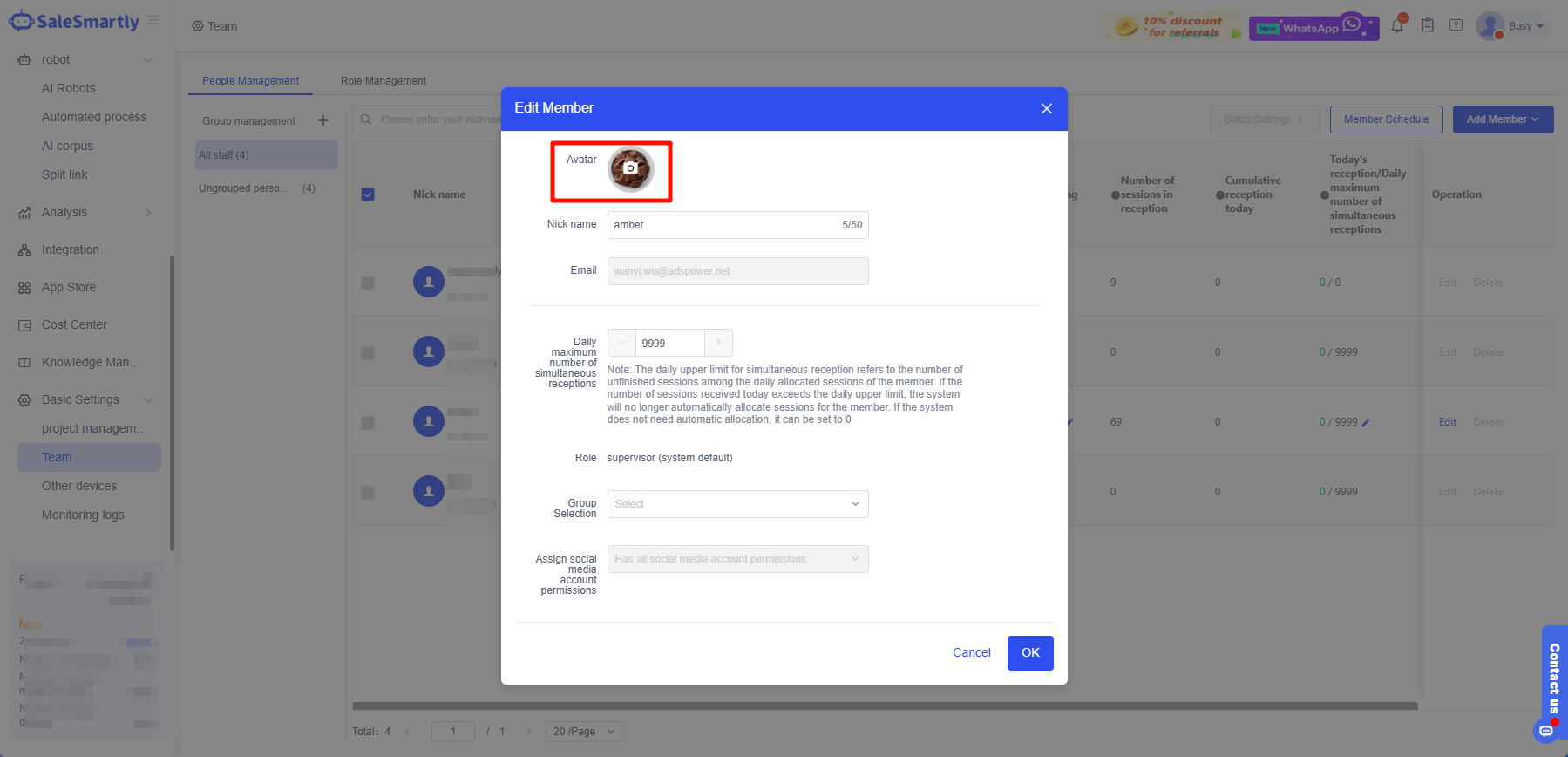
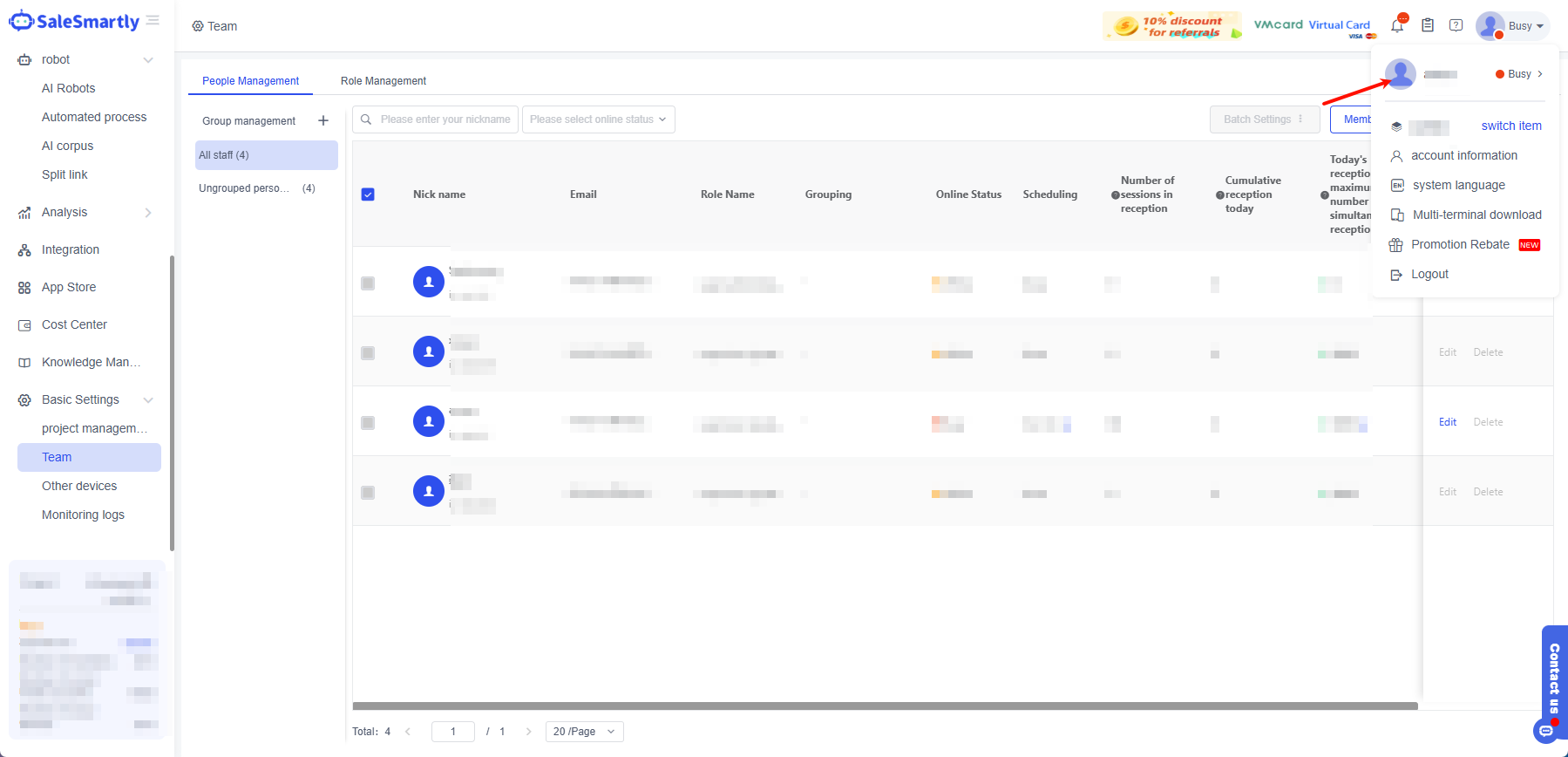
4.3. Effect preview.
5. Modify the Platform WhatsApp API Number Avatar
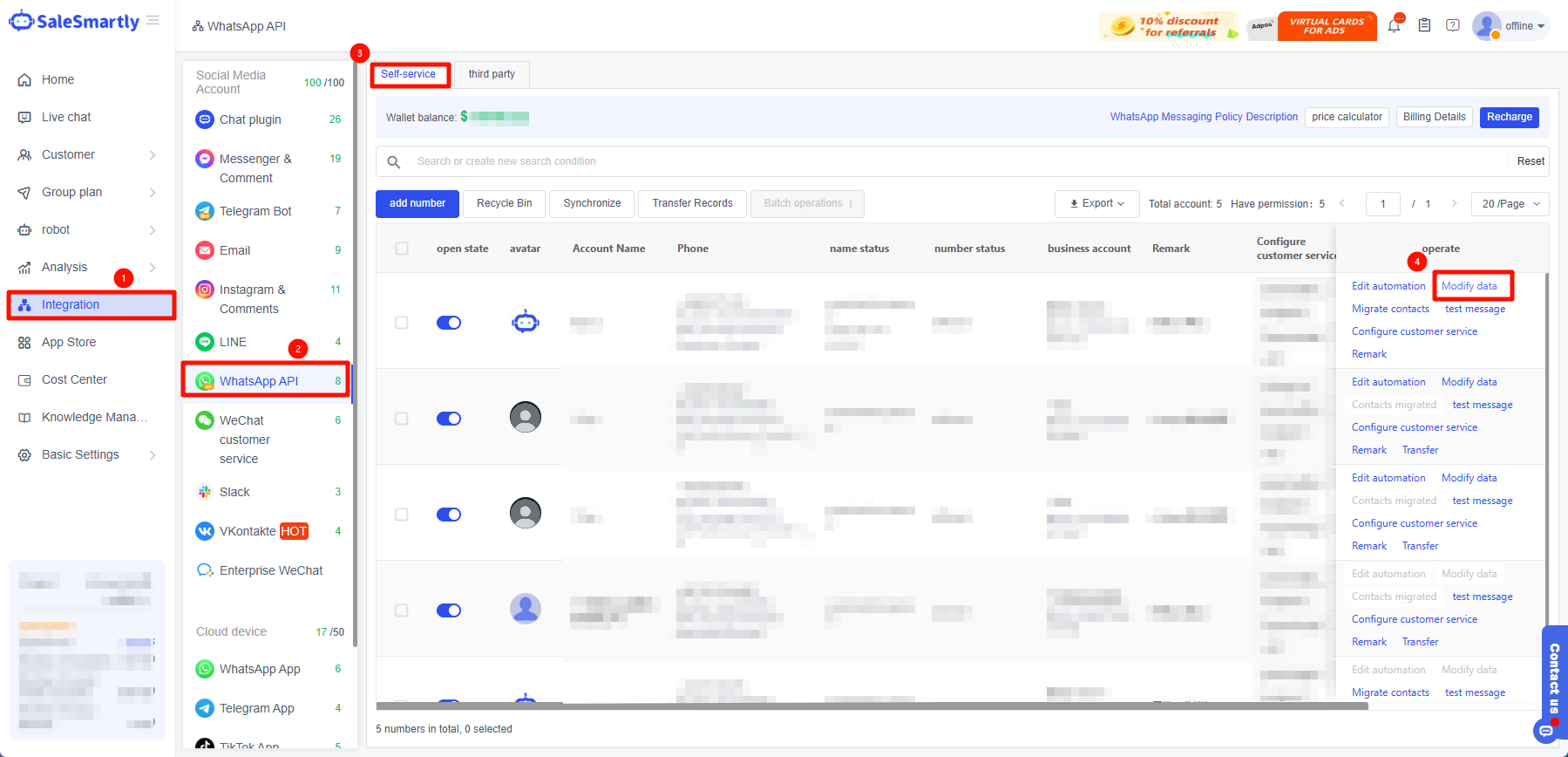
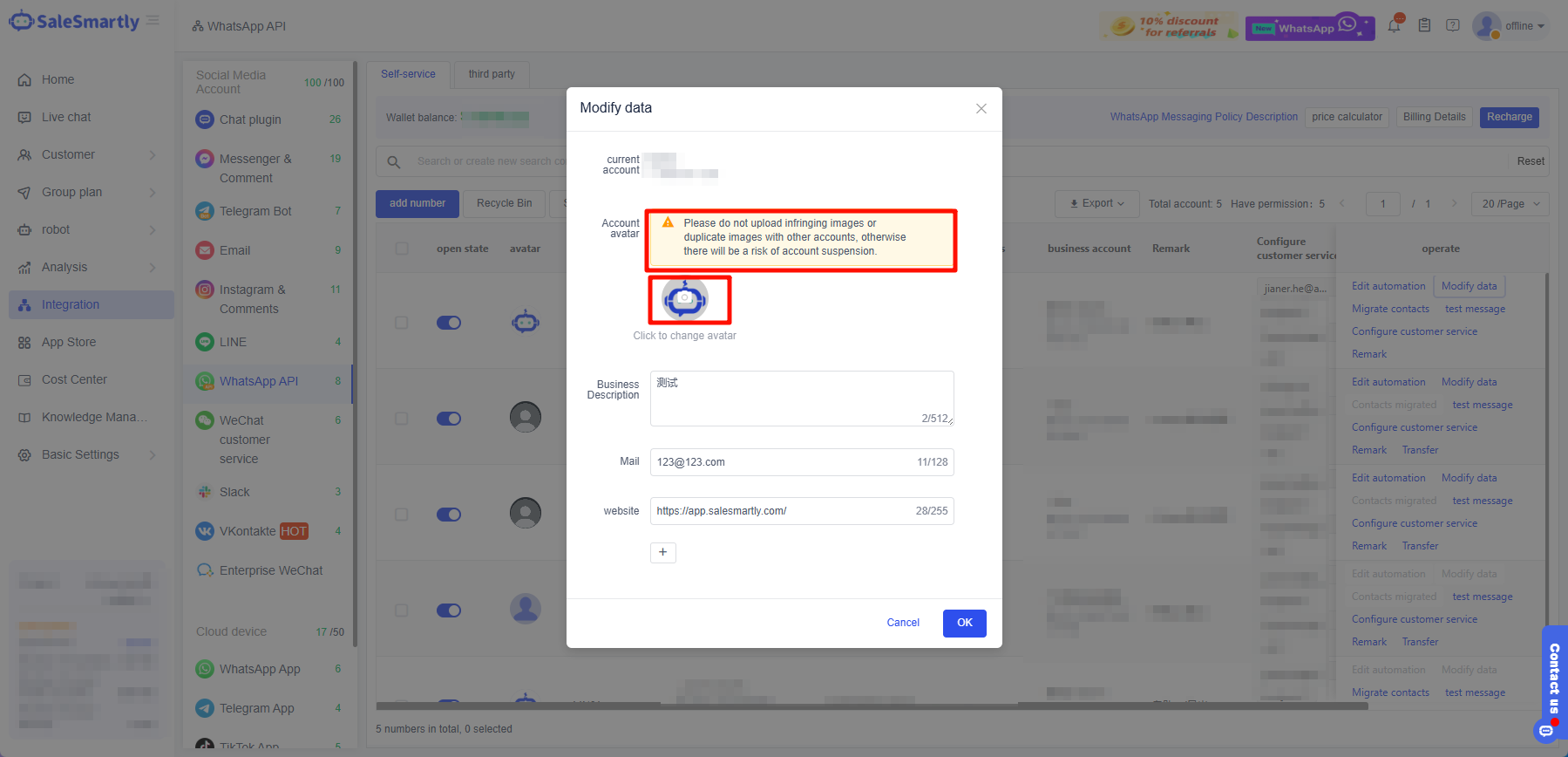
5.1. Go to Integration - WhatsApp API - Modify Data.
Please do not upload infringing images or duplicate images with other accounts, otherwise there will be a risk of account closure!