WhatsApp API Reg
1. WhatsApp API Registration Guide
Your WhatsApp business account requires the following information, please be sure to prepare this information:
- Your brand display name
- Your company's legal name
- Your company's official address
- Log in with your FB account and use that account to configure your WhatsApp business account
- A mobile number that is not registered with WhatsApp is used to receive the code
(Note that WhatsApp API will incur message fees, you can click here to view details)
2. Step-by-Step Registration Process
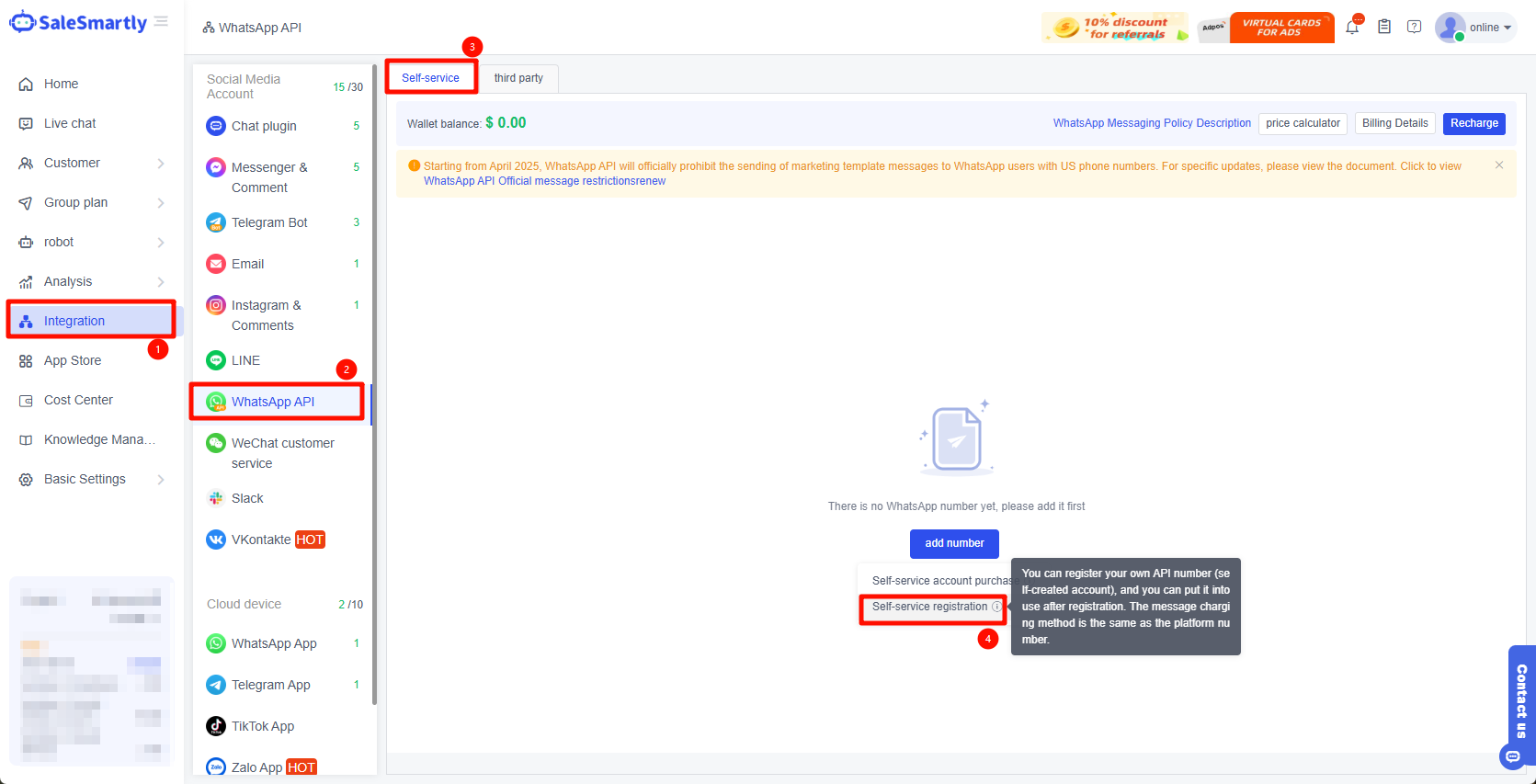
2.1. Go to Integration - WhatsApp API - Self-service - Self-service registration
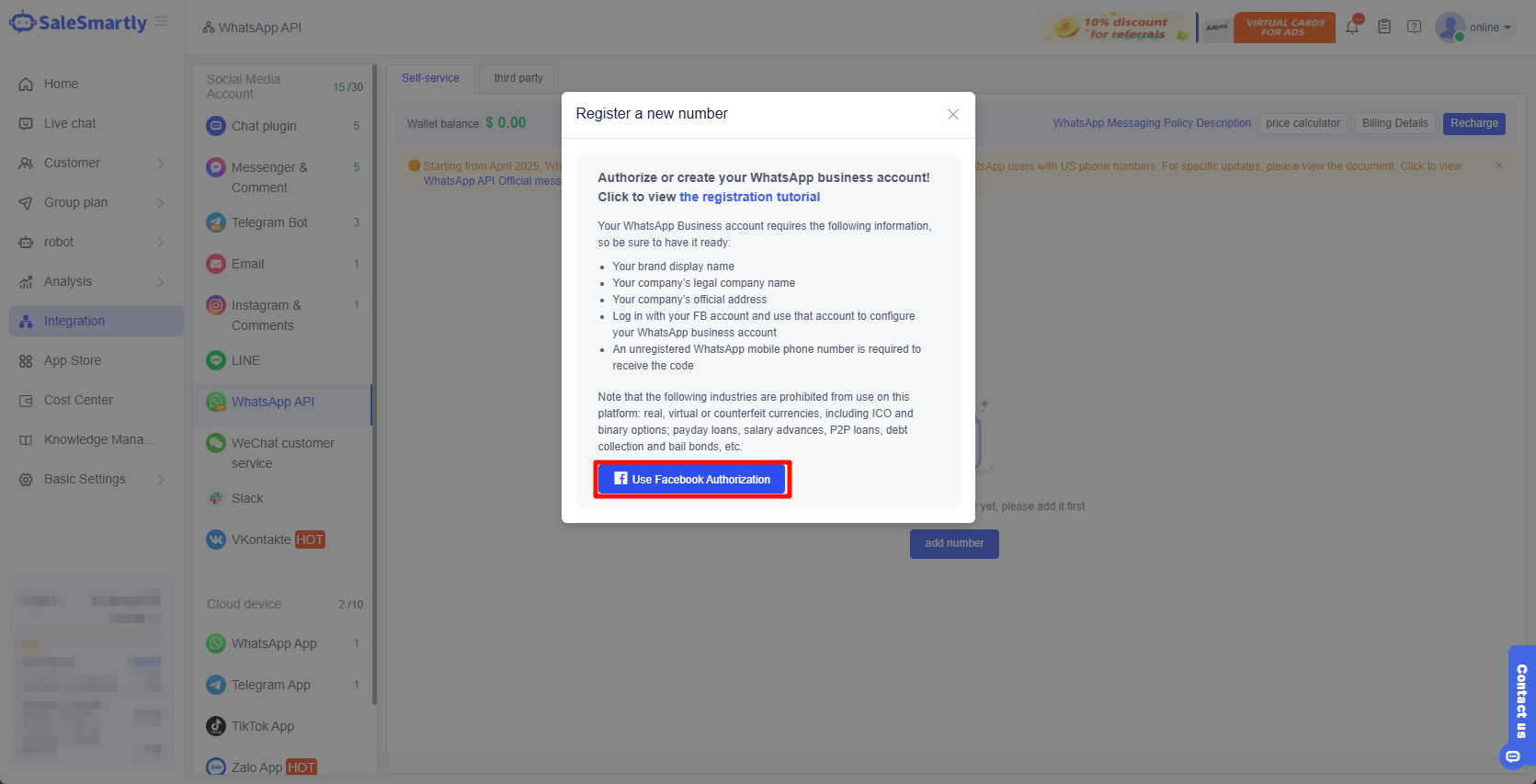
2.2. Click Use Facebook Authorize
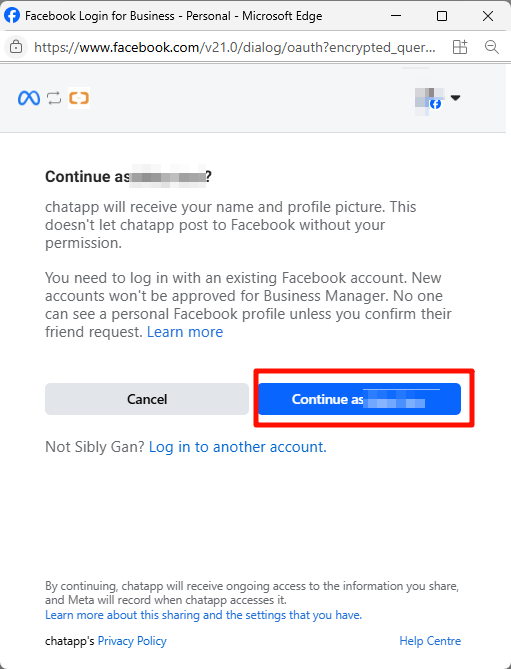
2.3. Click to continue logging in as xxxx
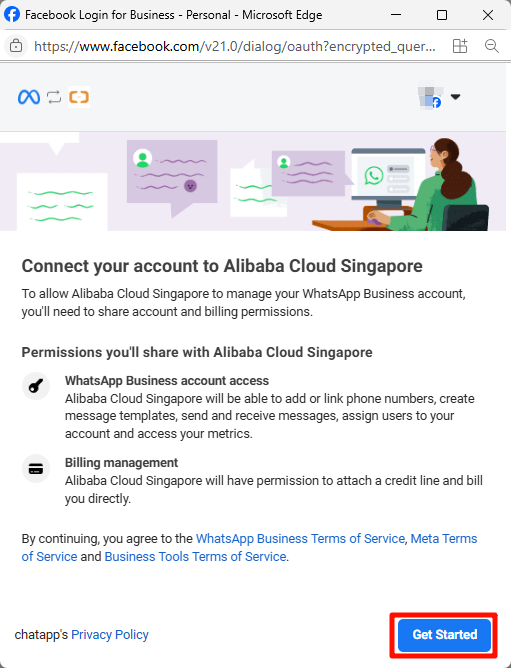
2.4. Click Get Started
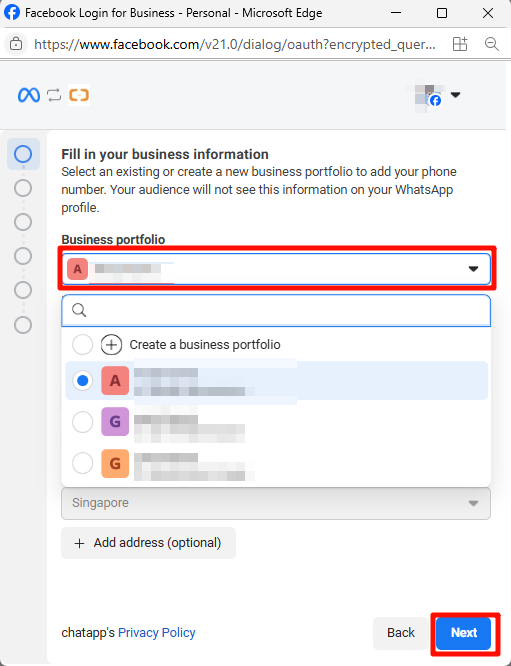
2.5. Select your Meta business account and continue
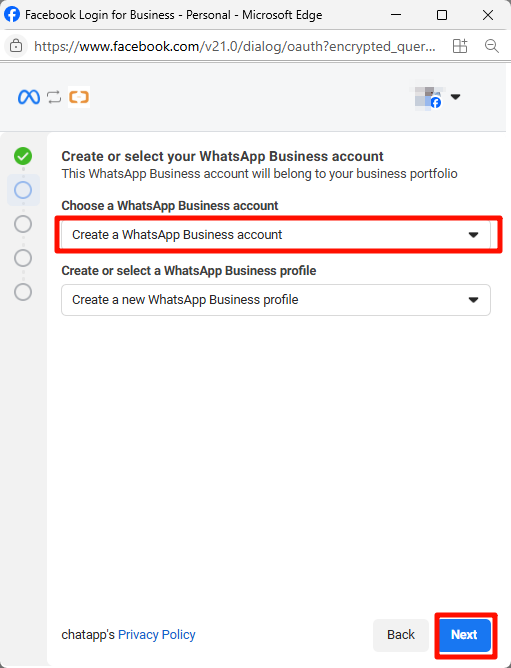
2.6. Select "Other" for the type
Website is optional, or fill in the niche website that can be accessed normally.
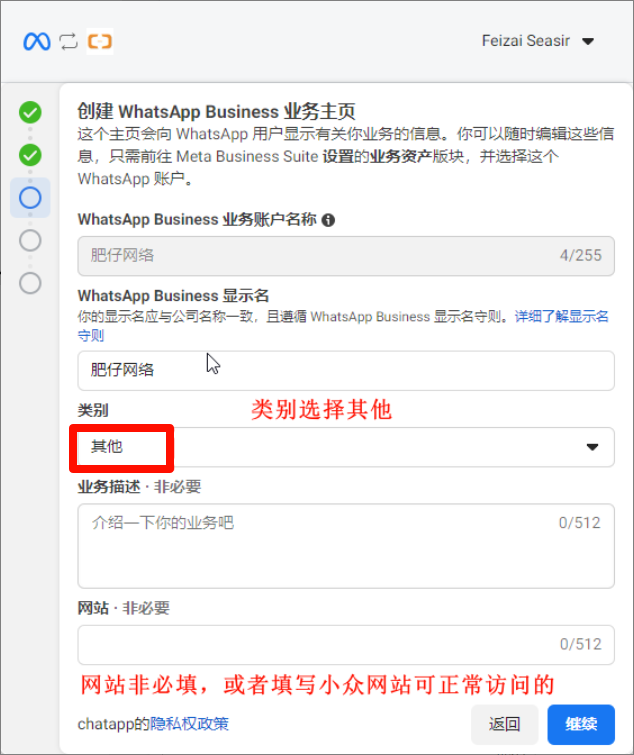
2.7. Enter the number you have never registered for WhatsApp APP
Select the verification method and continue.
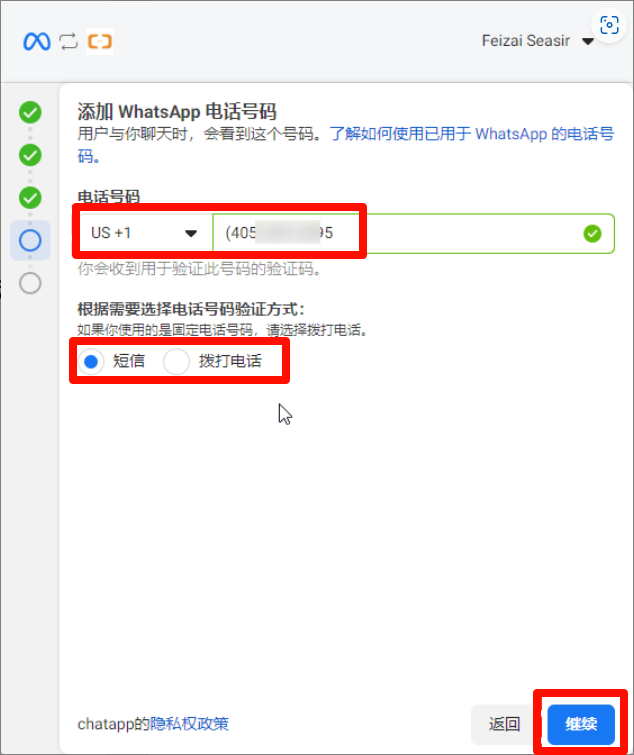
2.8. Enter the received verification code and continue
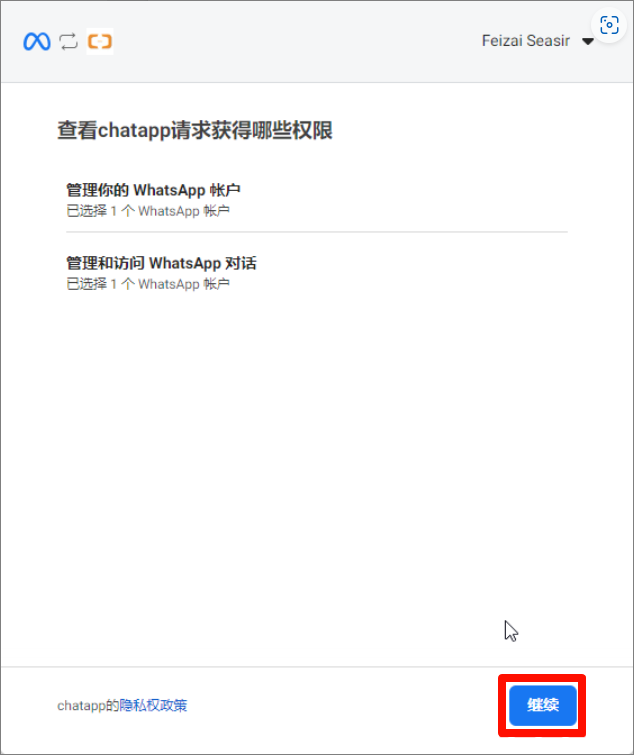
2.9. Click Finish
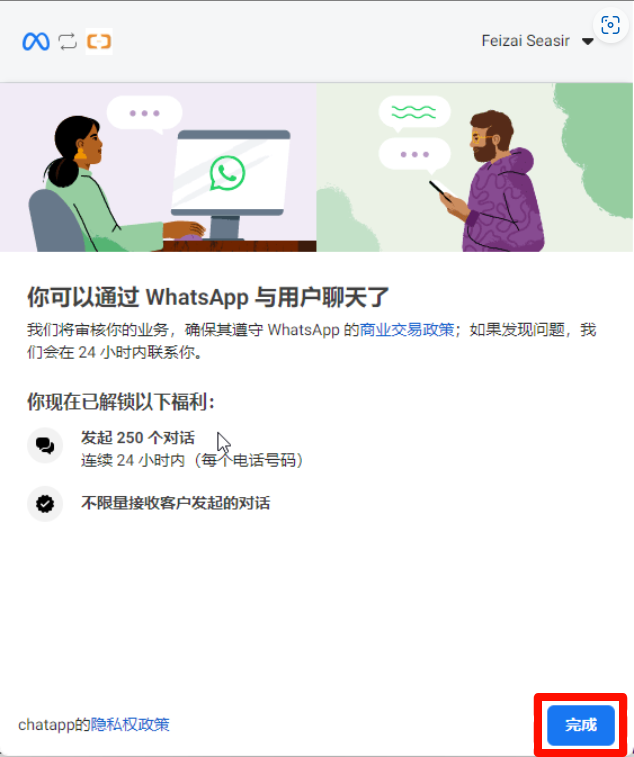
When you see the screenshots above, you have completed the self-service registration process for the WhatsApp API number.
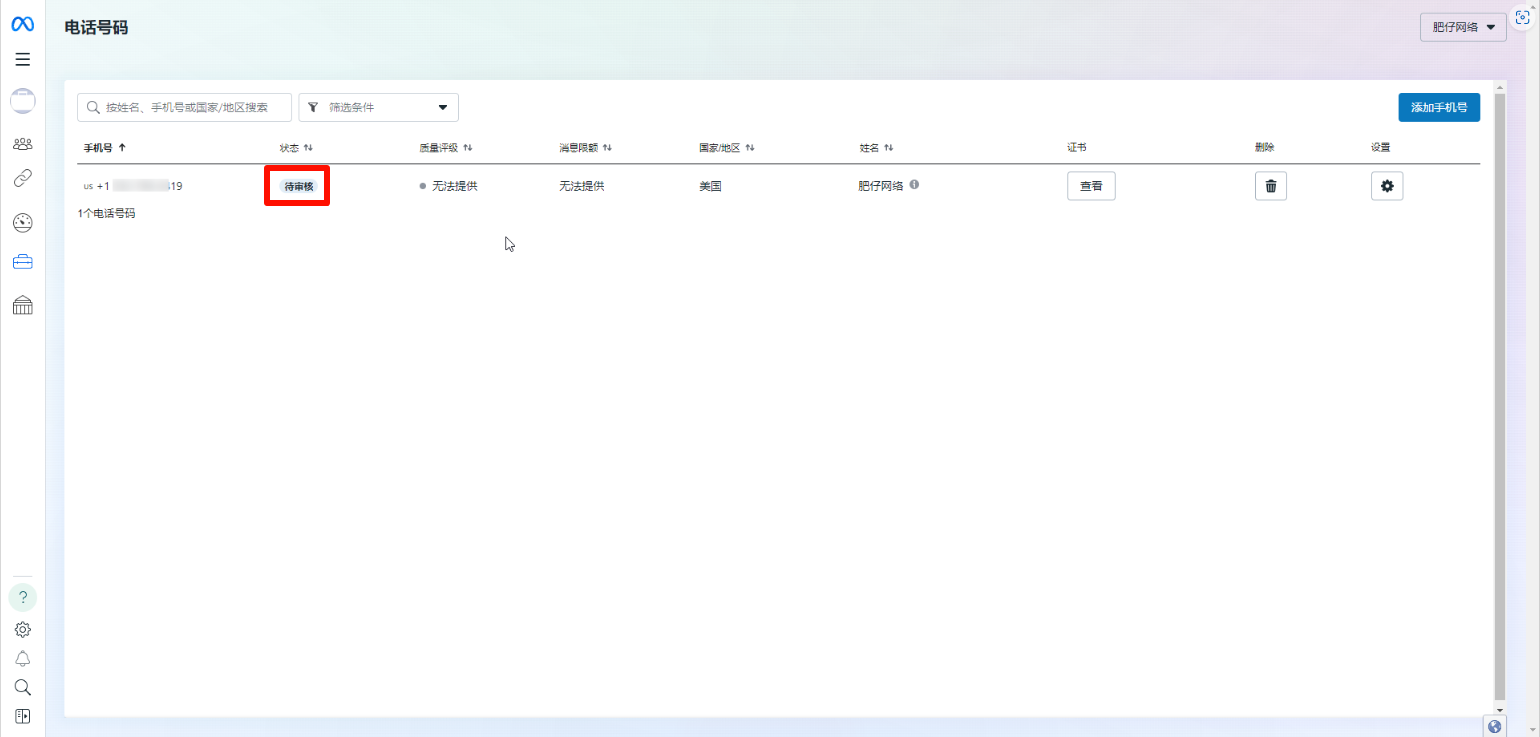
Next, you need to wait for the official Facebook review number to be approved. The official Facebook review time is 24 hours. The specific details are subject to the official Facebook review, not SaleSmartly review.
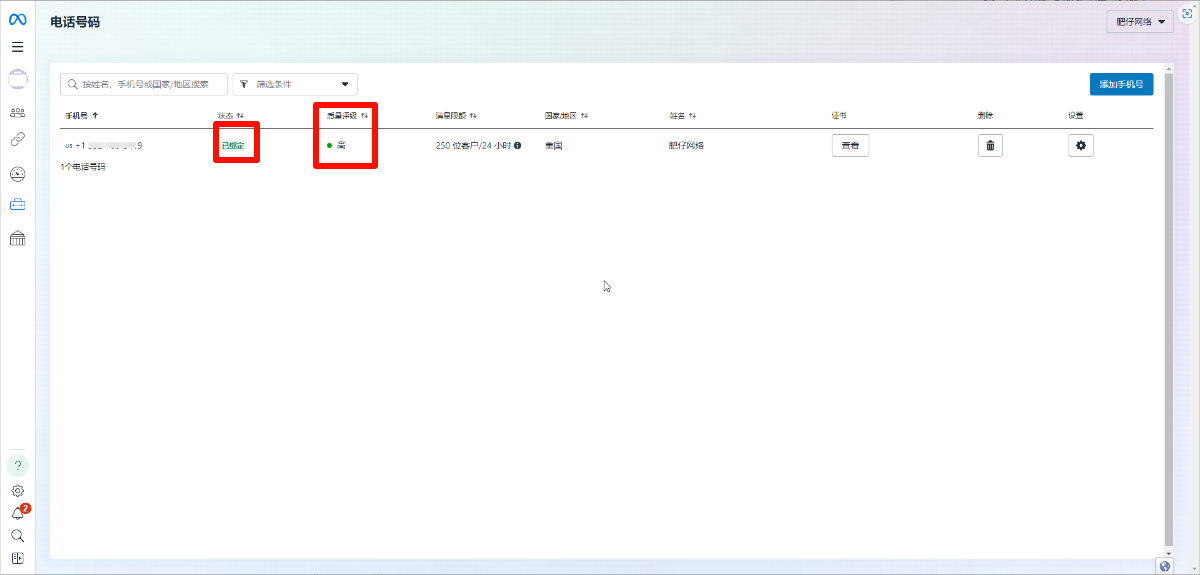
| After Facebook's official review is passed, it will be automatically synchronized in the SaleSmartly system. If it is not synchronized in the SaleSmartly system, please repeat the above steps to register the WhatsApp API number and synchronize it to the SaleSmartly system |
|---|
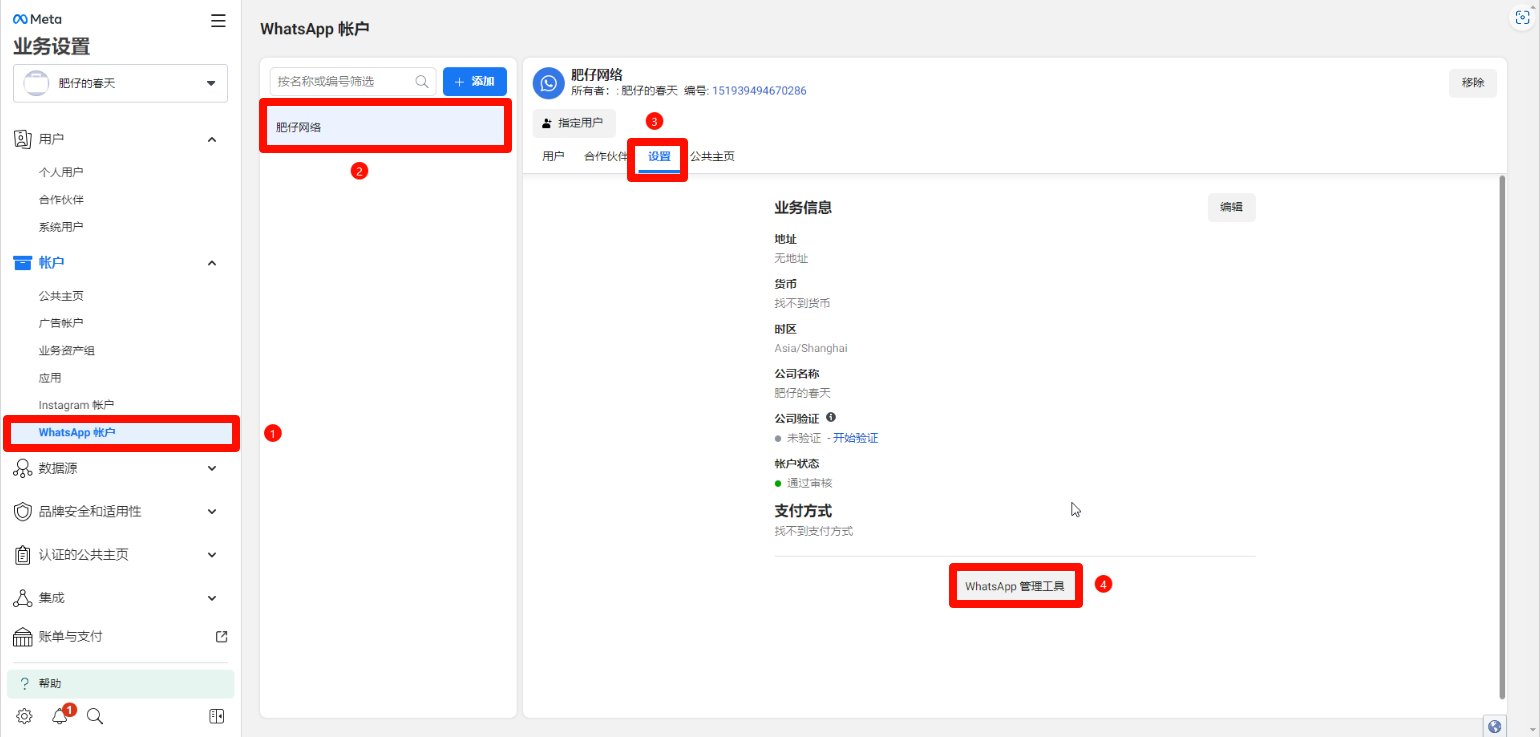
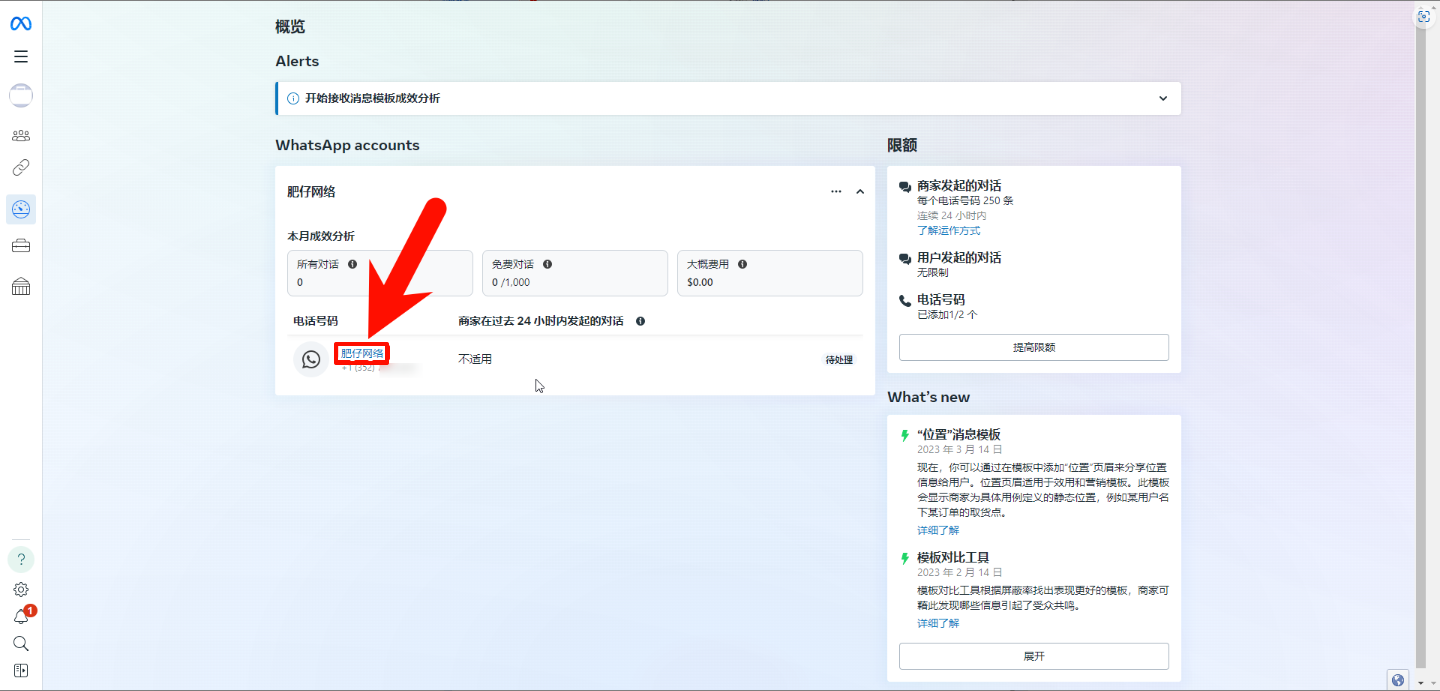
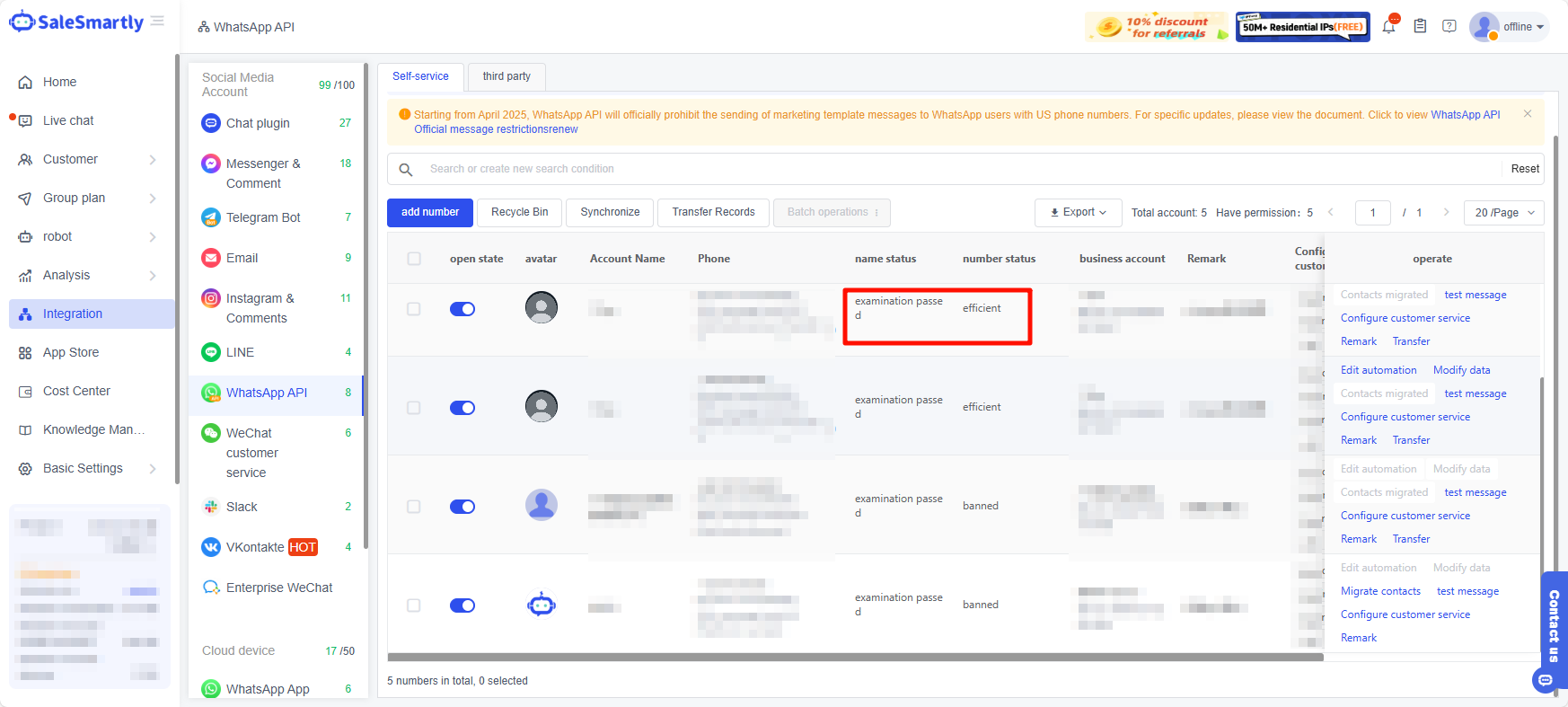
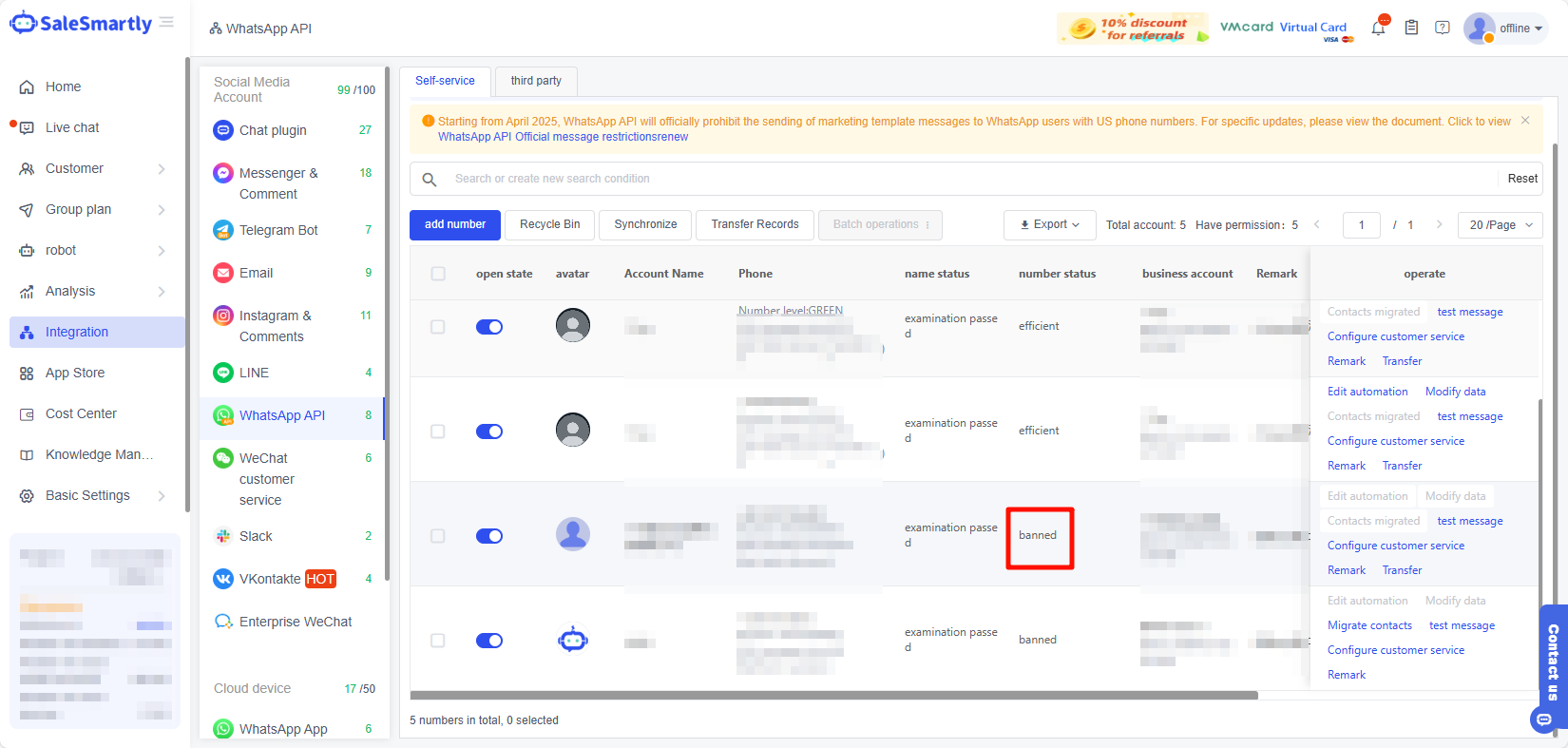
2.10. Check Facebook audit results
Please visit the following link: https://business.facebook.com/settings/people/
3. Frequently Asked Questions
3.1. Why is the self-registration number invalid in SaleSmartly?
The official error code for self-service registration can be found at: Embedded registration process error
- The number is still under review, please refer to View Facebook Review Results
- After Facebook's official review is passed, it will be automatically synchronized in the SaleSmartly system. If it is not synchronized in the SaleSmartly system, please repeat the above steps to register the WhatsApp API number to synchronize it to the SaleSmartly system. For details, see: Self-service registration of WhatsApp API number tutorial
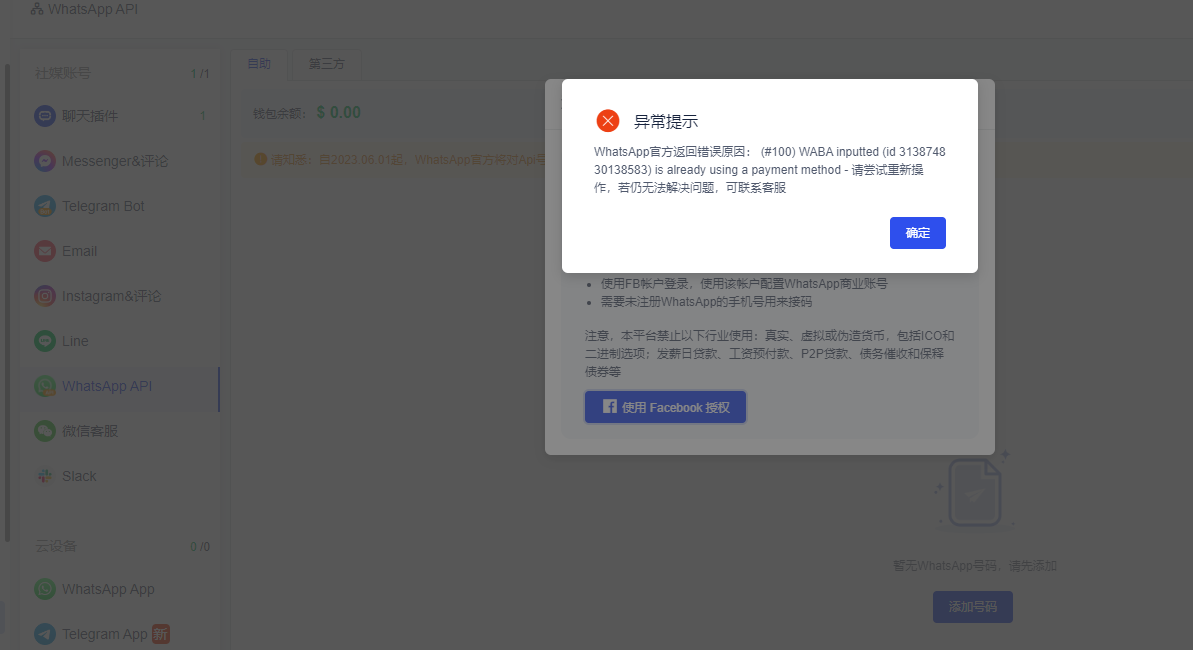
3.2. WhatsApp official returns the error reason
Reason: This is the information for setting up credit control. Generally, the customer manually sets the currency in Facebook's WABA, so it cannot be bound to Alibaba.
Solution: You can only recreate a waba (WhatsApp Business API)
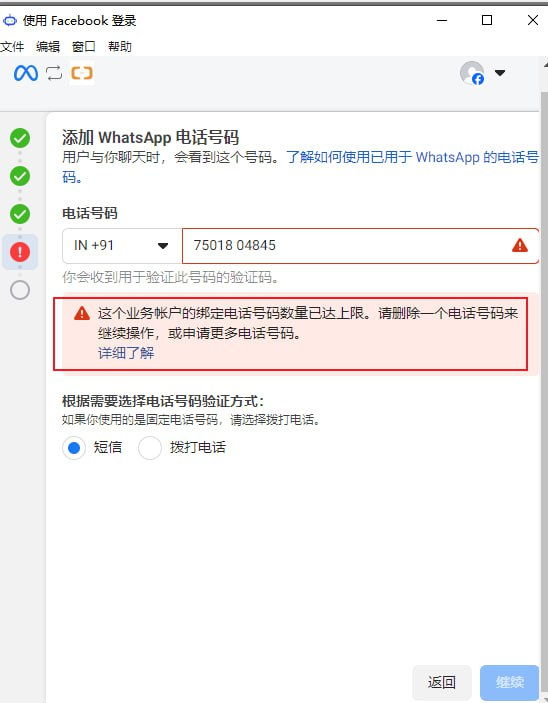
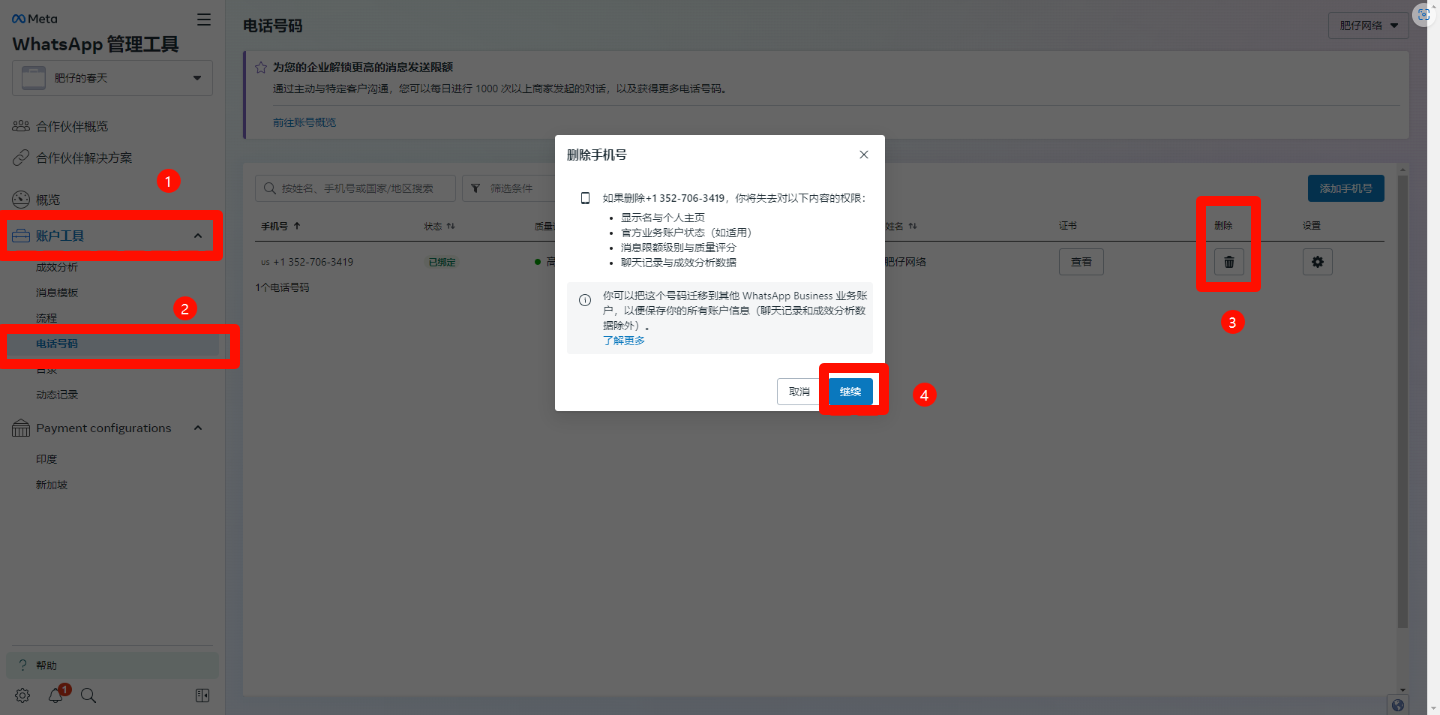
3.3. The number of phone numbers bound to this business account has reached the upper limit
Solution: Please refer to step Figure 1 in View Facebook Review Results, and then delete the number in the following image location:
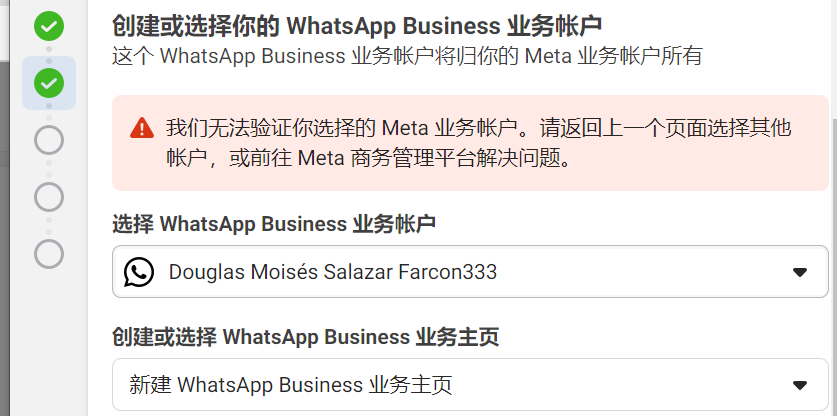
3.4. We are unable to verify the Meta business account you selected
Reason and solution: This means that your Facebook business management platform (Facebook Business Manager), referred to as BM, has been officially banned. In this case, you can only change a BM.
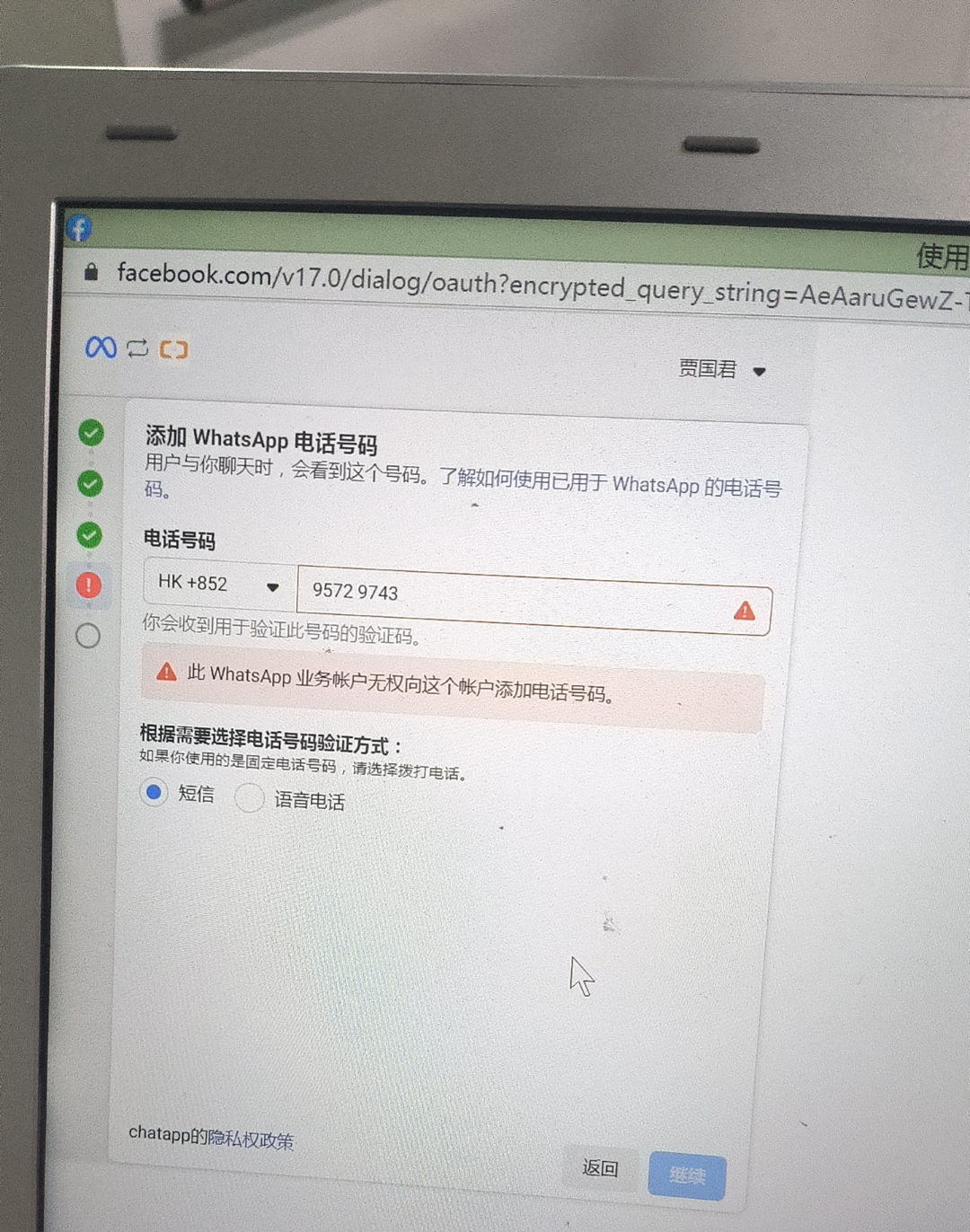
3.5. This WhatsApp Business account does not have permission to add phone numbers
Reason: Your Facebook Business Manager platform is officially banned, and your Waba (WhatsApp Business API) is blocked.
Solution: Replace BM
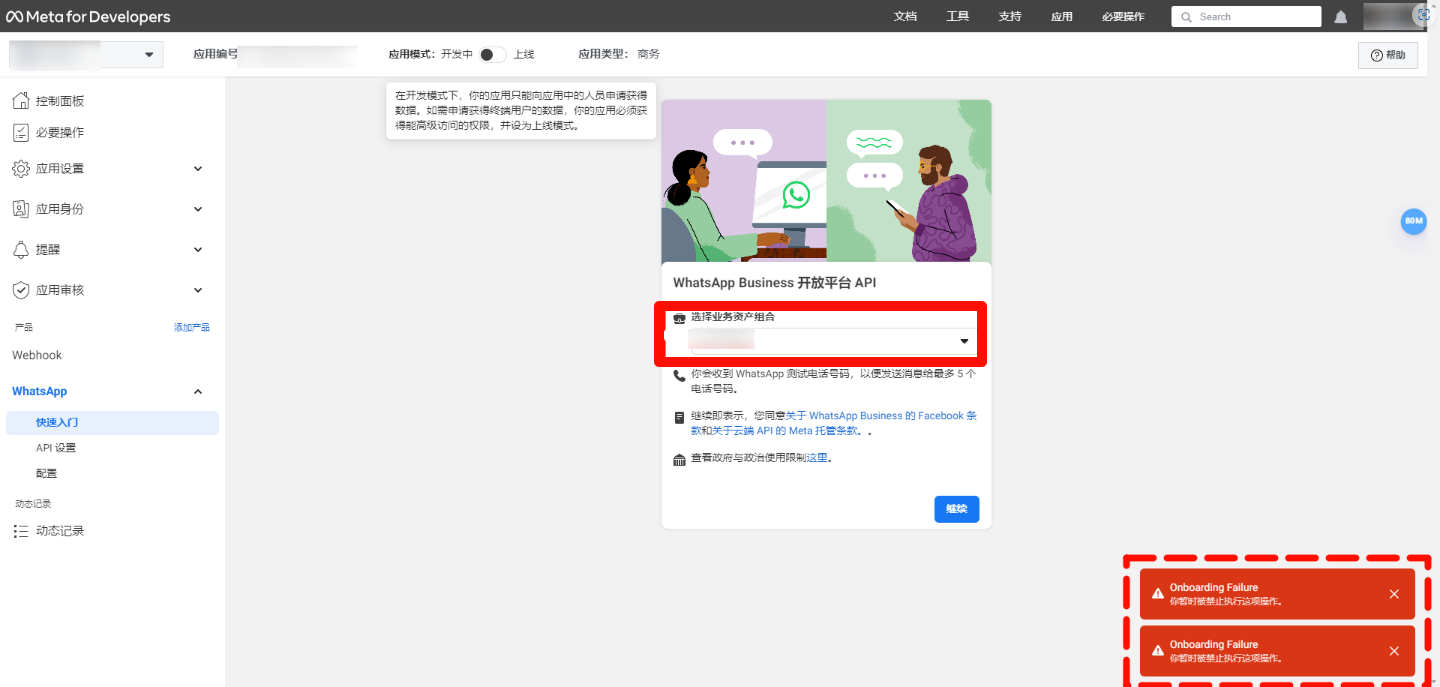
3.6. Your business management platform has been banned from using advertising features
Reason and solution: Facebook's business management platform (Facebook Business Manager) referred to as BM has been blocked, replace a BM.
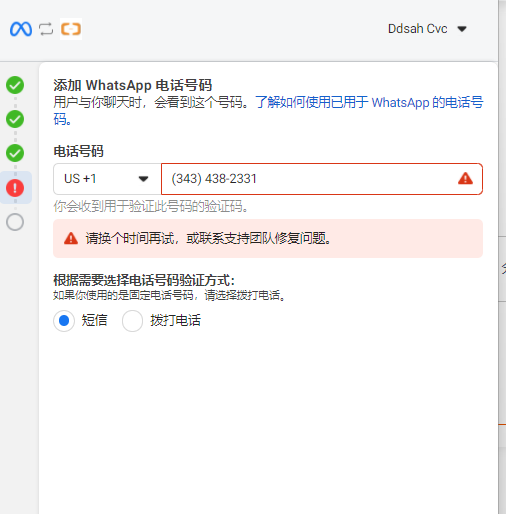
3.7. Please try again at another time
Reason: Facebook official issue. We also rely on Alibaba Cloud to create accounts, but Facebook official may have temporarily restricted it due to technical reasons.
Solution: Change your WhatsApp number or try again at a different time.
3.8. How to break the 250 session limit?
Do company verification. Without company verification, there are 250 sessions. For details, see How to authenticate a company in Facebook Business Manager
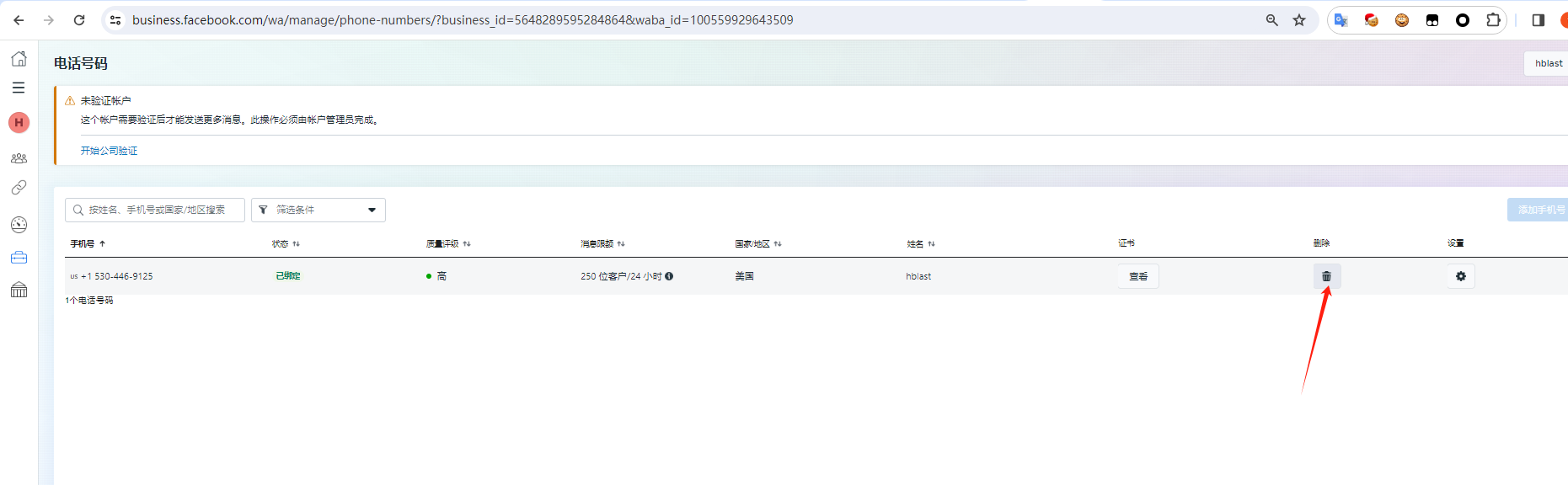
3.9. How to delete the self-service registration number?
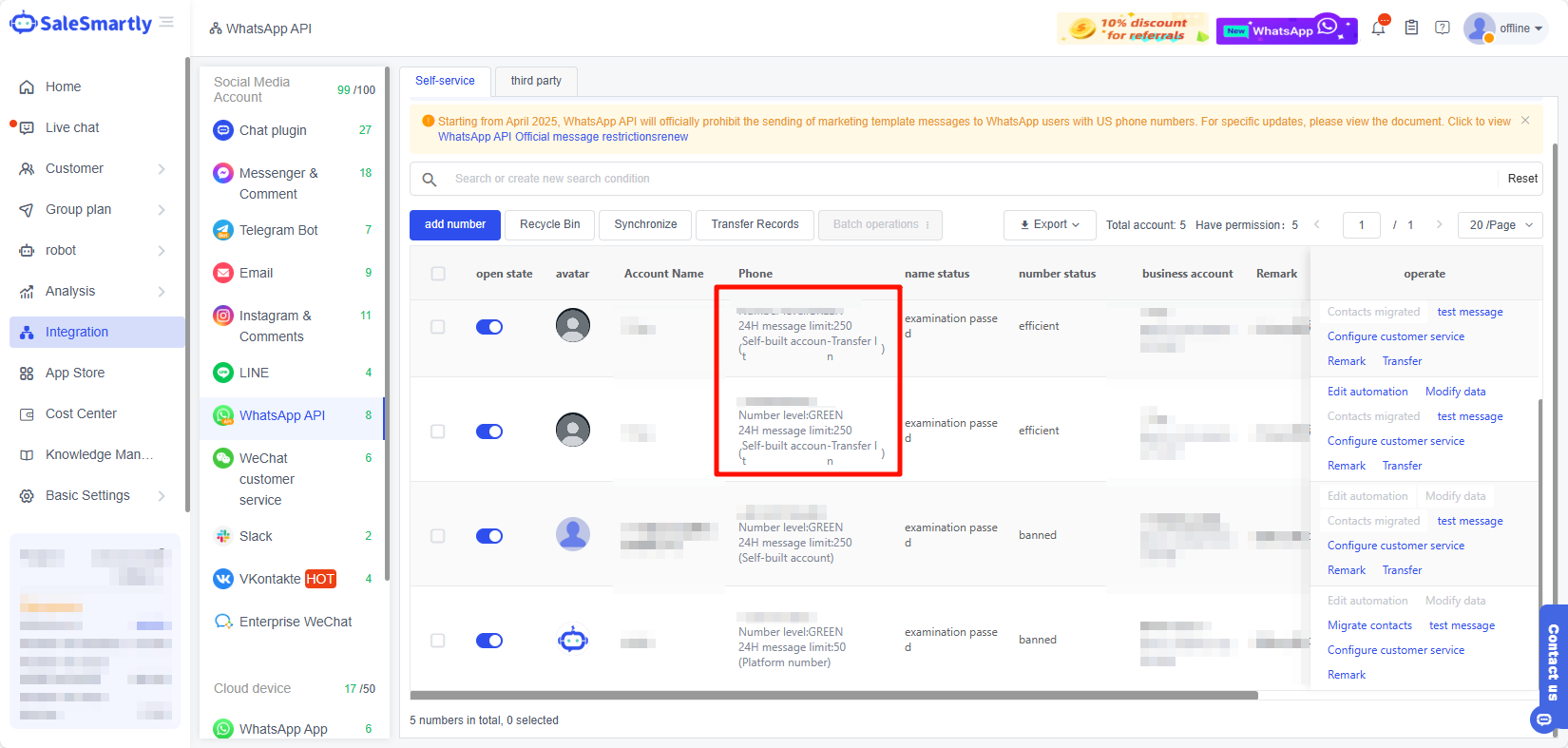
Go to the FB dashboard to delete, for specific steps, see: View Figure 4 in Facebook review results
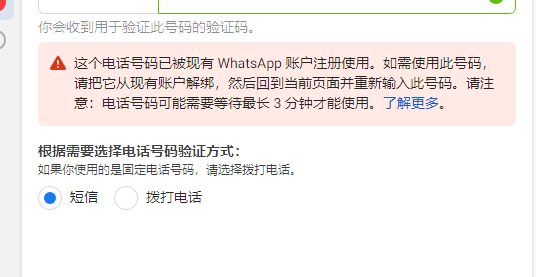
3.10. This phone number has been registered with an existing WhatsApp account
Reason: This number has already been registered as a WhatsApp app number.
Solution: Change the number or unbind it from the existing account, then return to the current page and re-enter the number.
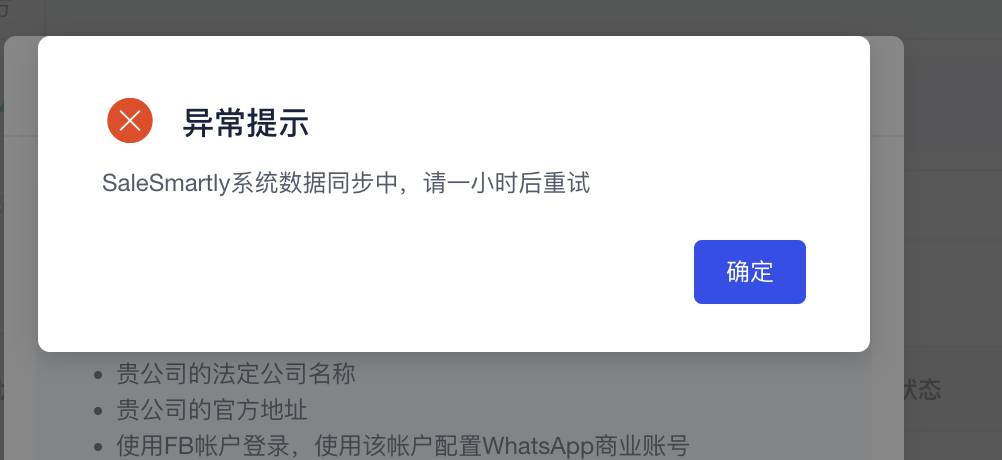
3.11. SaleSmartly system data is being synchronized
Solution: Facebook has limited your traffic. Try again after an hour.
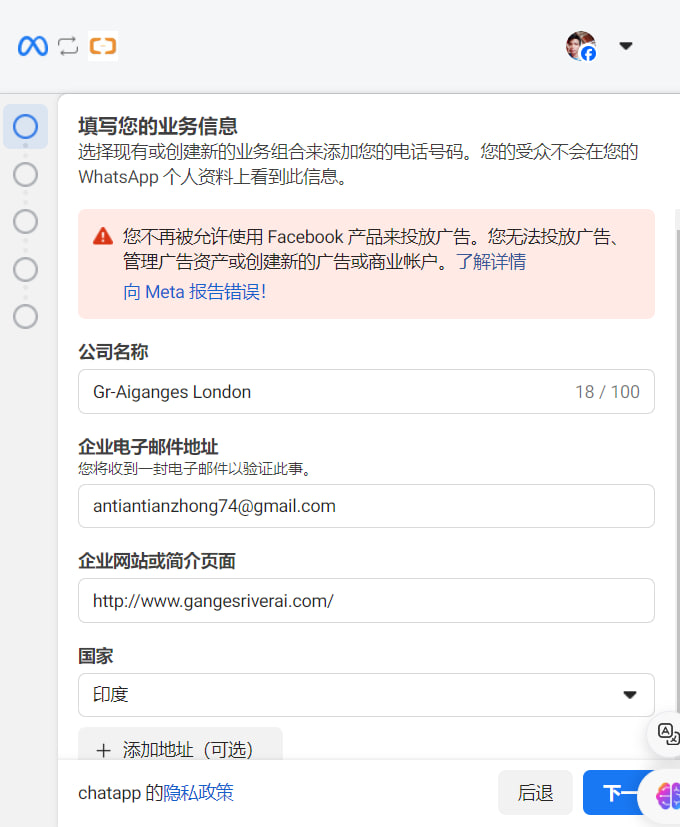
3.12. You are no longer allowed to use Facebook products to run ads
Reason: Facebook account advertising permissions have been blocked. For details, click Facebook account overview to view
Solution: Complain to Facebook to get unblocked or change the advertising account
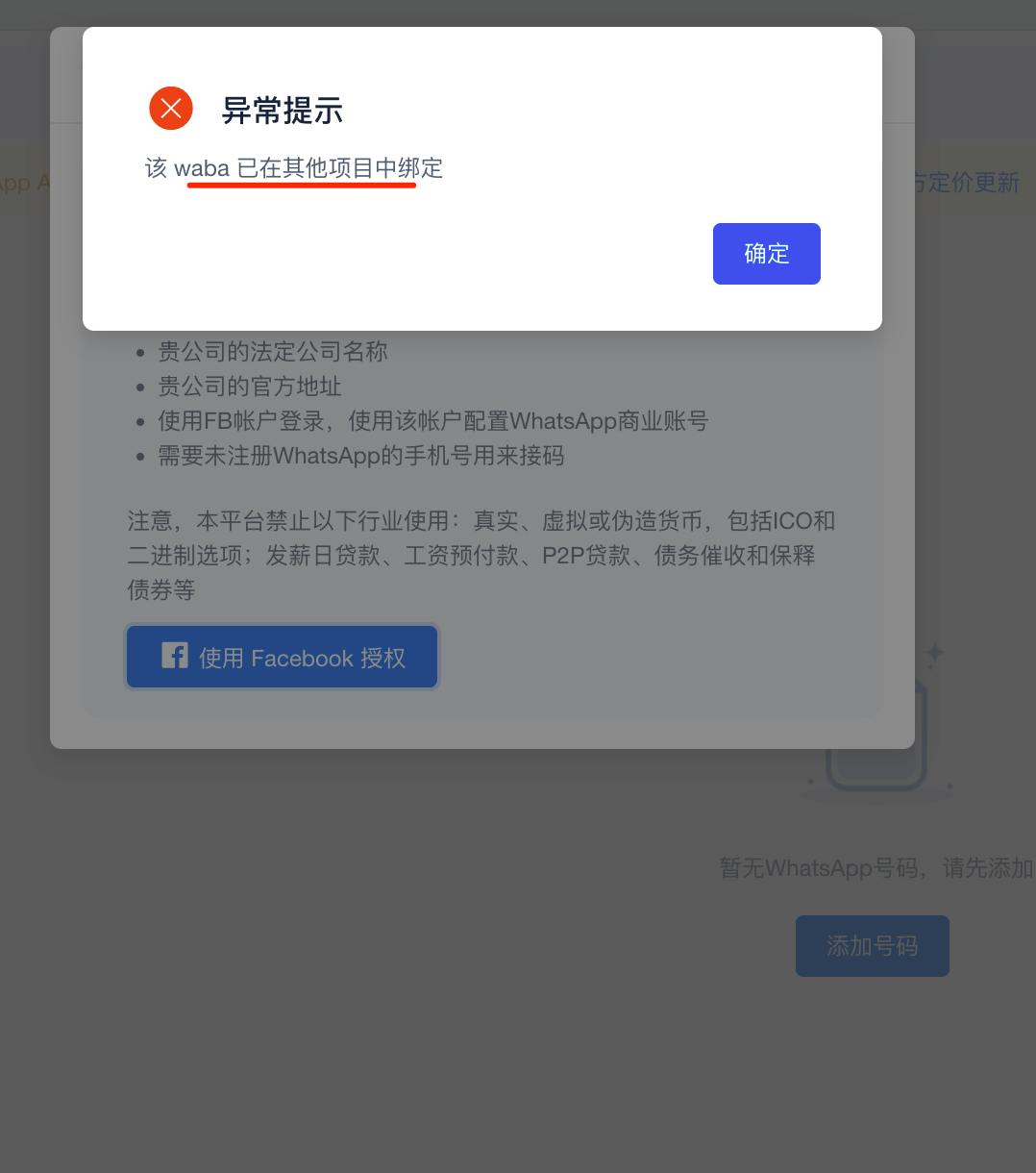
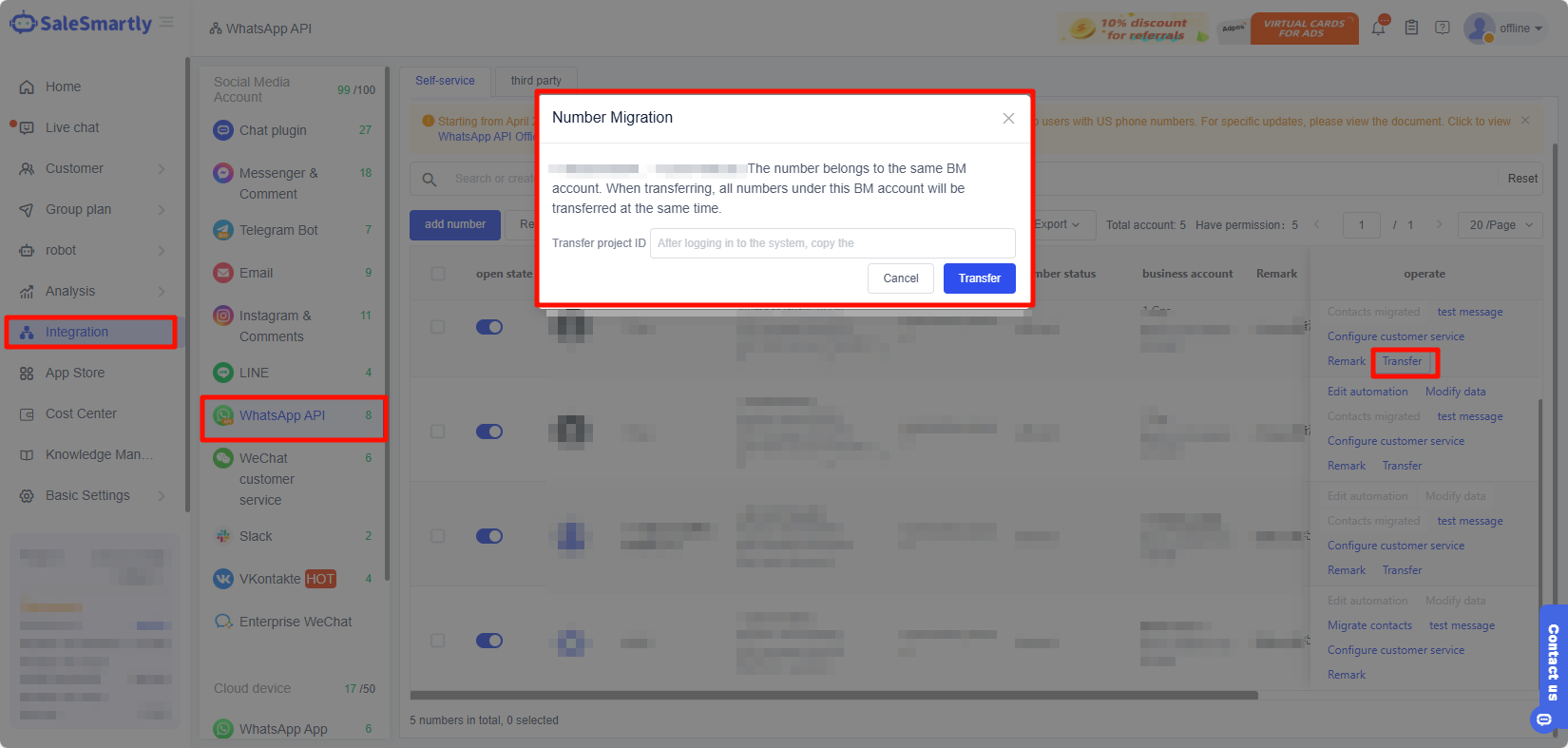
3.13. Display "This waba has been bound in other projects"
Reason: A waba can only be bound to one project, and a waba cannot be bound to two projects at the same time.
Solution: Transfer this number from the original project to the project that needs to be bound.
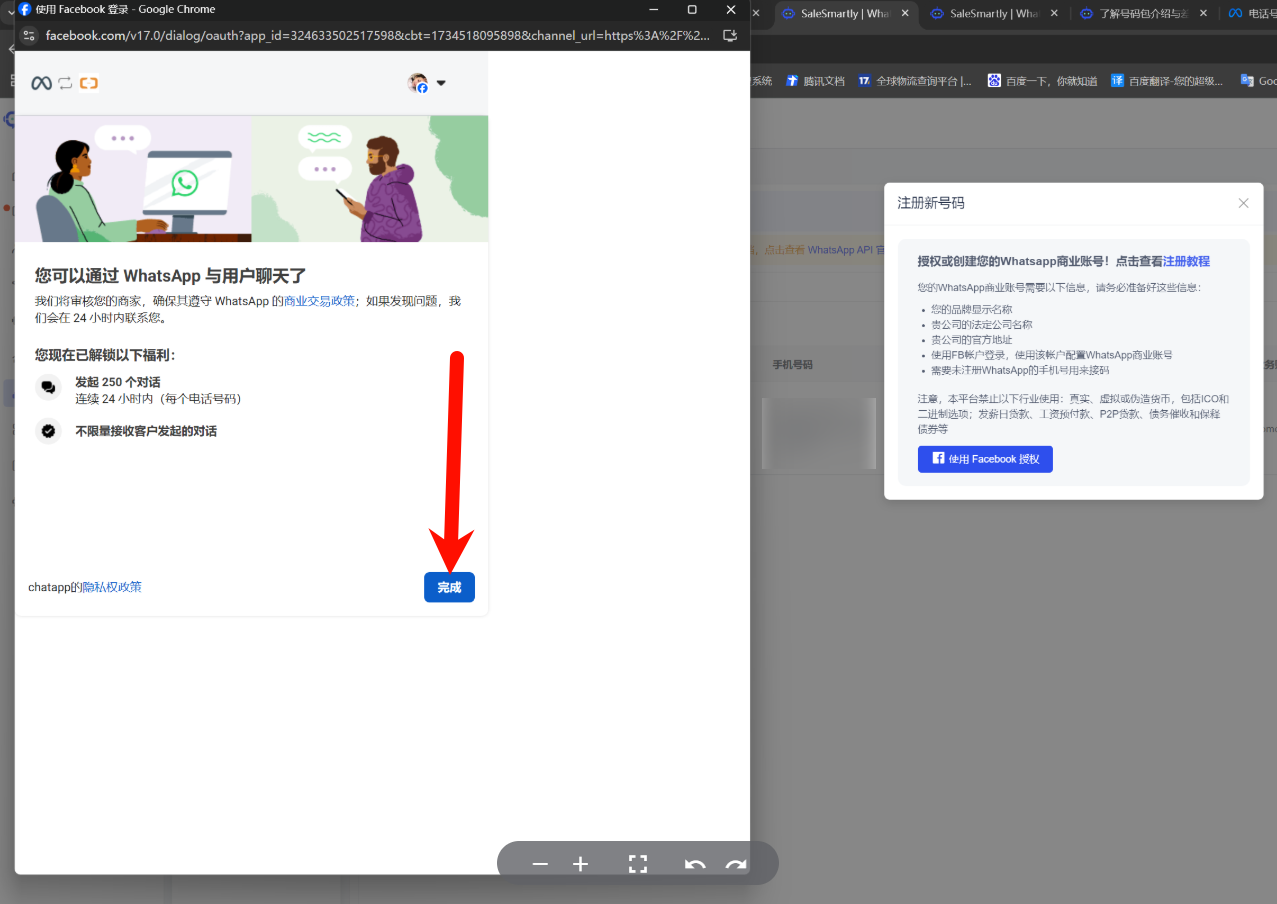
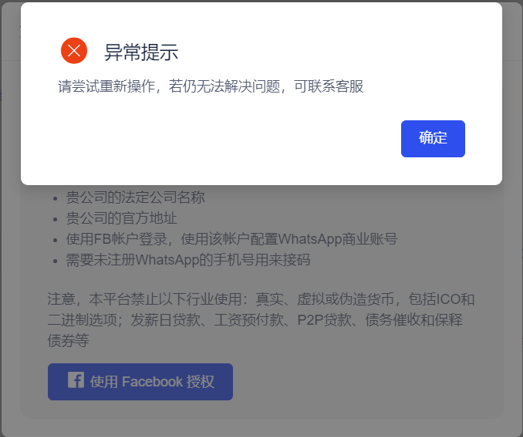
3.14. After clicking "Finish", error message appears
Reason: Click Finish to prompt an abnormal error
Solution:
- Please try the self-service registration process again. Please refer to the tutorial on self-service registration of WhatsApp API number: Click to jump
- Check whether the proxy is turned on. If so, you can switch to the global mode of the proxy. If it still doesn't work, you can choose to turn off the proxy or switch to some other proxy lines.