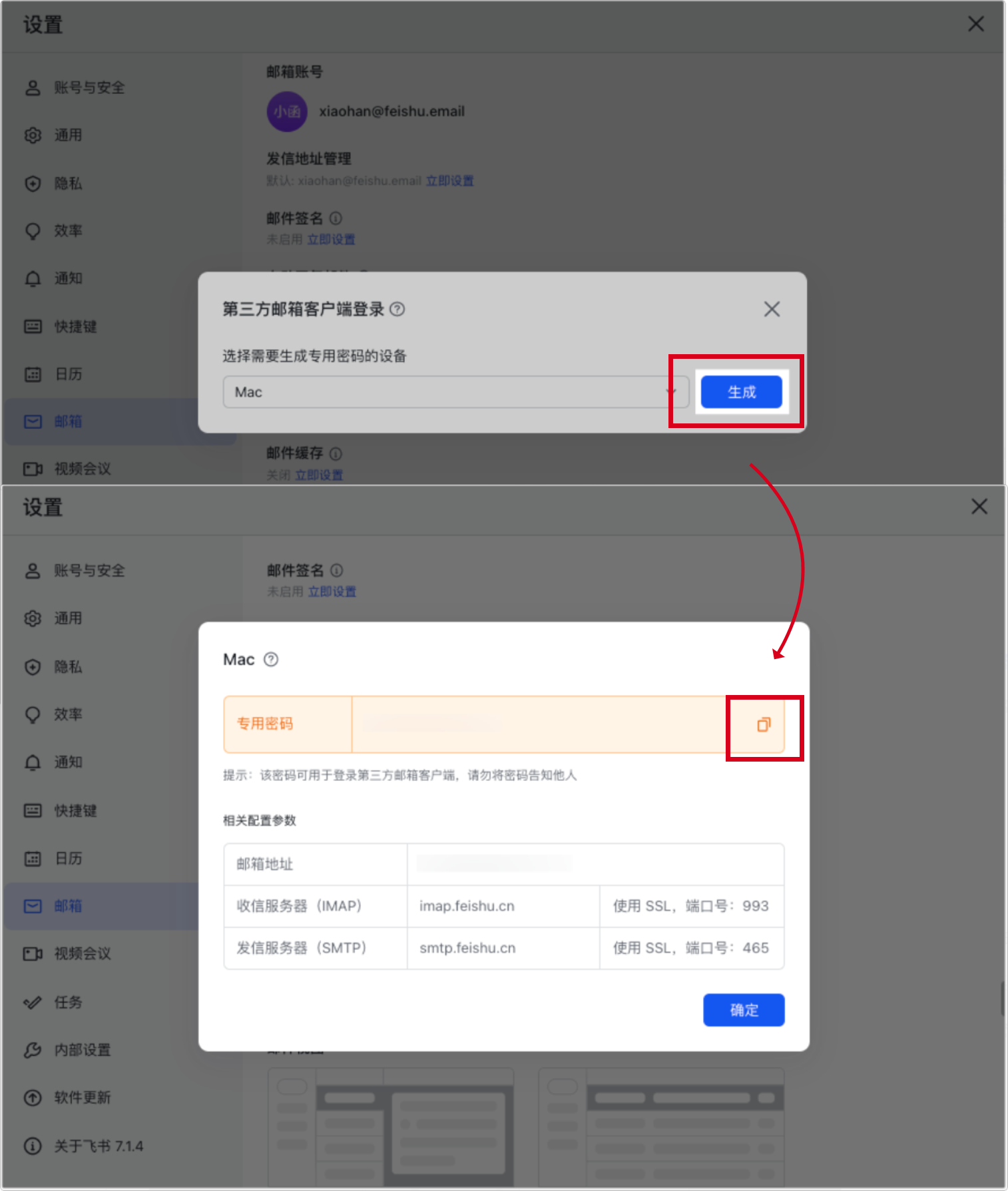
Get Dedicated Password
Enable third-party email settings in Feishu to get a dedicated password.
1. Get a Dedicated Password for Third-Party Email Client
1.1. The Administrator Needs to Enable the Third-Party Email Client Settings
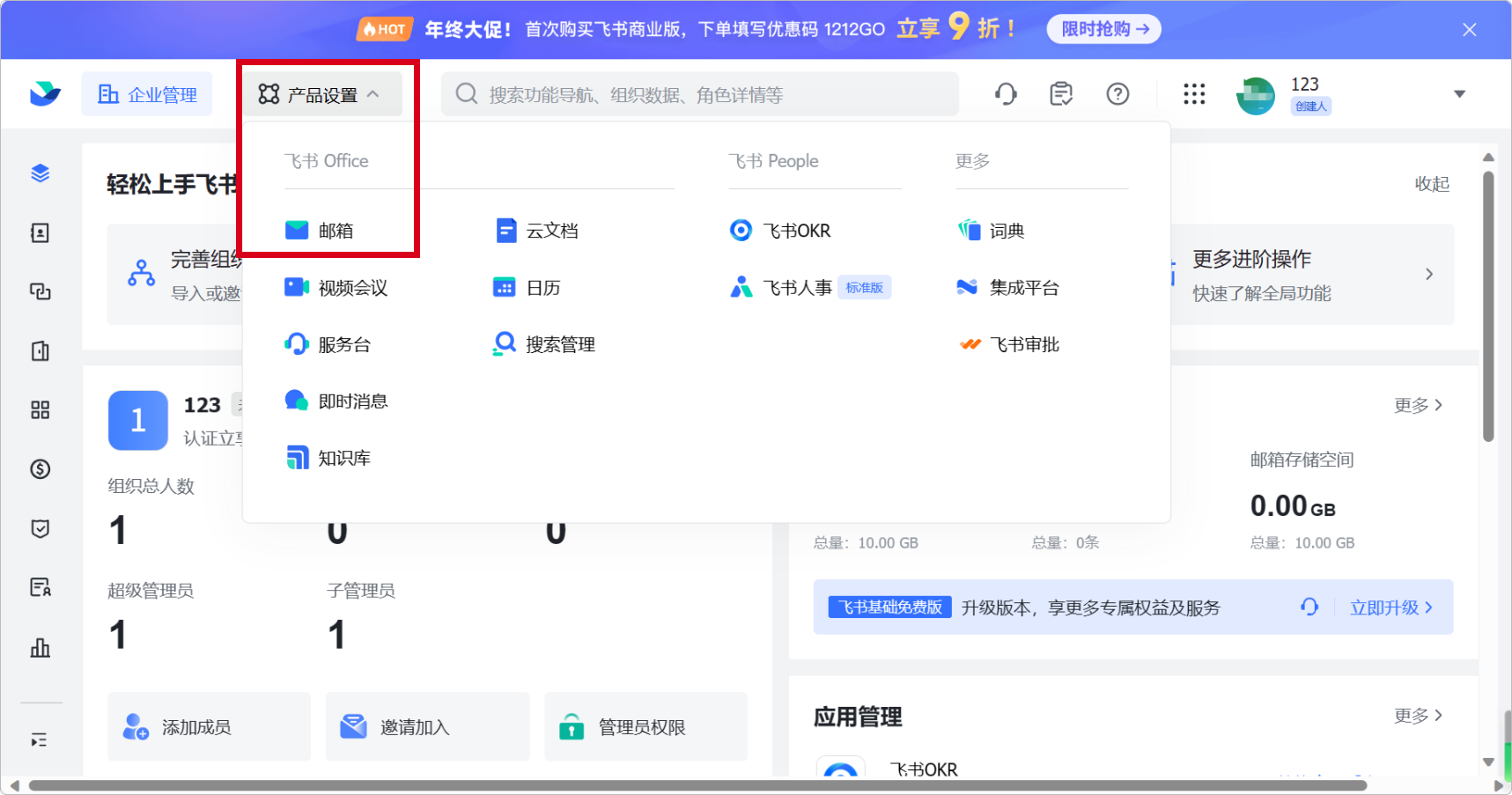
1.2. Enter Your Feishu Enterprise Management
Click on the mailbox.
1.3. Enter the Mailbox Settings
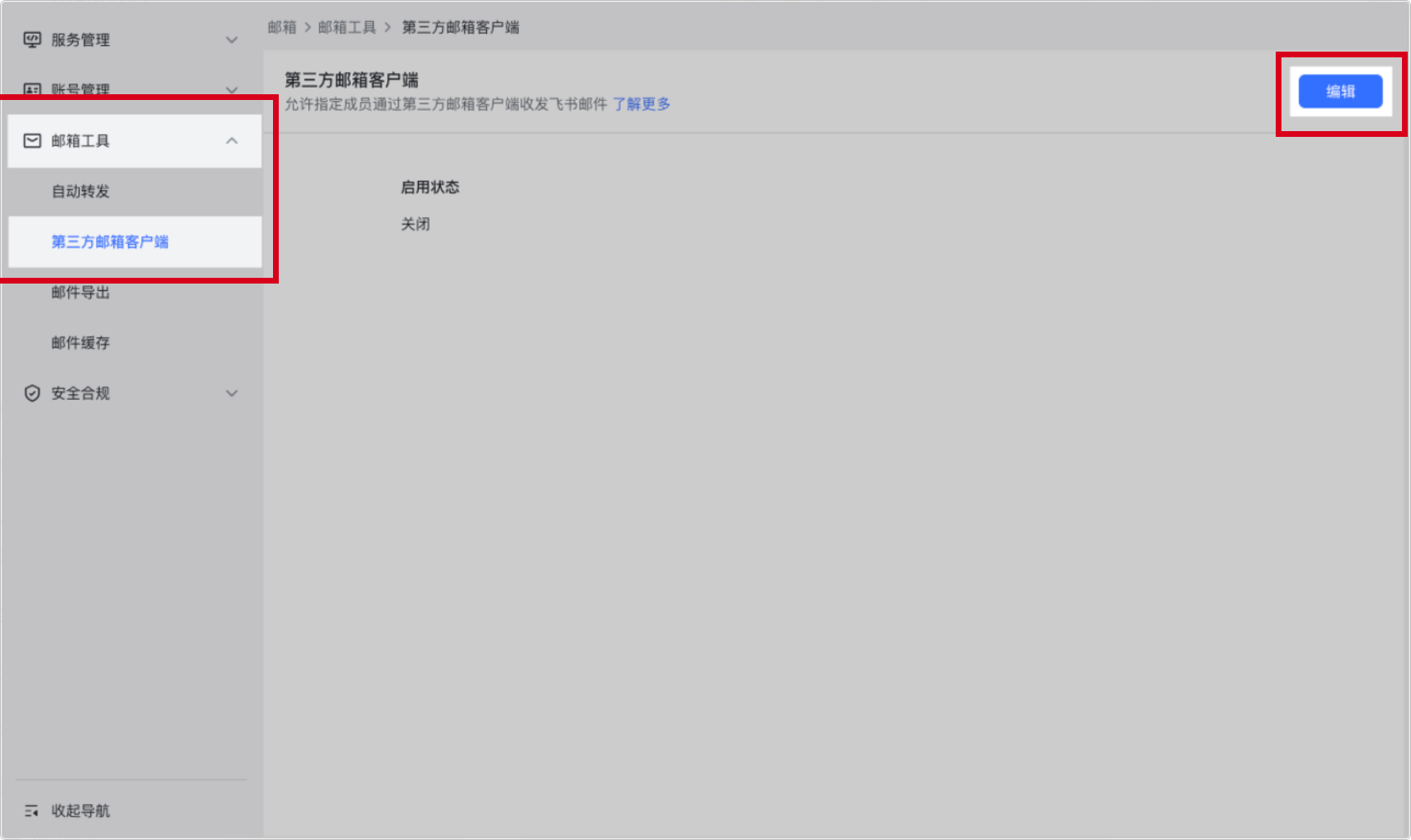
1.4. Click Mail Tools - Third-Party Mail Client
Click the Edit button in the upper right corner.
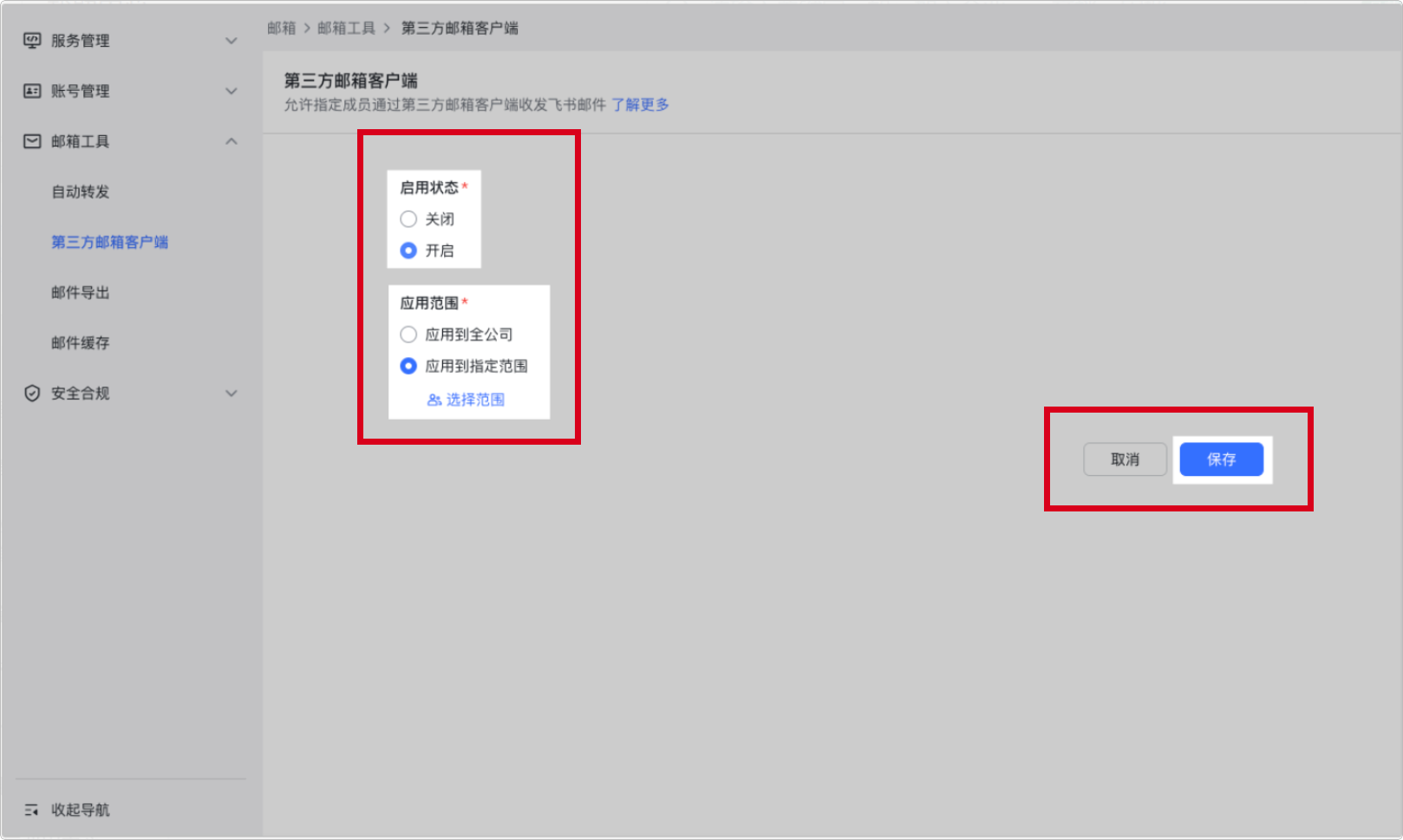
1.5. Click Enable - Click Save
| Please note: The administrator has successfully enabled the third-party email client settings, and members can then proceed to the subsequent steps to obtain a dedicated password. |
|---|
1.6. In the Feishu Client
Members click on their profile picture - Settings - Email.
1.7. Find a Third-Party Email Client to Log In
Click Set Up Now.
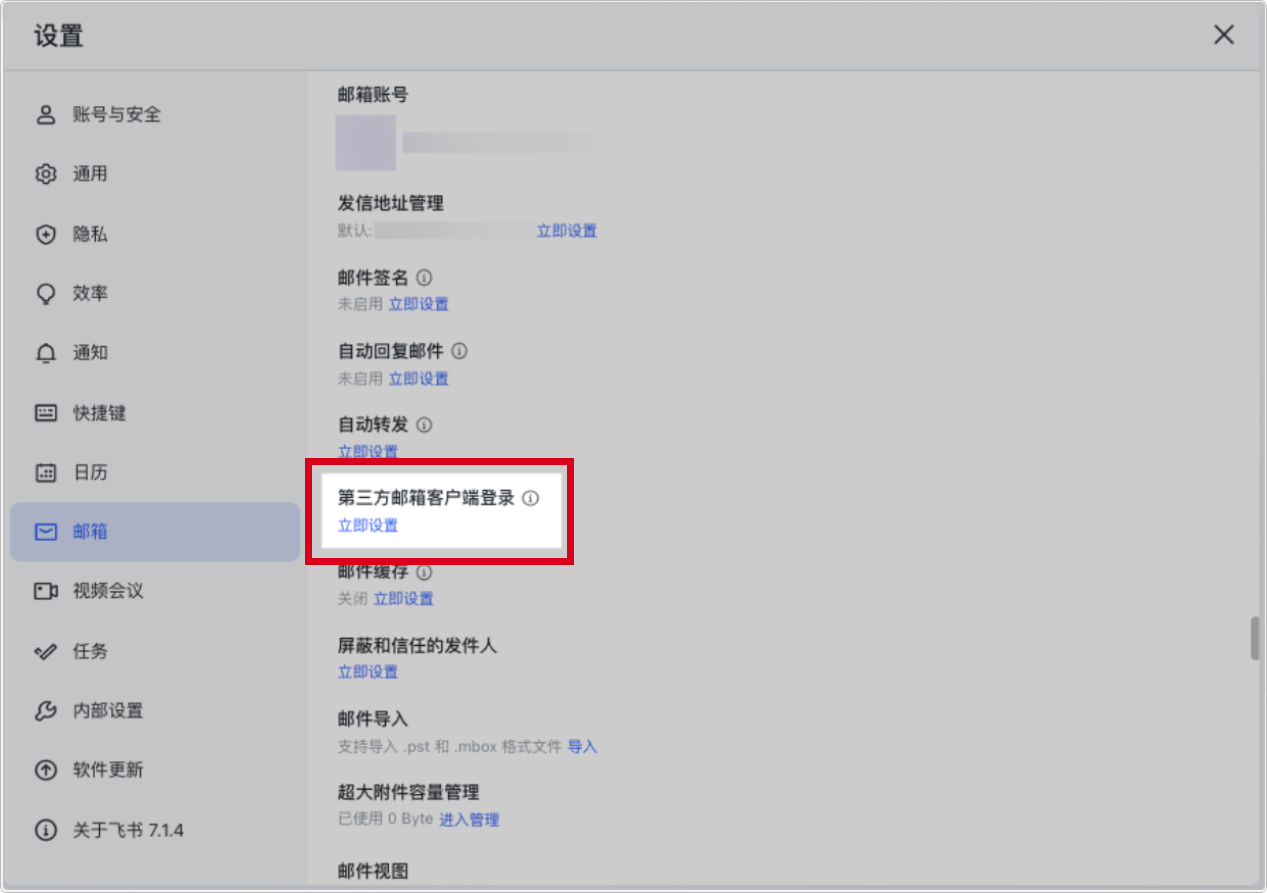
1.8. Select Your Device
Choose Mac or Windows computer.
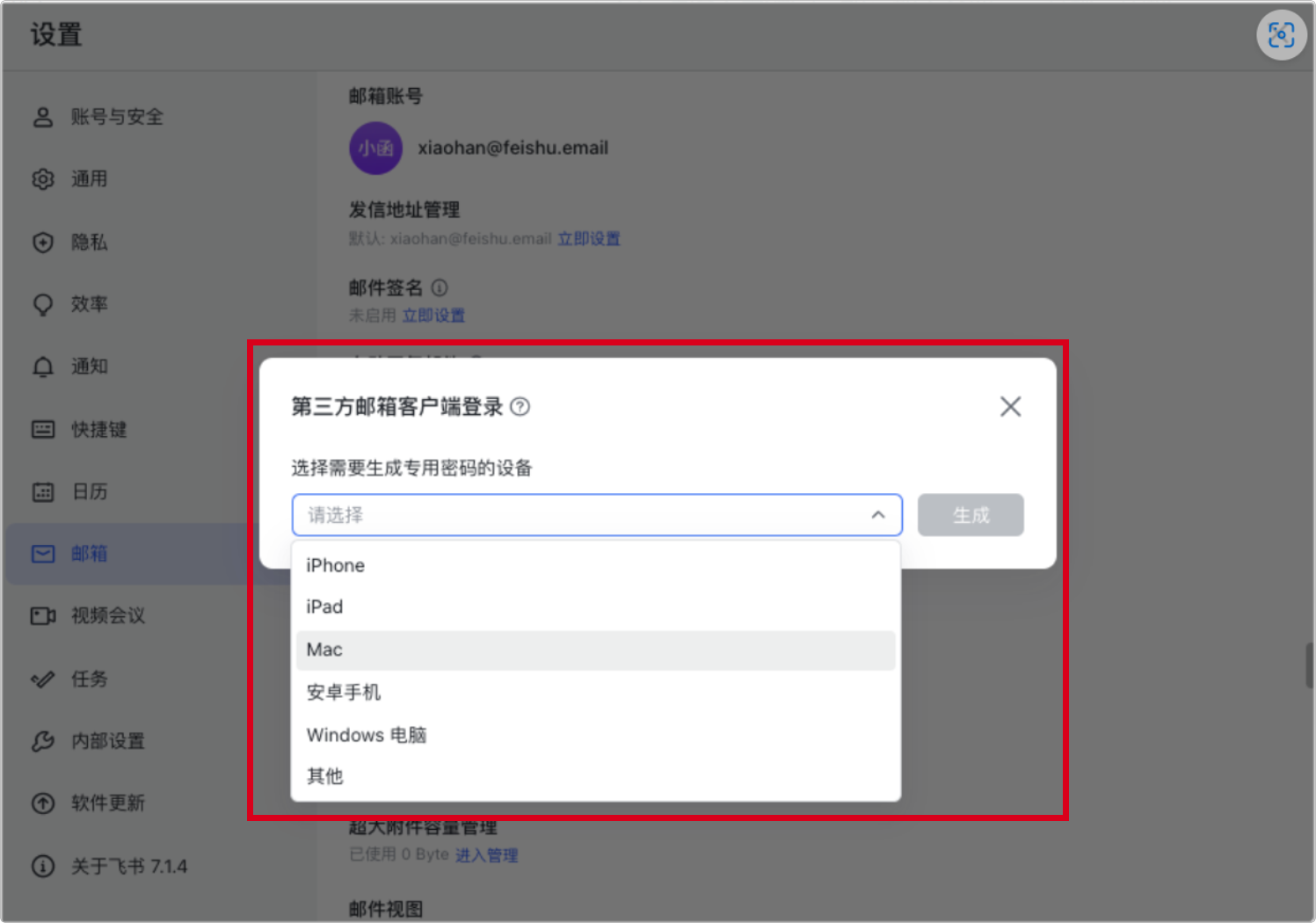
2. Fill in the Application-Specific Password
Click Generate to get a dedicated password, then click Copy and fill it in.
| Note: When using IMAP to integrate your mailbox, be sure to fill in the actual IMAP server address and port instead of the following sample information. |
|---|