Outlook Integration
1. Fill in the Information
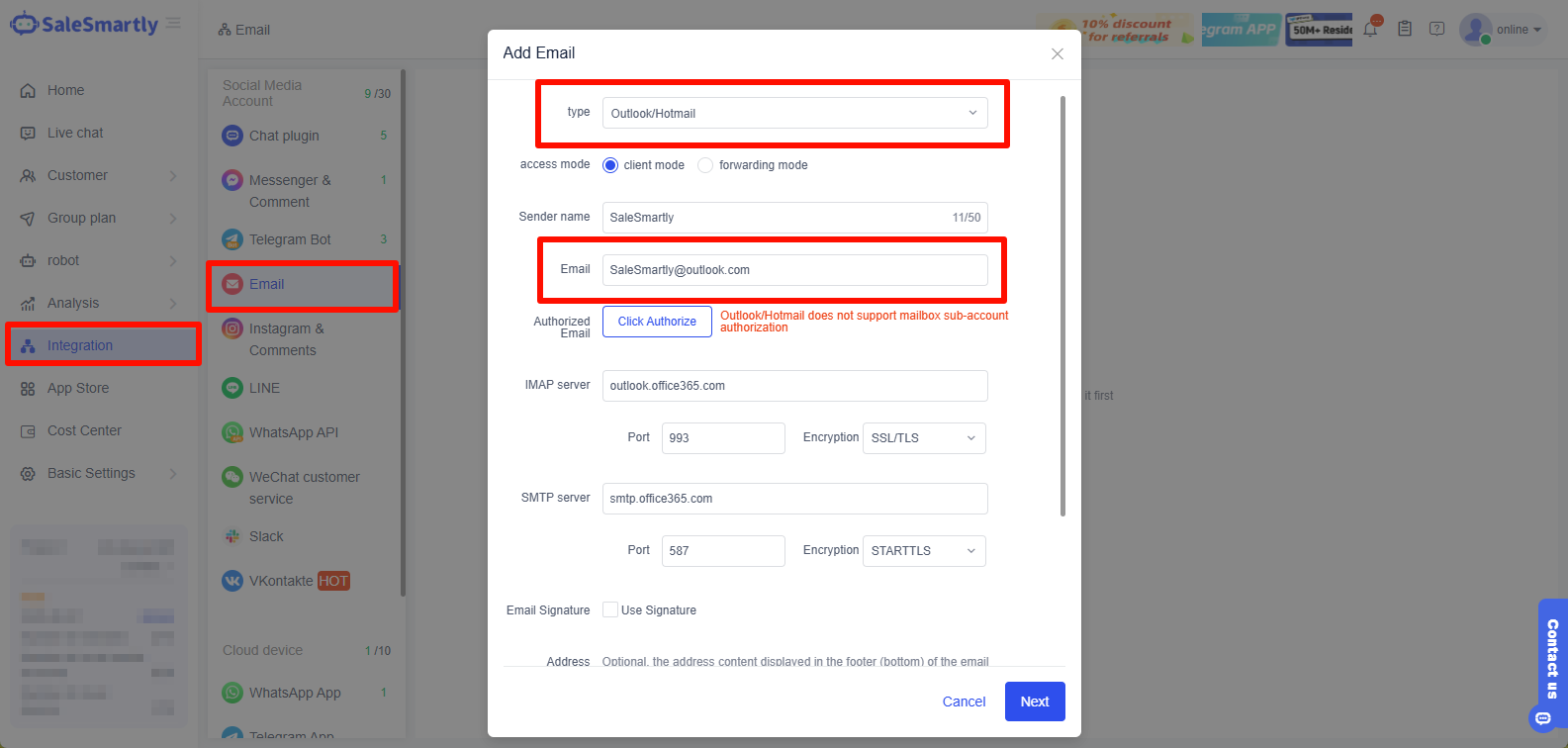
In Integration, select Add Outlook/Hotmail mailbox and fill in the sender's name and email address.
2. Authorized Email
2.1. Click Click Authorize

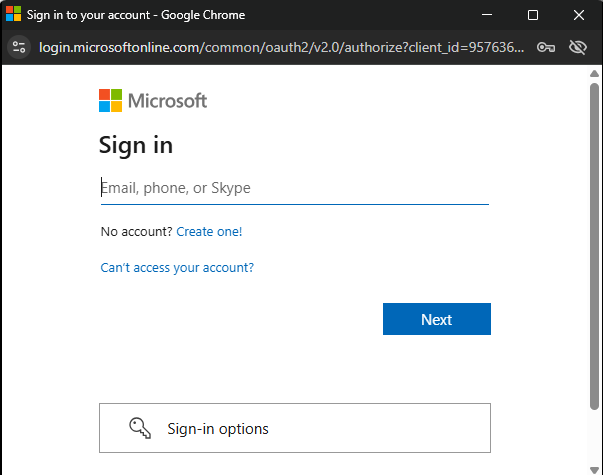
2.2. Log in to Microsoft Account
You will be automatically redirected to the Microsoft page, where you will enter your account password to log in to your Microsoft account.
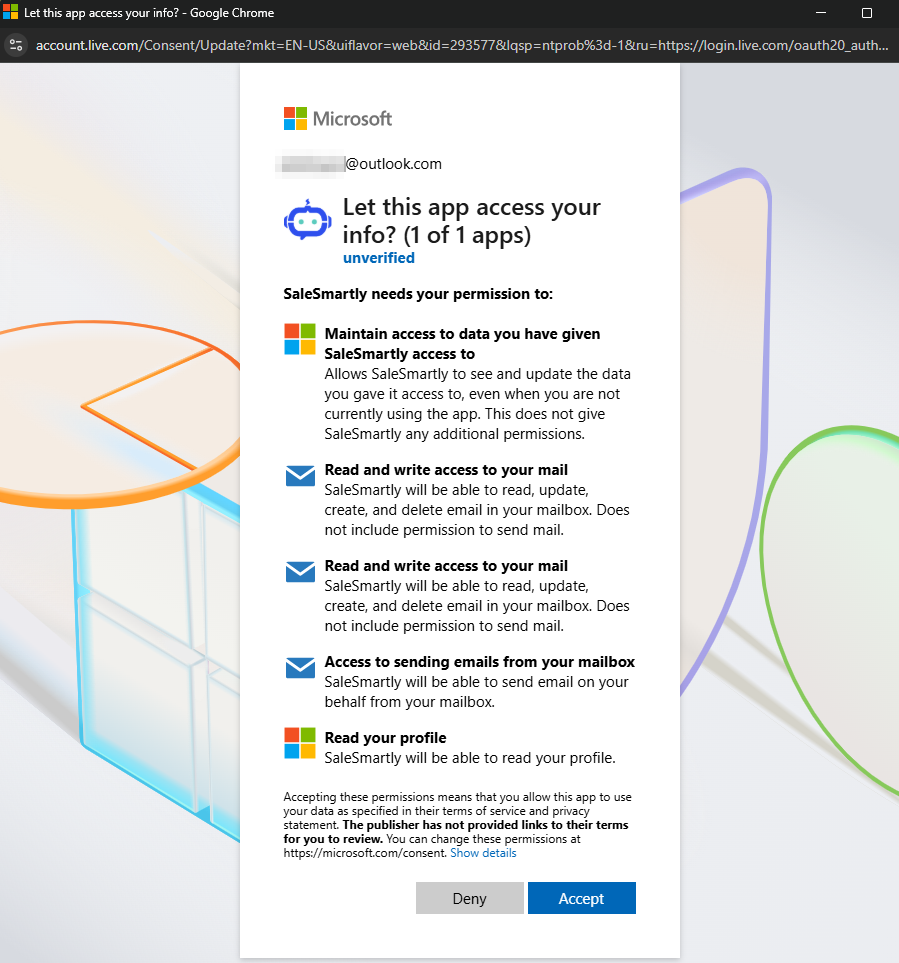
2.3. Accept the Authorization
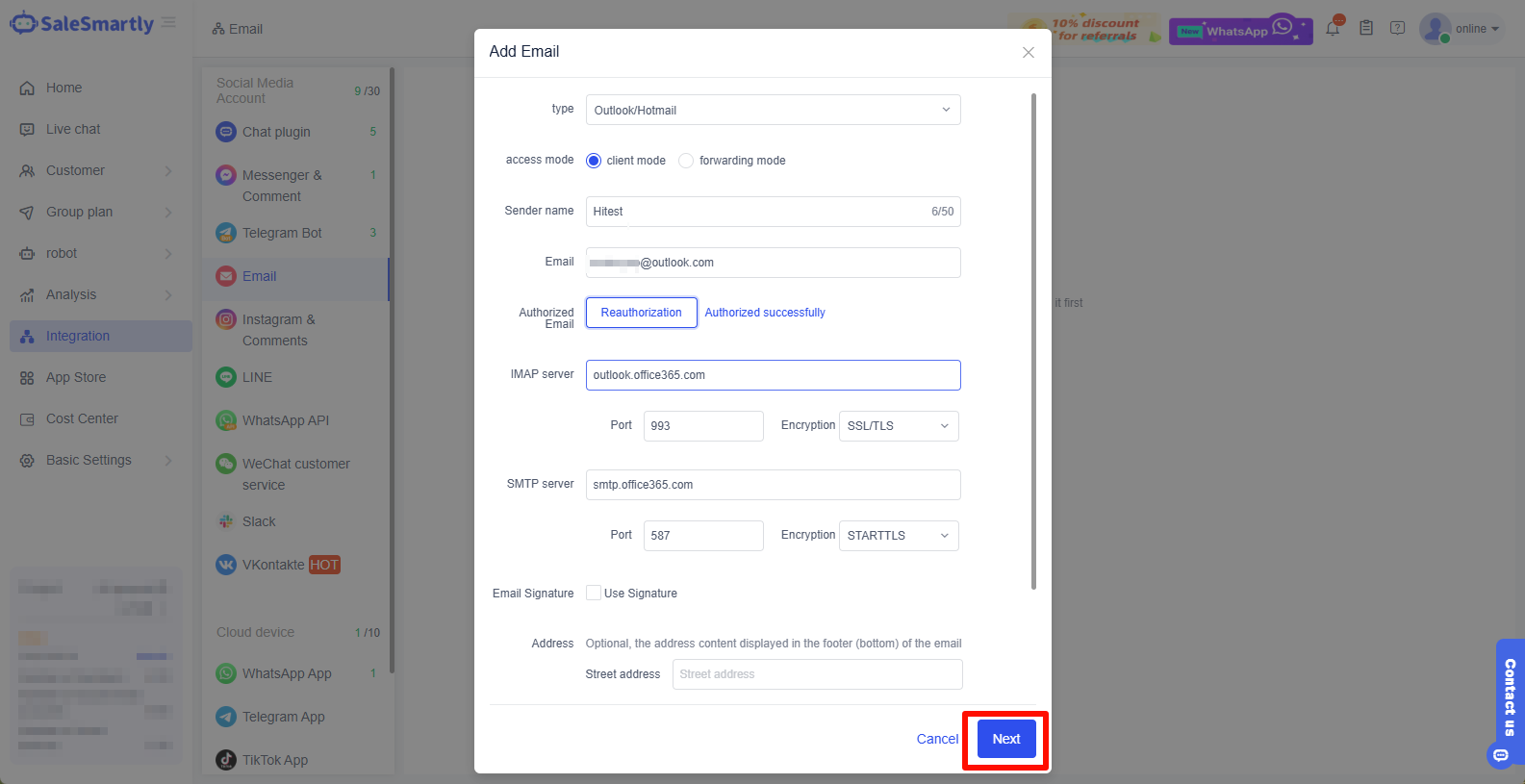
2.4. Complete Authorization
After authorization is successful, click Next.
3. Activate Permissions
Check the synchronization folder permissions according to your personal needs, and then click Confirm to integrate successfully.

4. Frequently Asked Questions
4.1. "The authorized mailbox is inconsistent with the integrated mailbox"
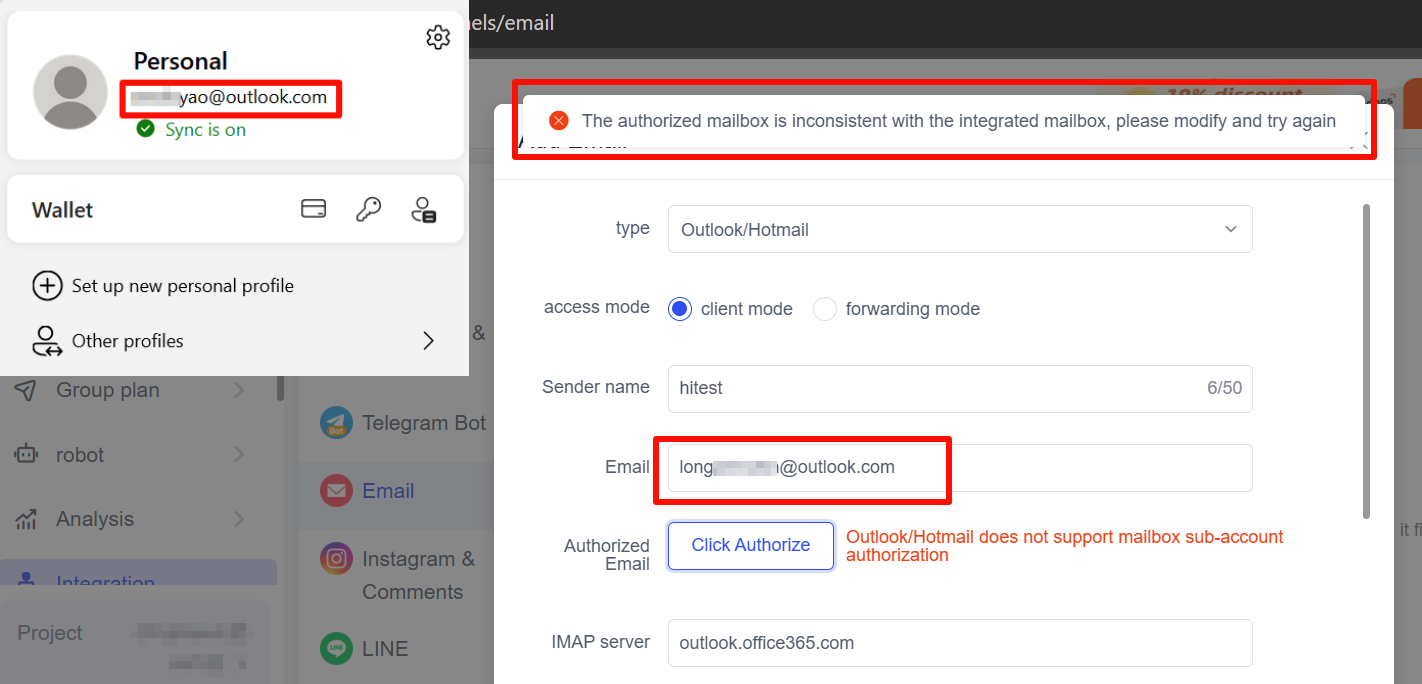
4.1.1. Reasons for Integration Failure
SaleSmartly obtains the current browser email account, not the browser login account.
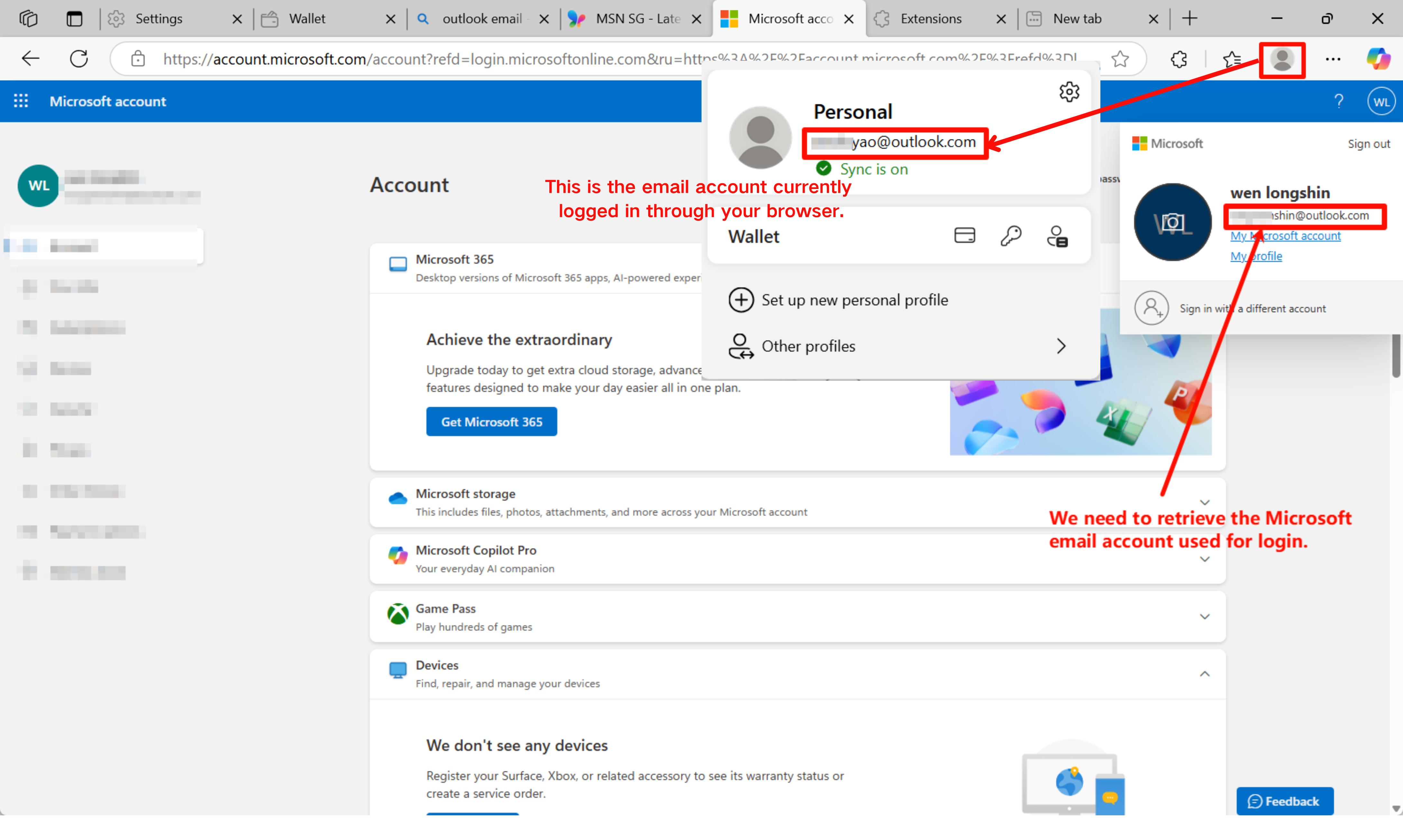
4.1.2. Solution
- Log in to the official website of Outlook/Hotmail or Microsoft website and switch back to the same account as the one you want to integrate into SaleSmartly.
- Return to the SaleSmartly system, click the "Click Authorize" button, enter your email account again on the pop-up page, and then click "Next" to successfully authorize.
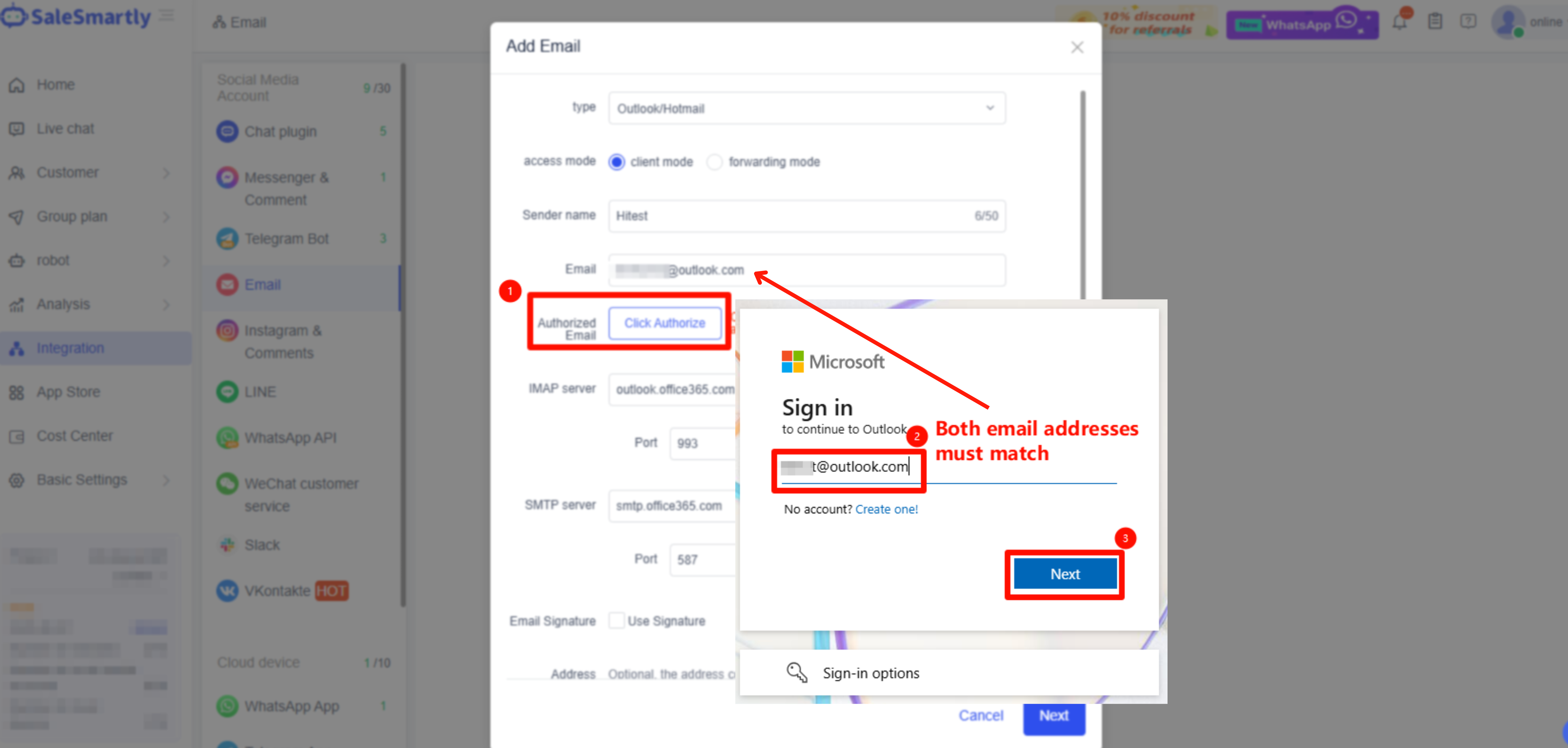
- After it displays "Authorized Successfully", click "Next". For the remaining steps, please refer to: Outlook Integration Tutorial

4.2. No Response After Clicking "Next"
4.2.1. Reasons for Integration Failure
If the Outlook/Hotmail account is newly registered or has not sent or received any emails, there may be no response when clicking 'Next' when integrating the mailbox.
4.2.2. Solution
- Send and receive several emails in this mailbox.
- Wait a few days after registration before integration.
4.3. "Email Connection Failed" Error
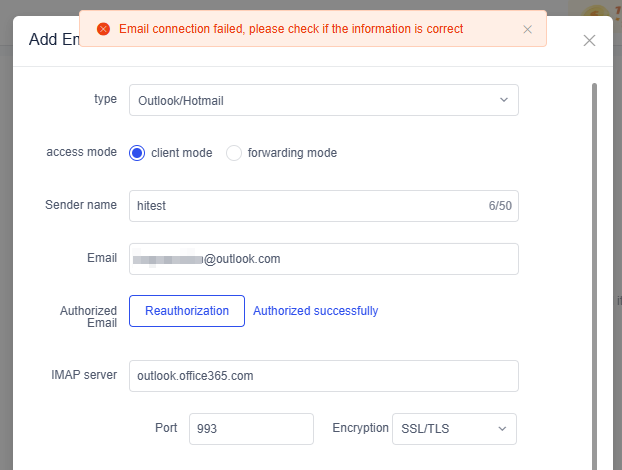
4.3.1. Reasons for Integration Failure
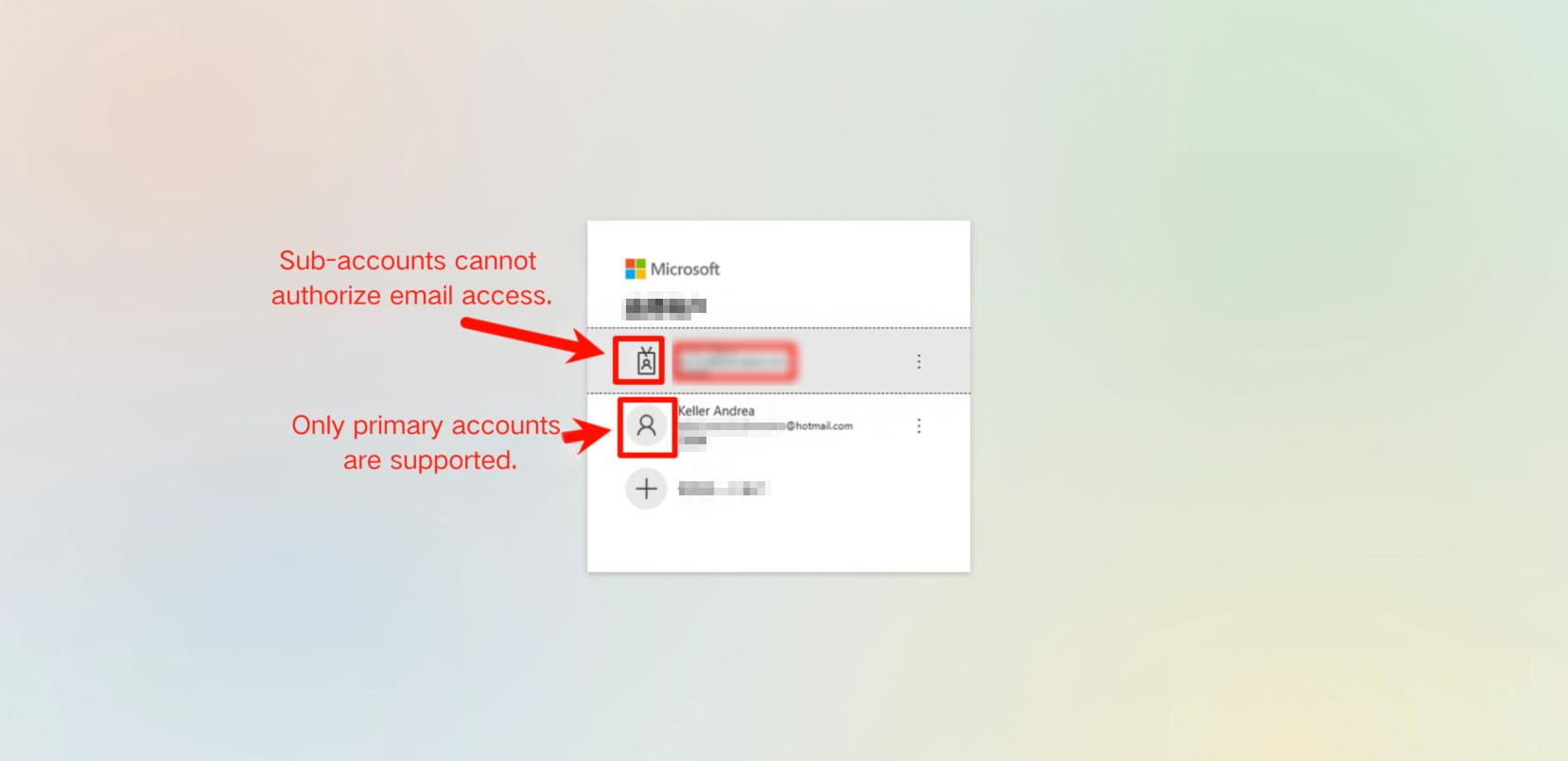
- You can check whether the account you authorized is a Microsoft sub-account. Outlook/Hotmail currently does not support mailbox sub-account authorization.
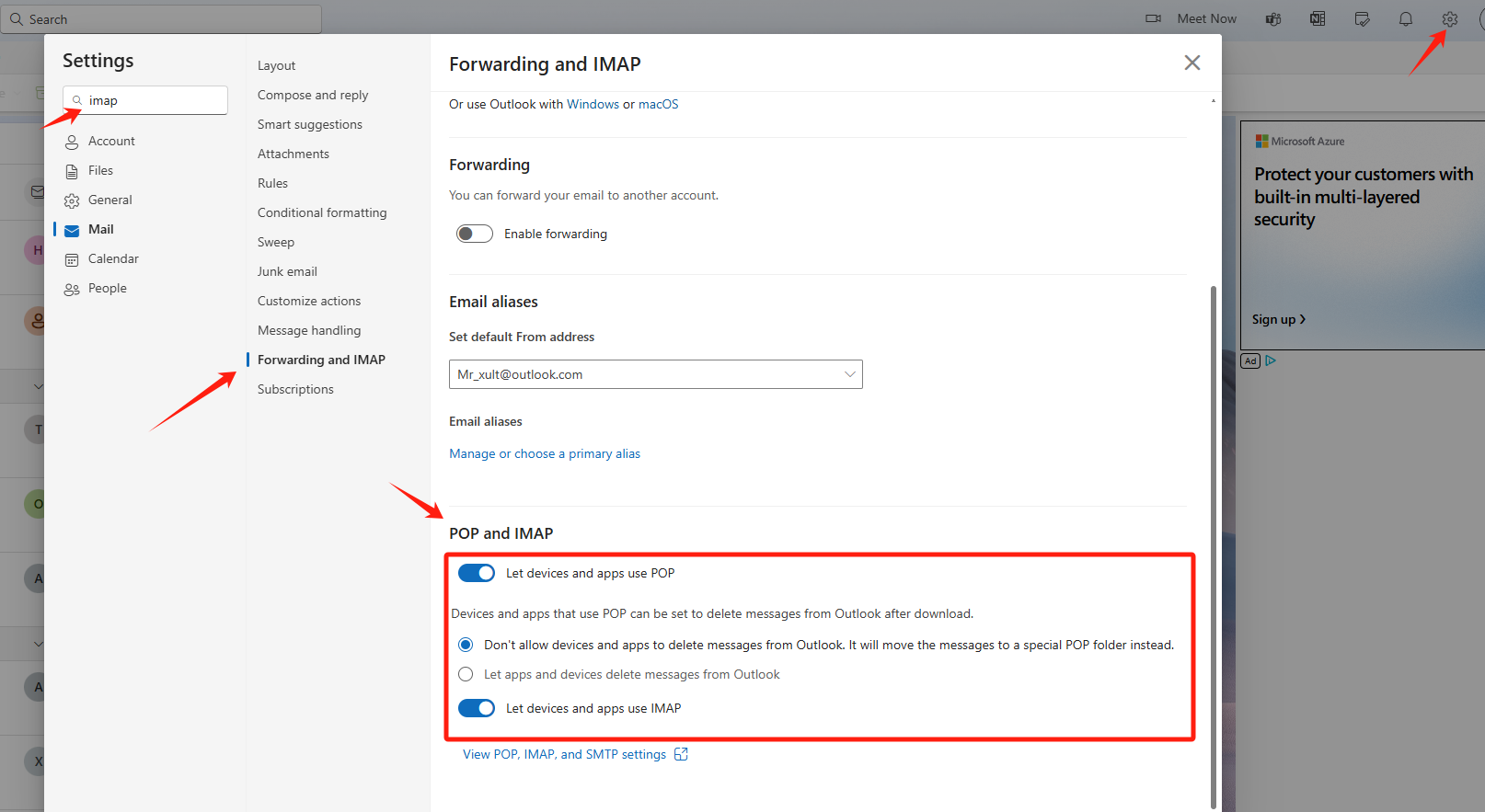
- Check whether Allow devices and apps to use POP and Allow devices and apps to use IMAP are turned on in the settings. These two settings need to be turned on before integration can be performed.
4.3.2. Solution
Due to Microsoft's lack of support for sub-account integration, SaleSmartly cannot access or manage Microsoft sub-accounts. Unfortunately, this limitation currently has no workaround.
