Enable 2-Step Verification
Learn to enable 2-step verification and generate app passwords for Google accounts.
1. Enable 2-Step Verification for Google Account Security
1.1 Enter Google Mail Settings or click here to jump
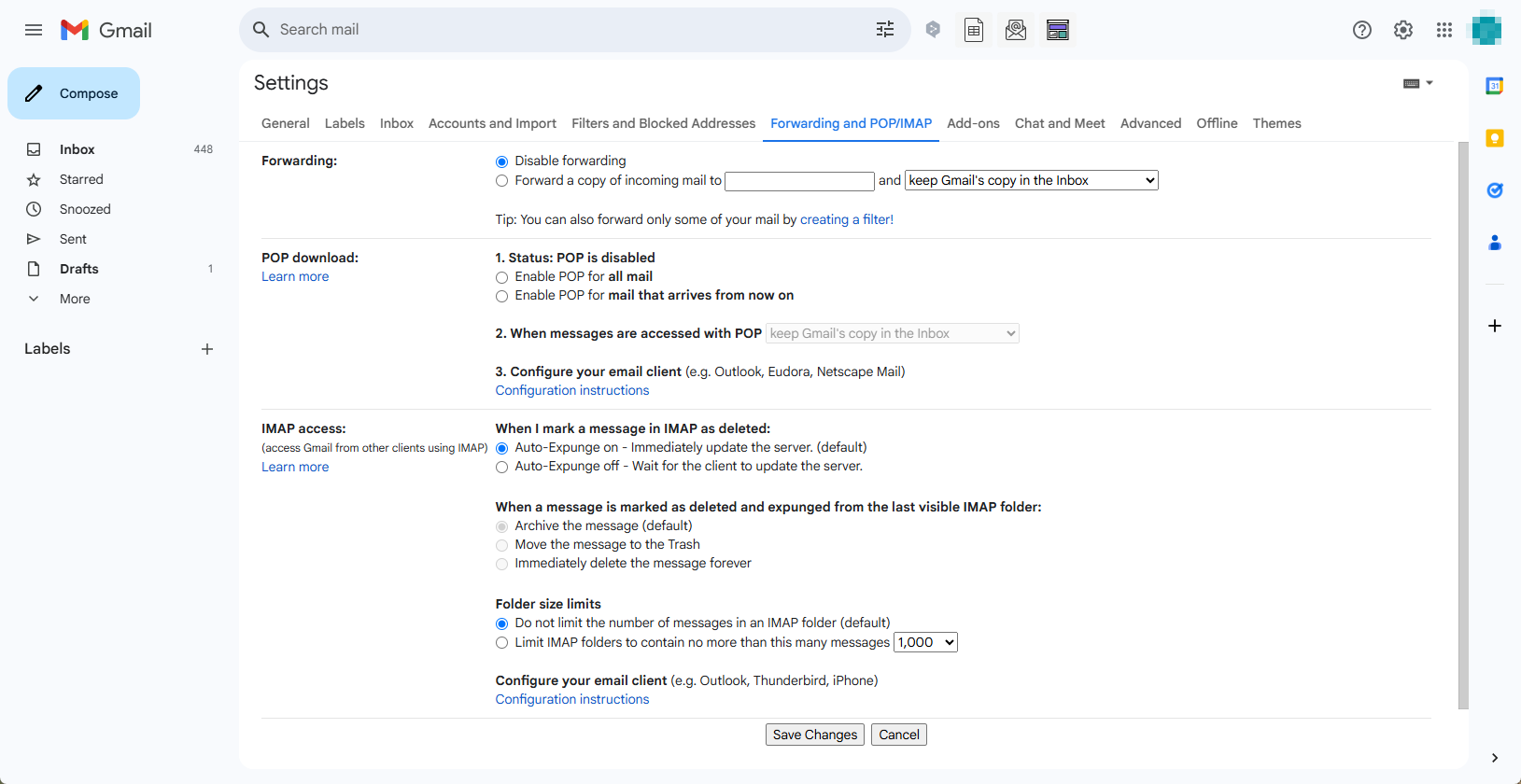
1.2 Enable IMAP (Google Mail has officially enabled IMAP by default, no need to enable it manually)
1.3 Click the Logo in the upper right corner - Manage your Google Account

1.4 Return to manage your Google account
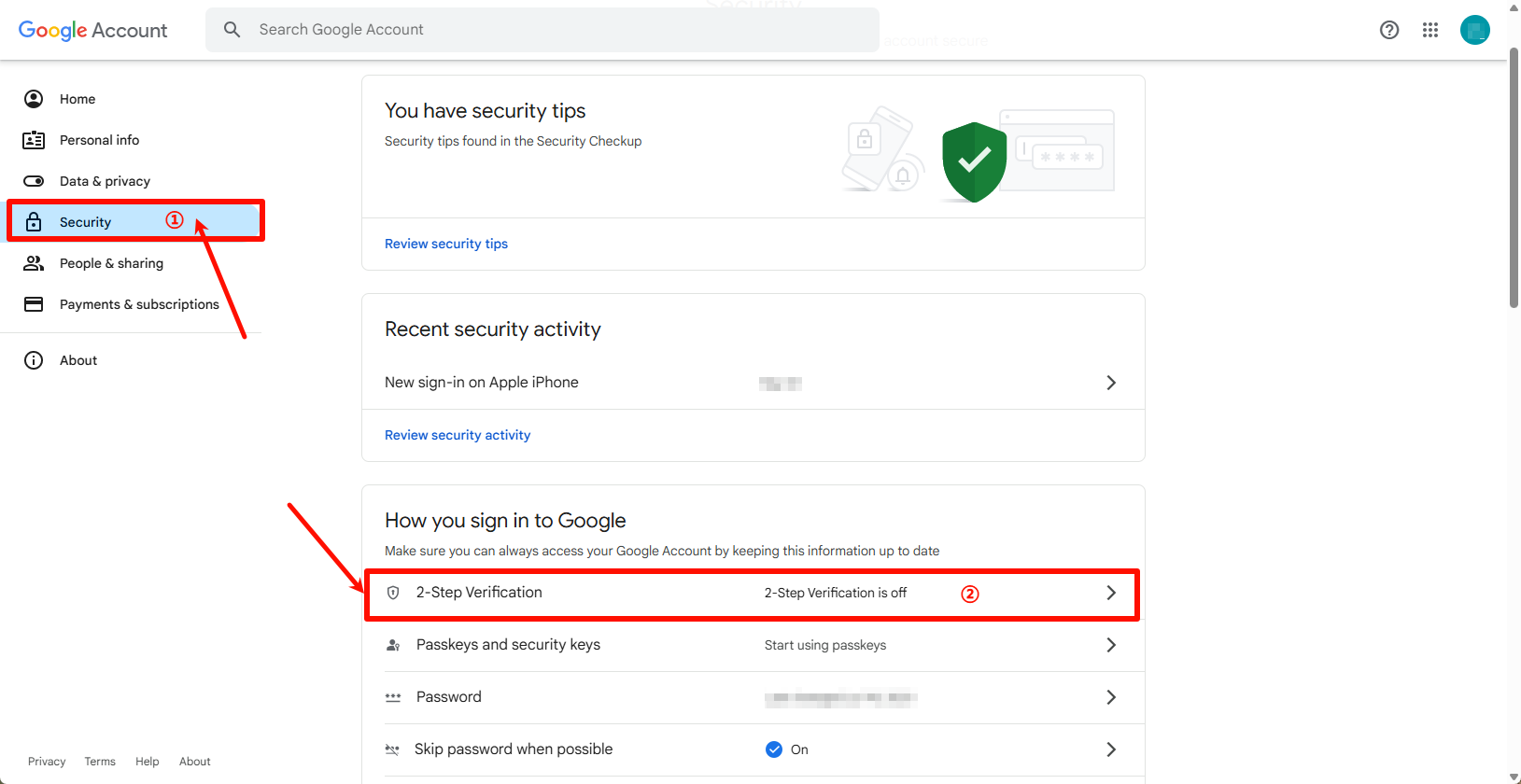
1.5 Click to enter 2-Step Verification - click to Turn on 2-Step Verification
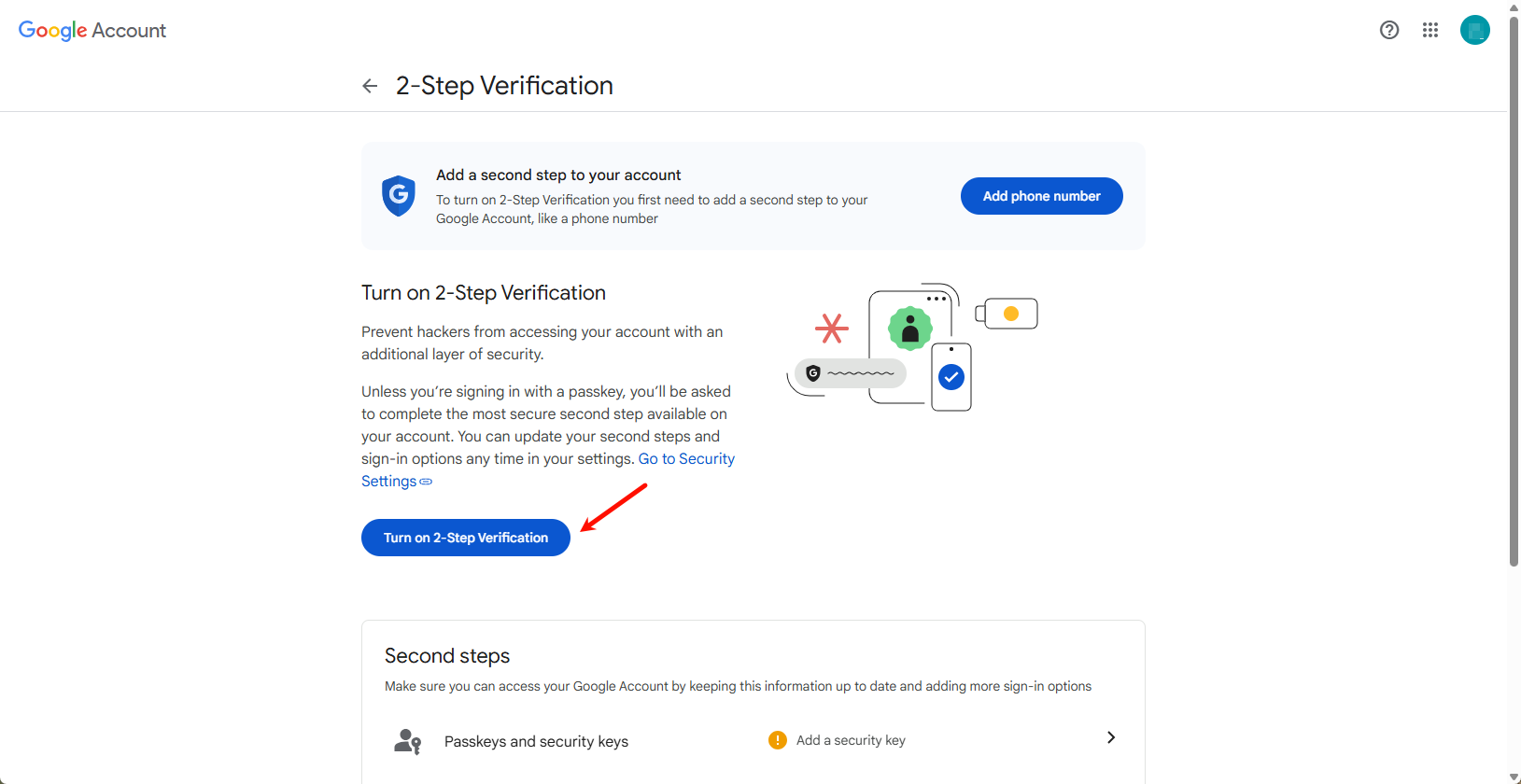
1.6 Click Done

2. Generate Google App Passwords
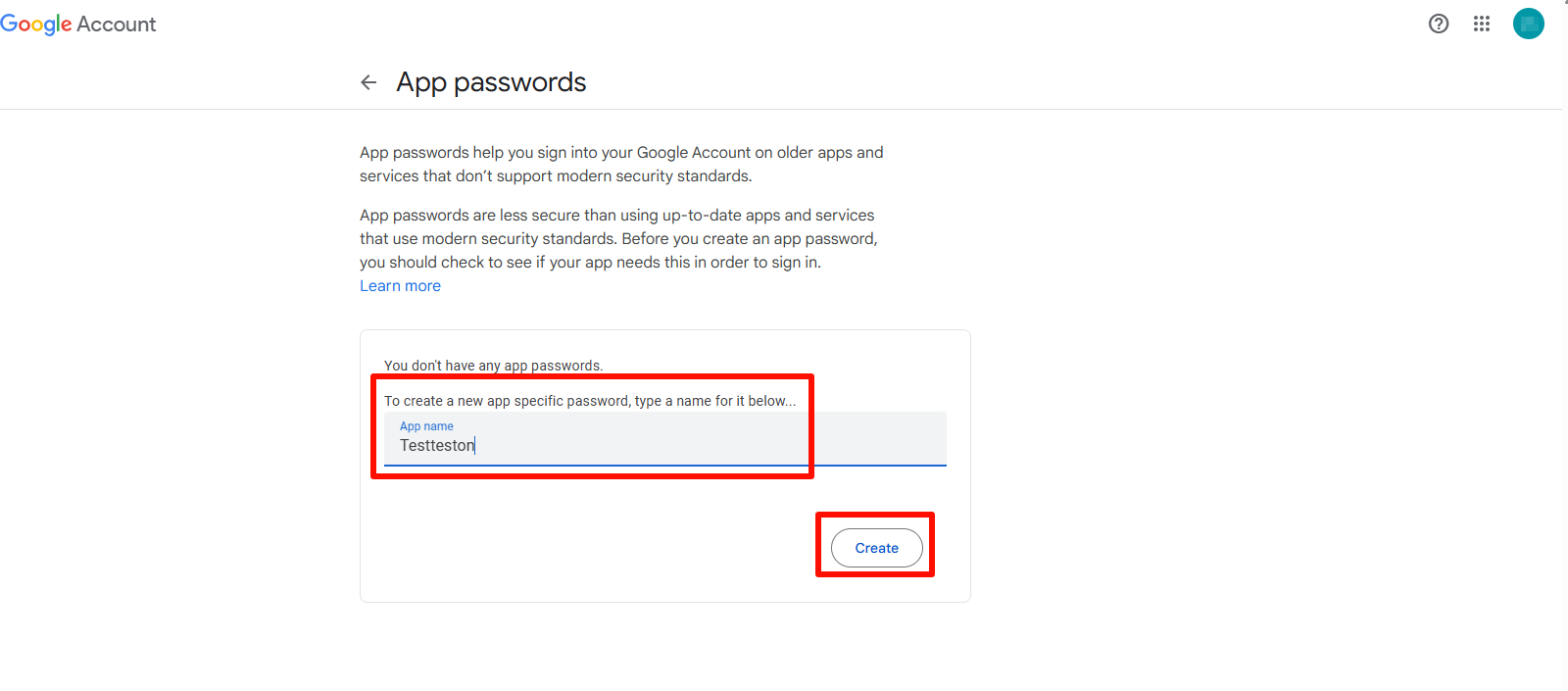
2.1 Search and click App Passwords
Go to the App Passwords page to generate a dedicated password: https://myaccount.google.com/apppasswords
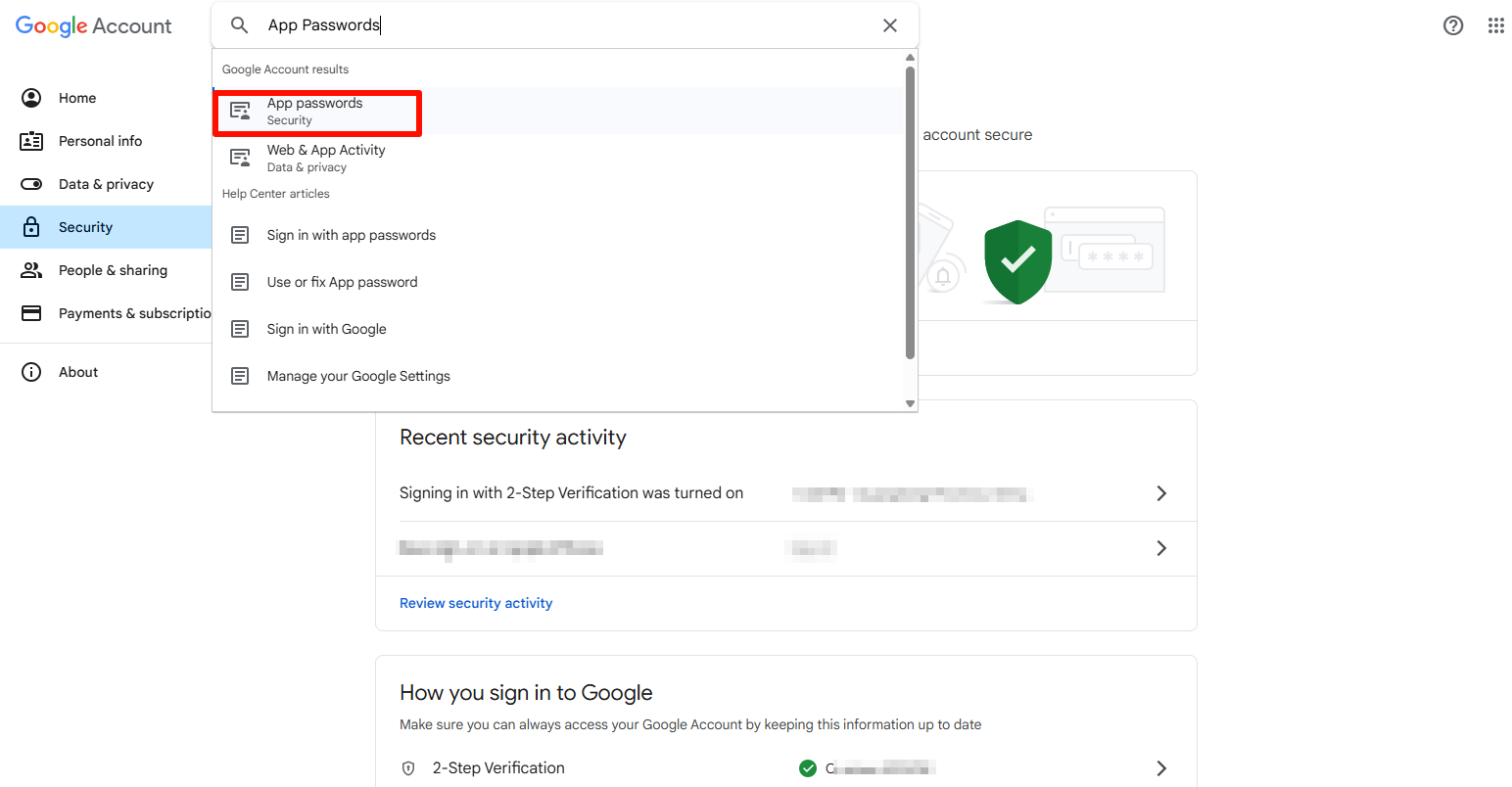
2.2 Enter the application name, you can enter any name, and click Create
| Notice: Create an app to use the password that Google only displays once! Please save it or download it and save it. If you close it, it will not be displayed again! |
|---|
3. Use App Passwords
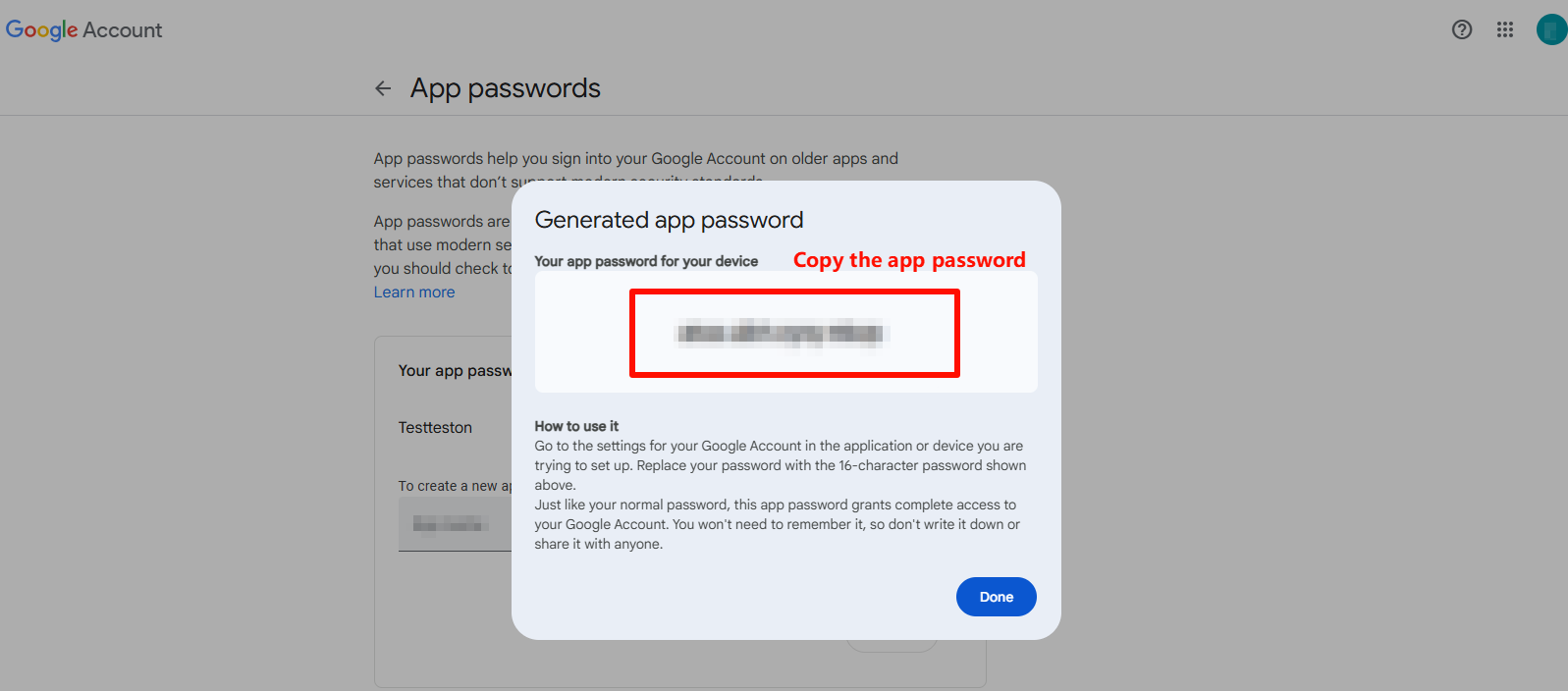
3.1 Copy the app password
| Notice: An app password is a 16-character code used to securely authenticate third-party applications with your Google account. |
|---|
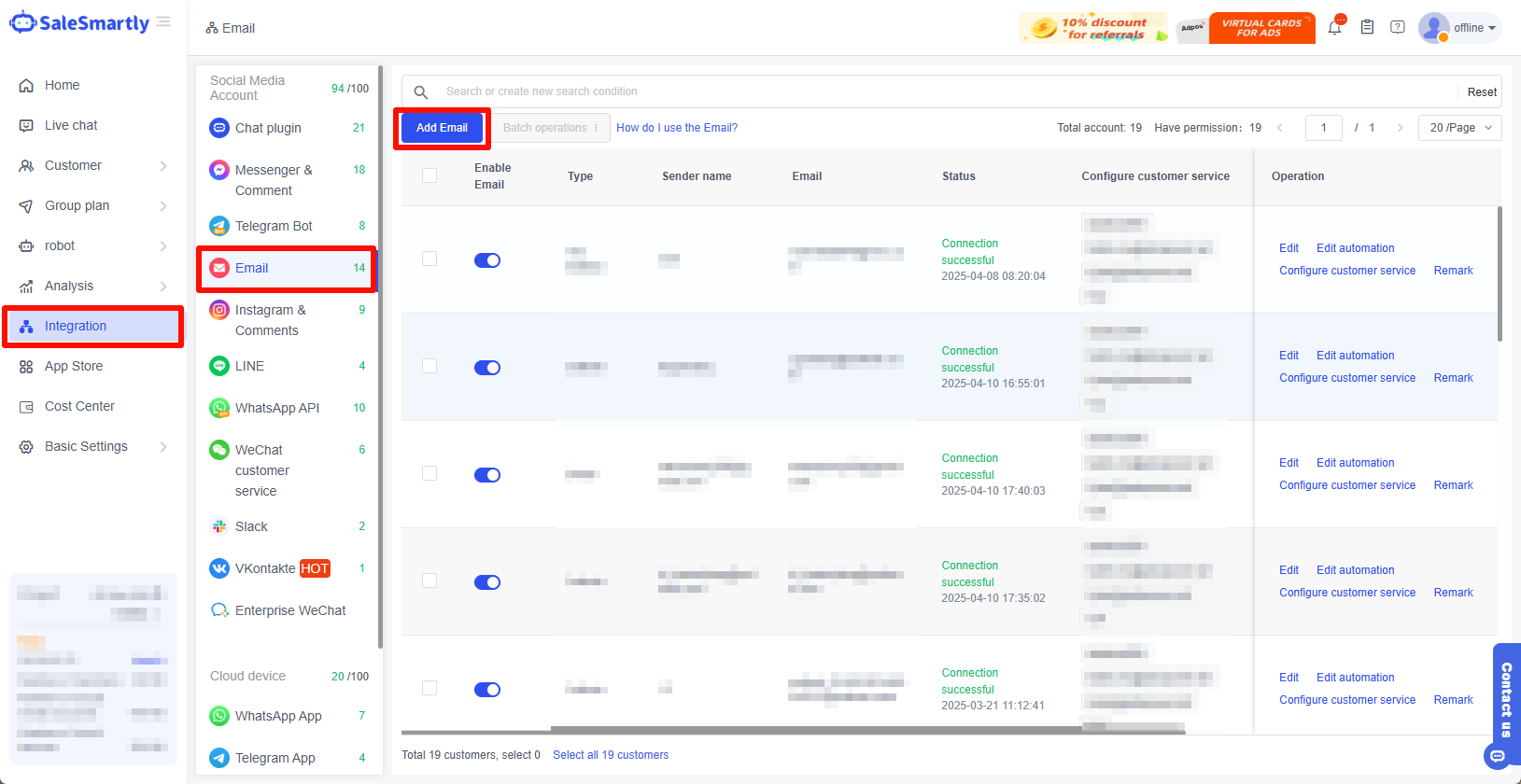
3.2 Go back to Integration-Email - Add email - Copy the app password just now
| Notice: The password cannot contain spaces. |
|---|
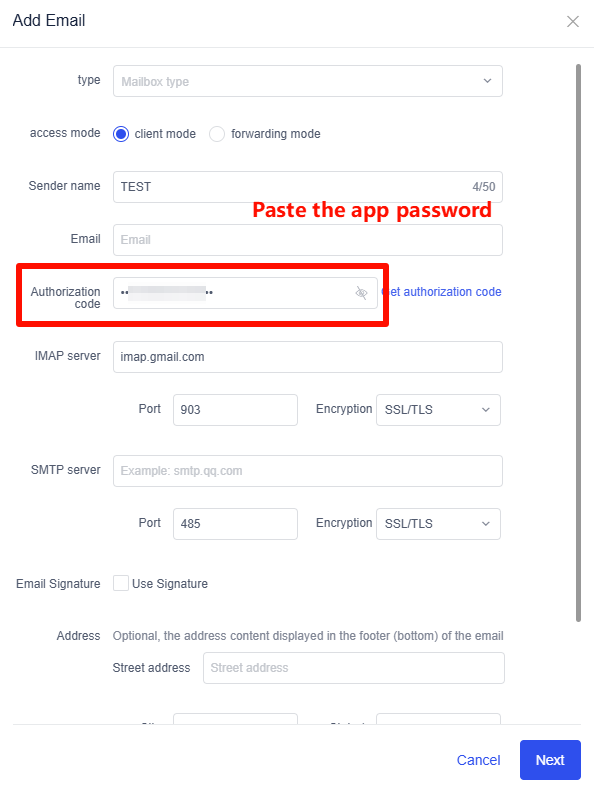
4. Fill in the App Password
| Notice: When using IMAP to integrate your mailbox, be sure to fill in the actual IMAP server address and port instead of the following sample information. |
|---|
5. Authorization Successful
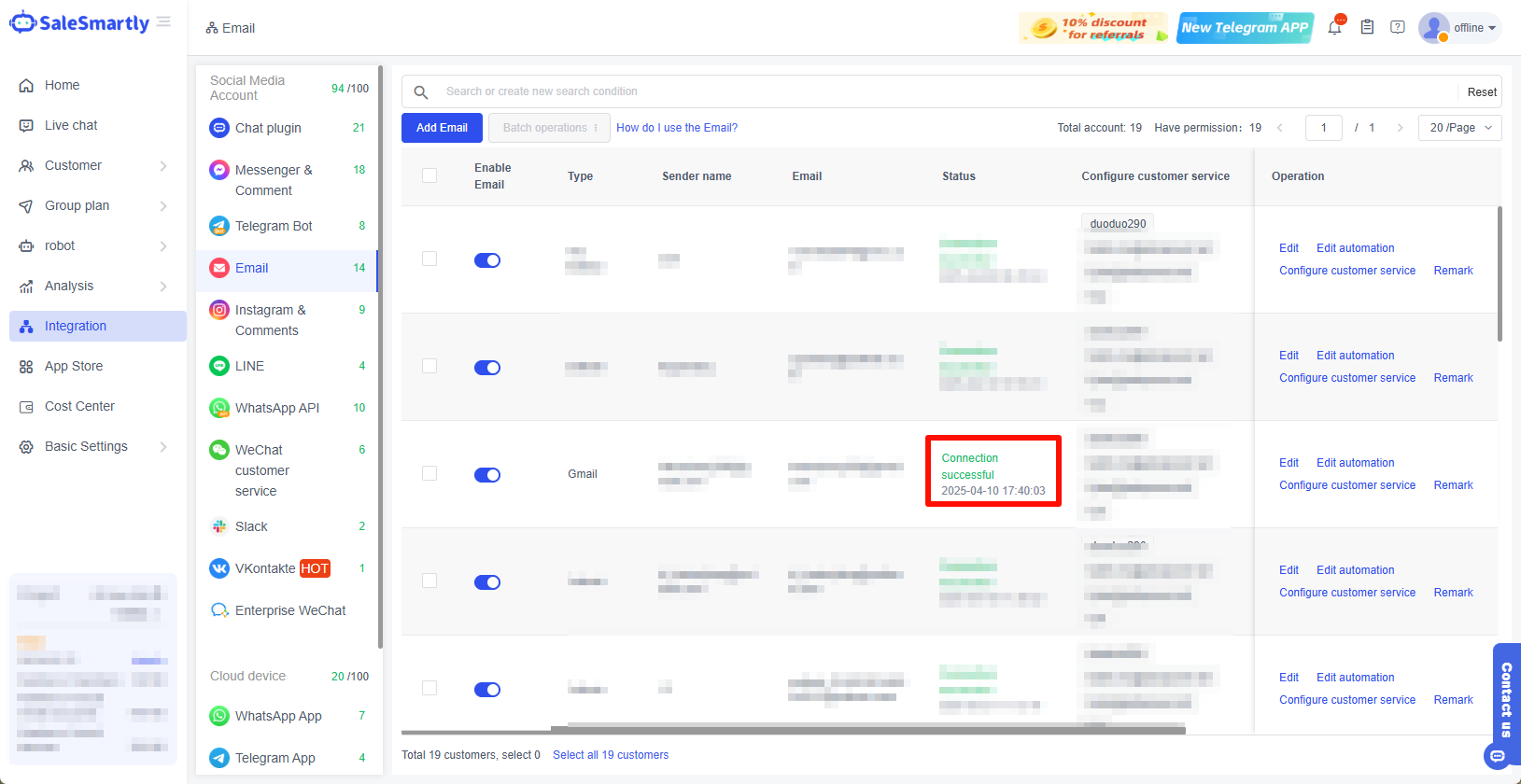
6. Frequently Asked Questions
6.1 Why can't I find my app password?
- If 2-step verification is not enabled, please click to jump to the detailed tutorial on how to enable 2-step verification here or click the link to enable it. You need to log in to your Google account.
- Open the portal: https://myaccount.google.com/u/6/apppasswords?gar=1
- Enter the name of the app password. There is no requirement for the name. Click "Create" to generate an app password (please make sure that 2-step verification is enabled).

- Search for App Passwords in your Google account.
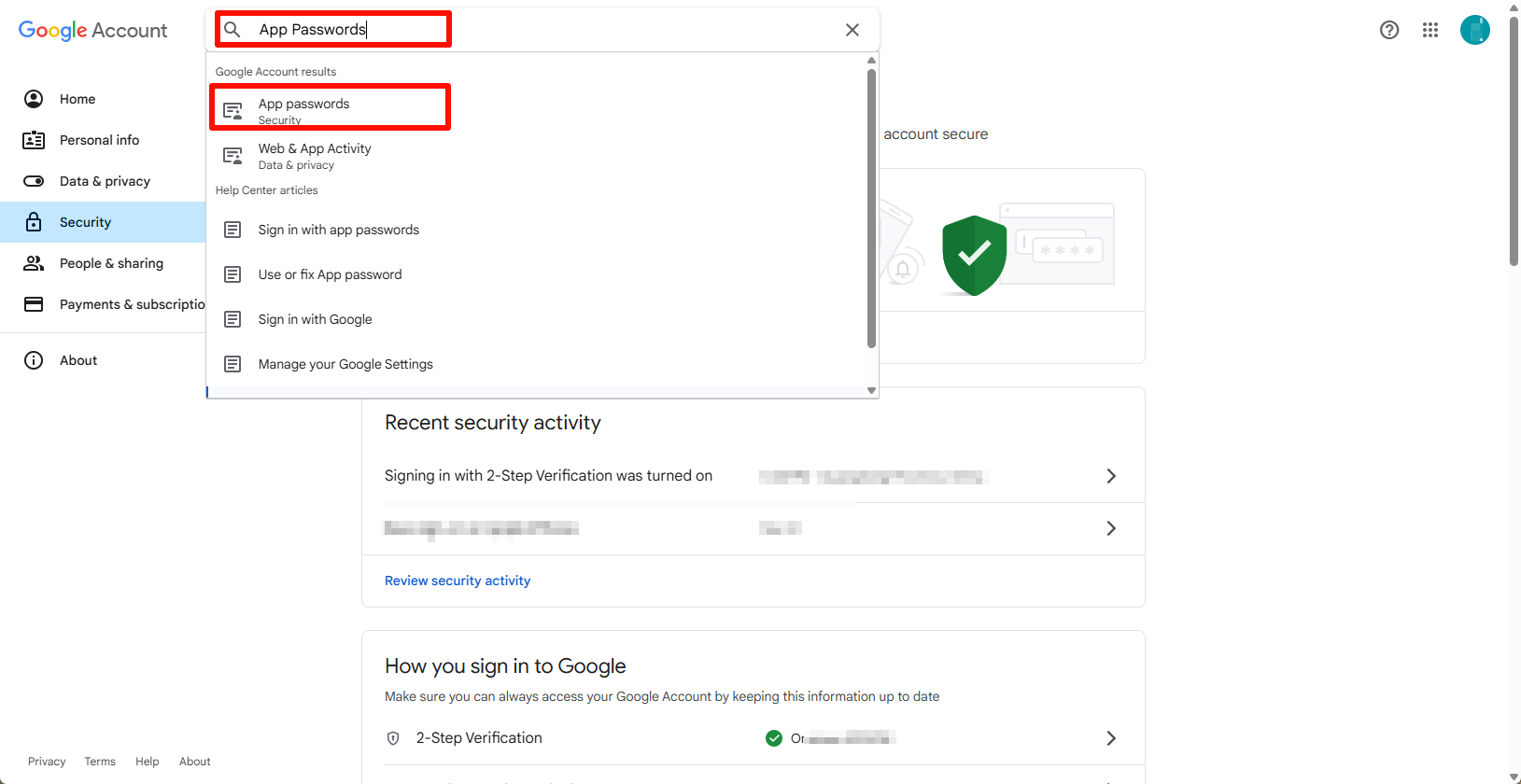
- If you have set up 2-step verification and still can't find the option to add an app password, the reason may be:
- Your Google account is set to use only security key for 2-step verification. You can try to change the passcode. The path is Google Account - Security - Passkeys and security keys - Create a passkey
- You are signed in with a work, school, or other organizational account.
- Your Google account has been enrolled in the Advanced Protection Program.
Tip: You typically enter an app password once for each app or device.
