Enable 2FA
Enable two-factor authentication and create app passwords for mailbox integration.
1. Enable Two-Factor Authentication
1.1. Enable double strict verification
Open the entrance: click to jump
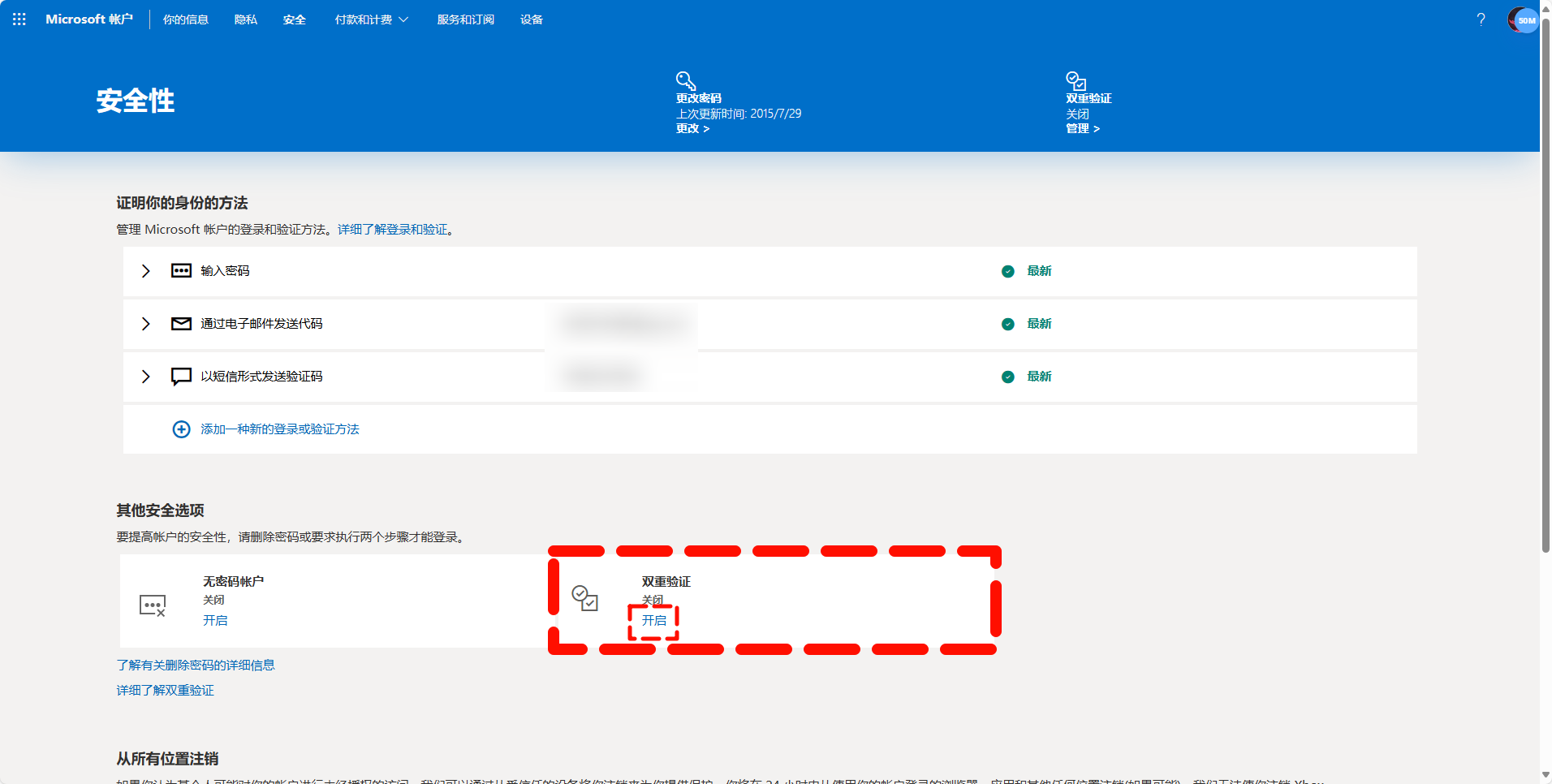
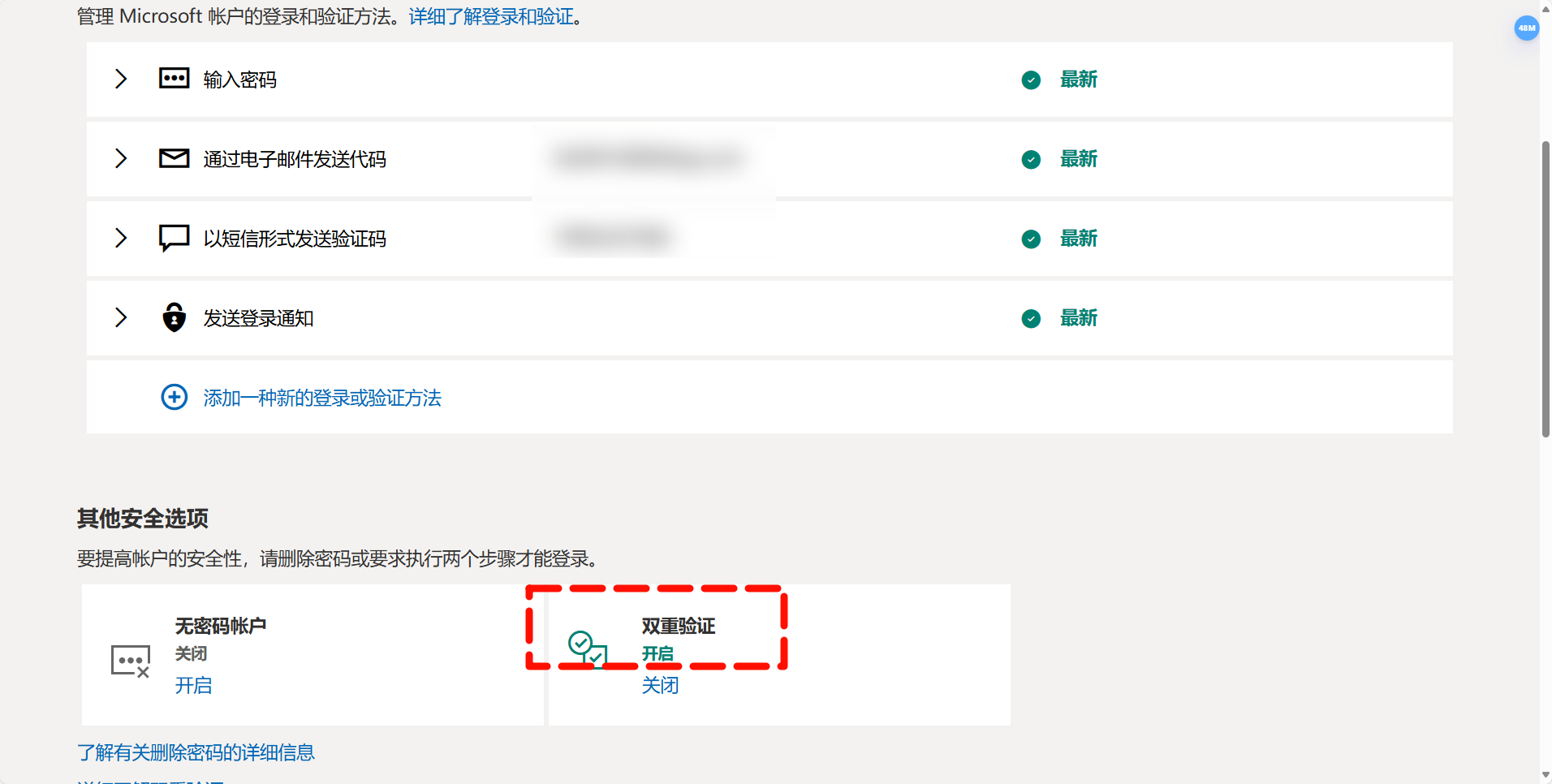
1.2. Complete verification process
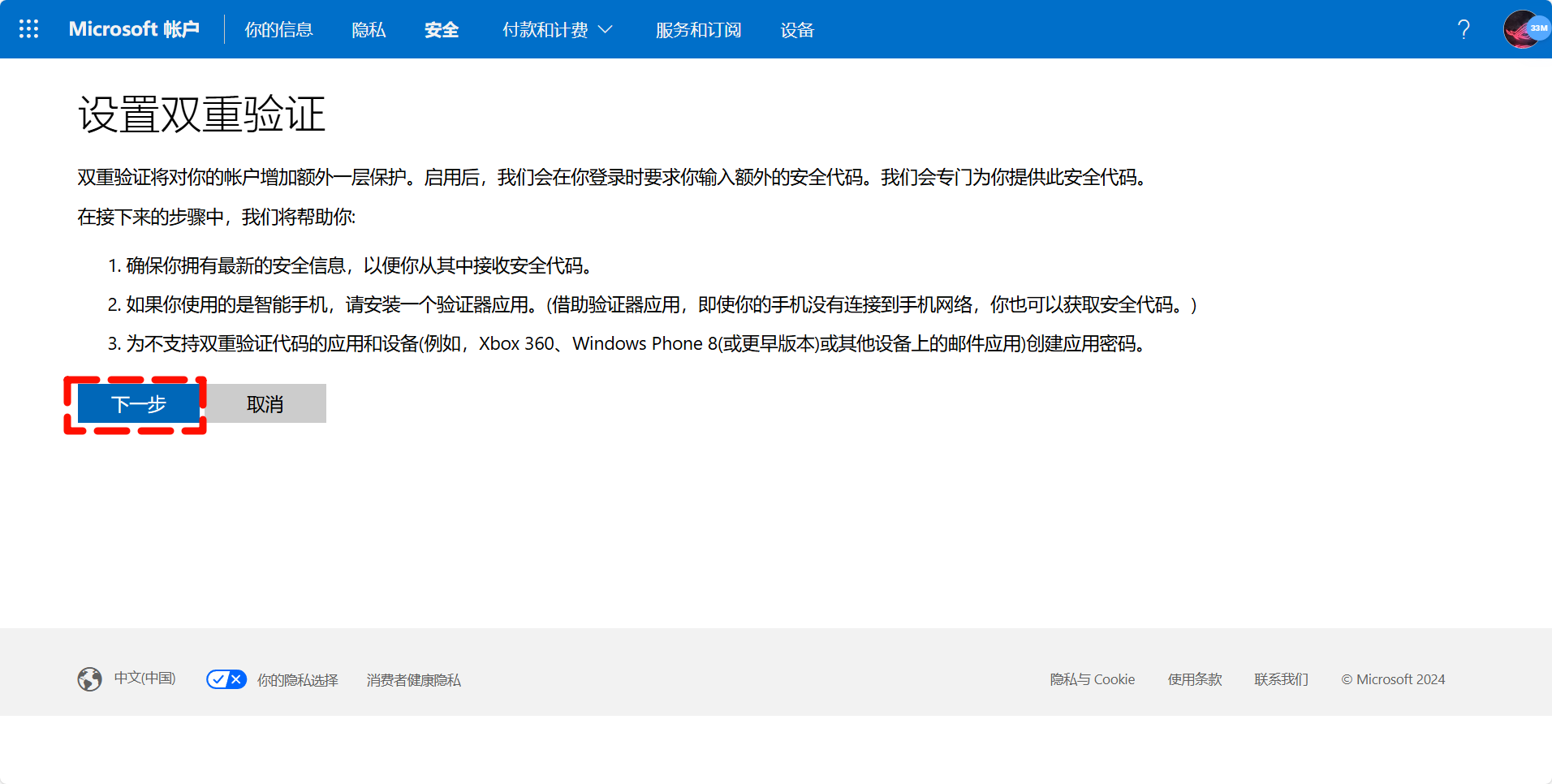
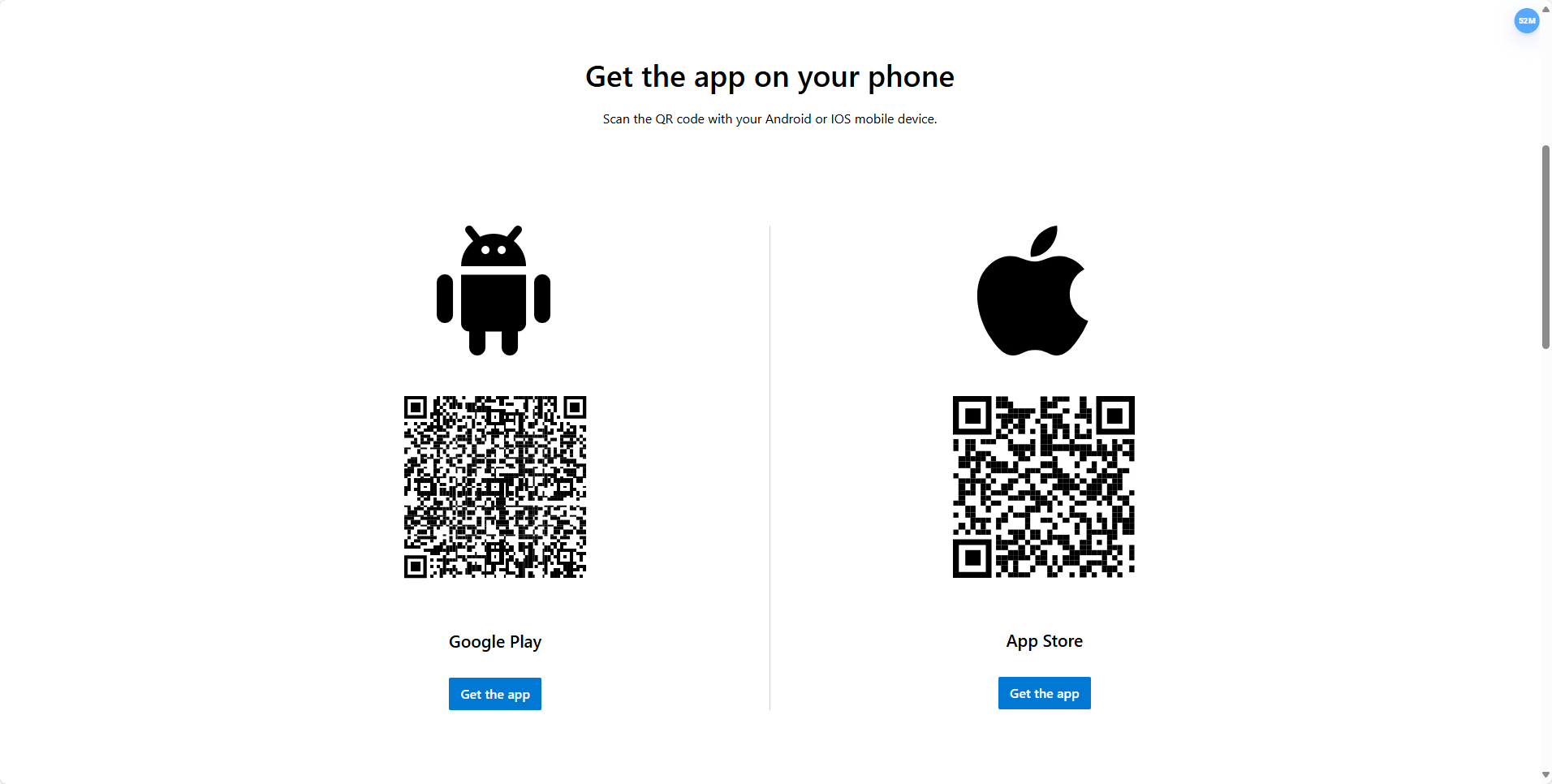
After entering, click Other Security Options - Two-Factor Verification, and verify step by step according to the prompts on the page. Finally, the two-factor verification interface reminds Your account is protected by two-factor verification, which means it has been turned on.
2. Create an App Password
| Notice Please be sure to complete the above steps before performing this step |
|---|
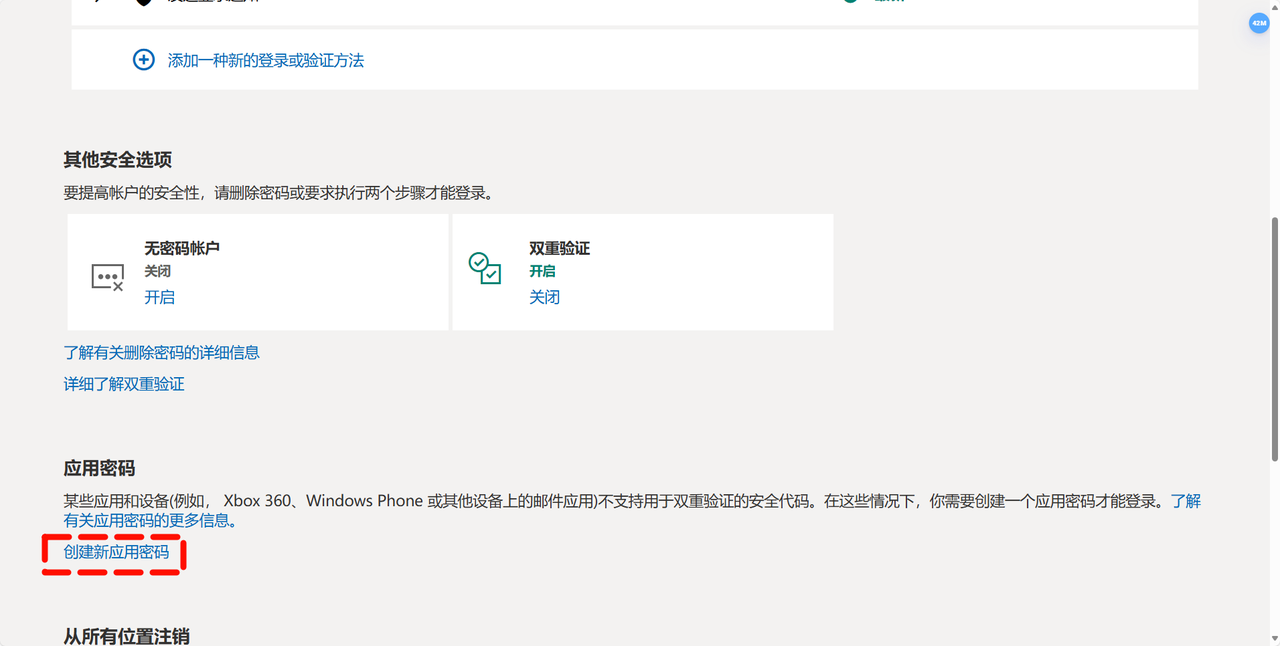
2.1. Create application password entry
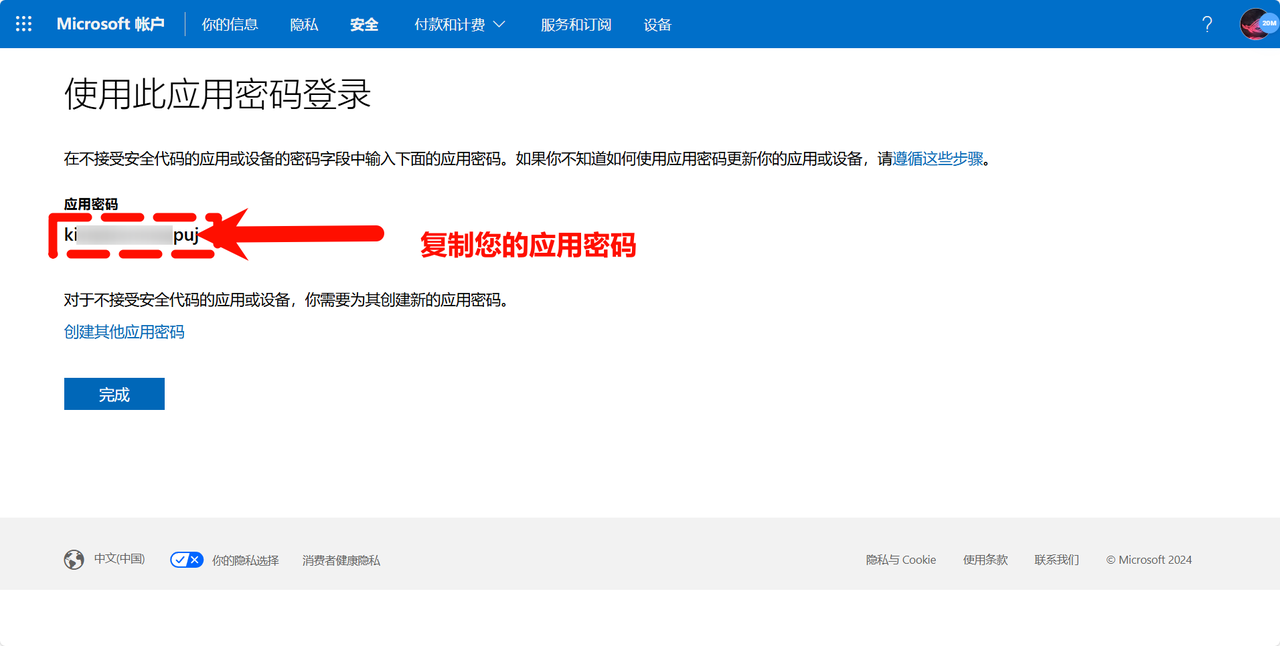
2.2. Save app password
Copy and save the App Password and click Done to complete the creation.
3. Copy the Application-Specific Password
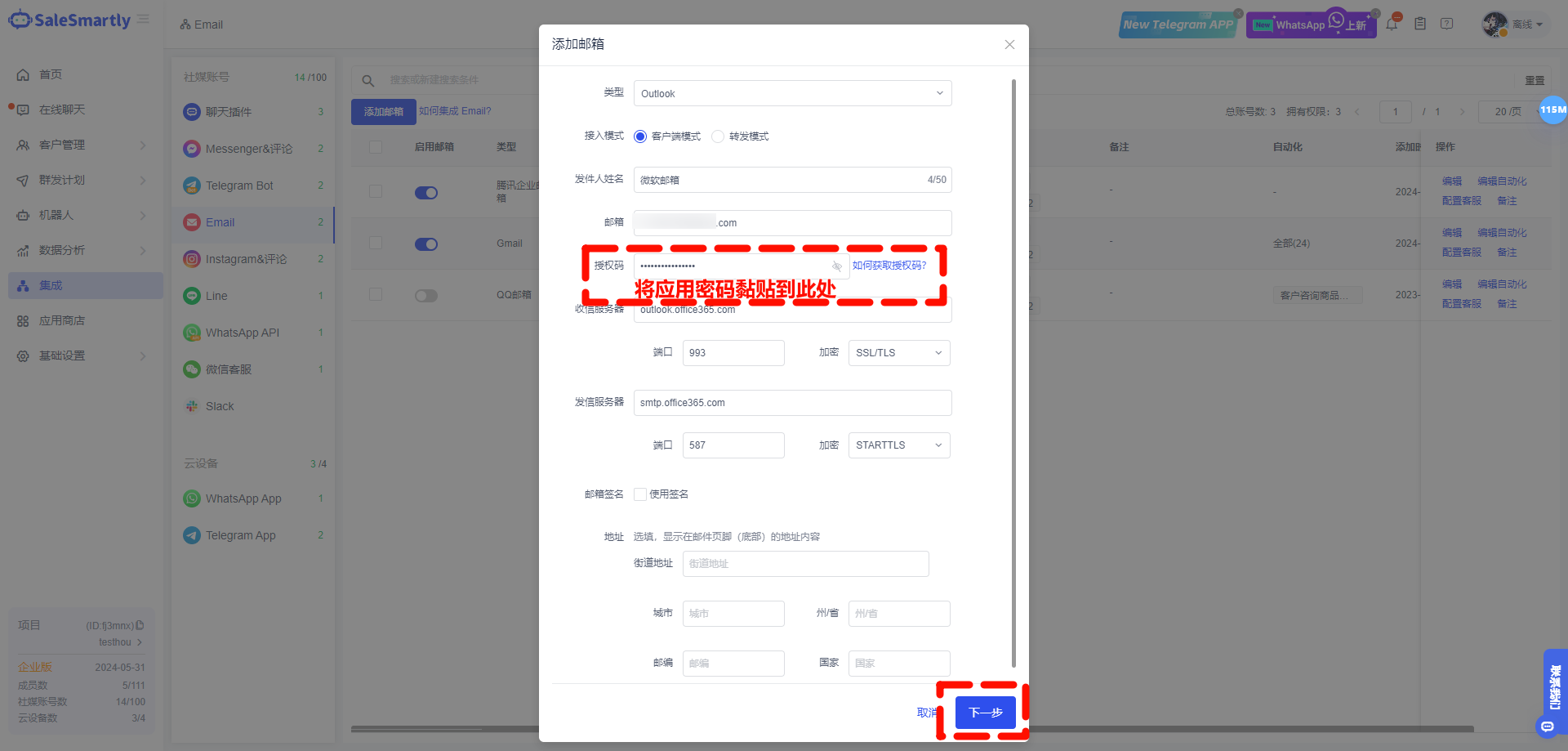
4. Fill in the Application-Specific Password
When using IMAP to integrate your mailbox, be sure to fill in the actual IMAP server address and port.
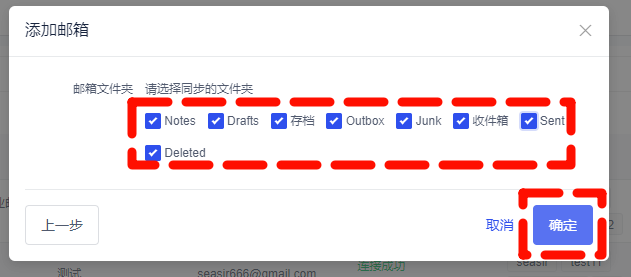
5. Check the Sync Folder
6. Authorization Successful