Chat Plugin Groups
1. SaleSmartly Chat Plugin Group Messaging Guide
SaleSmartly provides a chat plugin group messaging function. Please refer to the following tutorial to quickly learn how to use SaleSmartly chat plugin's group message.
Warning: It only supports mass messaging to customers who have actively contacted your chat plug-in. It is not possible to actively send mass messages to customers who have not communicated with you!
1.1. Connect Your Chat Plugin
Before sending group messages, you need to integrate your chat plugin into the SaleSmartly platform. For the integration tutorial, please see:
Self-built website: How to add chat plugin to self-built website?
Independent station: How to integrate the chat plug-in on the independent station?
1.2. Check the Contacts
Please make sure that the customer list has a chat plugin contact.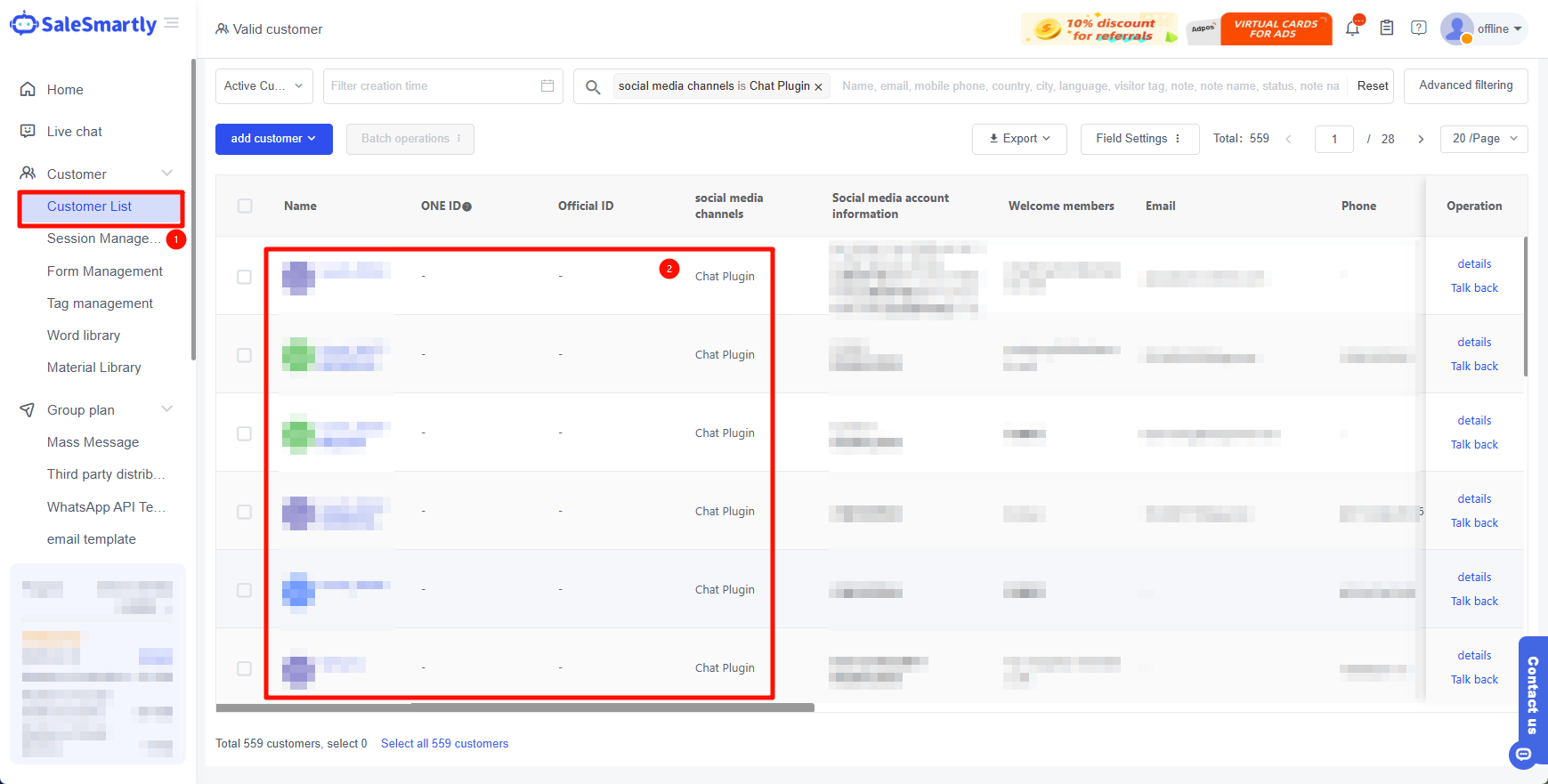
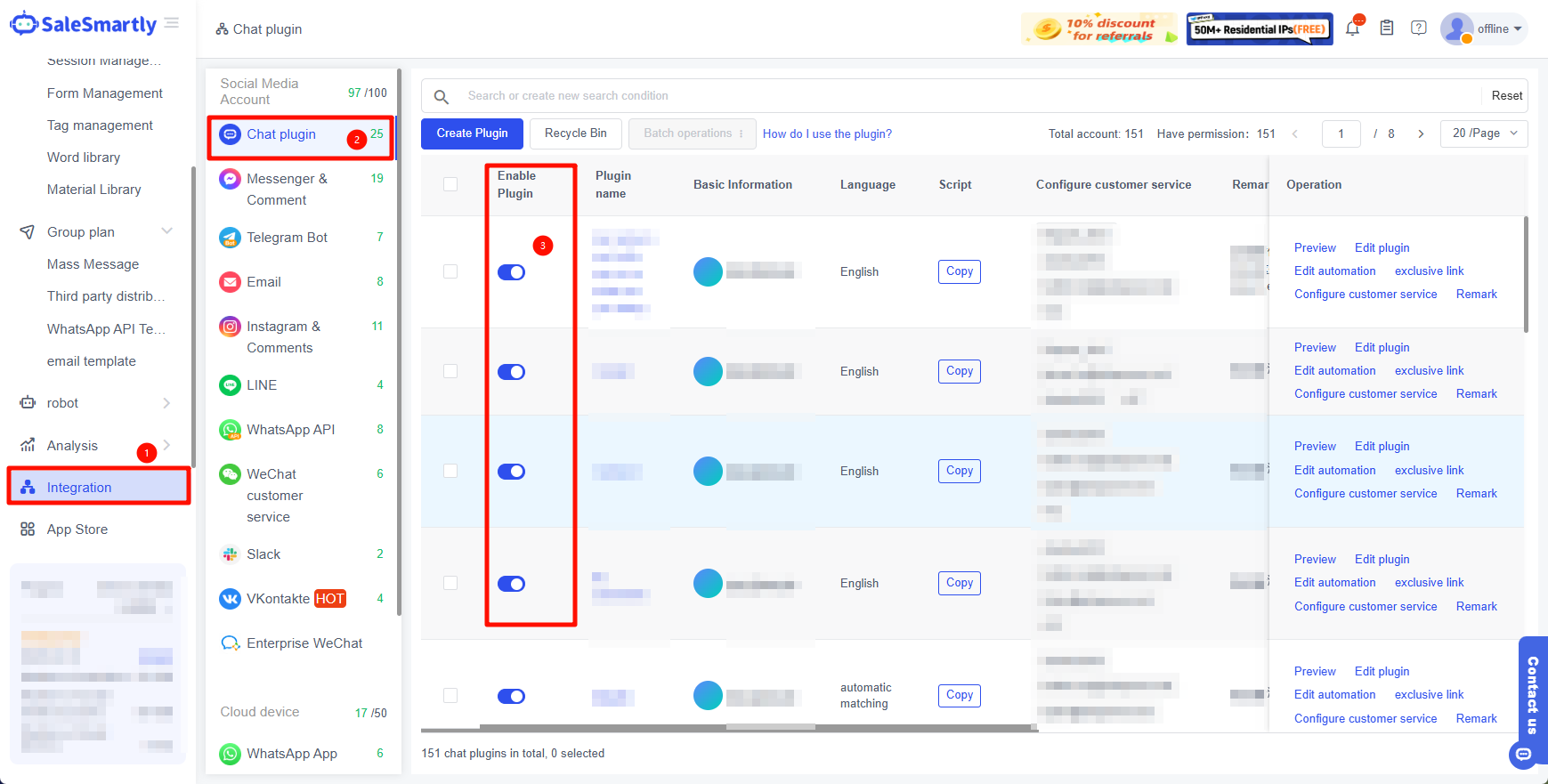
Notice: Please make sure that the plug-in switch is turned on and the social media account status is valid.
1.3. Create a Group Message
In Group Plan - Mass Message - Create Plan - select the Chat Plugin channel.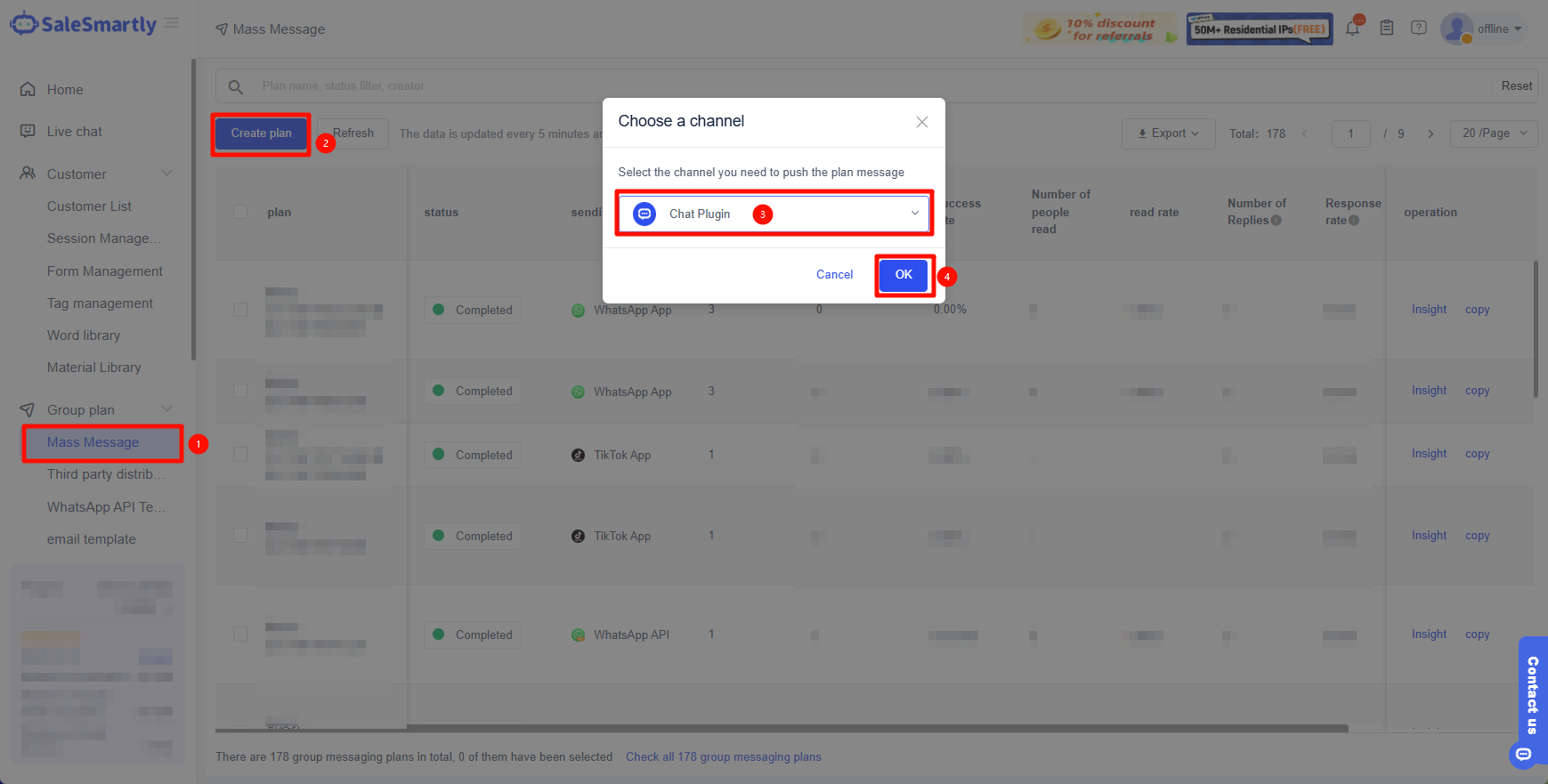
1.4. Bulk Message Settings
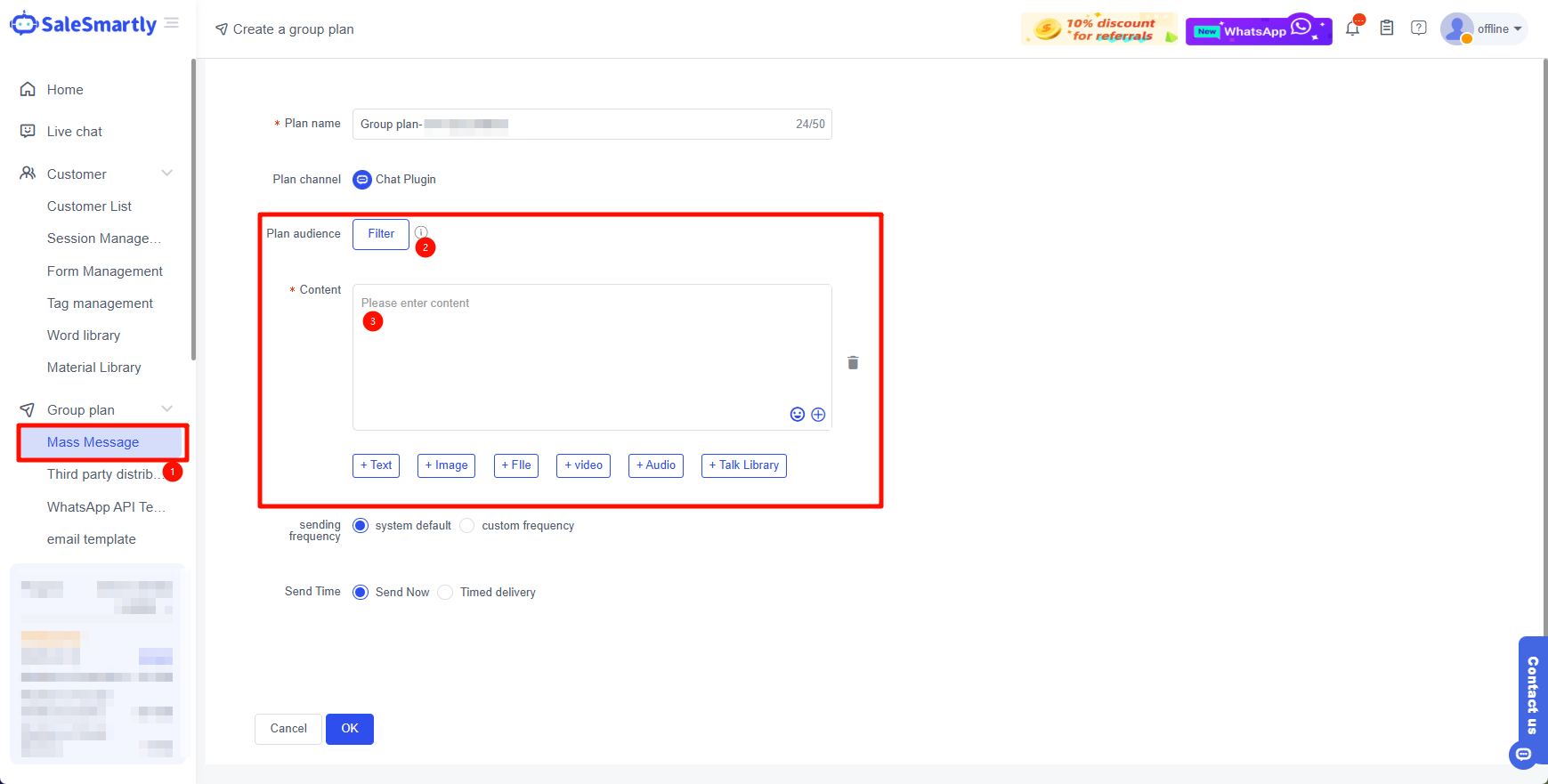
Plan Name: Enter the name of your current group messaging plan, which must not exceed 50 characters.
Send to: Select the customer you want to send to.
Send content: Fill in the content you need to send here, supporting pictures, attachments, videos, audio and video.