Group Messaging Guide
1. Group Messaging Solutions
1.1. WhatsApp API Group Sending
Can send group messages to strangers who have WhatsApp API accounts (can send group messages proactively)
| To ensure your group messaging goes smoothly, please note the following points:
1. Avoid using WhatsApp individual numbers for testing: Do not use WhatsApp individual numbers for testing to send messages to each other. If you need to test, please embed your own number into the list you are going to send. For example, you can add or import your own number into the customer list, and then test the API number group messaging. Otherwise, it will be easy for the official to detect whether the copywriting is in violation of the rules, which may cause your template to be restricted.
2. Link usage specifications: When sending template messages, it is forbidden to include links in the parameters, especially contact links (such as contacting a certain WS number). If you need to include a link, you can use a short link live link tool. The length of the link is irrelevant (Google search). If you insist on putting a contact link, it is recommended to put the contact ID (WS pure numeric mobile phone number) and try to send 250 messages at a time. Otherwise, such messages will easily be blocked by the official account. Basically, it will be blocked as soon as it is sent!
| 3. Group messaging compliance: Any group content messages must comply with the WhatsApp Business Platform-specific terms. Please read the official policy carefully! If you violate the WhatsApp Business Messaging Policy and the official has the right to terminate your account, the official may prohibit you and your organization from using any WhatsApp products and services in the future! |
|---|
Integration method and bulk sending fee calculation: click here
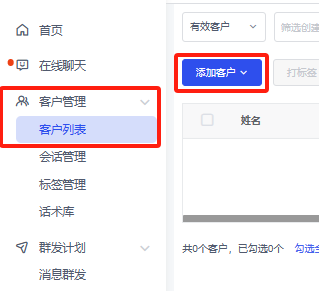
- In the Customer List - Add Customer, add the WhatsApp customer information to be sent. Click to view the import details.
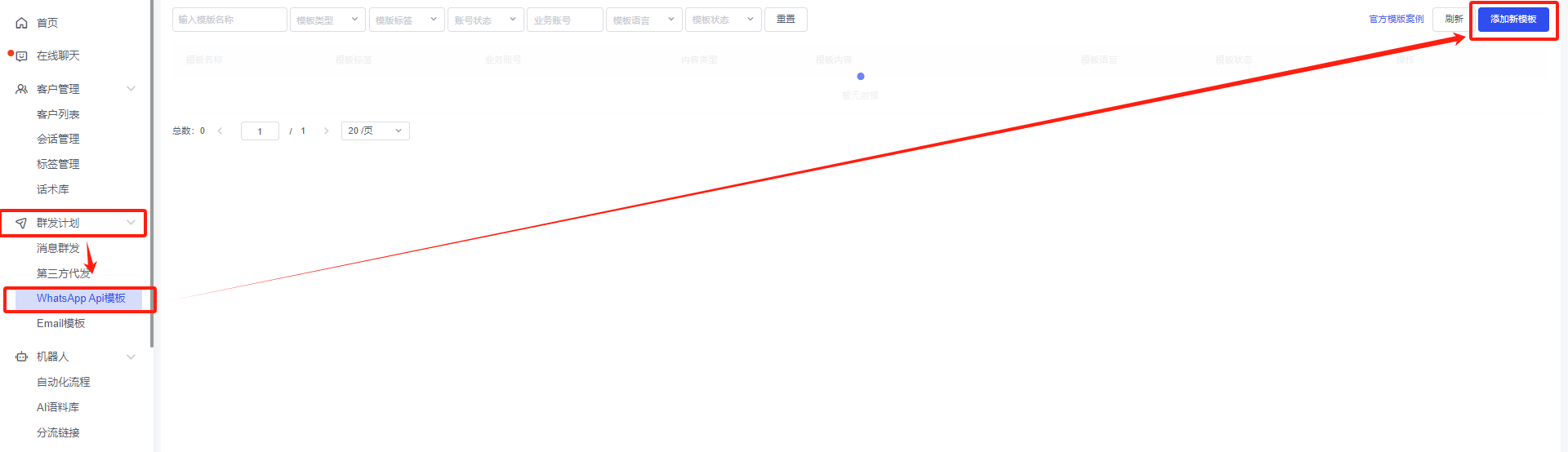
- After adding customers, go to Mass Message Plan - WhatsApi Template - and follow the process to apply for a template. (Before applying for a template, it is recommended that you use another WhatsApp number to chat with the API number you applied for the template for a few days, otherwise it is easy to get blocked if you apply for the template directly.) Click here to view the application template details.
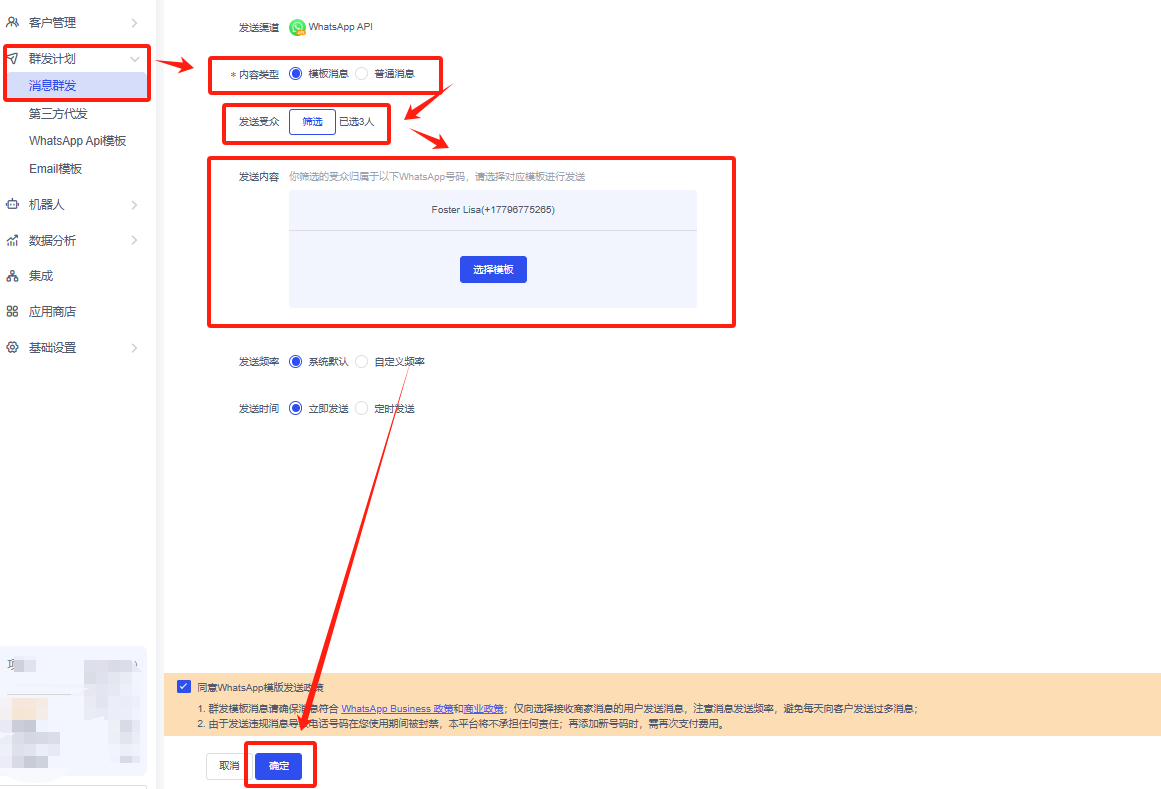
- After the template is approved, select Mass Sending Plan - Mass Message Sending - WhatsApp API.
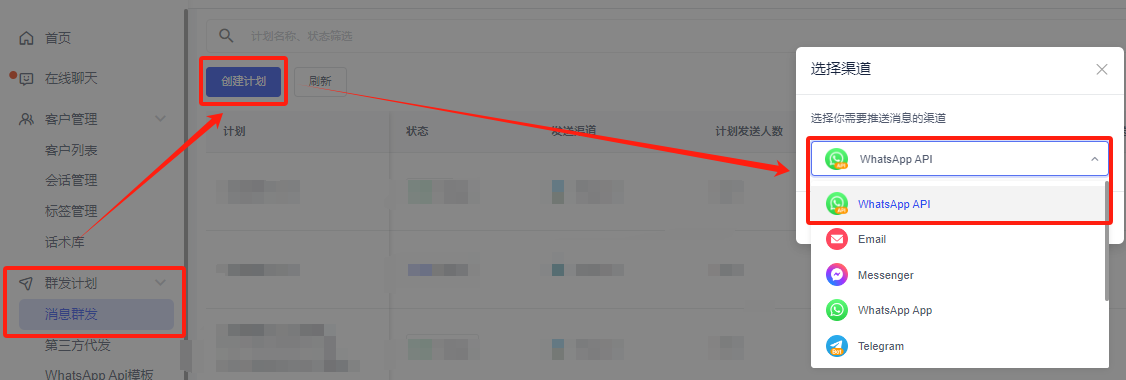
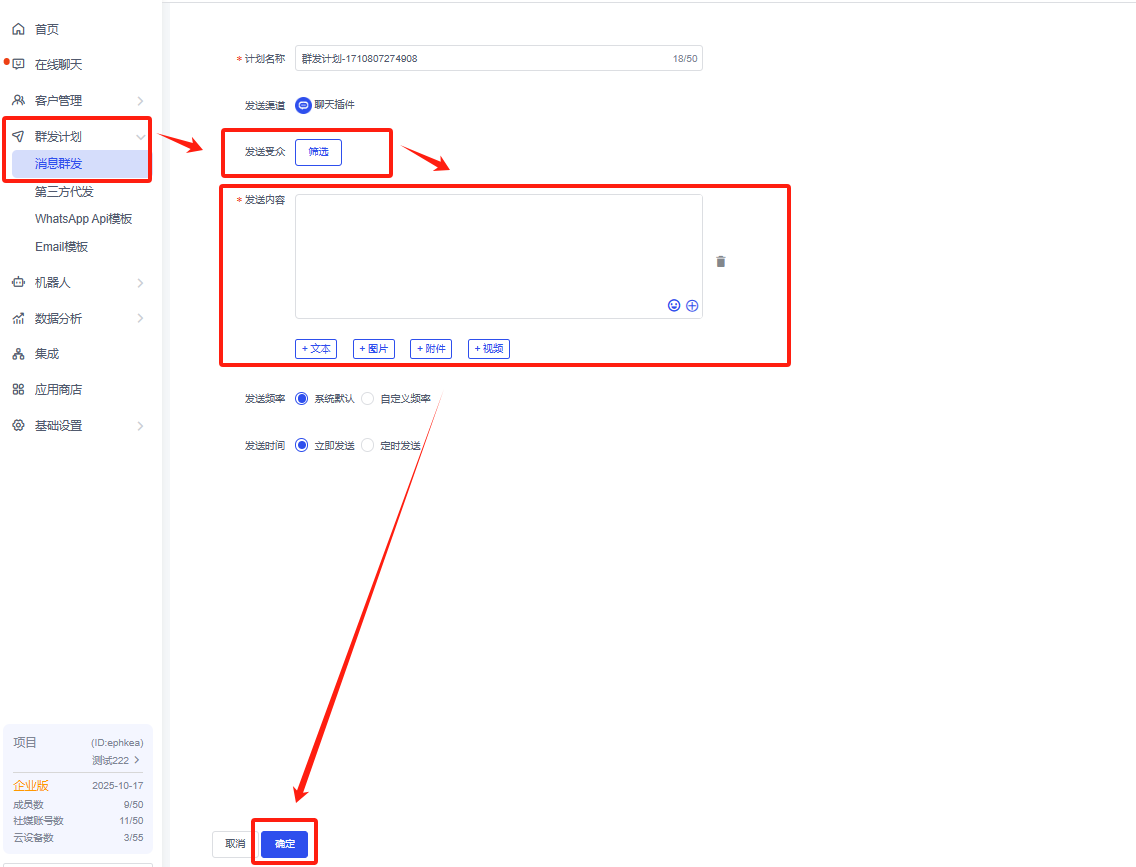
- Select customers through "Filter Audience". After selecting customers, you can select a template and send mass messages.
Content Type:
- Template information: used when actively sending mass messages to strangers. Official requirements require that active mass messages must use officially approved templates before they can be sent.
- General message: If the customer is still within the 24-hour session, you can use general message group to send messages to customers whose session has not expired. If the session has not expired, there is no need to send templates.
1.2. WhatsApp APP Group Messaging
Send group messages to contacts/groups in the WhatsApp APP account (it is not recommended to actively send group messages to customers you have not communicated with, and there is a risk of official account suspension, please use with caution!)
Integration method: click here
- Check whether the customer has been synchronously entered into the "Customer List".
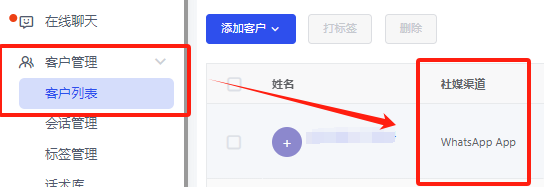
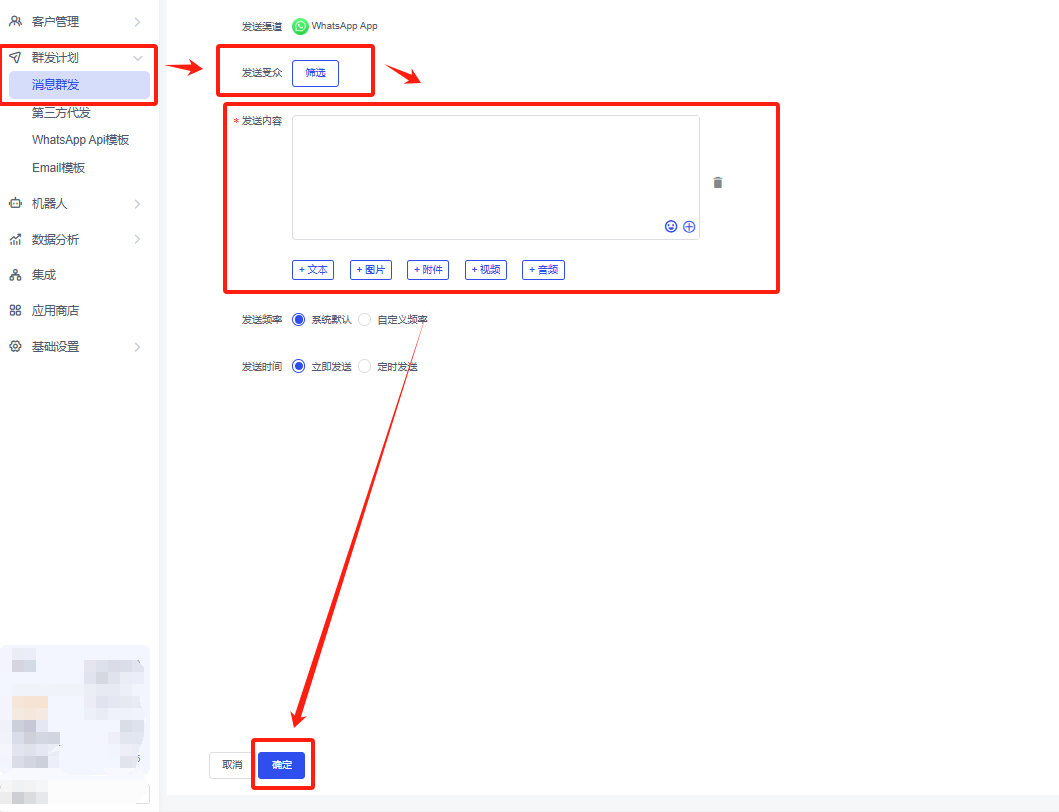
- In Mass Message, Create Plan - select the target customers to be sent and fill in the template - click OK below to send.
1.3. Messenger Group Messaging
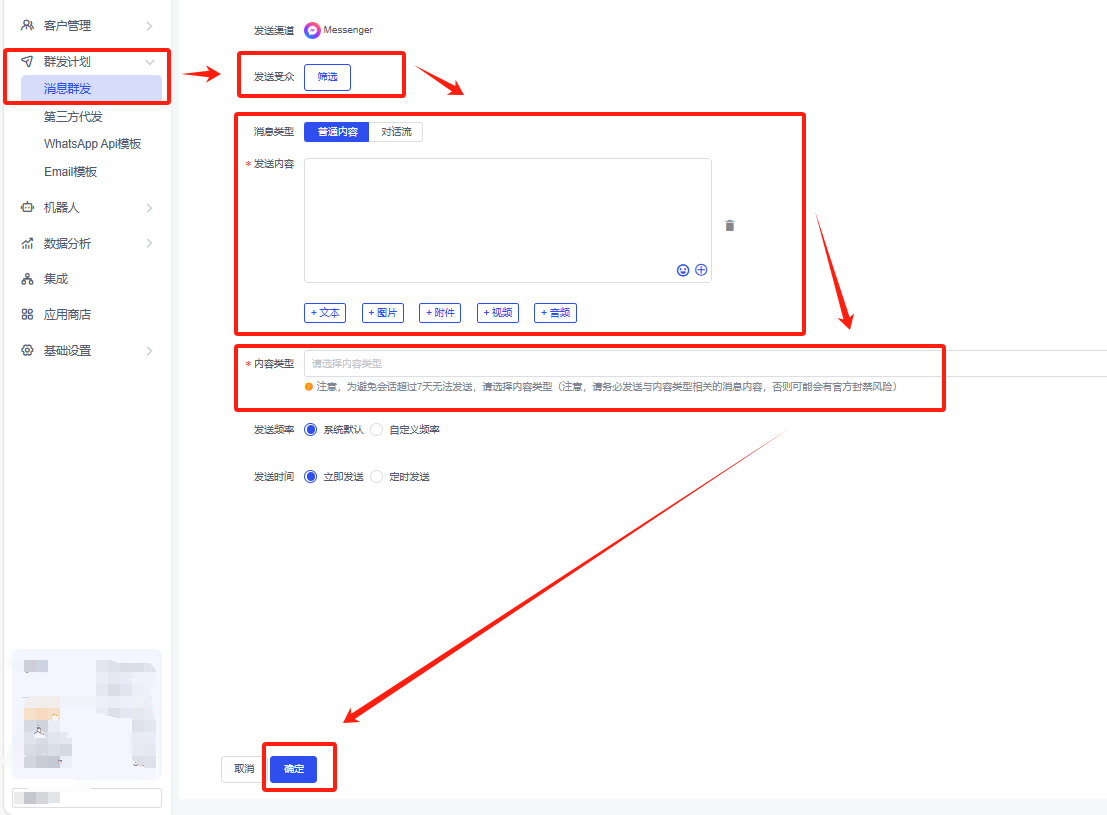
Send group messages to customers who have contacted your public page. (You cannot actively send group messages to customers you have not communicated with)
Integration method: click here
- Make sure that your Messenger contacts are synchronized. If not, or the number of synchronized contacts is inconsistent, click Synchronize Contacts in the second picture in this section to resynchronize the information.
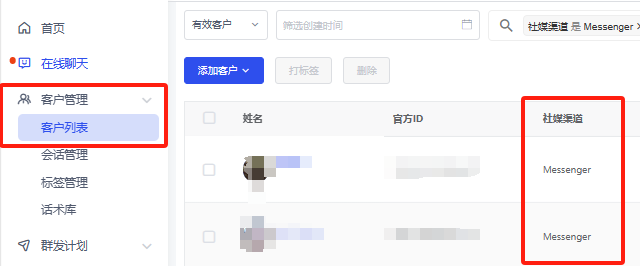

- In Bulk Message, Filter the audience to be sent, select Content Type, and click OK to send. It is recommended that the selected Content Type should match the text to be sent.
Dialogue flow: You can actively send "automation" to the other party for triggering.
Message Type: Click to view
1.4. TelegramBot Group Messaging
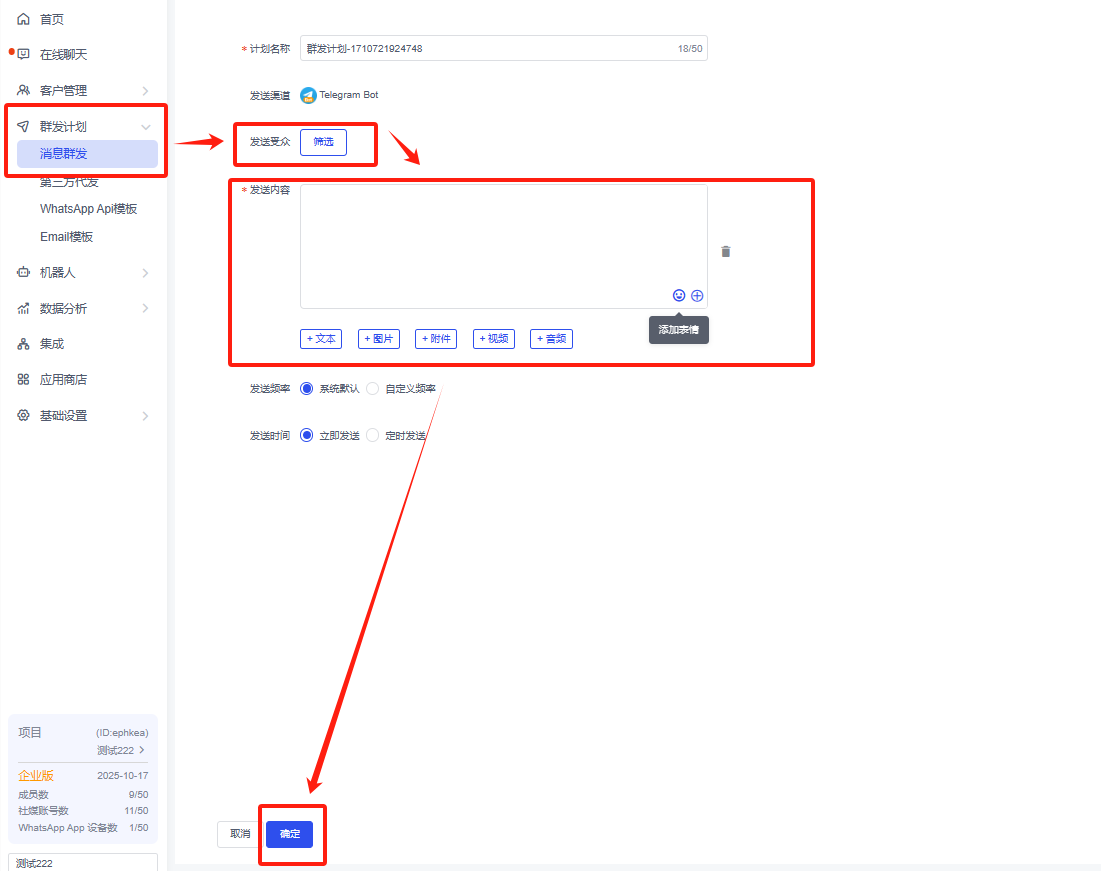
Send group messages to customers/groups that have contacted your TelegramBot. (You cannot send group messages to customers you have not communicated with.)
Integration method: click here
1.5. Instagram Group Messaging
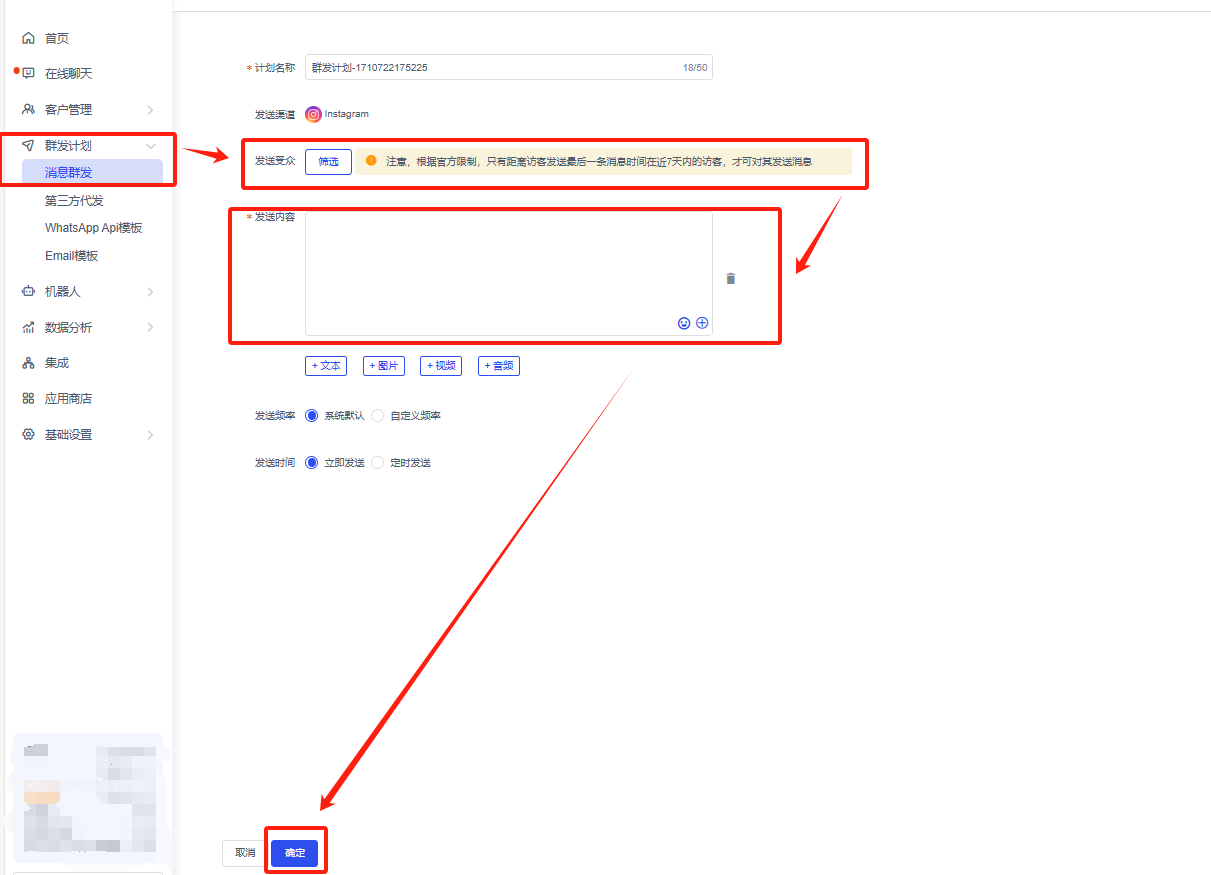
Send group messages to Instagram users who have contacted you (you cannot send group messages to customers you have not communicated with)
Integration method: click here
1.6. Email Group Messaging
Send bulk messages to customers in the customer list. You can send bulk messages actively. The sending volume and delivery volume depend on the mailbox provider corresponding to the mailbox channel you bind. For example, Google (you can send bulk messages actively)
Integration method: click here
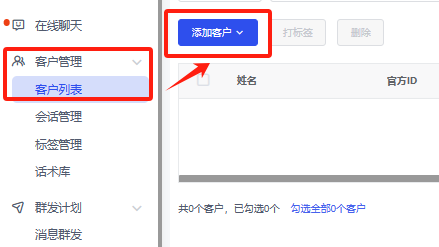
- Confirm the contact you want to send to in the customer list/Add customer to add the contact. Click to view the import method.
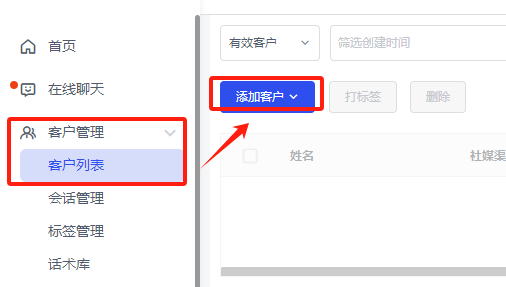
- To import customers in batches or individually, you need to use the email address that has been bound in Figure 2. Binding method: Click to view.
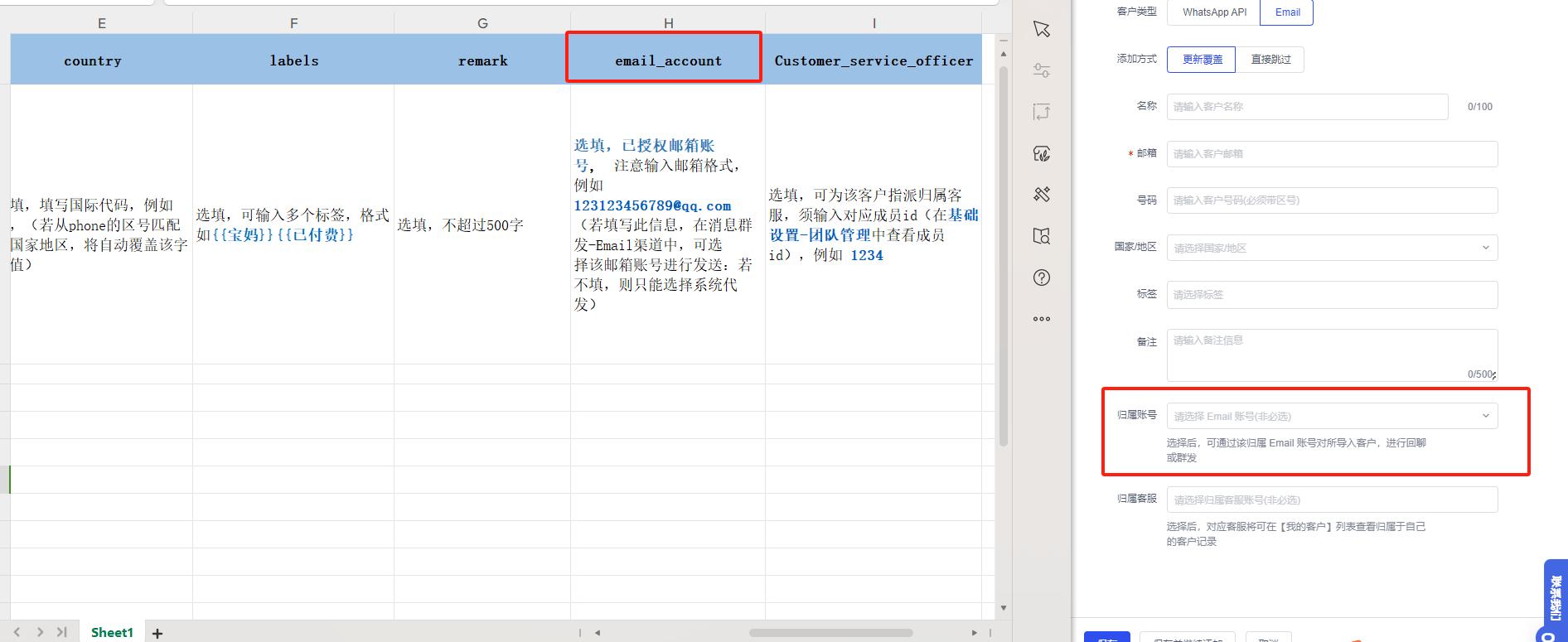
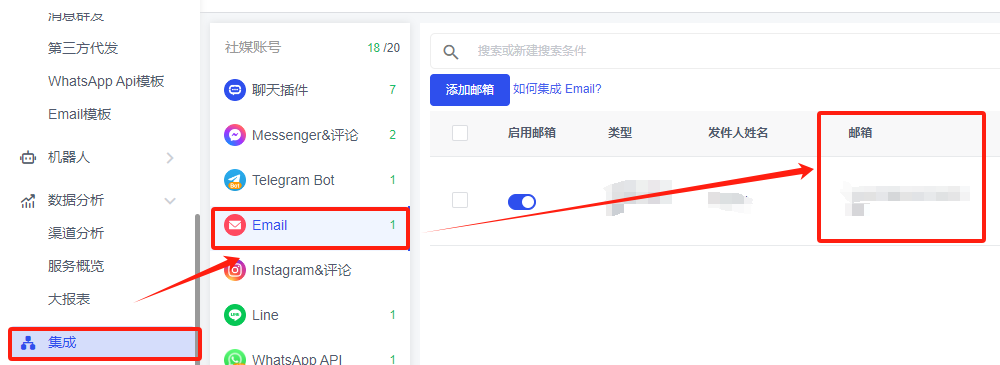
- Follow the steps to send group messages.
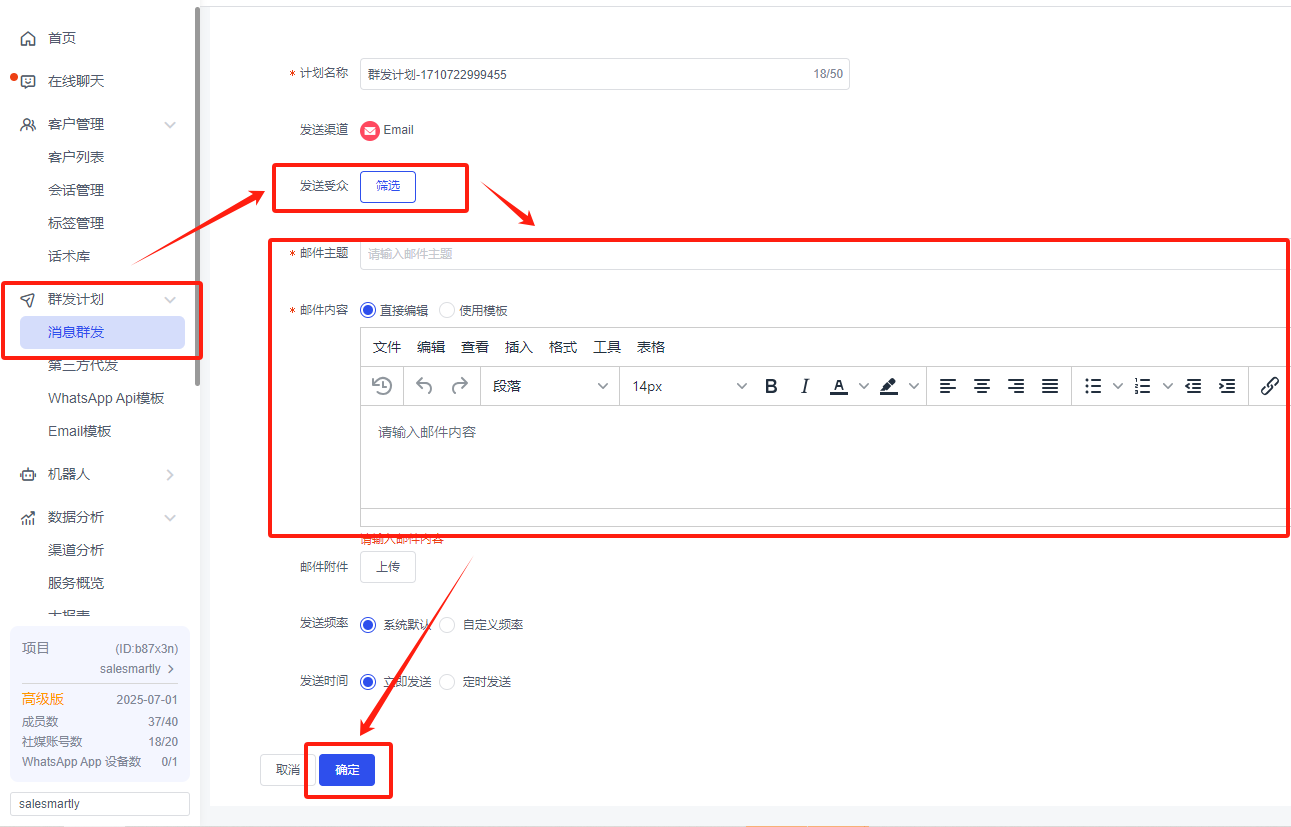
1.7. Line Group Messaging
Use LINE official account to send group messages. You can send group messages to customers you have received through LINE official account. The group message limit is official. For details, please see: Click to view (you cannot actively send group messages to customers you have not communicated with)
Integration method: click here
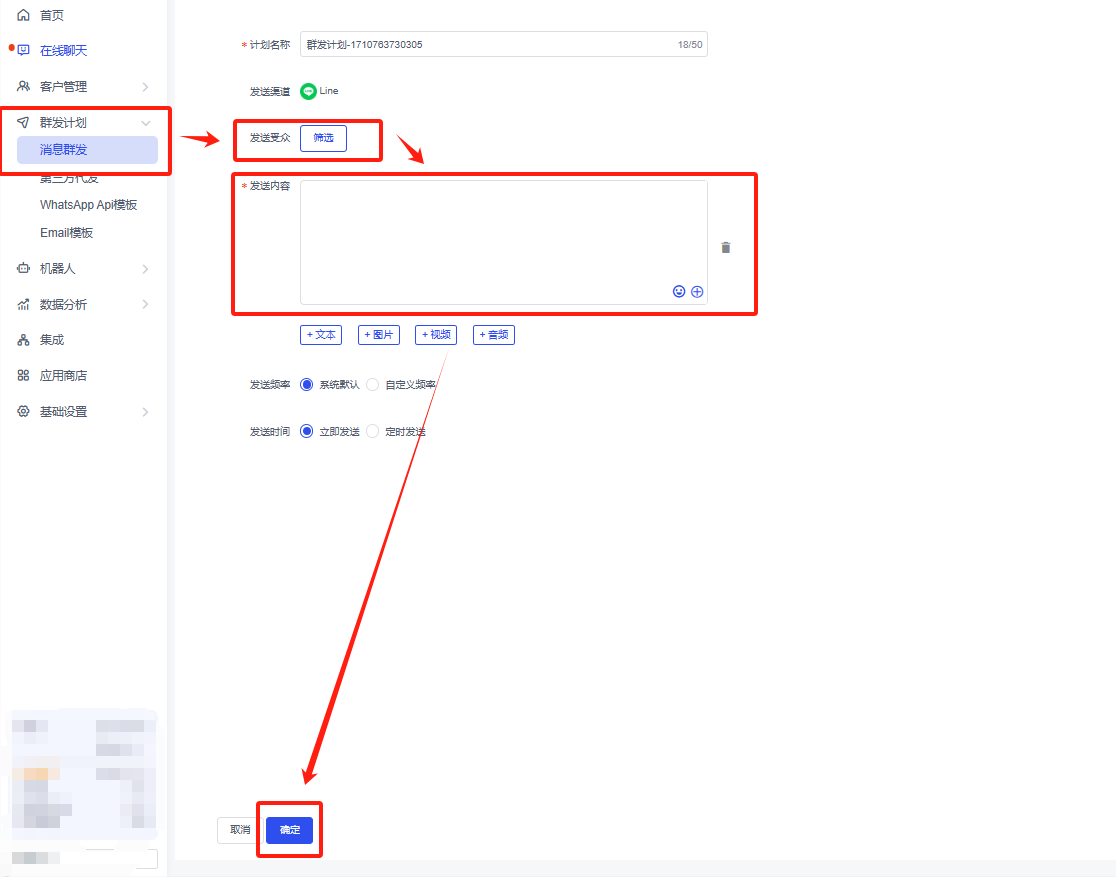
1.8. Chat Plugin Group Messaging
Use your own chat plug-in to send group messages to customers. You can send group messages to customers who have communicated with you through the plug-in (you cannot actively send group messages to customers who have not communicated with you)
Integration method:
- Self-built website: click here
- Third-party website building: click here
2. Third-party Email Distribution
Third-party mailing is to use the server mailbox channel to send bulk emails to customers. The advantage is that there is no limit on the number of emails sent by the mailbox provider, and large quantities of emails can be sent. (Active bulk mailing can be performed)
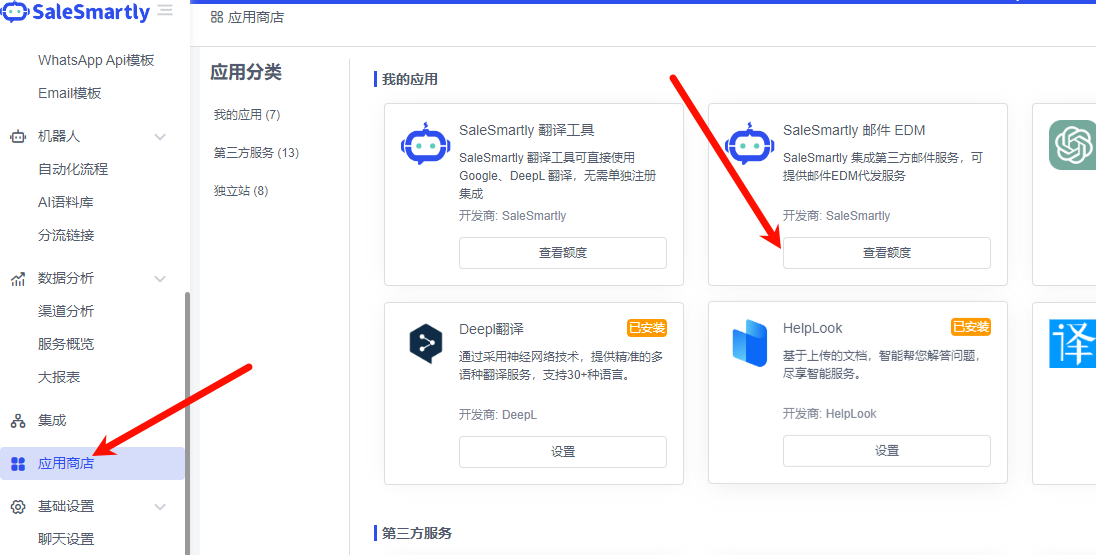
- Determine the amount that can be sent. If it is insufficient, click Add quota in "EDM email sending amount" to add more, or use a third party in the application center to send bulk emails: Click to view.
- In Customer List - Add Customer, add the email customer information to be sent and import it.
For details, please see: Click to view. No authorization email address is required when importing.
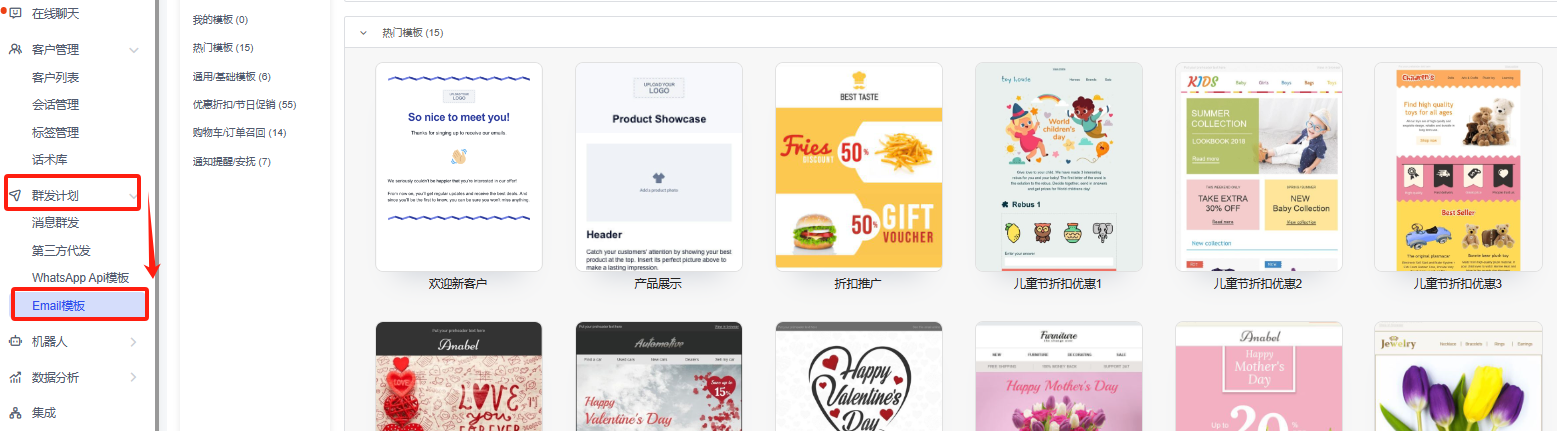
- You can set the email template you need for details: Click to view.
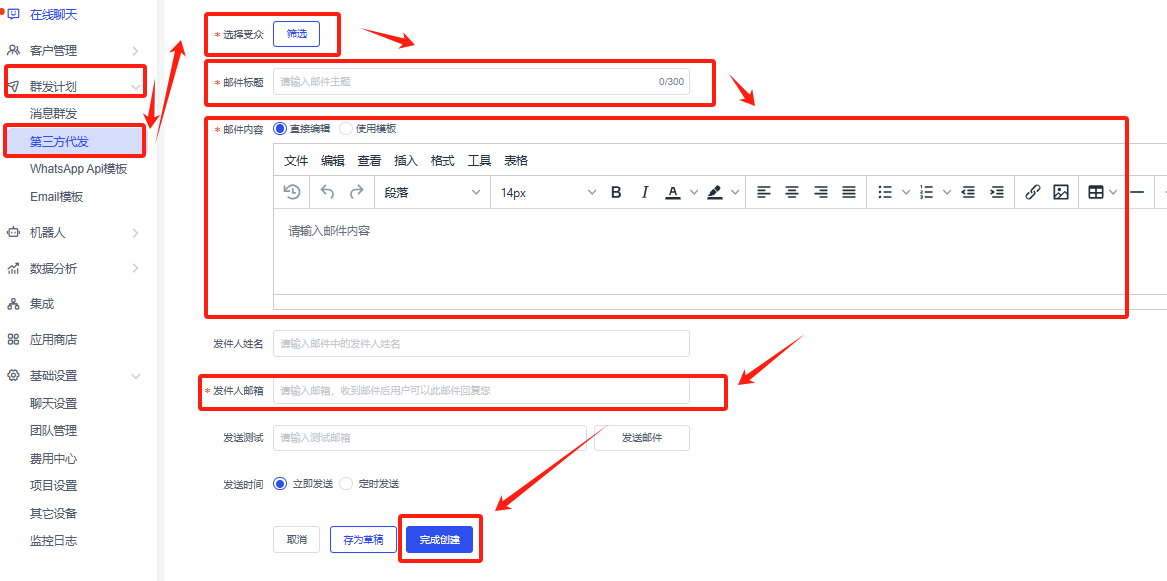
- Enter Third-party mailing to send group messages. In the email content, you can choose to edit the message and send it directly or use the template created in the previous step to send it.