Report Optimization
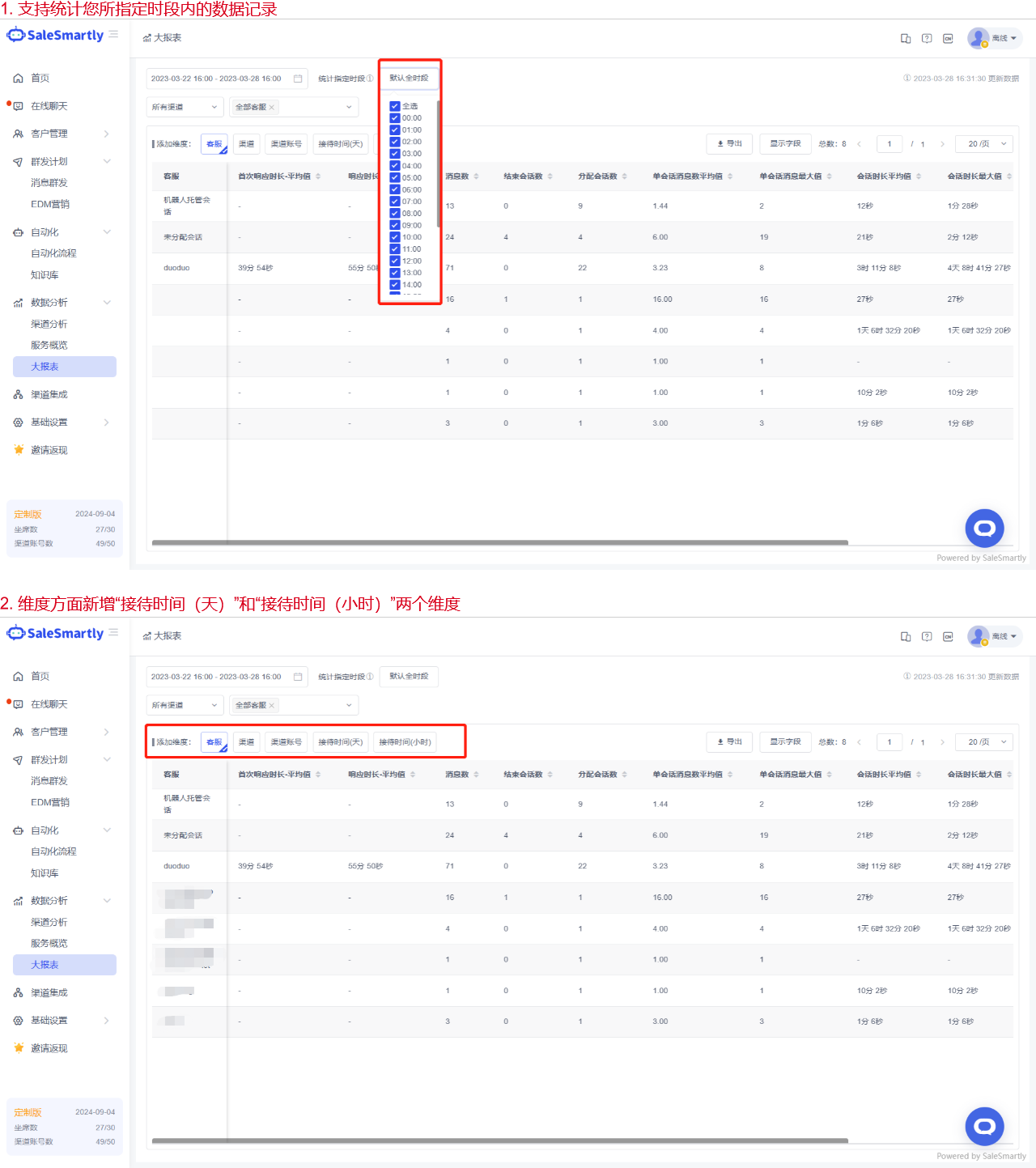
1. Large Report Optimization
In Data Analysis - Large Report, quality inspection analysis can be performed according to the specified time period; in terms of statistical dimensions, you can select "Customer Service", "Channel", "Channel Account", "Reception Time (Day)" and "Reception Time (Hour)".
Usage scenarios: By counting the specified time period, you can accurately count, for example, customer service reception and channel conversation data during the working hours of 09:00-18:00 every day in the past week, and eliminate the impact of invalid data generated during non-working hours; by adding report dimensions, you can flexibly implement multi-dimensional combined analysis.
2. Role Permission Optimization
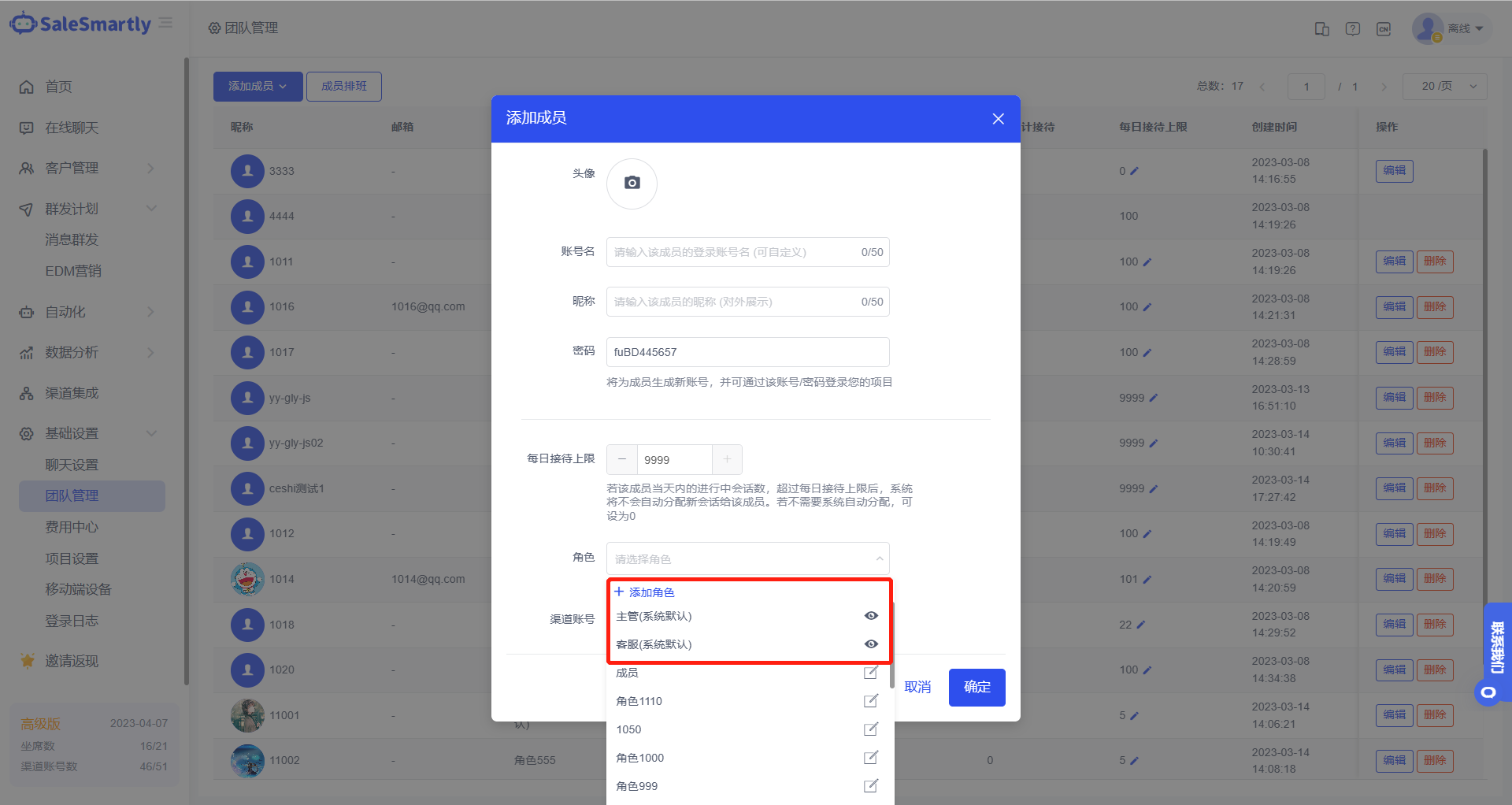
Team Management - Add/Edit Members - Edit Roles, adds the role concept, you can flexibly create roles and set corresponding permissions for them, and associate roles with each team member to share the corresponding permission set.
Usage scenario: With this function, you can modify the function permission sets of members in batches simply by modifying the role permissions, thereby improving team management efficiency.
3. Automation Support to Differentiate Devices
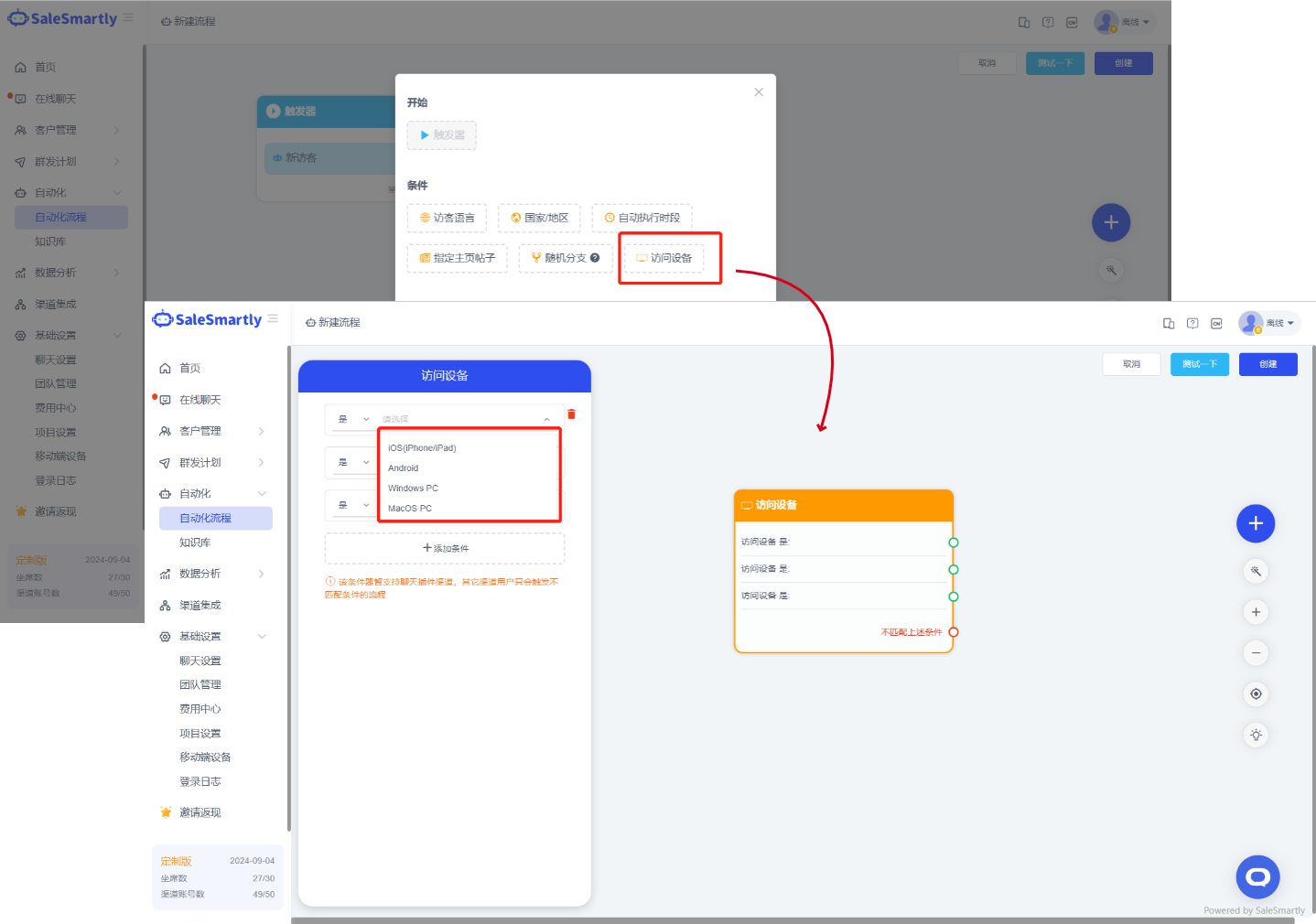
In Automation - Automation Process - Conditions, a new "Access Device" condition has been added. The access device can be selected from IOS (iPhone / IPad), Android\Windows PC, and MacOS PC. This conditioner supports up to 4 conditions.
Usage scenario: With this function, you can set up different automated scripts/processes for visitors based on device sources.
Note: This conditioner currently supports chat plugin channels.
4. Automatic Support for Thumbs Up/Down
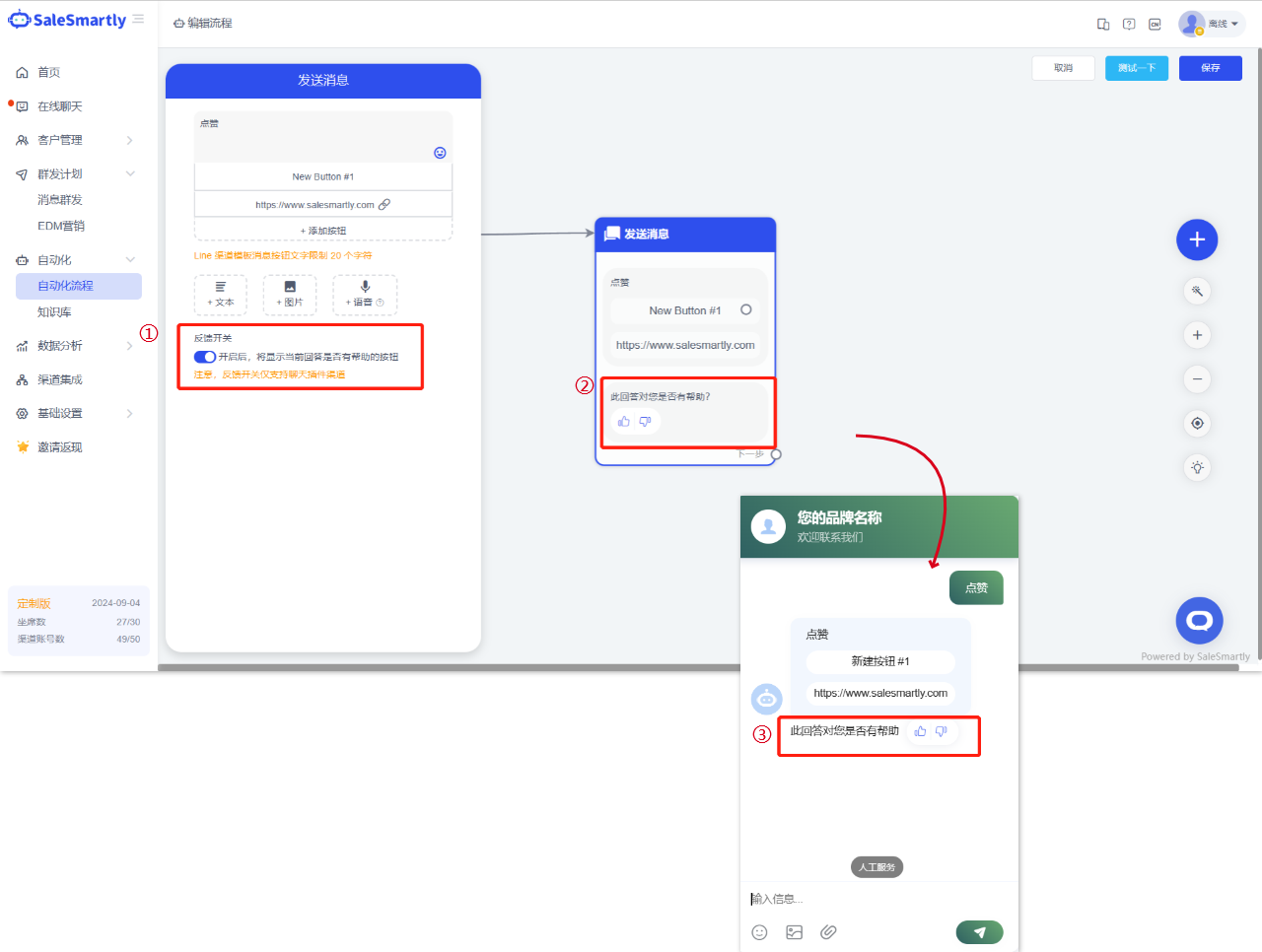
In the Edit/Create Automation Process - Send Message section, a new "Feedback Switch" has been added. Once turned on, a "Button to indicate whether the current answer is helpful" will be displayed under the corresponding automation process.
Usage scenario: With this feature, visitors can evaluate the automated processes they trigger, helping you understand the effectiveness of each automated script.
5. Automated Channel Optimization
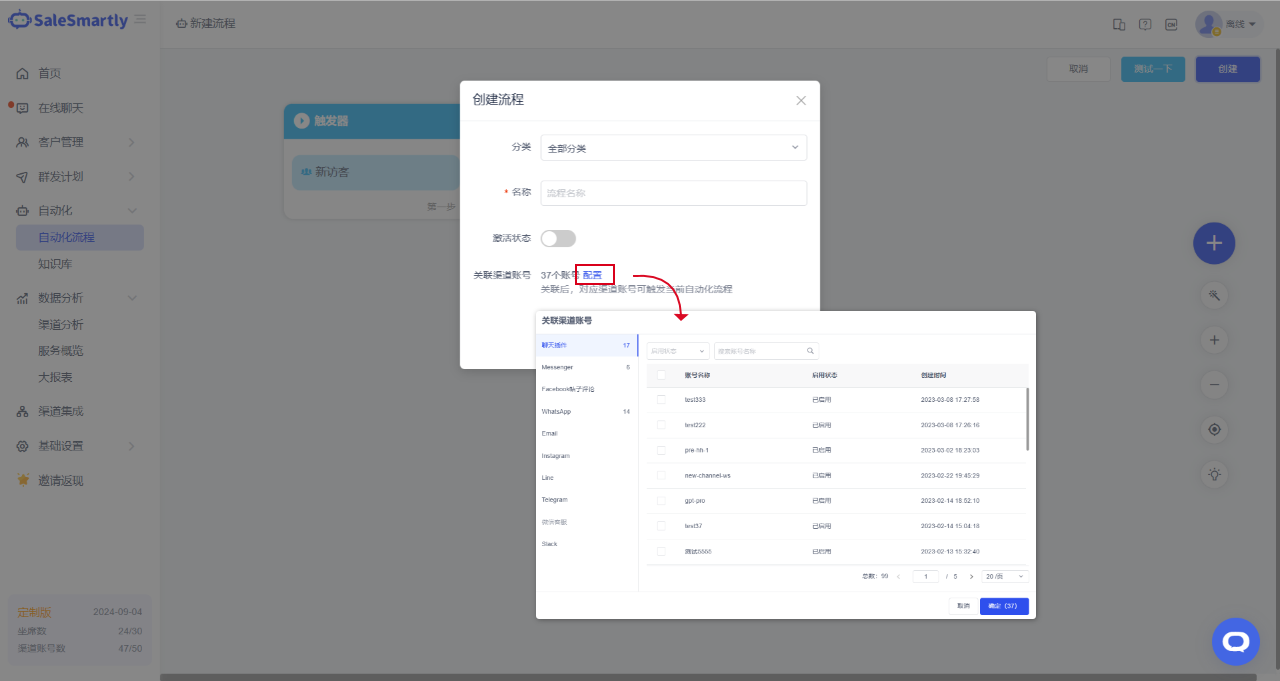
When creating/editing an automation process, when you click the Create/Save button, you can click the "Configure" button at the "Manage Channel Accounts" section to associate the corresponding channel account for this automation.
Usage scenario: With this function, you can associate an account with the process when creating an automated process; after association, the channel account can trigger the current automated process.
6. Email Authorization Supports Forwarding Mode
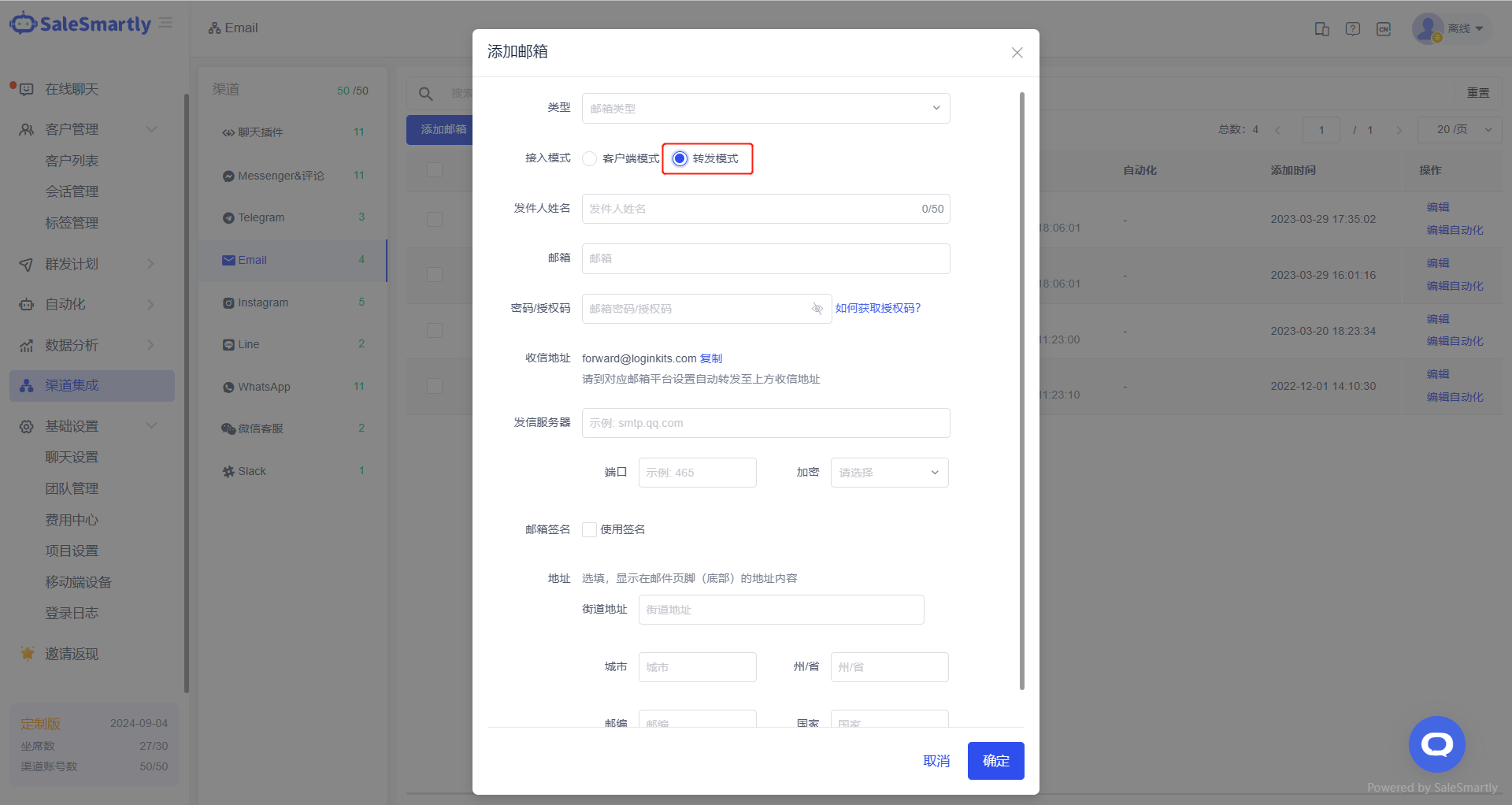
In Channel Integration - Add Email - Access Mode, add a new forwarding mode.
Usage scenarios: For example, after Amazon store group customers and independent station group customers register domain name mailboxes in batches on the Mailgun platform, they can forward the relevant verification code emails to SaleSmartly and support replies.
7. Customer Service Timeout Without Reply Optimization
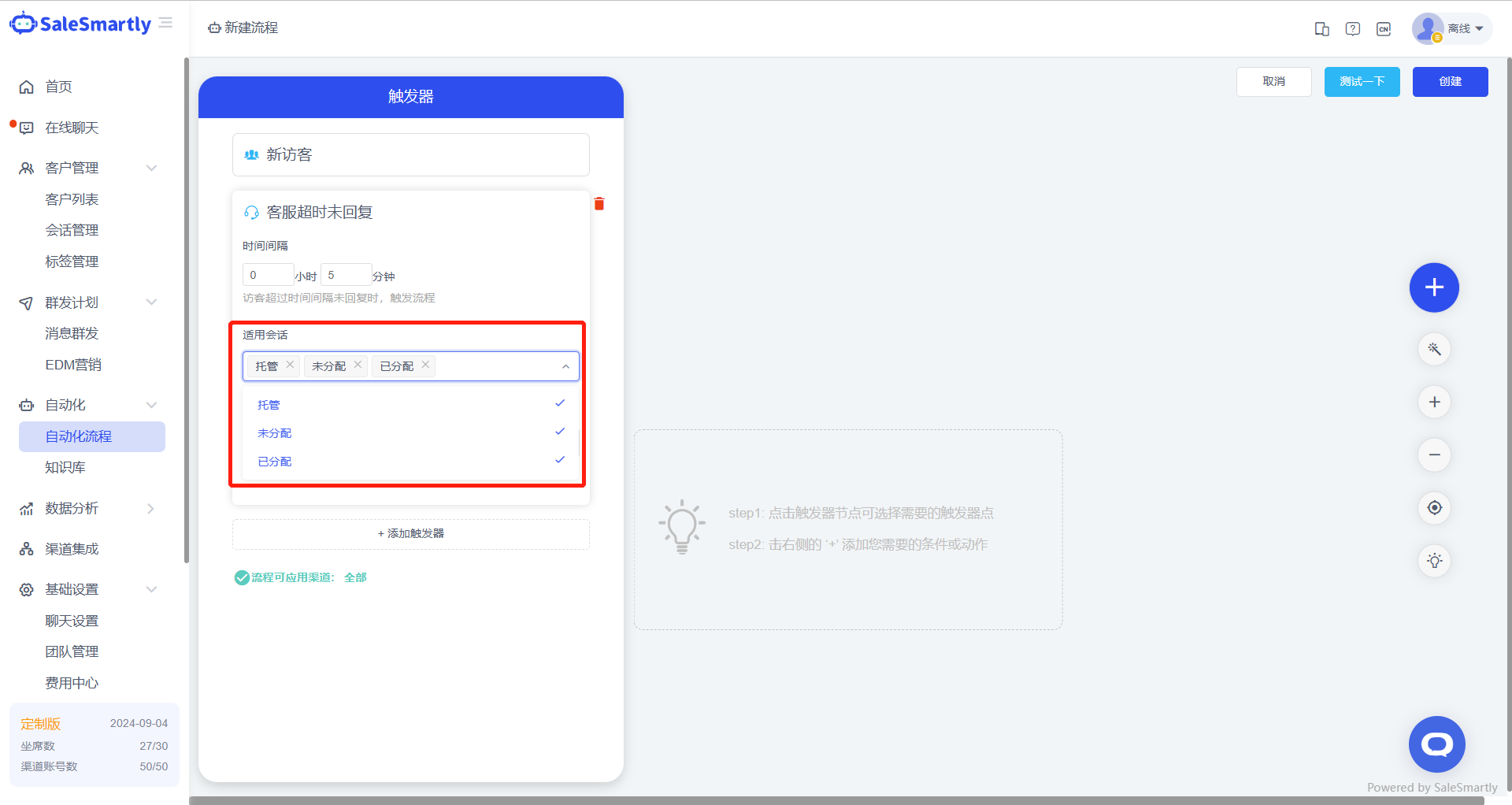
In Create/Edit Automation Process - Trigger - Timeout without Reply, you can select the session type that this trigger is adapted to.
Usage scenario: You can use the "Customer service timeout and no response" trigger in different conversation types according to your needs to trigger the automation process more accurately.
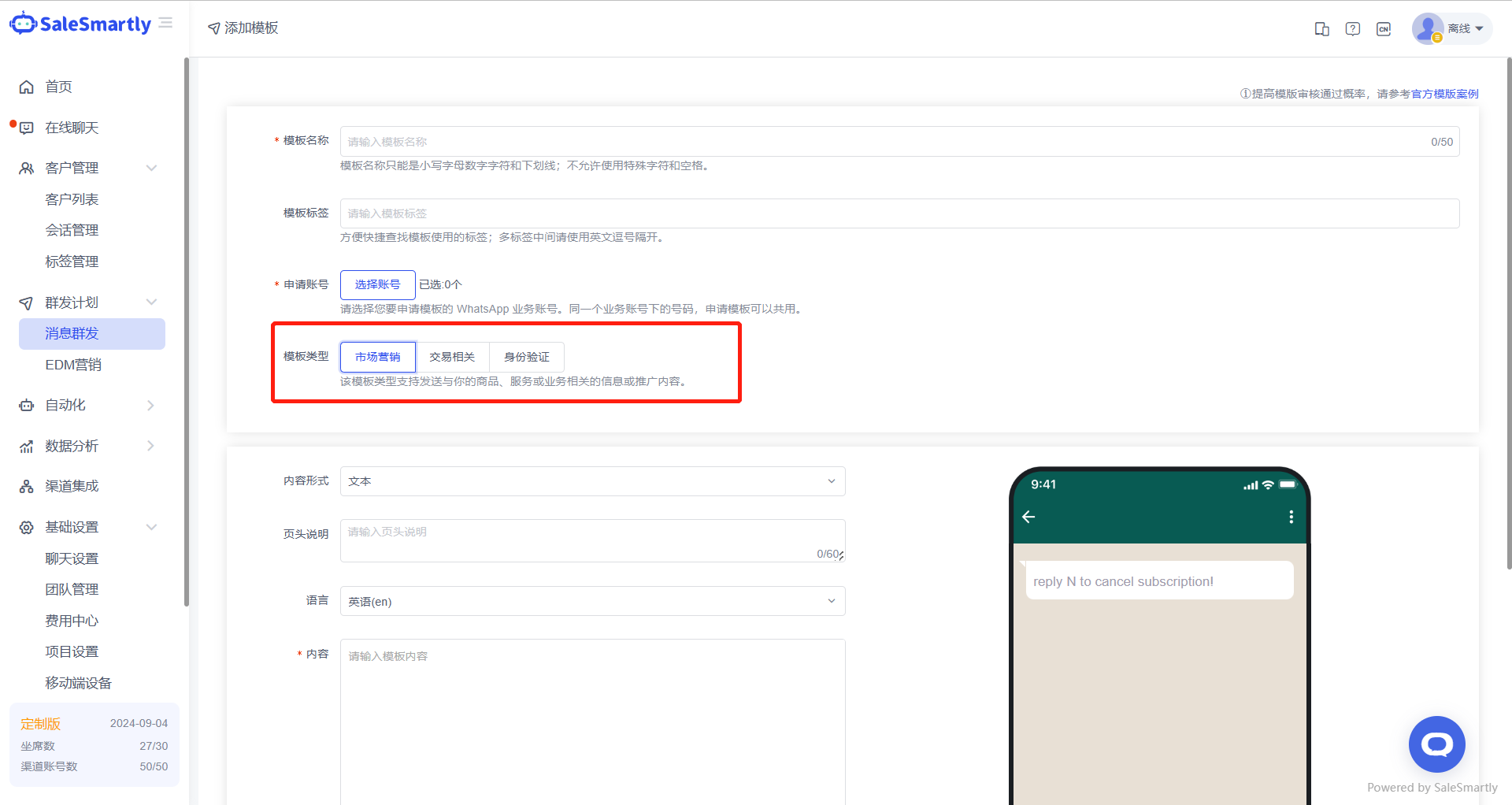
8. WS Template Message Type Adjustment
In Mass Message - Add WS Message Template, a new template type has been added. You can select the "Marketing", "Transaction Related", or "Authentication" type for the created template. In the WS message template list, you can also try to filter by template type.
Usage scenario: Different message templates support sending different types of message content. With this function, you can manage your message templates more efficiently.
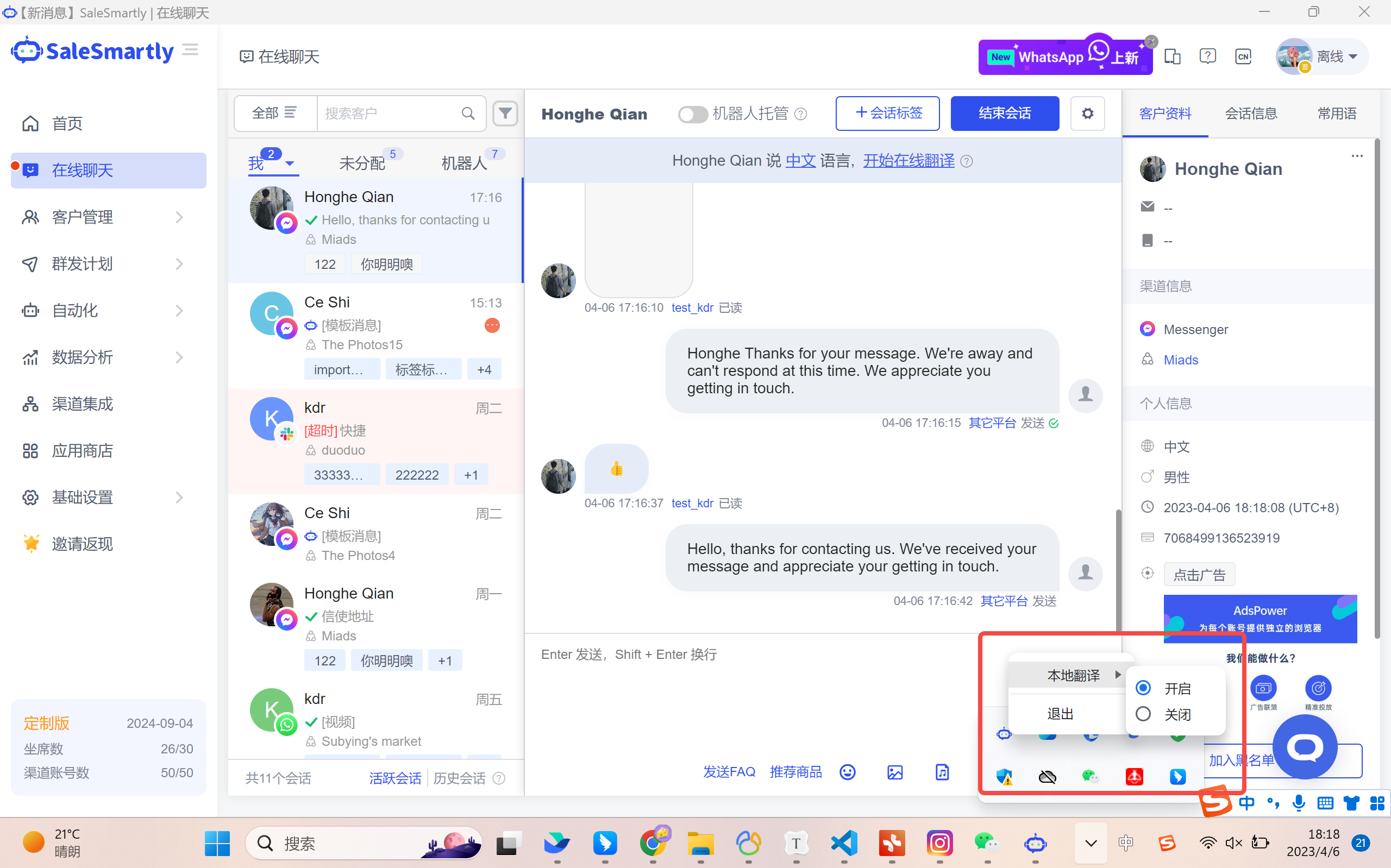
9. Free Translation for Desktop
On the SaleSmartly desktop app, local translation is now supported.
Usage scenario: After the local translation function is enabled on the desktop app, the number of translated characters will no longer be deducted.
Note: This feature is only supported on desktop applications and needs to be enabled in an extranet environment.